Aspecten
 Download (58 MB)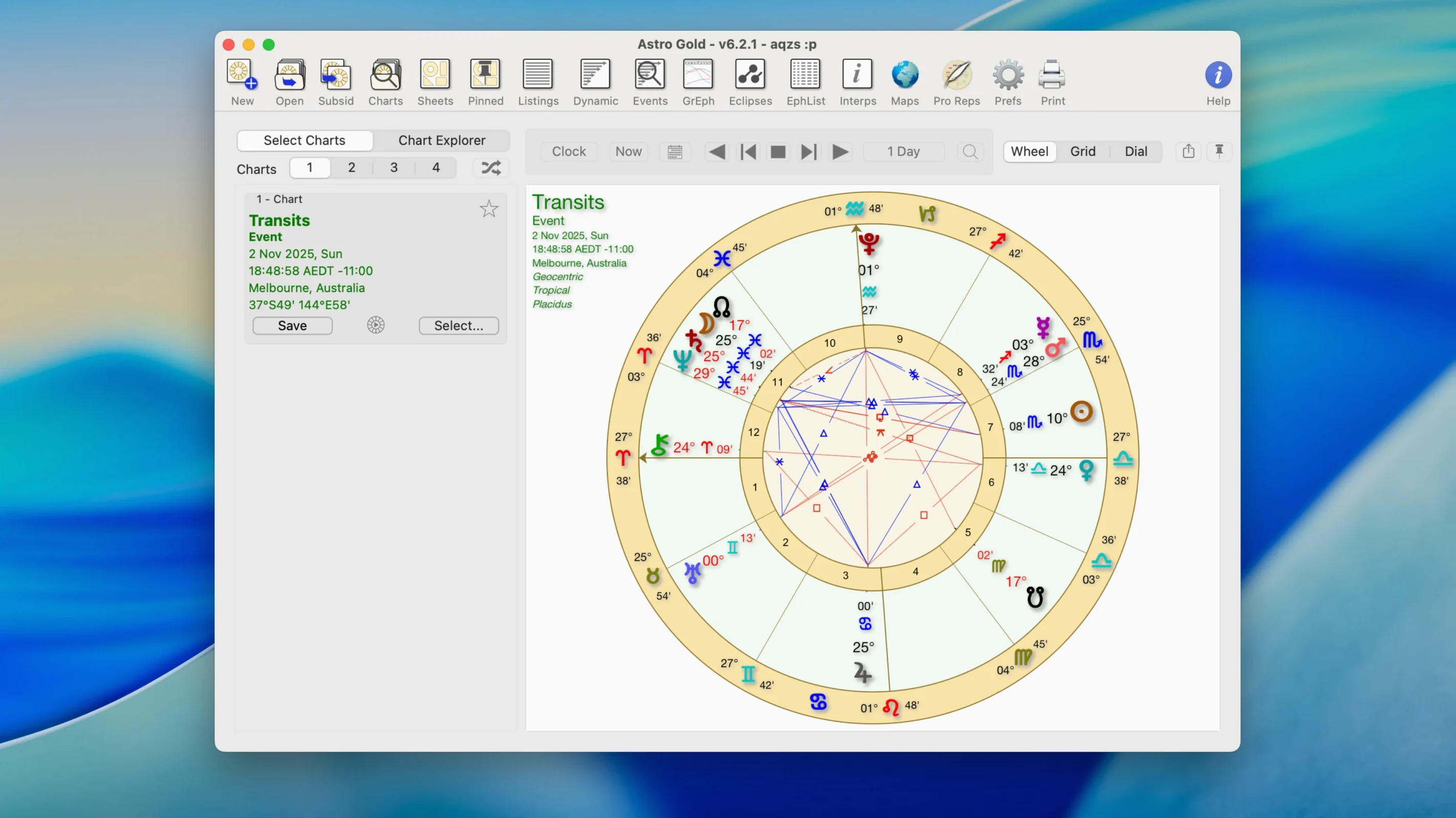
Astro Gold is astrology software built specifically for the Mac, covering chart creation, predictive techniques and relocation mapping in a single native application.
| Detail | Value |
|---|---|
| Current version | 6.2.1 |
| Architecture | Intel and Apple Silicon |
| Minimum macOS | 10.13 |
When you first open the app, the natural starting point is a natal chart. Enter a birth date, time and place and the wheel appears immediately, drawn with modern or traditional house systems depending on your preference. From there, the aspect grid and planet tables give you a quick read on the chart without diving into menus. The fixed star catalogue sits close at hand, so you can check parans and conjunctions against a sizeable list of named stars without loading a separate reference. Once you are comfortable with the natal layout, try pulling up a solar return or a secondary progression for the same chart. The interface keeps the base chart visible while overlaying the progressed or returned positions, which makes it easier to spot the shifts that matter. If you relocate often or work with clients who have moved, the relocation chart module recasts the natal positions for a new location in a couple of clicks. The composite and Davison relationship charts follow a similar pattern — define two charts, pick the method, and the result appears in the same familiar wheel view. Orb and aspect filters are adjustable throughout, so you can tighten the display when you want to focus on major configurations or loosen it to catch wider contacts. The medieval and modern technique sets sit side by side rather than in separate modes, which means you can switch between symbolic directions, solar arc directions, Saturn returns or lunar returns without restarting. That range gives a newcomer plenty to explore before reaching for anything more specialised.
Daily feel and resource use
Astro Gold launches in about two seconds on Apple Silicon and roughly twice that on older Intel machines. Once open, it settles around 140–180 MB of RAM for a single natal chart. Casting a tri-wheel with transits and progressions nudges it toward 230 MB — still modest by modern Mac standards. I have not seen it spike the CPU when idle. The real draw happens only during chart calculation, and even then it is a brief blip, not a sustained load. The app does not phone home or run background processes after you close the main window, so it behaves like a traditional single-purpose tool rather than a service that clings to system resources.
Stability is consistent with a mature point release. Across several days of heavy use — casting dozens of returns, flipping between tropical and sidereal modes, adjusting orb settings mid-session — I have not triggered a crash. The one rough edge I notice is a slight redraw lag when you rapidly resize the chart window while a tr-wheel is on screen. It catches up within a second, but it is there. If you keep the window at a fixed size, which most people do, you will probably never see it.
Setting up a solar return comparison in a morning session
Imagine a Tuesday morning. You want to examine a client’s upcoming solar return alongside the natal chart. Here is how that session flows in Astro Gold.
- Launch the app. The last-used chart loads automatically, but you hit New Natal Chart and type the birth data — 14 March 1978, 09:42, Amsterdam.
- The wheel draws in the default round style. You switch to the square chart style for a clearer view of the angular houses.
- You open the fixed star catalogue and tick Show parans. Regulus sits just above the ascendant — worth noting in your write-up, so you jot it down.
- You select Solar Return from the predictive menu. The app asks for the return year; you pick the current one and the secondary wheel appears behind the natal wheel.
- You tighten the orbs to 80% so the aspect grid filters out wider contacts. The grid now shows only the tighter conjunctions and squares across the two charts.
- You flip to the relocation module, enter the client’s new city, and glance at the shifted house cusps. The ascendant moves noticeably, so you save the relocated chart as a separate file.
- Before wrapping up, you check the ephemeris for the month ahead and mark two dates where Mercury stations. The whole session takes under fifteen minutes.
Why your chart vanishes when you close the window
New users sometimes assume the app will auto-save every chart they create. It does not. Unless you explicitly save a chart file, closing its window discards it. The habit of hitting Save after entering birth data prevents a lot of frustration.
Another common slip is forgetting to set the correct time zone for historical births. Astro Gold defaults to the system time zone, and if the birth occurred before modern time-zone boundaries existed, the chart will be off. Always check the zone field right after entering the date.
Orb settings can also trip people up. A beginner might widen orbs to 120% hoping to catch every possible contact and then find the aspect grid cluttered with minor semi-sextiles and quincunxes. It helps to start with the default 80–100% range and widen only when you have a specific reason.
Finally, the relocation module does not automatically replace the natal chart for transit work. Some people expect transits to recalculate against a relocated set of houses. You need to cast the relocation chart first, save it, and then run transits against that saved chart manually.
If you are looking for an astro gold free download for pc, note that this is macOS-only software — there is no Windows build. Those searching for astro gold mac or an astro gold free download will find this version runs natively on both Intel and Apple Silicon Macs. A few users grab an astro torrent to test the waters before committing to a particular astrology workflow, and the 6.2.1 release handles that trial period without any activation nag screens interrupting the chart-drawing flow.