Aspecten
 Download (16 MB)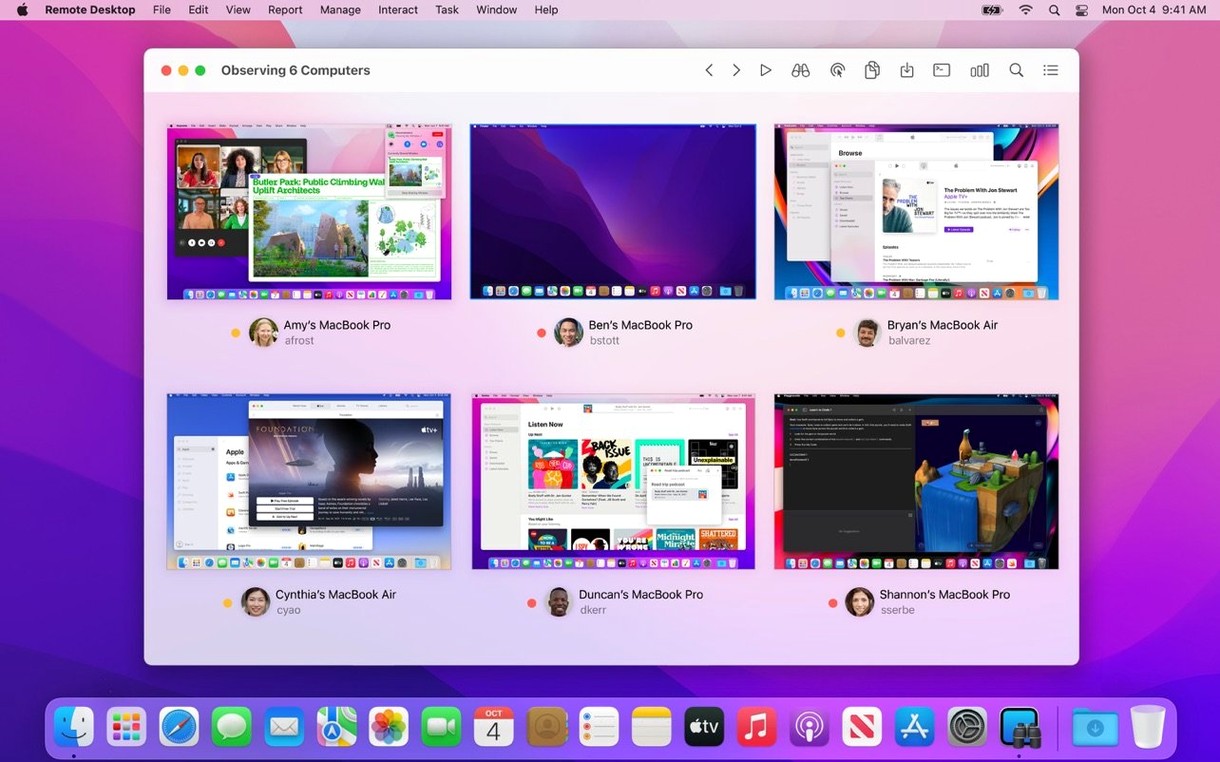
Apple Remote Desktop 3.10 requires macOS 15.5 or later and runs natively on both Intel-based Macs and Apple Silicon models. The update specifically adds compatibility with macOS Tahoe 26.
Remote administration — manage and control multiple Mac computers across a local network from a single administrator station.
Curtain Mode — blank the screen of a remote Mac to keep the management session private from anyone physically at that computer.
Cross-platform reach — connect to Windows, Linux, and UNIX systems using standard VNC, in addition to controlling Mac clients.
Software distribution — copy and install packages to remote Macs, with encrypted transfer of files and packages across the network.
Reporting — generate hardware reports covering more than 200 characteristics, plus gather data on user logins and application usage.
File transfer — move files between managed Macs by dragging and dropping them from one desktop to another.
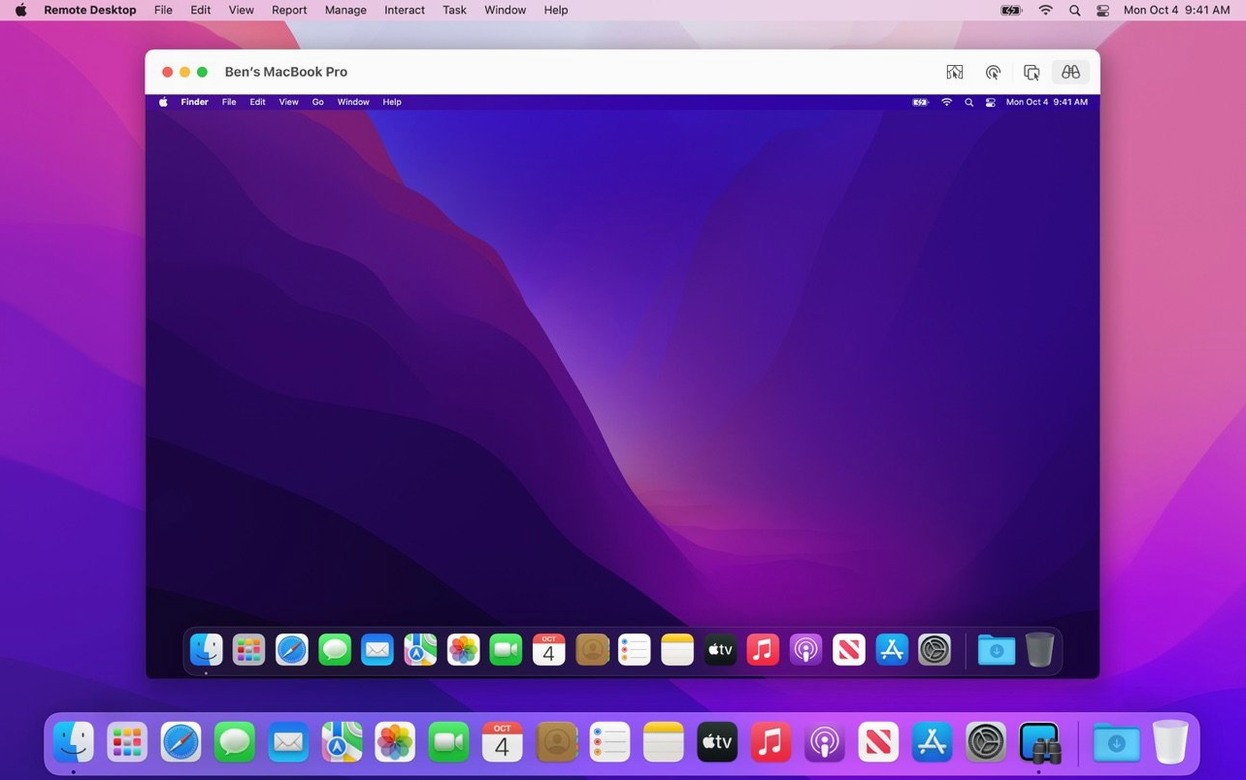
Remote assistance — share the screen of a remote Mac to guide a user, with copy-and-paste support operating between the two computers.
Reaching Macs outside the local subnet
Can Apple Remote Desktop reach computers outside the local network? Not directly. The app is designed for machines on the same subnet or reachable through a VPN tunnel. If you want to manage a Mac in a different building or city, you first establish a VPN connection to that network, then launch Remote Desktop and find the computer as though it were local. Without a VPN, the broadcast-based discovery does not work across subnets, and direct IP connections often fail because of NAT and firewall restrictions.
Does the managed Mac need a separate licence? No. The client software is part of macOS and needs no additional purchase. You do need to enable Remote Management in the Sharing pane of System Settings on each client computer and grant the appropriate access rights to the administrator account you use for connection. The app itself runs only on the administrator’s machine.
What happens when a managed computer is asleep or offline? The scheduling system handles that scenario. You can queue a software installation task and set it to run when the computer next appears on the network. Once the machine wakes or reconnects, the task triggers. The package or file you pushed earlier sits on the administrator station until delivery succeeds. This is useful for overnight maintenance windows when half the fleet is in bags and backpacks.
Is an internet connection required? Only for the initial download. All communication between the administrator console and the managed clients stays entirely on your local network. No data passes through Apple servers during a session.
Fleet management for 10 to a few hundred Macs
Apple Remote Desktop clicks into place for people managing fleets of ten to a few hundred Macs without a heavier device management platform. School IT coordinators use it to push printer configurations to a lab before term starts. In-house support teams at design studios and small software companies rely on the screen-sharing and Curtain Mode combination to fix a colleague’s layout file without interrupting the office. Help desk staff who field calls from less technical users appreciate that they can see exactly what the caller sees, copy a serial number from System Information, and paste it into a ticket tracker, all without asking the user to read anything aloud.
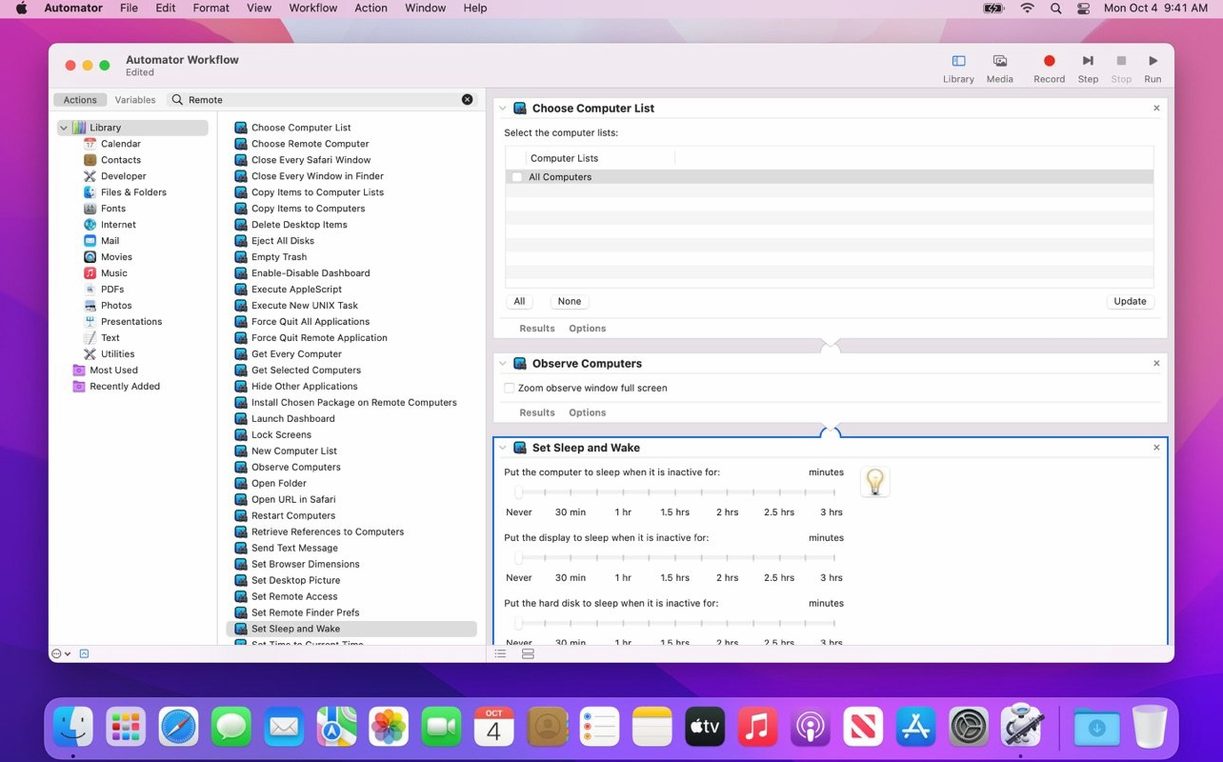
System administrators who already work with Automator find a natural home here, because the forty-plus built-in actions allow chaining remote tasks into workflows that run unattended. Someone who only occasionally needs to restart a single Mac or copy a file is better served by the built-in Screen Sharing app or a one-off VNC connection. The tool earns its place when you touch the same machines repeatedly and want to stop walking down the hall.
Small conveniences often overlooked
Copy and paste between the local and remote clipboard works transparently for text, but it also handles small files. Select a document on the remote desktop, press ⌘C, switch to the local Finder, and press ⌘V. The file copies across the network without opening a dedicated transfer window. The opposite direction works the same way.
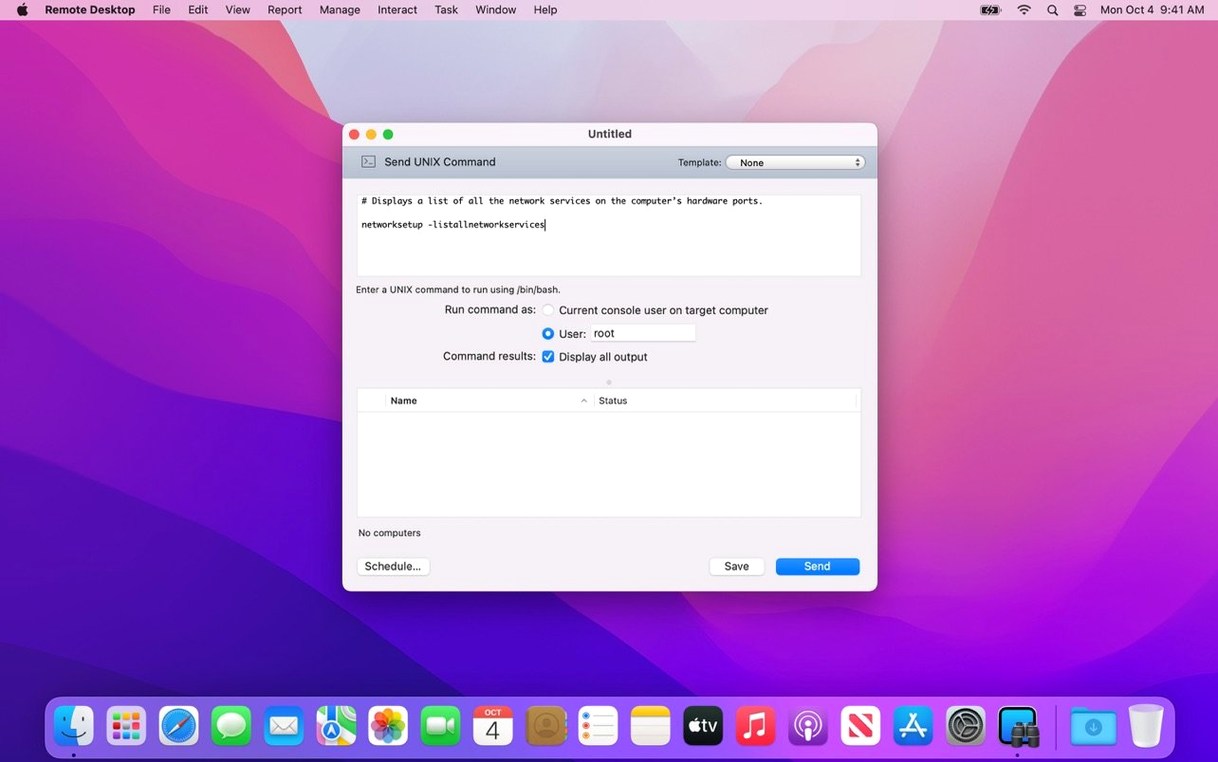
The toolbar can be customised more than most people realise. Right-click it and choose Customise Toolbar to add one-click buttons for Curtain Mode, Lock Screen, or Send UNIX Command. Dragging the Spotlight button onto the toolbar gives you a remote search field that queries the selected computer’s entire file system without needing a screen session first.
When you need to push the same small configuration file to a group of machines, the Copy Items task accepts a destination path. You can drop a .plist into /Library/Preferences/ on twenty Macs in one action. The task log afterwards lists exactly which machines succeeded and which failed, with a short reason for each failure.
Double-clicking a computer in the main list while holding the Option key opens a screen-sharing session immediately in Observe mode rather than Control mode. This is safer when you only want to watch what the user is doing before deciding whether to intervene.
Pushing a plug-in to 24 iMacs at once
Consider a media lab coordinator at an art college. The room has twenty-four iMacs, all running the same macOS version, all bound to the same network. A new version of a video editing plug-in arrives as a .pkg file, and it needs to be on every machine before the afternoon class.
The coordinator opens Apple Remote Desktop, selects all twenty-four computers from the list, and chooses Install Packages. After dragging the package into the task window, they tick the box to encrypt network data and set the task to run after a short delay, so any machine currently asleep has time to wake. They add a second step in the same task: a UNIX command that removes the old plug-in’s cache folder. The whole sequence runs while the coordinator walks to get coffee. On return, the task log shows twenty-three successes and one failure. The failed machine shows a disk-space error. The coordinator connects to it directly, clears a few gigabytes of old renders, and re-runs the package installation on that single computer. By lunchtime the lab is ready.
Remote Management versus Screen Sharing toggle
The most common misstep is confusing Remote Management with Screen Sharing in System Settings. The client computers need Remote Management enabled, not the simpler Screen Sharing toggle. Without Remote Management, the administrator cannot push packages, run reports, or execute UNIX commands; only basic screen control works, and even that may prompt the user for permission every time.
Another early error is failing to sort computers into static lists. After the first network scan, people tend to work from the flat All Computers view. Creating smaller groups such as “Lab A”, “Office floor 3”, or “Test machines” and assigning computers to them makes targeted tasks much faster. Dragging a task onto a group header runs it against every member in one motion.
Beginners also overlook the task server. By default, tasks run from the administrator’s own machine, which means the console app must stay open and the Mac must stay awake for the duration. Enabling the task server on a machine that stays powered on (often a Mac mini in a server closet) lets you schedule work and close your laptop. The task server picks up the queued jobs and executes them independently.
When using Curtain Mode, it is worth remembering that the remote screen does not restore automatically if the administrator’s network connection drops. The client screen stays blank until another connection re-establishes control or the client machine restarts. Telling the person at the remote computer what is happening before activating Curtain Mode avoids a support call five minutes later.