Aspecten
 Download (14 MB)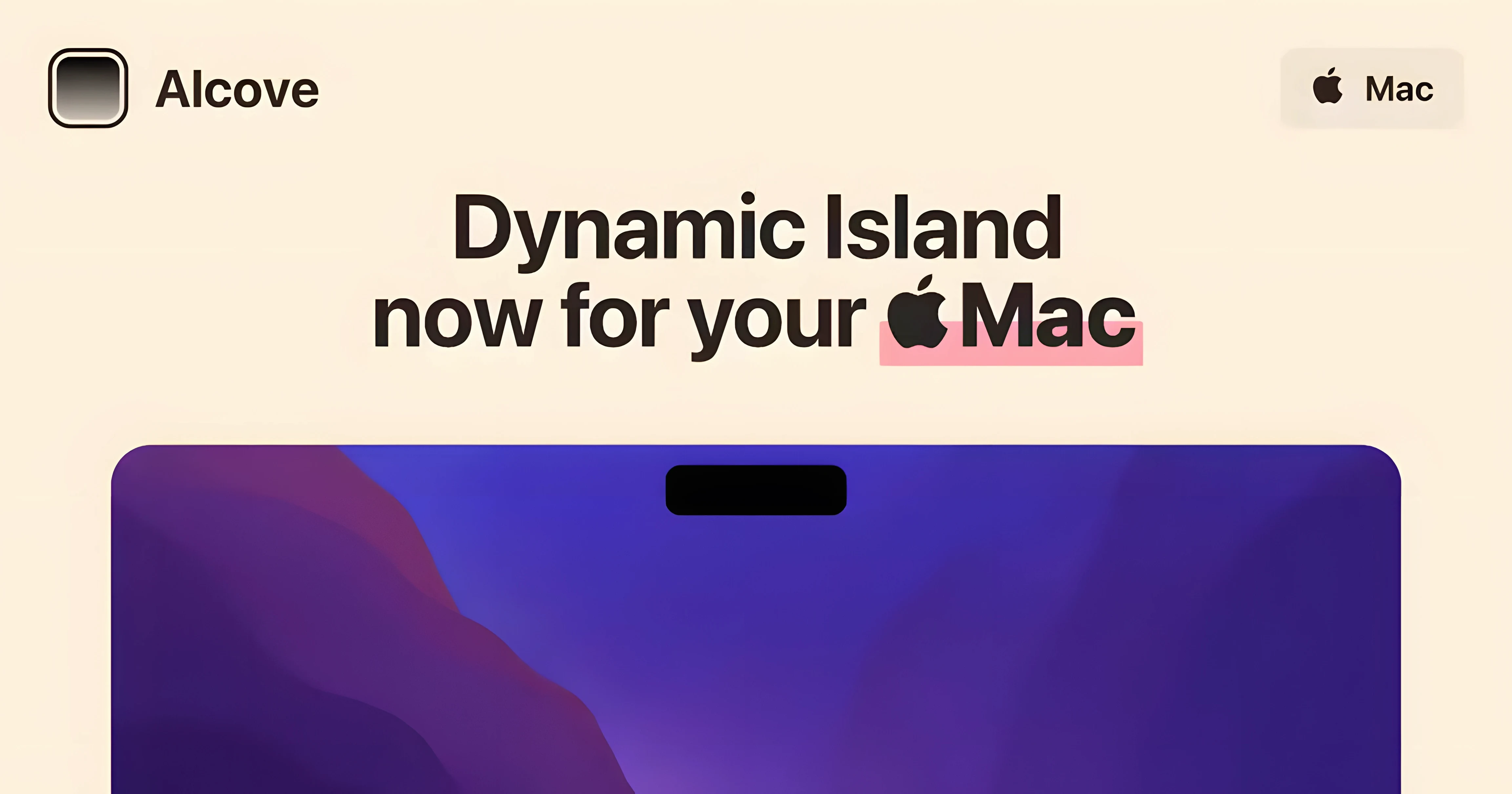
Action triggers appear when you move the pointer to the notch. Alcove — a utility that adds interactive controls to the camera housing area.
Dynamic Island on Mac — a panel grafted onto the notch that holds clickable actions and live feedback, like music playback or a timer.
Notch trigger — the screen area around the camera cutout. Hovering there expands Alcove’s panel; moving away collapses it.
Tracking a short task shows how the parts connect. Place a file in a watched folder, and a small progress ring appears in the island. The panel stays visible while the script runs, then shrinks back to the notch. A right-click switches to a compact music controller that shows the current track name. Tapping the artwork scrubs through the waveform.
The island respects the space it borrows. It never pushes the menu bar aside; it sits inside the black bar, using pixels that were otherwise inactive. On a MacBook Air with the standard notch, the panel width stays fixed. No resizing handles appear.
Long presses on an action reveal a settings overlay. Here you can bind a different script or adjust the ring colour. The colour picker is basic but remembers the last six values. One limit: dragging a file onto the island does nothing. Actions only trigger from within the app’s own setup pane.
The panel collapses when the pointer leaves
One question comes up often: does Alcove interfere with apps that already use the menu bar area? It doesn't. The panel lives inside the black notch strip and collapses the moment the pointer leaves. Menu bar items to the left and right keep working normally. A few people also ask whether it adds yet another process to the login items list. It does add a lightweight background agent, visible in System Settings under Login Items & Extensions. The agent draws almost no CPU when idle — typically under 0.3% on an M1 or M2 machine.
Another common concern is notification clutter. Alcove picks up system media events and timer progress, but it doesn't mirror every banner or alert. You won't see incoming messages or calendar reminders duplicated in the island. People sometimes wonder about compatibility with menu bar organisers like Bartender. The two coexist fine, though you may want to place Alcove's menu bar icon on the left side to avoid overlap.
Some ask whether the notch trigger works on a Mac without a physical notch — an iMac or an external display. It does, but the island sits centred at the top edge and feels slightly less anchored than on a MacBook screen. The hover zone is the same: a narrow strip near the top centre.
A 40‑pixel trigger you train in a day
Give the hover gesture a day to settle into muscle memory. The trigger zone is about 40 pixels tall and centred on the notch. Moving the pointer too fast can miss it; a slower glide from the middle of the screen upward works more reliably. If you find yourself triggering the panel by accident while reaching for a browser tab, try increasing the hover delay in the app's behaviour settings. A 0.3-second delay is enough to filter out casual brushes without making the panel feel sluggish.
During the first few days, keep an eye on which actions you actually use. Many people start with the music controller and the timer. The music controller picks up whatever is playing — Apple Music, Spotify, or a web player in Safari — and shows the track title. The timer is useful for short kitchen tasks or breaks. Bind a script to the third slot only after you've settled into a routine; jumping straight into custom scripting can make the island feel busy before you've learned its rhythm.
A small practical note: Alcove's panel draws above full-screen video in some players and below in others. In QuickTime Player it stays underneath; in IINA it appears on top. If you watch a lot of full-screen content, test this early on so the panel doesn't surprise you during a film.
Lea locks the music controller on her stand
Lea edits audio for a podcast. Her MacBook Pro sits on a stand to her left while she works at a mixing desk. She keeps Alcove's music controller visible with a right-click lock so she can glance at the track name without touching the keyboard. During a recording session, she sets a 90-minute timer from the island. A thin orange ring ticks down around the notch. When the ring completes, the panel pulses once — no sound, no banner, just a visual nudge that it's time to wrap the session. Between takes, she hovers over the notch and sees the file-export progress from her DAW. A small wheel spins inside the capsule, then vanishes. Nothing distracts her from the waveform on the main screen.
At lunch, she switches to a personal MacBook Air. The alcove 1.7.9 build she installed there syncs none of her work scripts, but the music controller and timer work identically. She appreciates that the island doesn't carry over her studio clutter; each Mac keeps its own action set.
Dial the hover delay to 0.25 seconds
Open the preferences pane and look at three things. First, the hover delay. The default of 0.1 seconds can feel too eager. Setting it to 0.25 or 0.3 seconds makes the panel feel more deliberate without slowing you down.
Second, panel width. On a 14-inch MacBook Pro the default width uses about 60% of the notch area. If you run several actions side by side — say, music, timer, and a script — bump the width to 80%. The extra space keeps the controls from feeling cramped. On a MacBook Air, leave it at default; the smaller notch doesn't benefit from stretching.
Third, ring colour. The default white ring blends into some wallpapers. A soft amber or teal stands out better against both light and dark menu bars. The colour picker remembers your last six choices, so you can switch seasonally or per focus mode without re-picking each time.
If you downloaded the Alcove Mac cracked build from a distribution that includes the activation already applied, you won't need to step through any first-launch setup wizard — the app opens straight to its default configuration. The same goes for anyone who grabbed the Alcove Mac free package: the installed app behaves identically, with all actions unlocked from the first run. Turning off automatic updates remains wise regardless of the source, since version pinning gives you control over when the behaviour changes.