Aspecten
 Download (49 MB)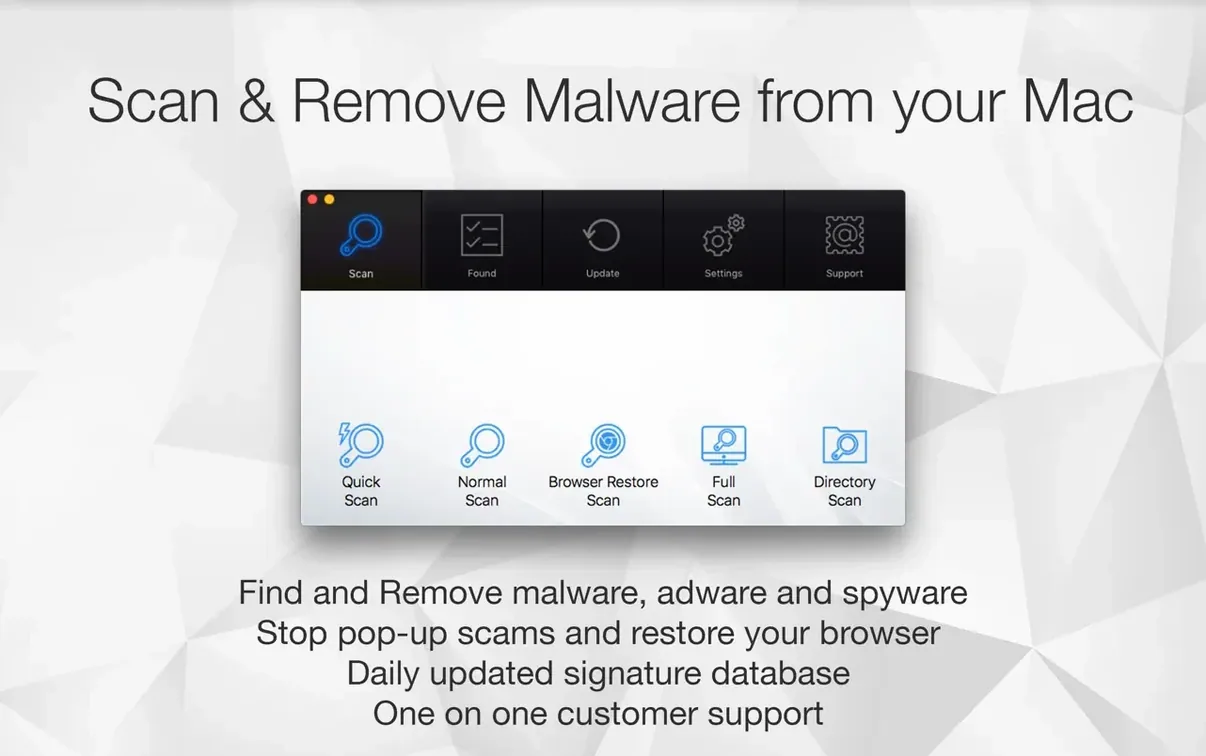
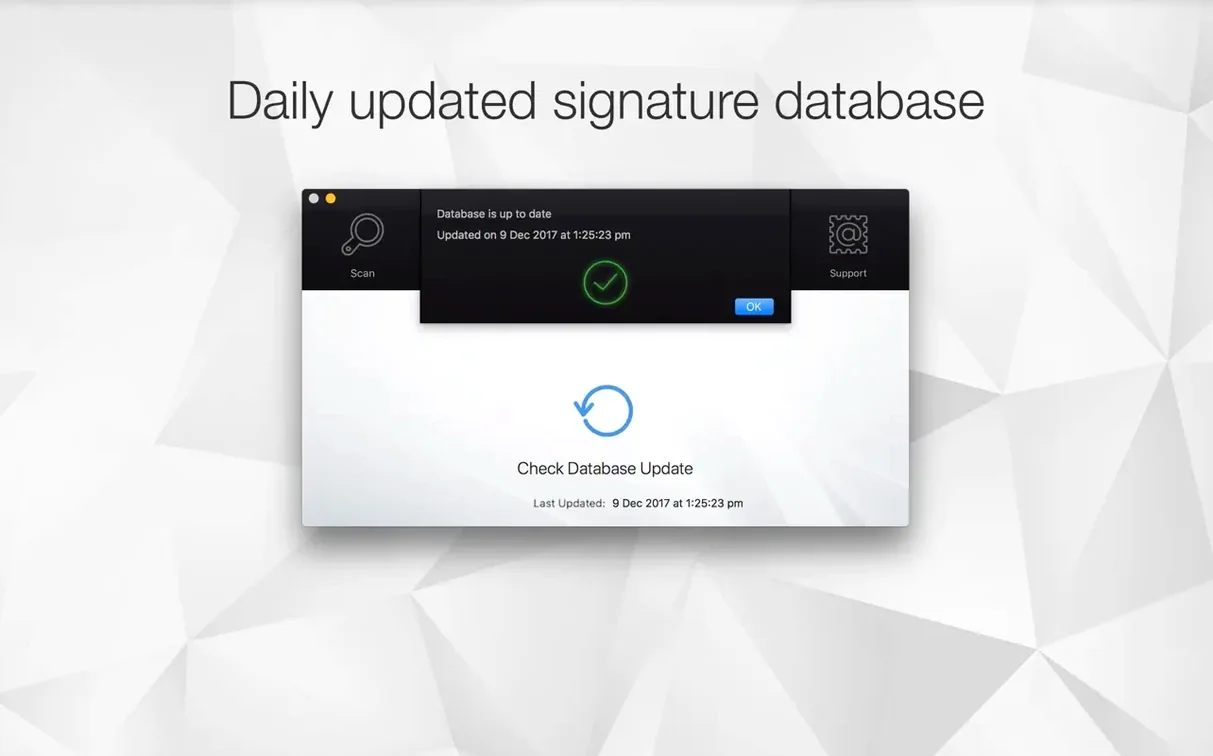
You have just downloaded a large collection of project files from a forum. Before you unpack anything, you right-click the main folder and send it to Antivirus Zap for a targeted scan. The app works through the contents while you carry on with other tasks. That kind of directed, on-demand check is where Antivirus Zap makes sense for someone who already knows their way around macOS security.
Beyond the immediate scan, several tools sit ready for the times when a quick pass is not enough:
- Browser Restore Scan — strips out stored cookies, extensions and caches across installed browsers in one operation. Useful after a redirect chain or an unwanted toolbar appearance.
- Apple Shortcuts integration — lets you trigger scans from a shortcut, so routine checks on specific folders can run without opening the main interface.
- Deep file inspection — flags not just known malware signatures but also files with suspicious structures or permissions that warrant a closer look.
- Format conversion — handles HEIC, TIFF and MOV files, converting them to more widely readable formats. A small but practical extra when a scan turns up media you need to pass on.
- Drag-and-drop optimisation — dropping an image or video onto the app can compress it or strip metadata, a secondary use that keeps the tool active in the Dock.
These features sit alongside the core detection engine and are presented without ceremony. The app does not insist on background monitoring or constant updating; it stays quiet until you point it at something. For a user who prefers to inspect files on their own terms, that restraint is the point.
Tracking down a browser hijacker
You notice Safari behaving oddly — a new tab opens to a search portal you do not recognise, and the address bar flickers briefly before settling on the page. You close the browser and reach for Antivirus Zap.
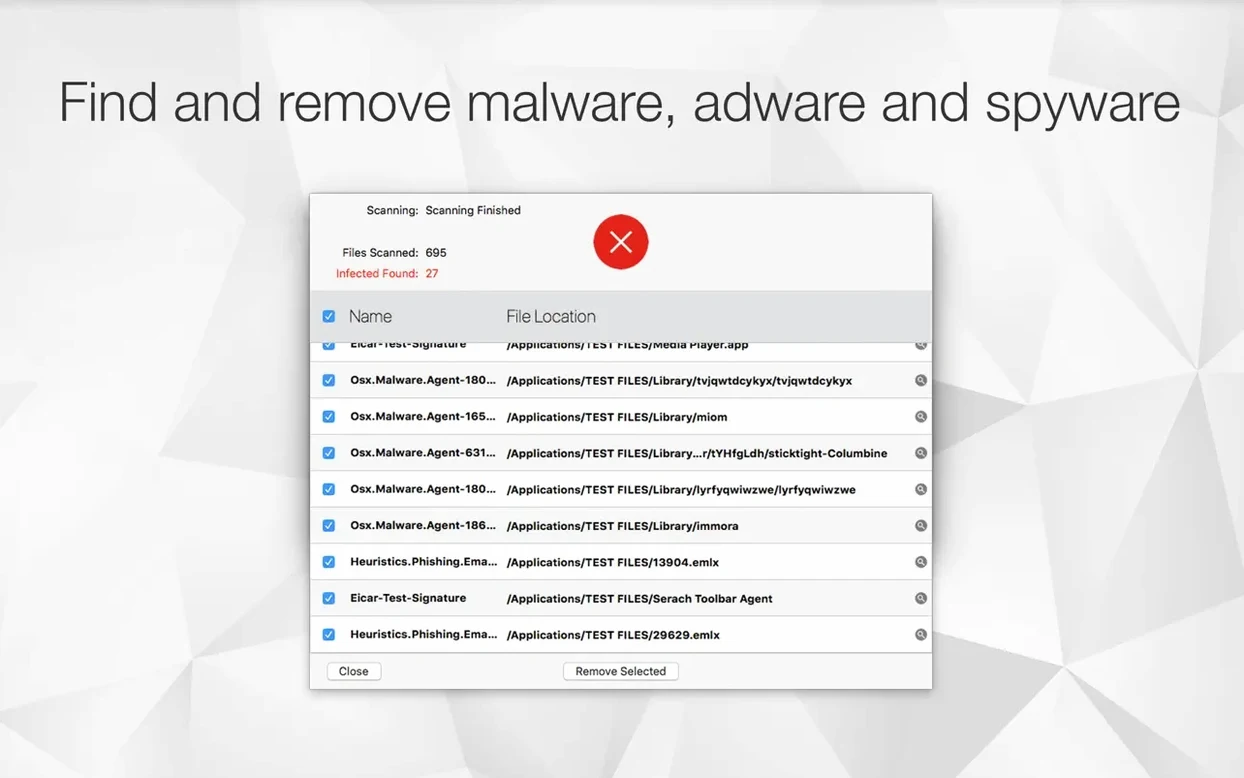
First, you launch the app from the Applications folder. The main window shows three scan types: Quick Scan, Standard Scan and Browser Restore Scan. You start with the Browser Restore Scan because the symptoms point to a stray extension or cached redirect. The scan runs for about thirty seconds and lists what it found: two tracking cookies, a configuration profile you did not install, and a browser extension tied to a toolbar installer. You check each item — the extension and the profile are clearly unwanted — and click Remove Selected.
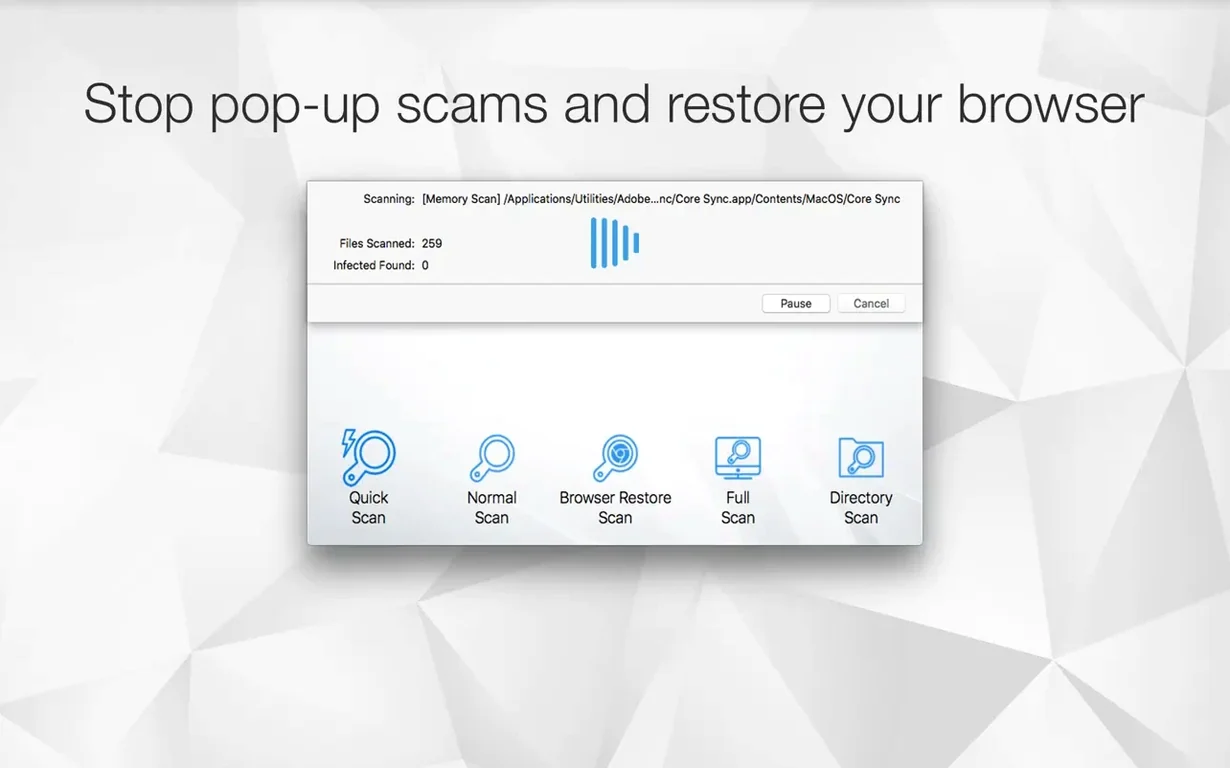
Next, you run a Standard Scan across the home folder. The app walks through directories in order, reporting each file it inspects. After four minutes, it flags a LaunchAgent you do not remember authorising and a Python script tucked inside a Library subfolder. You recognise neither, so you quarantine both. The log confirms the items are moved to a secure holding area, not simply deleted, which gives you room to restore anything later if needed.
Before finishing, you open the scheduling pane and set a daily Quick Scan for early morning. The Shortcuts integration means you also add a right-click trigger via Finder: any downloaded disk image can be scanned with a two-finger tap. The whole session — from noticing the browser oddity to a clean bill — takes under ten minutes.
Run a baseline scan while your coffee brews
After installing Antivirus Zap, a few habits make the first week smoother and more instructive.
- Run a full Standard Scan early. Do it while you are making coffee. A clean result gives you a baseline; a flagged item teaches you where unwanted files tend to settle on your particular Mac. Pay attention to LaunchAgents and browser-related detritus — those recur most often.
- Set up a Finder integration shortcut. The app can appear in the right-click menu for files and folders. In the first days, use it on every downloaded ZIP and disk image. You will quickly learn which sources produce clean archives and which attract bundled adware.
- Schedule a light daily scan, not an aggressive one. A Quick Scan at a time when the Mac is usually awake but idle — say, 7:30 a.m. — keeps awareness high without eating resources. You can always run deeper scans manually when something feels off.
- Test the Browser Restore Scan on a single browser first. Before clearing all browsers at once, run it with only Safari or Firefox selected. That way you see what gets removed without losing every stored session and preference across all browsers in one click.
- Use the format conversion sparingly. If a scan uncovers HEIC or TIFF files you need to share, the built-in converter saves a trip to Preview. Drag the file onto the app icon and choose the output format. It is not a replacement for a dedicated image tool, but it spares you a separate step.
A suspicious cookie is not a crisis
Several patterns show up among first-time users. Knowing them ahead of time prevents unnecessary alarm and wasted effort.
- Treating every flag as an emergency. Antivirus Zap reports items it considers suspicious, not only confirmed threats. A cookie from a legitimate analytics service may appear in the Browser Restore results. Read each entry before removing it. Quarantine gives you a safety net; panic does not.
- Skipping the log after removal. Once items are removed or quarantined, the log is the only record of what was taken out and where it lived. Beginners often close the results window too fast. A quick scroll through the log tells you whether the flagged files were clustered in one folder — hinting at a single bad installer — or scattered, which suggests a different pattern worth investigating.
- Running multiple scans back to back. A Standard Scan followed immediately by another Standard Scan wastes time and teaches nothing. If the first scan came back clean, move on. If it found issues, quarantine them, note the locations, and schedule a follow-up scan for the next day to see whether anything reappears.
- Ignoring the difference between Quick Scan and Standard Scan. Quick Scan checks common hiding spots — browser caches, system temporary directories, known LaunchAgent paths. Standard Scan walks the entire volume. Beginners sometimes run a Quick Scan, see a clean result, and assume the whole disk is fine. Use Quick Scan for routine checks; use Standard Scan when you have a specific reason to dig deeper or when you first install the tool.
- Forgetting the app after the first week. The quiet nature of Antivirus Zap means it does not nag. Some users perform an initial scan, find nothing, and never open it again until a problem appears. A better rhythm: let the daily scheduled scan run in the background, and manually scan any file bundle that arrives from an unfamiliar source. The app works best as a habit, not a fire extinguisher.