Aspecten
 Download (12 MB)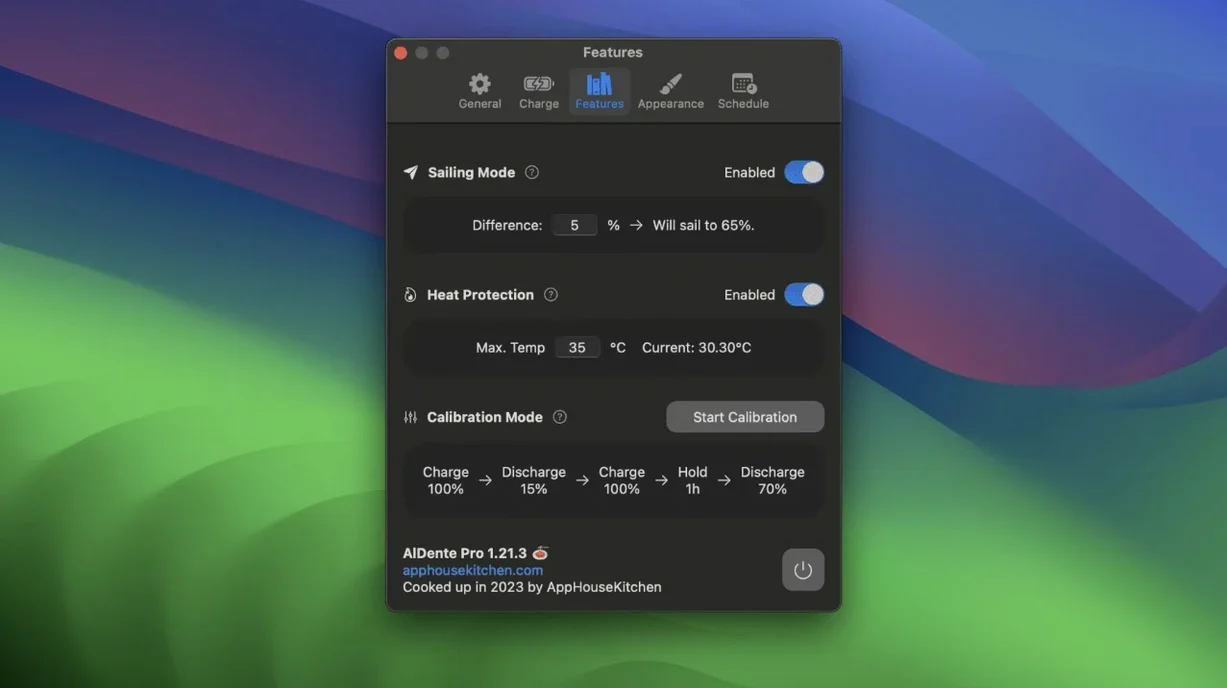
You keep your MacBook on the desk most days, plugged in for hours while you work. The battery sits at full charge, which is not ideal for its long-term health. A charge limiter changes that, and AlDente gives you direct control over where the charging stops.
| Detail | Value |
|---|---|
| Developer | AppHouseKitchen |
| Current version | 1.39.4 |
| Minimum macOS | macOS 12 Monterey |
| Architecture | Apple silicon and Intel |
The app runs on most Apple silicon and Intel MacBooks. It needs macOS 12 Monterey or newer, so older machines still on Big Sur or earlier fall outside the supported range. Interface languages include English, German, French, Spanish, Italian, Dutch, Russian, Polish, Turkish, Arabic, Greek, Korean, Japanese, Traditional Chinese, Simplified Chinese and Portuguese.
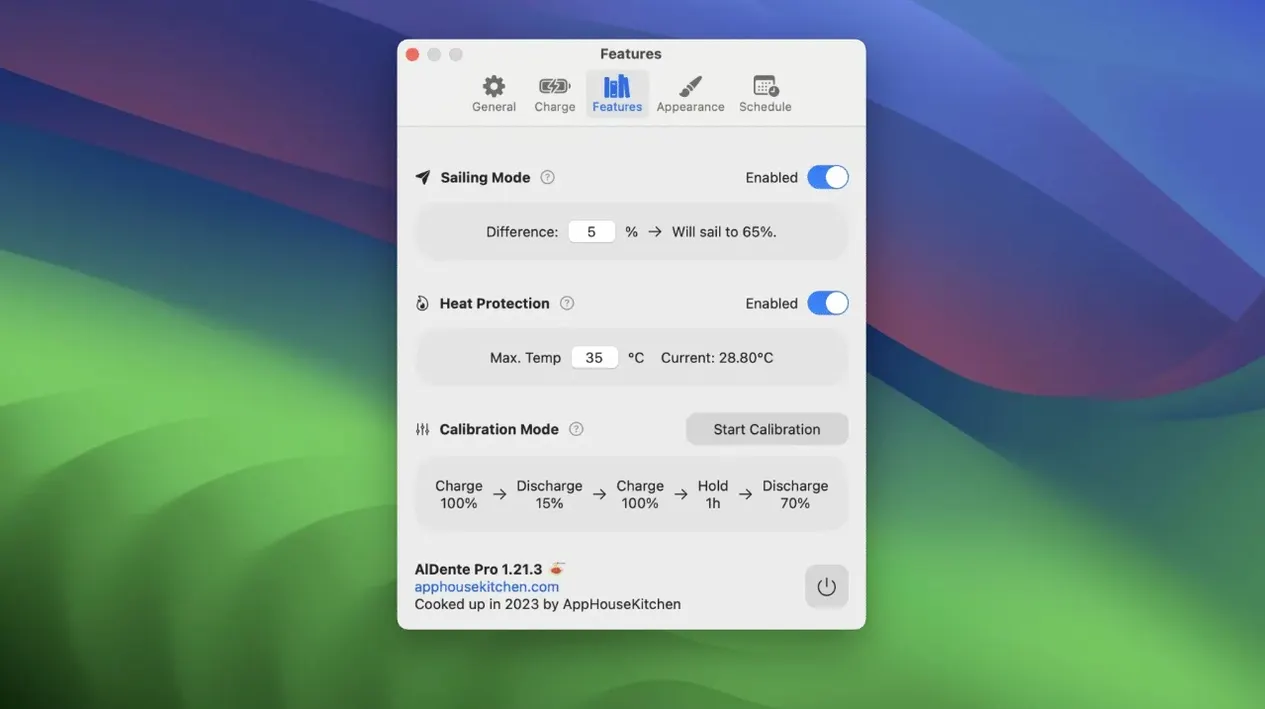
What you get is a set of charge controls alongside monitoring. Calibration Mode periodically runs the battery through a full cycle to keep percentage readings accurate. Sailing Mode lets the charge level drift within a band instead of holding one fixed point, and heat protection pauses charging when temperatures rise. The current update only addresses a visual issue in the Popover that appeared in early macOS 27.2 betas.
Scene: the desk-bound developer
A MacBook Air M2 that rarely leaves a Thunderbolt dock. The owner codes during the day and catches up on email in the evening, always plugged in. Before AlDente, the battery sat at 100% for weeks, dropping to 93% only when a meeting pulled the machine off the dock for forty minutes. After a year, cycle count read 47 but the maximum capacity had already slipped. Apple's built-in optimised charging learned a schedule once, then forgot it after a macOS update and never quite relearned it.
With AlDente installed, the charge limit sits at 70%. The machine draws power from the adapter while the battery hovers at the set ceiling. Once a month, Calibration Mode runs a full discharge-recharge loop on a Saturday afternoon, restoring percentage accuracy. Heat protection kicked in once during an August heatwave when the room reached 34 degrees. Sailing Mode is left off; a fixed limit suits a desk machine better than a drifting band. The setup takes five minutes to configure and then goes unnoticed for months.
Setting the limit too low strands you before lunch
A few patterns surface within the first week of use, most of them easy to correct once you spot them.
- Setting the charge limit too low for daily needs. A limit of 50% feels virtuous, but if the MacBook comes off the charger unexpectedly and runs down to 3% before you find an outlet, the deep discharge offsets any gain. The best limit is the lowest percentage that still covers a typical unplugged stretch with a margin, often 60–80% for desk workers.
- Disabling the helper or removing login permissions. AlDente needs its background component to enforce the limit while macOS is asleep or the lid is closed. Some people treat the helper as bloat and prune it during a system clean-up. After that, the limit only applies when the app is open and the Mac is awake.
- Running Calibration Mode too often. A full cycle strains the battery. Every two to four weeks is enough; weekly calibration eats into the very lifespan the app is meant to protect.
- Ignoring the charge-limit override when the menubar icon shows a charging bolt. The Mac may still charge past the limit briefly after wake or during SMC recalibration. That is normal and stops within minutes. Forcing discharge immediately creates unnecessary cycles.
- Assuming the free version does nothing. The base feature, a hard charge limit, works without unlocking extras. Sailing Mode, heat protection and Calibration Mode sit behind the pro tier, but the core limiter is functional on its own.
Confirm the helper is running within the first hour
The installer drops the app into /Applications via a standard disk image drag. Once launched, go to the menubar icon and click through a few practical steps in the first hour, not the first week.
Confirm the helper is running. Open AlDente, look at the status line. It should read "Charging limited at X%" with a green indicator. If it shows a warning about the helper, open Preferences, enable Launch at Login, and restart the app. A reboot is not necessary.
Pick a sensible initial limit. Start at 75%. Use the machine normally for three days without changing it. Note the lowest the battery reaches when you do pull the charger. Adjust down in 5% steps until you land just above that observed low. This takes the guesswork out of the number.
Set heat protection to 35°C. The default trigger is reasonable for most indoor environments. If the MacBook sits on a stand with poor airflow or lives in a warm room, drop the threshold to 32°C. The menu displays the current battery temperature; check it under load once to see where the machine normally runs.
Schedule the first calibration for a weekend. Calibration Mode discharges to 10%, then charges to 100% and holds it for an hour. It takes several hours and the machine should stay plugged in throughout. Pick a time when you do not need the MacBook on battery.
Leave Sailing Mode off for now. It is useful once you understand the battery's behaviour, but adding a variable band on day one makes it harder to judge whether the limit itself is set correctly.
Optimised charging becomes redundant—leave it on or off
AlDente does not replace Apple's battery health management, it overrides the charging logic at a lower level while leaving health management's other functions alone. Optimised battery charging in System Settings becomes redundant and can be left on or off; AlDente's limit takes priority.
A few connections with other tools matter in daily use.
- System Settings > Battery. The battery percentage display and Low Power Mode settings are unaffected. Low Power Mode still throttles background activity when the charge drops below a threshold, which pairs neatly with a low Sailing Mode floor.
- coconutBattery. The two apps complement each other. AlDente enforces the limit; coconutBattery displays detailed health stats and age. Keeping both in the menubar gives enforcement and reporting side by side.
- iStat Menus. The sensor readouts from iStat Menus show charge rate and temperature, which you can correlate with AlDente's heat protection events. No conflict arises.
- Docking stations and USB-C monitors. AlDente works through a dock as it does with a direct charger. The limit holds. Some docks deliver less wattage than the MacBook expects; if the battery discharges slowly while plugged into a weak dock, raise the limit slightly or switch to a higher-wattage port.
- Terminal and
pmset. Power users who tweakpmsetsettings should know that AlDente's helper writes its own charge limit via IOKit. Conflictingpmsetoverrides are rare, but if the limit ever fails to stick, reset power management defaults withsudo pmset restoredefaultsand reapply AlDente's limit. - macOS updates. Major system updates occasionally reset the helper authorisation. After updating macOS, open AlDente once and check the status line. Re-grant Full Disk Access in System Settings > Privacy & Security if the helper asks for it again.
- Time Machine and backups. No interaction. The app's preferences file lives in
~/Library/Preferencesand is backed up with the rest of the user folder.
Flip a few options now because they shape everything that follows
The app ships with sensible defaults, but a few options are better flipped early because they shape everything that follows.
Charge limit: set it now, not later. The default limit is 80%. That works for many people, but the whole point is matching the limit to your actual unplugged routine. Change it to a number backed by observation, not a generic recommendation. Even 85% is far kinder to the battery than 100%.
Launch at Login. Toggled on in Preferences. Without it, the limit only activates after you manually open the app on each boot. Turn it on, then verify once after a restart.
Heat protection threshold. Set to 35°C or lower. The battery degrades faster above 35°C, especially when held at a high charge. If the MacBook regularly runs hot during video calls or builds, this setting matters more than the charge limit percentage itself.
Allow discharge when plugged in. Off by default. When enabled, the Mac runs off the battery even while connected to power until the charge drops to the Sailing Mode floor or a manually set level. Most desk users should leave it off; the point of a charge limiter is to keep the battery at a fixed level, not to cycle it slowly. People who use Sailing Mode heavily may want it on, but it is a day-30 decision, not a day-one one.
Menubar display. The menubar icon can show the charge percentage inside a battery symbol. Switch it from the default icon to the percentage variant in Preferences > Menubar. It removes one reason to open the popover just to check the current level.
Disable automatic macOS updates for AlDente. The app updates are small and rarely urgent. Turn off automatic checks in Preferences if you prefer to update manually after reading the release notes. The current version fixed a cosmetic issue; skipping an update carries little risk.