Aspecten
 Download (5 MB)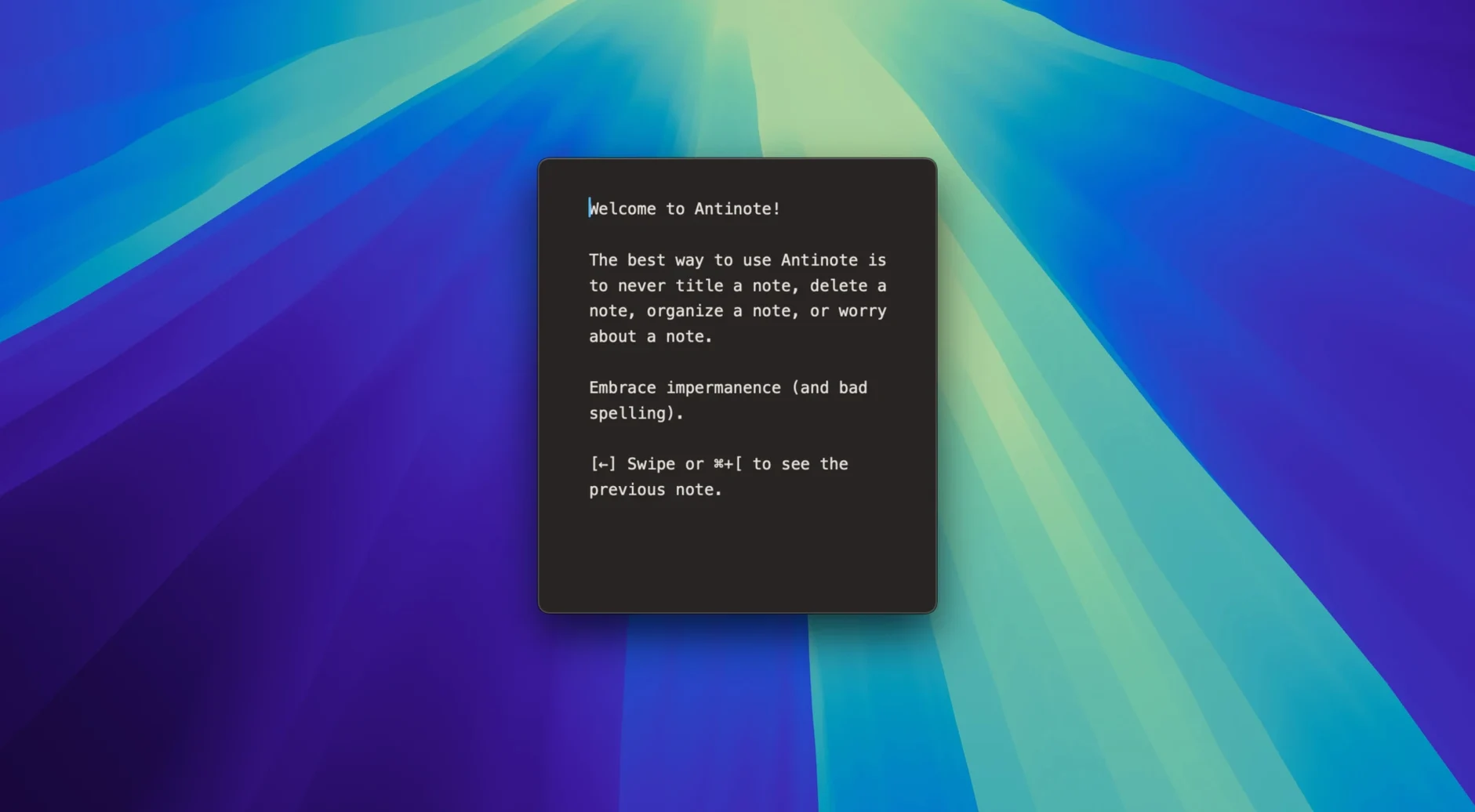
Jot something down without opening a full editor
Where TextEdit feels too persistent and a sticky notes widget too cramped, Antinote sits in between. It is a single scratchpad that opens with a global hotkey, takes your typing, and stays out of the way until you need it again.
Edit messy text and extract content from images
Pasted text arrives stripped of its original formatting, so copied snippets from web pages and emails land as clean, plain content. You can also drag in an image and let Antinote pull out the text with its built-in OCR.
Keep small working lists and timed focus sessions
Keyboard keywords turn lines into checklists, and a small timer panel handles stopwatches, countdowns, and pomodoro rounds without leaving the scratchpad. The tool is built for short-term thinking — notes you need right now, not an archive you would search weeks later.
No sync, no cloud, no account
Does Antinote sync between devices? No, it keeps everything local. There is no account, no cloud service, and no sync engine. The scratchpad lives on one Mac. That also means no data leaves the machine, which suits anyone wary of sending quick notes through a third-party server.
How is this different from a sticky notes app? Sticky notes tend to sit on the desktop and multiply. Antinote is a single workspace that you summon and dismiss. It does not clutter the screen with multiple windows, and it strips formatting when you paste, so it works more like a clean temporary buffer than a collection of persistent memos.
Can I keep notes permanently? The tool is designed for temporary thoughts, but nothing deletes automatically. You can keep notes as long as you like, export them to Apple Notes, Obsidian, or Bear, or save them as plain .txt or .md files for later.
What happens if I close the window by accident? Text remains in the scratchpad until you delete it. Closing the window does not discard your content. If you do delete something unintentionally, the File menu offers a recovery option labelled Recover Notes from The Void.
Always hidden versus always pinned
Antinote versus Tot. Tot by The Iconfactory keeps a small palette of colour-coded notes always visible. It is meant for tidbits you want pinned nearby — phone numbers, shopping lists, short reminders. Antinote takes the opposite approach: it stays hidden until summoned, then gives you a full-featured scratchpad with math evaluation, OCR, checklists, and a timer. Tot feels like a shelf; Antinote feels like a workbench you clear when the job is done.
Antinote versus Unclutter. Unclutter combines a clipboard manager, a file shelf, and a quick-note panel that drops down from the top of the screen. The note panel in Unclutter accepts plain text but does not evaluate calculations or extract text from images. Antinote does less with files and clipboard history, but it does far more with the note content itself — math, unit conversion, word counts, and export paths. For someone who only needs the note-taking piece, the antinote mac app feels lighter and more focused than the three-in-one Unclutter.
Antinote versus a plain text editor in a hotkey window. Some power users set up TextEdit or BBEdit to pop open with a keyboard shortcut and a blank document. That gives you text entry but not the inline smarts. You will not get automatic link shortening, context-based currency conversion, or checklist toggles from a blank .txt file. An antinote for mac installation bundles those small conveniences into a single window that requires no configuration, which makes it a worthwhile swap for a raw text editor in the temporary-note role.
A workflow for sorting research snippets
Picture a researcher collecting quotes and figures from several online sources for a short report. The goal is to gather raw material quickly, clean it, and send it to a proper notes app for structuring later.
Press the global hotkey to open Antinote. Copy a paragraph from a web article and paste it in with Command‑V. The text lands without font styles, hyperlink colours, or odd line spacing. Do the same for two more sources. Between paste actions, type a quick calculation — say, converting a stated 14 miles to kilometres. Type 14 miles in km and the result appears inline as you finish the line.
Drag a screenshot of a table into the scratchpad. Antinote runs OCR and places the extracted numbers below the image entry. Delete the image line and keep only the figures. The scratchpad now holds three clean text excerpts, one unit conversion, and one set of extracted table data.
Skim the collected lines and delete anything redundant. Use the word-count and line-count tools to check the volume of raw material. When the scratchpad looks ready, choose Export to Obsidian from the menu, or save a Markdown file to the desktop. Close Antinote. The temporary workspace is empty again, and the export file sits where it belongs — ready for the next stage of work, with none of the original formatting baggage attached.