Aspecten
 Download (69 MB)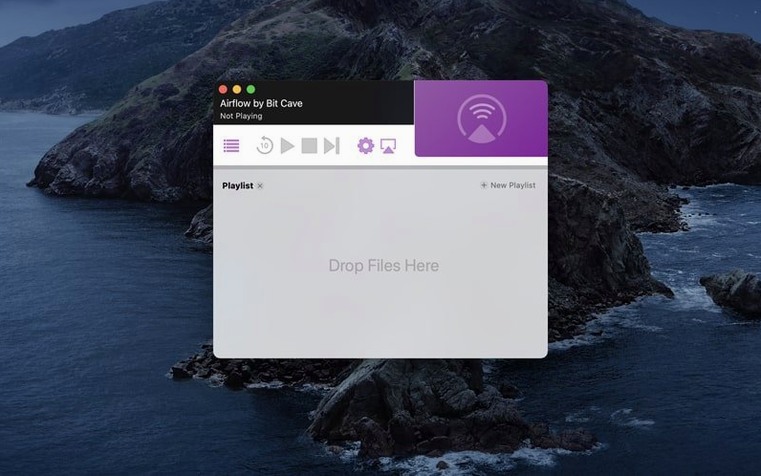
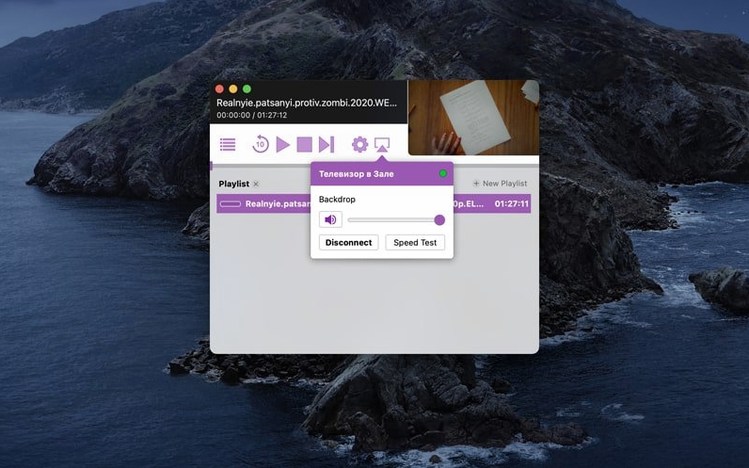
Device selection
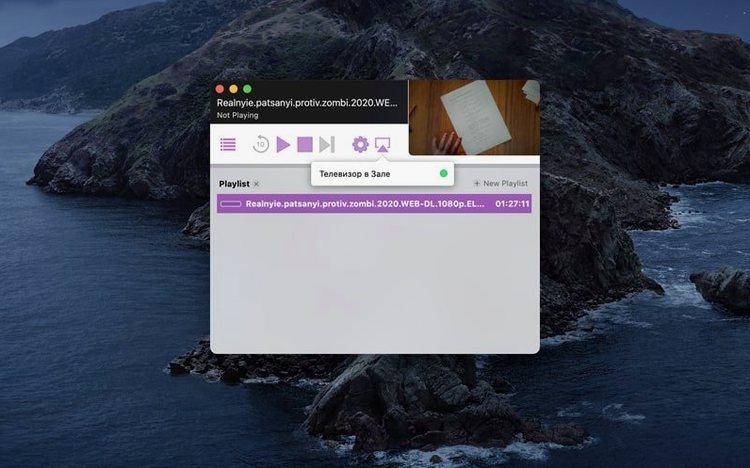
Once a video is added, Airflow scans the local network for Chromecast receivers. Pick a device from the list and playback begins almost immediately. The connection is direct, with no routing through an online account.
Playback controls
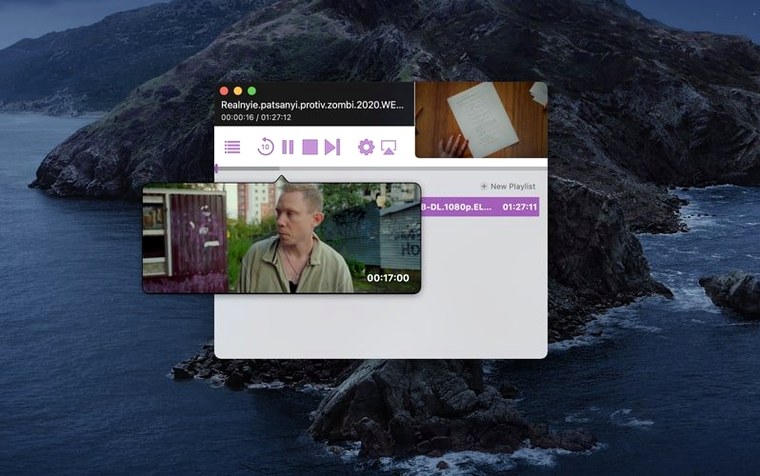
During playback the main window shows a scrubber, a volume slider and a pause button. The app queues multiple files so a playlist runs from one clip to the next without returning to the Mac.
Format handling
Airflow reads a broad set of container and codec combinations. When a file is incompatible with the Chromecast's native decoders, the app transcodes on the fly. CPU usage rises during transcoding, so a wired network connection helps with larger files.
Picking up external SRT and ASS subtitles automatically
One of the first things people ask is whether Airflow handles subtitles. It does — external SRT and ASS files are picked up automatically when they share the filename of the video, and embedded subtitle tracks in MKV or MP4 containers appear as selectable streams before you hit play. Font styling is basic; ASS formatting gets simplified during transcoding, so elaborate typesetting may not survive the trip to the television.
Another frequent question concerns audio passthrough. Airflow sends stereo AAC without touching it, but surround codecs such as DTS or Dolby TrueHD are transcoded to a format the Chromecast accepts. If you rely on a home cinema receiver for bitstreaming, the result is stereo PCM. That is a Chromecast limitation rather than an Airflow one, but it catches people out when they expect their receiver’s DTS indicator to light up.
People also ask whether the Mac needs to stay awake. It does. Airflow is not a media server that hands off files to the Chromecast and closes; the Mac reads the file, optionally transcodes it, and pushes the stream across the network for as long as playback lasts. Setting Energy Saver to prevent sleep during long films avoids mid-movie dropouts.
Streaming a local folder structure to a TV without cables
Airflow suits Mac users who keep a local video library and want to watch it on a television without stringing an HDMI cable across the room. If your films, home videos and downloaded series sit in a folder structure you already maintain, Airflow fits into that habit without asking you to import anything into a database or sign into a service.
It clicks particularly well for people who watch across several Chromecast devices. A bedroom Chromecast, a living room Chromecast and a kitchen Nest Hub all appear in the same device list, and switching between them takes two clicks. Households where different members cast to different screens appreciate that Airflow does not tie itself to one device after the first connection.
People who watch international content also benefit. The subtitle support and the drag-and-drop queue make it easy to line up a few episodes of a foreign-language series, pick the right subtitle track for each, and let the playlist run. The app does not try to scrape metadata or fetch artwork, so it never stalls on a misidentified filename.
A typical evening playlist, step by step
Suppose you have a mix of files on the Mac: a downloaded documentary in MKV with embedded subtitles, a home video in an older AVI container, and an MP4 clip from a phone. Open Airflow and drag all three from a Finder window onto the main area. The app lists them in the order they were added; drag the row handles to reorder if the documentary should play first.
Select the documentary in the queue. A subtitle icon appears because the embedded track was detected. Click it, confirm the English track is chosen, then pick the living room Chromecast from the device dropdown. Press play. The documentary starts, and the progress bar advances. When it ends, Airflow automatically moves to the AVI file. Because that container uses an older codec, the app begins transcoding — the Mac’s fan might become audible — and after a couple of seconds the home video appears on screen. The MP4 from the phone follows without any conversion needed. At no point do you return to the desk.
Idling at a fraction of a percent CPU during direct playback
With natively supported files, Airflow is light on the processor. Activity Monitor shows it idling at a fraction of a percent of CPU during direct playback, and memory use sits around 100 MB. The stream itself travels over the local network, so wireless congestion is the more likely bottleneck. On a 5 GHz network, even high-bitrate 1080p files start within a second or two.
Transcoding changes the picture. Converting a 1080p H.264 file with an unsupported audio track pushes CPU usage to roughly 40–60 % on a typical Intel Mac, and a 4K HEVC file can saturate two cores. The app remains responsive during conversion — the queue stays interactive and you can still adjust volume or skip ahead — but the Mac’s thermal profile dictates how long the fans stay spun up. A wired Ethernet connection helps because it removes Wi-Fi contention as a variable when the bitrate climbs.
Stability is straightforward. Airflow runs for hours without leaking memory noticeably; playlist playback across a four-hour block of mixed files rarely trips. When a file refuses to play, the failure is usually down to a codec the Chromecast cannot accept and that Airflow cannot transcode cleanly — damaged MKV headers or unusual frame rates are the usual suspects. The app logs the error unobtrusively rather than beachballing, and the rest of the queue continues unaffected.
For Intel Macs on macOS 10.12 through to current builds, the footprint stays modest. Airflow does not install background daemons or a login item, so it only consumes resources when it is open and actively streaming. Quit the app and it leaves nothing running.