Aspecten
 Download (49 MB)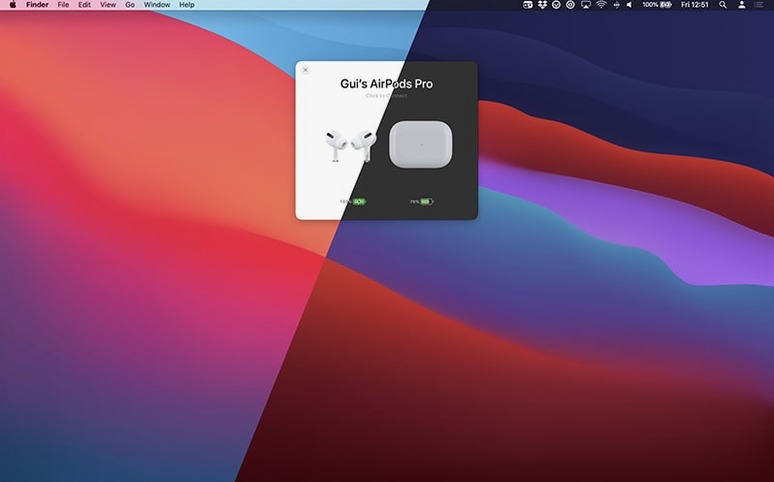
You place your AirPods Pro in your ears and glance at your MacBook's screen. A status panel fades in, showing each earbud's charge and the case battery, without you opening the Bluetooth menu or a separate widget.
Per-device battery detail
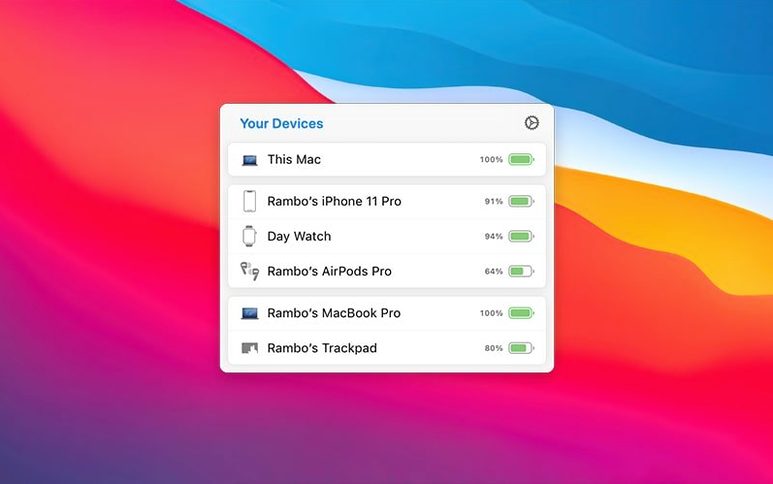
AirBuddy exposes whether the left or right AirPod is draining faster, rather than showing a single averaged figure. The menu bar can show the combined charge of a chosen device, the app icon, or nothing at all, giving you control over how much space the indicator uses.
Custom connection modes
When a known device connects, AirBuddy can apply a specific listening mode automatically. You might set your AirPods Pro to Transparency at home and Noise Cancellation at a shared office, with playback controls and connection triggered by a keyboard shortcut or a trackpad gesture.
Peripheral handoff between Macs
Magic Handoff lets you move a Magic Mouse, Magic Trackpad, or Magic Keyboard from one Mac to another nearby Mac without unpairing and re-pairing. The handoff works alongside the battery reporting, so you see the peripheral's charge before and after the switch.
Switch desks without re-pairing anything
Someone working across a Mac Studio and a MacBook Air during the same morning gets a clear picture of what AirBuddy shortens. They start at the Studio with a Magic Keyboard and a Magic Trackpad. A meeting pulls them away; they grab the MacBook Air and a pair of Beats Fit Pro. AirBuddy shows the Beats case charge on the Air’s menu bar before the lid is fully open. Back at the desk, Magic Handoff returns the Trackpad to the Studio in a couple of seconds. The small status window appears only when a device comes near or connects, so it stays out of the way during focused work. The scenario leaves out the usual Bluetooth menu hunts and re-pairing dialogues that would otherwise break the rhythm of switching workstations.
Wakes and refreshes in under three seconds
On an M1 MacBook Air running macOS 14, the app opens in under a second and the menu bar status refreshes within two or three seconds of a device waking. The background process, visible in Activity Monitor as AirBuddy Agent, typically hovers around 40–70 MB of memory and draws negligible CPU when idle. During a connection event the CPU spike is brief and returns to baseline immediately.
Stability over a working week is uneventful in the best way. The agent does not drop device reporting after sleep, and the connection modes fire reliably when an AirPod is taken out of its case. One limit worth noting: if you frequently walk between rooms with multiple Macs, the proximity detection occasionally needs a manual click on the menu bar to refresh the device list. The app has never caused a kernel panic or a Bluetooth stack hang in daily use, and it coexists without friction alongside sidecar connections and Universal Control.
Connecting and switching listening mode in four steps
A concrete workflow for a user who alternates between a shared space and a quiet room several times a day:
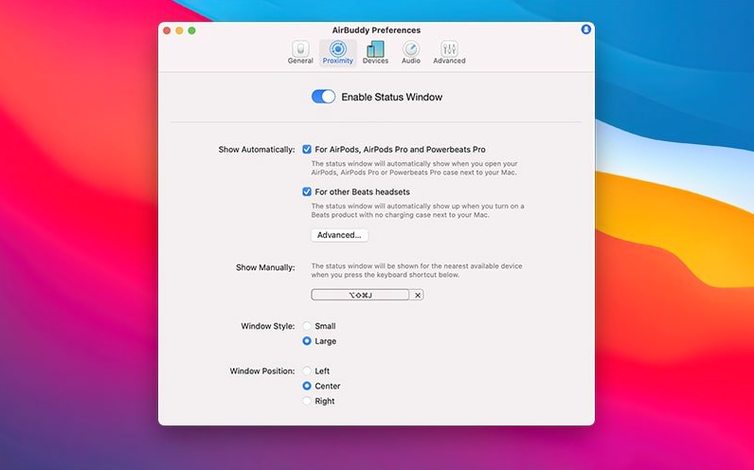
- Assign a global keyboard shortcut in AirBuddy’s preferences — say
Control-Option-A— for the connection panel. - When you sit down, press the shortcut. The panel lists your AirPods Pro and any other nearby Apple or Beats headphones.
- Click your AirPods Pro in the panel. If a custom connection mode is set for this Mac, it applies immediately: Noise Cancellation engages, the microphone switches to the Mac’s internal array, and volume resets to a pre-set level.
- Later, when you need Transparency, use the trackpad gesture tied to the AirPods Pro in the Magic Handoff settings. A three-finger swipe downward on the Trackpad cycles the listening mode without reaching for the earbud stem.
The whole sequence — from shortcut press to adjusted audio — takes under four seconds once muscle memory sets in. Skipping the Mac’s Bluetooth menu and the AirPods stem hold gesture removes friction that adds up across a dozen switches per day.
Pick an icon you will actually glance at
After installing, open the menu bar preferences and decide which icon variant you want before anything else. The three choices — app icon, battery indicator, or nothing — shape how often you glance at the bar. The battery indicator uses the least horizontal space while still showing a rough level at a glance.
Second, visit the Connection Modes pane and build at least one mode. Name it after the situation, not the device, so “Study” or “Commute” is clearer later than “AirPods Pro”. Set the listening mode, volume level, and microphone preference for that context. You can leave the mode unassigned and apply it manually from the panel; binding it to a specific Mac comes later, once you know which modes you repeat.
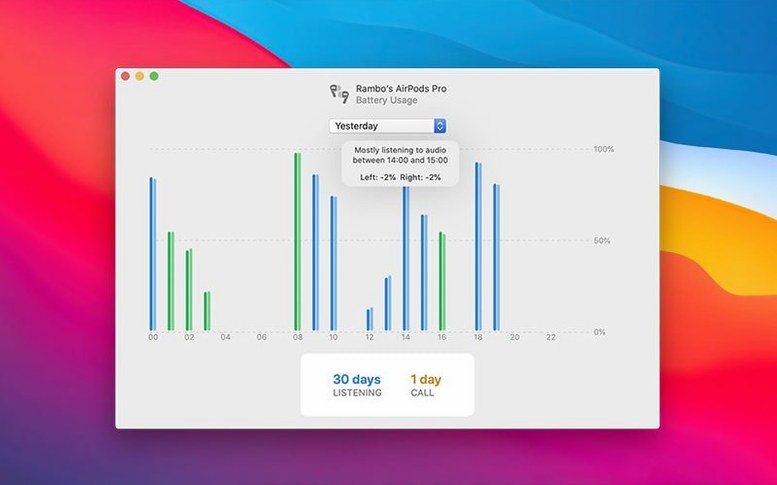
Third, check the Usage tab after a full day. The 12-hour view shows whether a left or right AirPod drained faster, which often reveals a mic setting that favours one side during calls — useful information that the standard Bluetooth battery widget hides. The total listening and talk time counters also help you spot days when you have been on calls longer than you realised.
Finally, if you own two Macs, test Magic Handoff with a Magic Mouse or Trackpad first. The handoff needs both Macs awake and nearby. Move the peripheral, confirm it reconnects on the target Mac within a few seconds, then check the battery reading updates. Once that works once, it tends to work every time.