Aspecten
 Download (347 MB)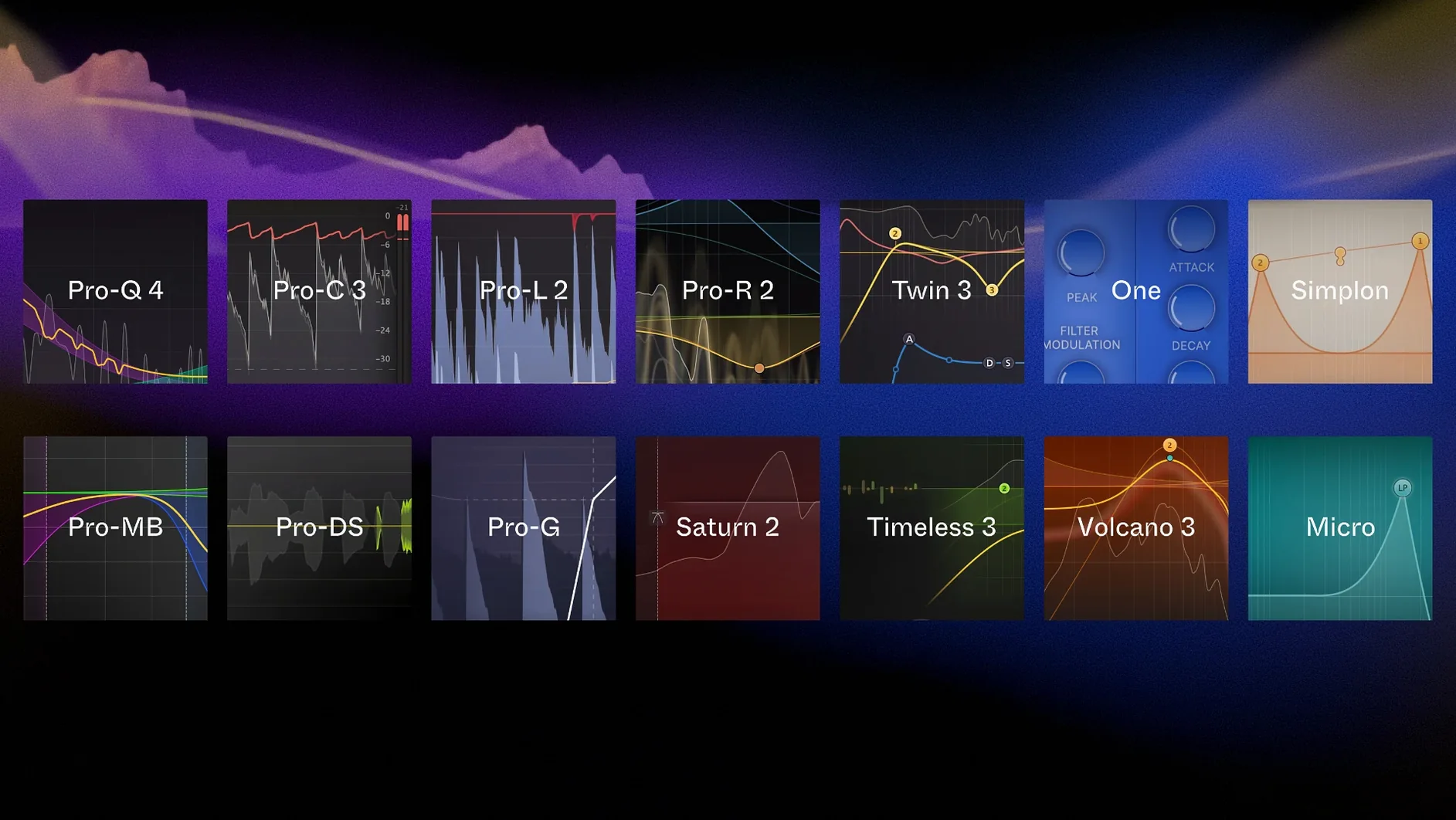
Engineers who mix records, producers who build tracks from the ground up, and sound designers who sculpt audio beyond recognition all reach for the same set of tools. The FabFilter Total Bundle gathers every plug-in FabFilter makes into a single collection — fourteen processors and instruments that cover dynamics, equalisation, reverb, saturation, delay, and synthesis. For a working studio, it is a complete toolkit in one folder.
A maintenance-only update with the same fourteen plug-ins
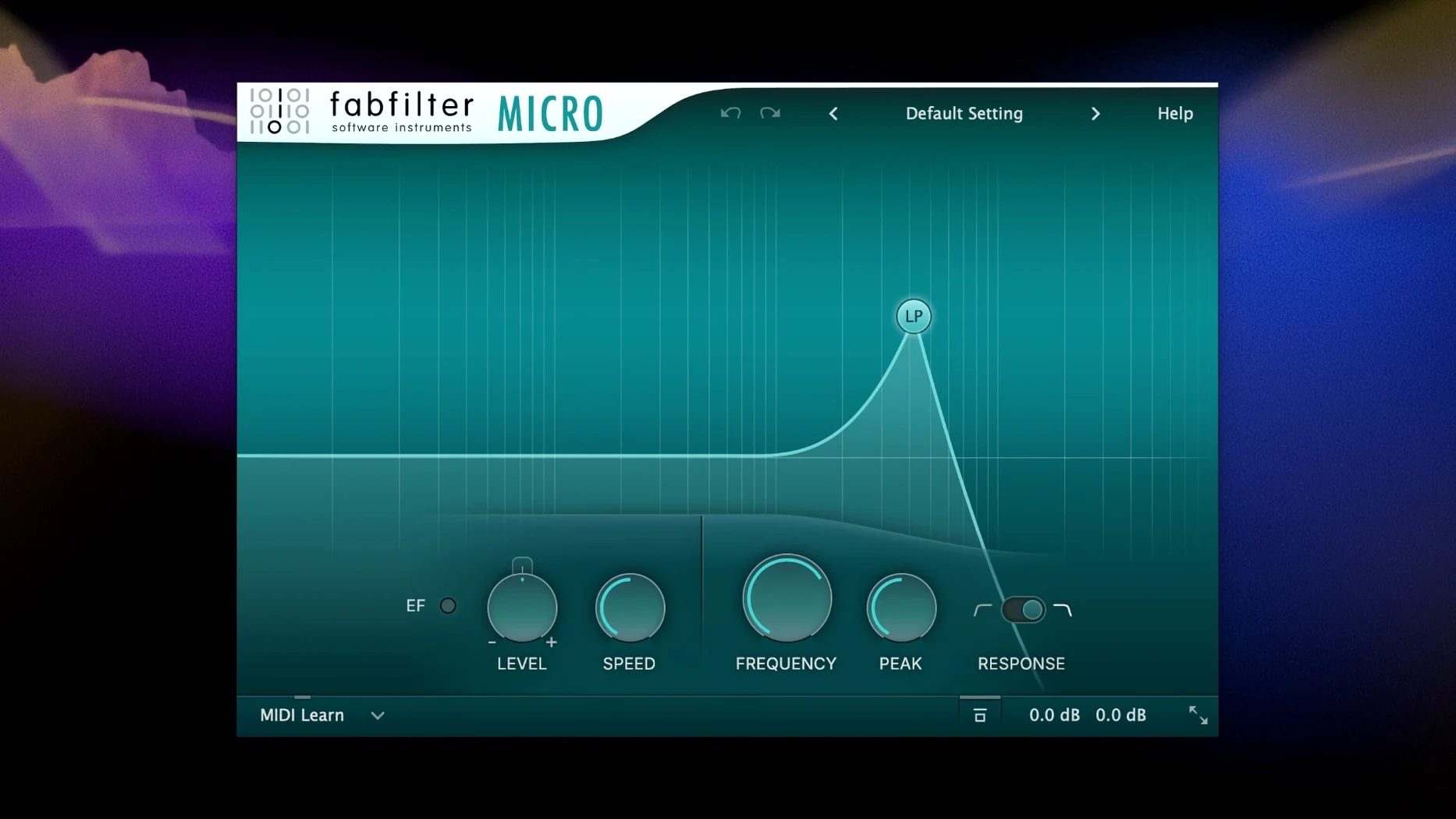
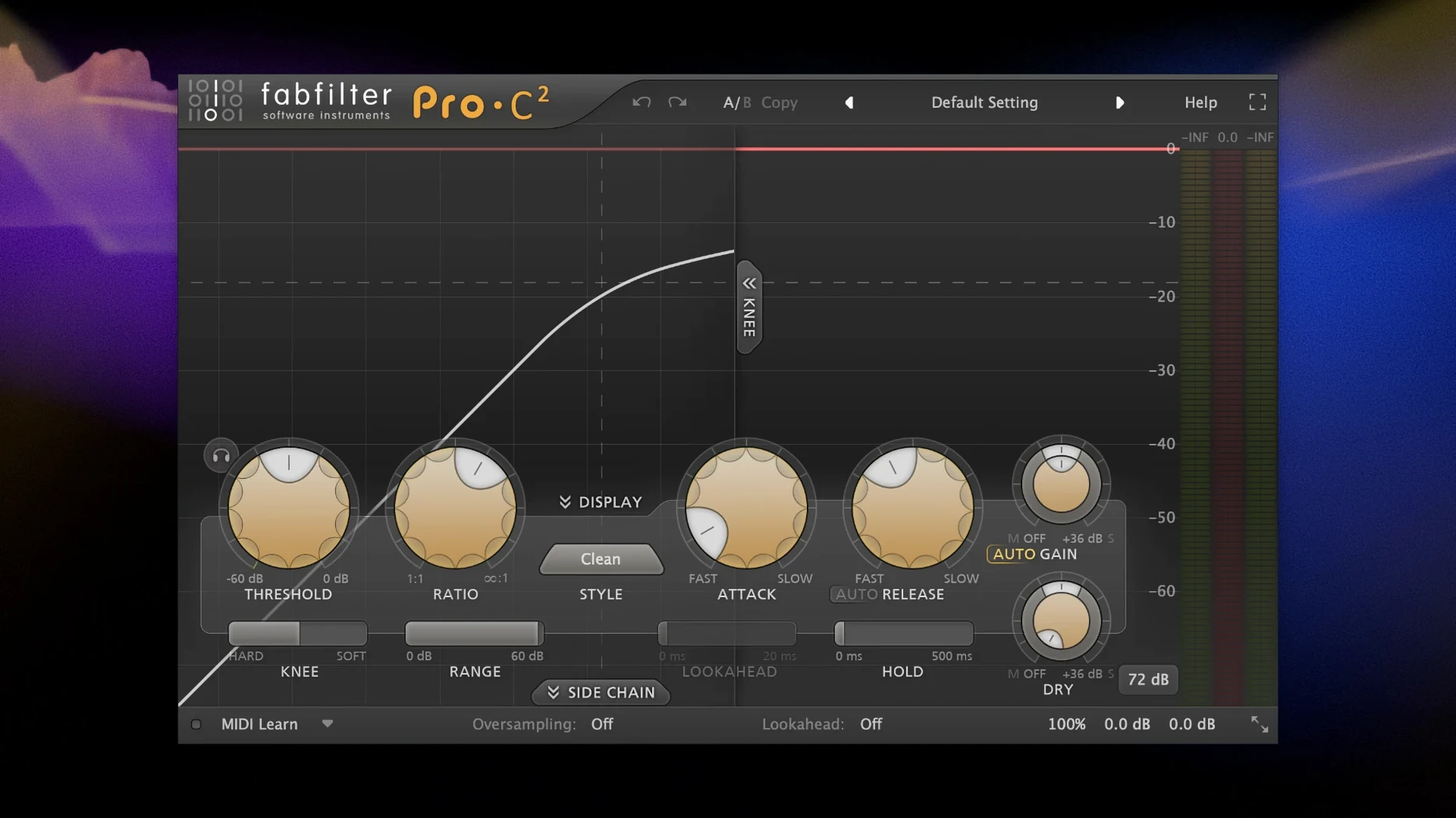
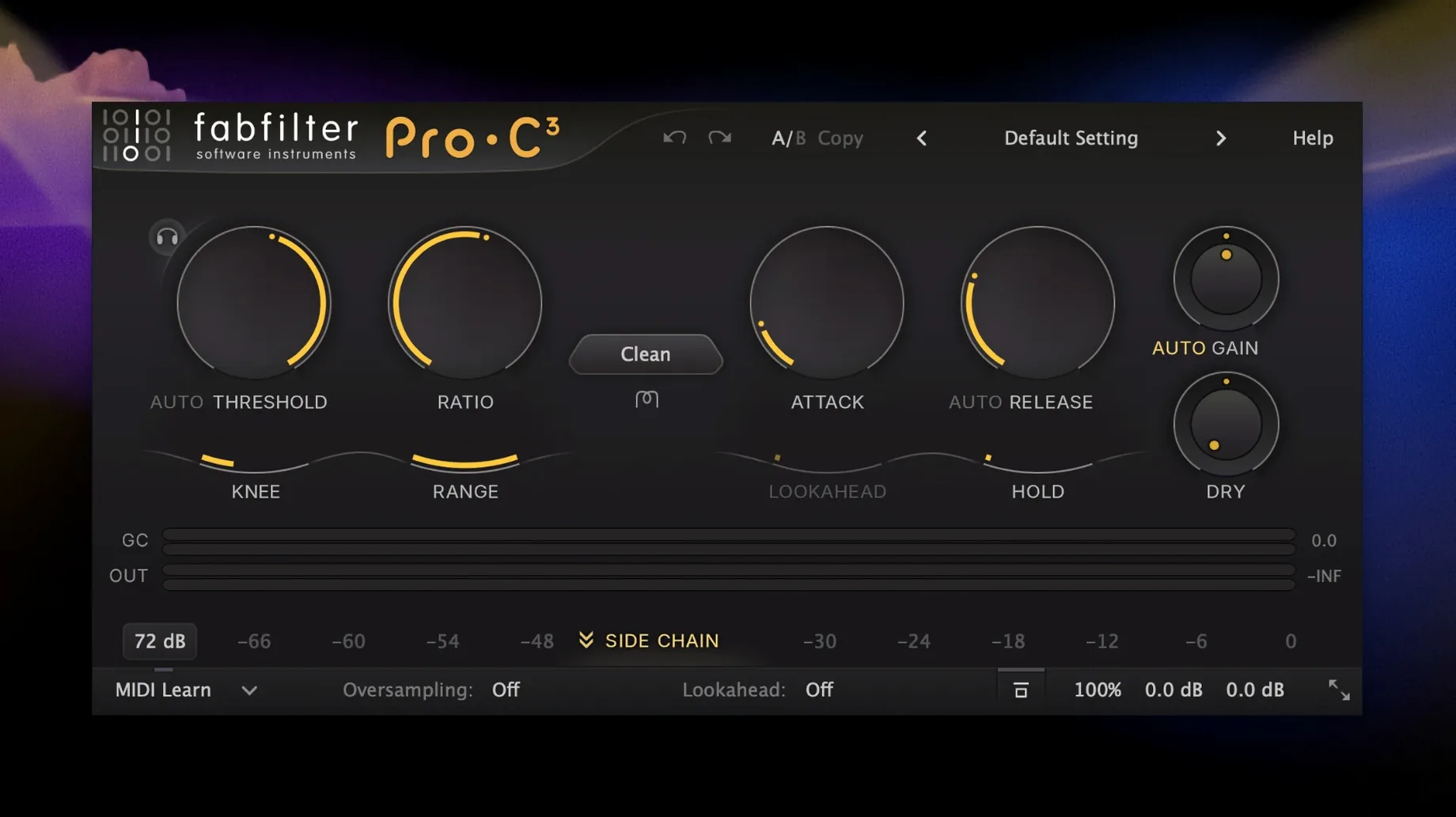
Version 25.06.2026 is a maintenance release with no new features or plug-in additions. The lineup remains the same fourteen titles: the surgical Pro-Q equaliser, the transparent Pro-C compressor, the versatile Pro-R reverb, the characterful Saturn saturation, the dual-oscillator Twin synth, and the rest of the range down to the streamlined Micro filter and One synth. Both processor plug-ins and creative instruments sit side by side in a bundle that has not changed shape, only kept pace with macOS compatibility.
macOS 10.13 minimum and native Apple Silicon support
The bundle still requires macOS 10.13 or later and runs natively on Apple Silicon and Intel 64-bit Macs. Installation follows the usual routine: open the downloaded disk image and run the standard installer. The interface language is English. For anyone who has used FabFilter plug-ins before, nothing about the workflow, the sound, or the system footprint has shifted. The value of the bundle lies in how well these plug-ins already work together — and for now, FabFilter has left that undisturbed.
First settings to revisit
A fresh install leaves every plug-in at its factory defaults, which are sensible but not personal. Three adjustments make the whole bundle feel more like your own.
Open any FabFilter plug-in and switch the interface size. By default, many open at medium or small. Hold Cmd and scroll, or use the small arrow button in the lower-right corner, to scale the window up. On a 27-inch display, the large setting for Pro-Q turns the spectrum analyser into something you can read from across the room. The setting sticks per plug-in, so set it once for each one you use often.
Turn off the animation of the analyser in Pro-Q and Pro-MB. The smooth scrolling of the spectrum looks polished, but on an older Intel machine it nibbles at GPU resources. Right-click the analyser background, uncheck Smooth scrolling, and the display becomes snappier without losing any frequency information. The same menu lets you switch between stereo, left, right, or mid-side views depending on what you need to see.
In Pro-L, the first thing to touch is not the gain knob but the Channel linking control. The default of 100% linking can sound clamped on a drum bus; dragging it down to 70–80% lets the left and right channels breathe independently while still preventing the stereo image from drifting. The visual waveform display immediately shows transients moving in a more natural pattern.
Small conveniences hidden in plain sight
FabFilter plug-ins reward a bit of poking around. A few shortcuts improve speed, but they are rarely mentioned in quick-start guides.
Double-click any knob or numeric field to type a value directly. This is true across the whole bundle — Pro-C threshold, Saturn drive, Timeless delay time, or Twin oscillator pitch. For surgical moves, hitting a precise number is faster than dragging. The text field accepts basic arithmetic, too. Typing 1/4 in a delay time gives you a dotted eighth if the plug-in interprets it correctly; 120/2 gives half a bar at 120 bpm.
In Pro-Q, Alt-click a band to solo it. The entire mix drops away and you hear only the frequencies inside that bell, shelf, or cut. It is the cleanest way to locate a resonant whistle or a muddy pocket without sweeping a boosted band across the spectrum. Alt-click again to toggle back.
Pro-MB has a hidden workflow for drum processing. Right-click the crossover handle between two bands and choose Split band to add a new band exactly at that frequency. The crossover slopes stay symmetrical, and the new band inherits the processing of the one you split. Setting up a four-band drum chain takes seconds instead of dragging three crossovers from scratch.
The output section of every plug-in with a gain control supports auto-gain toggling. In Pro-C, the button sits near the output meter; in Saturn, it appears at the bottom of the modulation panel. Tap it briefly while adjusting processing — the loudness jump disappears and you judge the tone, not the level. Switch it off again for final gain staging.
Undo and redo work globally across all plug-ins. Cmd+Z steps back through parameter changes, not just the last one. A small detail, but it removes the hesitation about experimenting with extreme settings on a mix you have already partially balanced.
Why a mastering preset on a drum bus falls apart
New users often treat the bundle as a set of polished presets and leave it at that. The presets are good, but they are starting points. A common error is loading a Pro-MB mastering preset on a drum bus and wondering why the kick loses punch. The preset assumes a full mix, with attack and release times shaped for program material, not for the sharp transients of a snare. The fix is simple: switch to the Punchy Drums preset in the mastering folder or build from scratch and keep the attack times above 15 ms for the low band.
Another mistake involves Pro-R. Beginners often set the Decay Rate to a pleasing tail in solo and then find the reverb disappears when the full arrangement plays. Pro-R’s decay EQ and the Distance knob both shape how the tail sits. Pushing Distance past 50% and cutting the decay EQ below 300 Hz by 2–3 dB makes the same tail audible in a dense mix without lengthening it.
In Pro-L, a beginner pattern is chasing loudness with the gain knob and ignoring the Style selector. The default Transparent mode is clean, but on a rock mix it can sound soft. Switching to Punchy or Allround changes the limiting algorithm in a way that preserves snare attack at the same output level. The difference is not subtle — it is often the thing that makes a home master sound closer to a commercial reference.
Saturn invites over-saturation. Its multiband architecture means you can drive the low end, the mids, and the top end independently, and the cumulative effect quickly turns a vocal into a distorted mess. A better approach: enable only one band, drive it gently, and use the Mix knob to blend the saturated signal underneath the dry. Saturn’s mix control works per band and globally, so parallel saturation is built in.
It ships every single FabFilter plug-in
A few questions come up repeatedly, often before anyone downloads the installer.
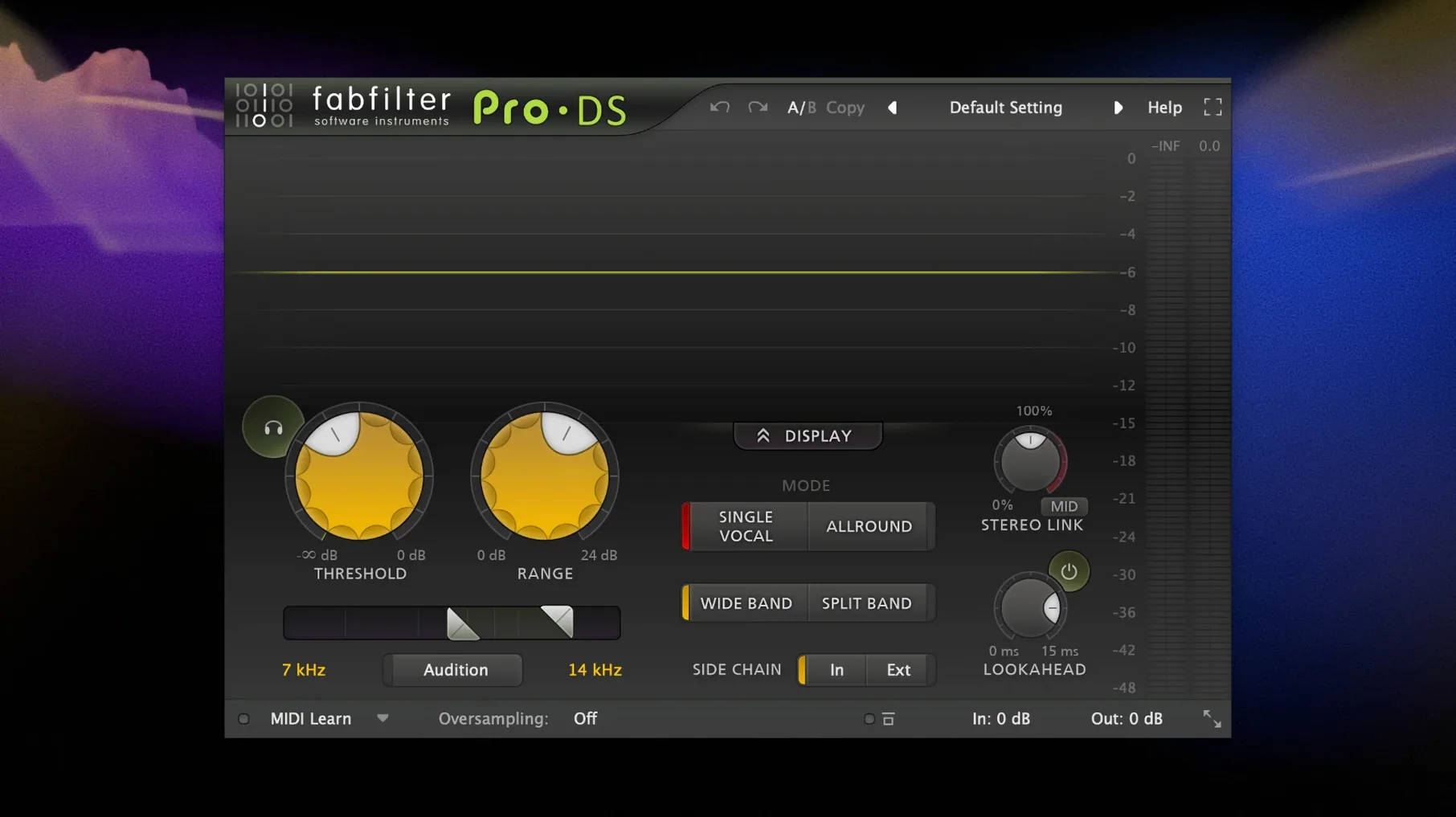
Does the bundle include all FabFilter plug-ins, or just the main ones? It includes every plug-in FabFilter makes. The fourteen titles cover the full range: Micro, One, Pro-C, Pro-DS, Pro-G, Pro-L, Pro-MB, Pro-Q, Pro-R, Saturn, Simplon, Timeless, Twin, and Volcano. Nothing is left out. If a future release adds a new plug-in, the bundle at that point will grow.
Will it run on an M-series Mac, or is it Intel-only? The bundle runs natively on Apple Silicon and Intel 64-bit Macs. The plug-ins load as native ARM code inside a DAW running natively on Apple Silicon. There is no Rosetta translation layer for the plug-ins themselves, though the host DAW might use one if you run it that way. In practice, a DAW running natively on an M2 or M3 loads the plug-ins without any compatibility layer.
How heavy is the CPU load compared to stock DAW plug-ins? The answer depends on the plug-in. Pro-Q is famously light — a single instance uses roughly the same CPU as a stock channel EQ on most systems. Pro-R and Saturn are heavier, especially at high quality settings and with many modulation lanes active. Twin and Timeless sit somewhere in the middle. The bundle does not include lightweight alternatives for heavy plug-ins; instead, each plug-in offers quality settings. Dropping Pro-R from Full to Eco quality during tracking cuts its CPU use by more than half, and the difference is almost inaudible at moderate decay times.
Can I use these plug-ins in any DAW, or only specific ones? The bundle ships in VST, VST3, AU, and AAX formats. That covers Logic Pro, Ableton Live, Pro Tools, Cubase, FL Studio, Reaper, Studio One, Bitwig, and essentially every modern macOS DAW. The installer places them in the standard system folders. No proprietary host is required, and no dongle or hardware controller is needed.
Modest install size and all-day predictability
Across a working day of mixing and sound design, the bundle behaves with a predictability that is rare in large plug-in collections. The install footprint is modest for what it contains — the disk image unpacks a set of components that sit quietly in the system Library folders. Launching a session with thirty instances of Pro-Q, two Pro-Rs, a Pro-L, and assorted Saturn and Timeless instances does not trigger any macOS security prompts after the first authorisation on modern systems.
Memory use stays flat. Pro-Q allocates roughly 40–60 MB per instance depending on the analyser length and the number of bands; a full mix session with dozens of FabFilter instances rarely pushes the plug-in memory contribution past 500 MB. That leaves headroom for sample libraries and convolution reverbs from other developers. The plug-ins do not leak memory over long sessions — a mix left open overnight returns the same memory readout in Activity Monitor the next morning.
Stability is the bundle's strongest practical asset. Crash logs seldom point to a FabFilter plug-in as the cause. The codebase feels mature; Pro-Q has been through four major revisions, Pro-C through three, and each iteration has tightened the threading and the graphics drawing. When a DAW crashes during a session with heavy FabFilter use, the culprit is almost always a different plug-in from another developer or a system-level audio driver conflict. The bundle's plug-ins validate cleanly in every host that performs AU or VST3 scanning.
GUI responsiveness is worth noting separately. On an Apple Silicon Mac, opening a Pro-Q window with a full analyser running adds no perceptible delay — the window draws in a single frame. On an older Intel MacBook from 2018, opening a Pro-R interface with the decay visualisation active takes about half a second. Closing the visualisation panel speeds it up noticeably. The plug-ins are not graphically lightweight in the way a stock DAW EQ is, but they trade the visual detail for usable information. The spectrum grab in Pro-Q — clicking directly on the analyser peak and dragging it down — remains the fastest way to notch out a resonance across any EQ on the market.
DAW project load times barely shift when a session uses twenty or thirty FabFilter instances. The plug-ins do not phone home, do not check for updates during scan, and do not load sample content (except the small noise oscillator in Twin, which is generated algorithmically). A session that loads in four seconds without FabFilter might take five seconds with them. The difference is negligible.
Offline bounce performance is strong. Pro-L at 4x oversampling is the heaviest single process in the bundle, and on an M2 it still bounces a five-minute track in under fifteen seconds. Dropping oversampling to 2x halves that time with a minimal change in peak limiting behaviour. For rough mixes and client refs, the difference is inaudible and the time saved adds up over a day of revisions.