Aspecten
 Download (195 MB)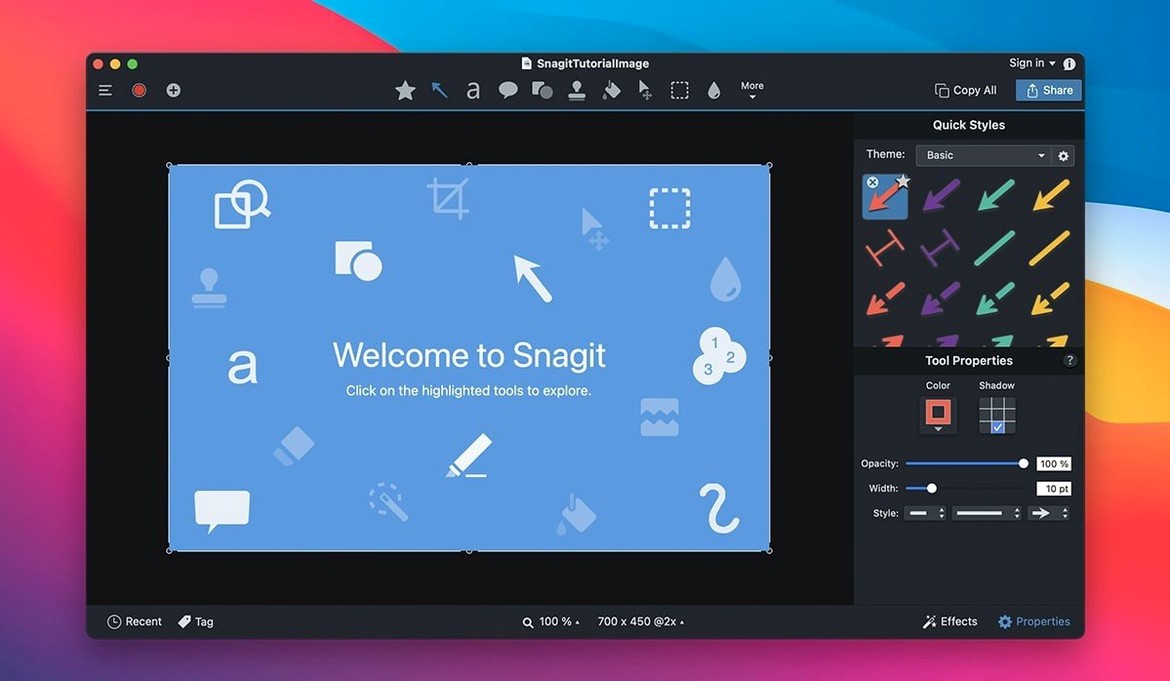
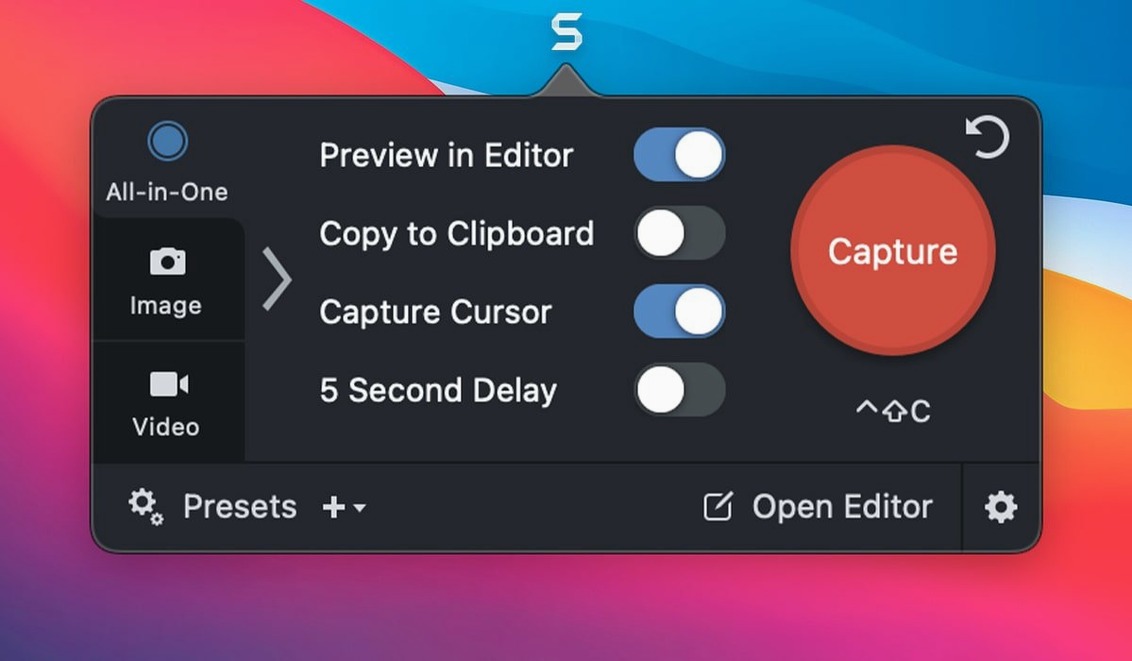
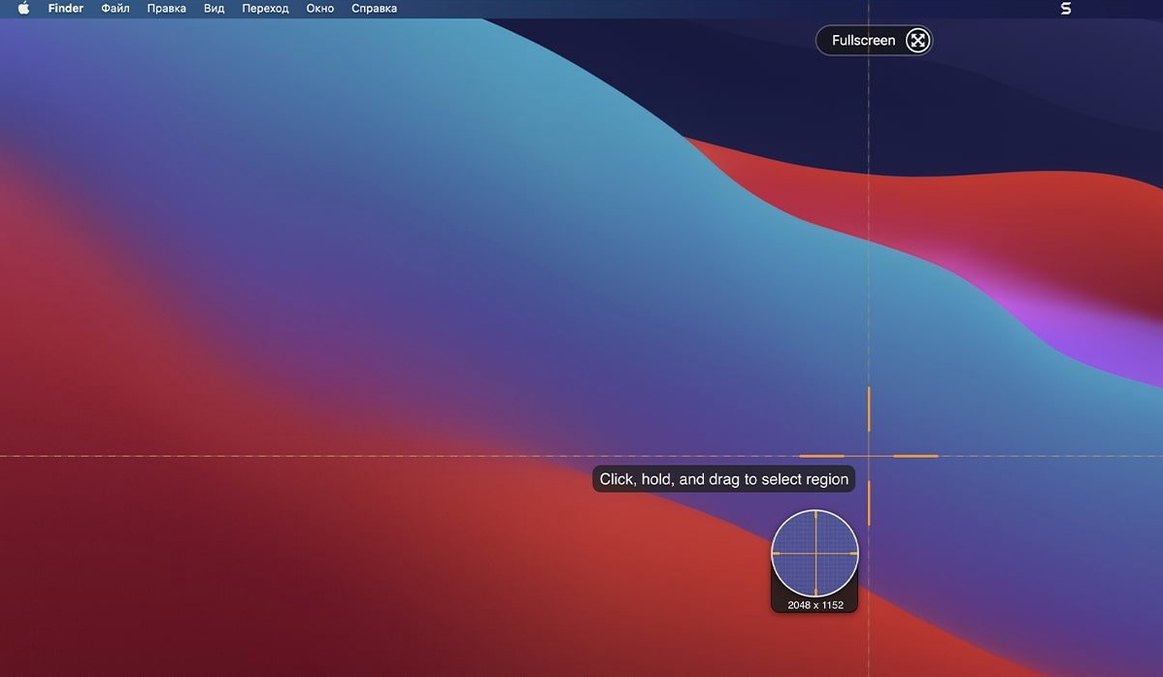
Version 2026.3.3 tidies up a few rough edges on macOS 27: capture toolbars and controls that previously refused to budge can now be moved freely, video playback controls react as expected, and the arrow keys cooperate when QuickLook is active in the Snagit Library. With those distractions out of the way, a new user can focus on what the app does well.
Capture and mark up
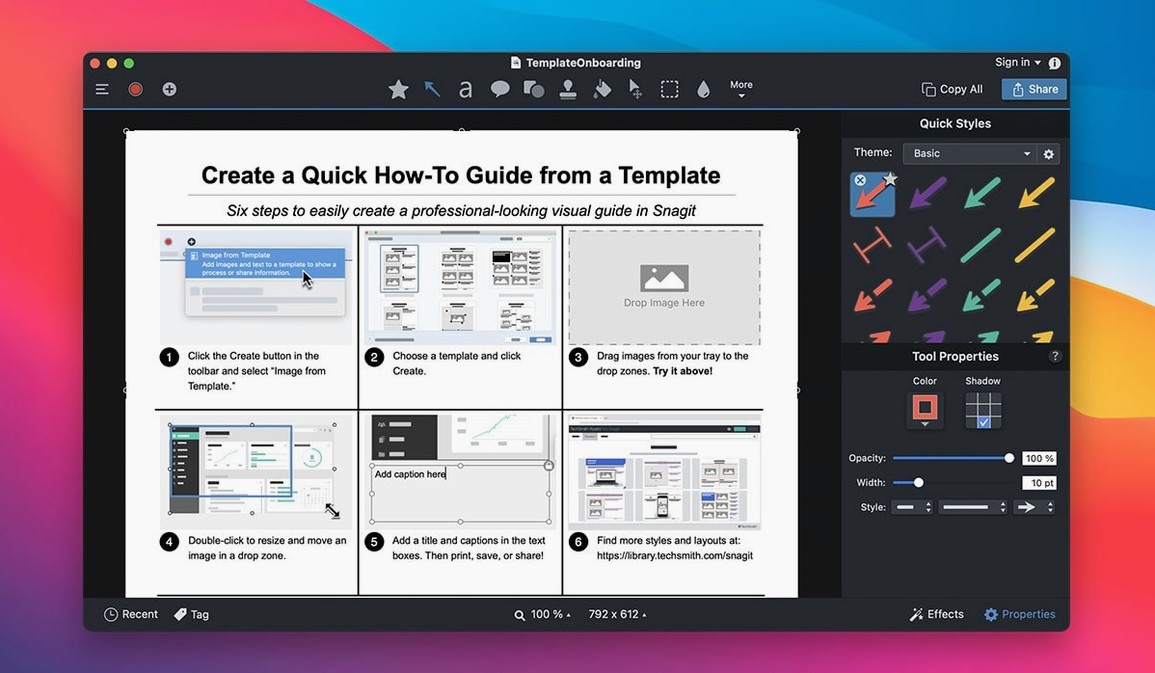
Start by setting up a preset for a task you repeat often — Snagit includes several, and you can tweak the capture area and output destination to match your routine. Once an image is captured, the editor opens automatically. Three things worth trying straight away: add a callout with an arrow and a label to point at a detail, apply the page-curl effect to give a screenshot the look of a printed page, and use the remove tool to delete a stray element from the background without leaving a smudge.
Organise and combine
Captures land in Snagit libraries, where they are sorted by date and source automatically. Assigning a few tags early on makes searching less of a chore later — you can filter by creation date or source as well. When a single image does not tell the whole story, select several captures and combine them into a collage. The tool handles alignment and spacing, so the result looks deliberate rather than pasted together.
Building a software tutorial, shot by shot
Open the preferences panel you want to document. Press the shortcut for your ‘Window’ preset — Snagit snaps the whole panel, crops out the desktop, and drops the capture into the editor. Draw a rectangle around the first setting you need to explain, then add an arrow that points from the rectangle to an empty area on the right. Type a short label like “Enable this first.” Duplicate the image, move the rectangle and arrow to the next control, and update the label. After four or five frames the editor holds a tidy sequence. Select them all, pick the collage option, and Snagit arranges them in a grid. Export the collage as a single PNG and drop it into your documentation tool. The whole flow — capture, mark-up, collage, export — runs without leaving the app.
Where Cleanshot X and Shottr leave the annotation toolbox half empty
Cleanshot X handles scrolling captures and screen recordings with fewer steps, but its annotation tools feel lighter: no page-curl effect, no remove tool, and collages need an external editor. Shottr packs a superb scrolling-capture engine and a fast text-recognition feature that Snagit lacks, yet it has no built-in library and no video recording. Snagit sits between the two. It records video, keeps a searchable library with tags, and offers the broadest set of annotation effects. The trade-off is a heavier interface and a longer cold start. Where Shottr opens in a blink, Snagit takes a moment to load its libraries and presets. For someone who produces five marked-up screenshots a day, Shottr feels quick and honest. For someone producing twenty, with a need to retrieve last month’s captures by tag, Snagit’s weight begins to make sense.
Option‑dragging an arrow to snap it perfectly horizontal
Hold Option while dragging a callout arrow to snap it to a clean horizontal or vertical line. Right-click any image in the library and choose QuickLook — the arrow keys now work properly — to skim captures without opening the editor. The rounded corners slider in the image effects panel applies the same radius to every capture in a batch selection, which keeps a set of screenshots visually consistent without manual trimming. Click the background colour swatch in the canvas inspector to replace transparency with a solid fill before exporting; helpful when a dark-mode screenshot needs to sit on a white web page. The text capture tool, tucked in the capture presets menu, grabs selectable text from a web page region and pastes it into a note or an email without an image in between — a quiet timesaver for support replies.
Tagging relevant captures so a Tuesday‑morning walk‑through surfaces instantly
Nine-fifteen on a Tuesday. A colleague has asked for a walk-through of the new export flow. You open Snagit and let it settle. The library shows last week’s captures; you tag three relevant ones with “export-guide” so they will surface together. You switch to the application you are documenting, press Shift-Command-2 for your region preset, and drag a rectangle around the first screen. Snagit captures it and opens the editor. You add a step number in the corner — just a text callout with a white fill — and draw a dimming overlay across everything except the dropdown menu you want the reader to notice. You move on to the next step, capture, annotate, and repeat. After twelve minutes you have eight annotated frames. You select them in the library, choose the collage builder, and let Snagit arrange them in two columns. A glance at the preview: alignment is tidy, the dimmed backgrounds draw the eye correctly. You export the collage and attach it to a reply. The library keeps the tagged set for the next time someone asks the same question. The session ends with a single searchable group that took less than a quarter of an hour to produce.