Aspecten
 Download (110 MB)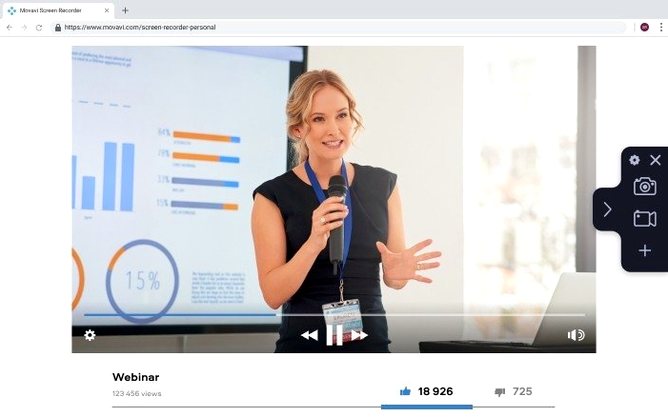
Someone used to QuickTime Player's screen recording will recognise the basic task Movavi Screen Recorder sets out to do: grab a portion of the display, pull in the microphone or system audio, and save a video file. Where QuickTime stops, Movavi extends the idea with a few practical additions that answer questions people tend to search for before installing.
| Detail | Note |
|---|---|
| Mac version | 23.1.1 |
| macOS required | 10.13 or later |
| Architecture | Intel |
| Interface languages | English |
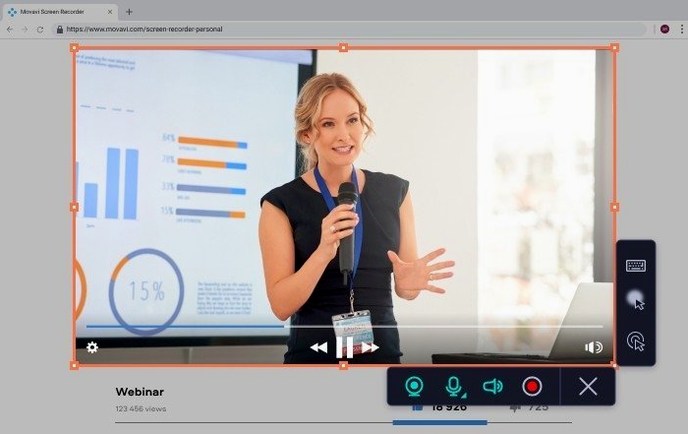
It captures the screen, a webcam feed, and audio together, which makes it suitable for a narrated walkthrough or a video call record. The recording panel lets you set a timed stop so a file does not run on unattended. Small visual cues like keyboard press indicators and cursor click highlights can be toggled on, and the hotkeys are reassignable. Separate from the video tools, a screenshot function grabs still frames and opens a lightweight editor for annotations before saving—useful when a single frame says more than a clip. The official release notes for this version mention only minor improvements and bug fixes, so the feature set is stable rather than shifting underfoot.
Small conveniences that go unnoticed
The recording toolbar stays small and stays out of the way, but a few shortcuts tucked behind it are worth knowing. Holding Option while you drag the capture frame snaps it to common aspect ratios—handy when you know the final video will sit inside a presentation slide or a fixed-width player. The frame dimensions appear in a tooltip as you resize, so you can set 1920 by 1080 without counting pixels.
The cursor click effect has three styles: a subtle ring, a bolder circle, and a colour pulse. The ring works well for coding walkthroughs where the viewer needs to see exactly which line gets clicked without the effect stealing attention. The pulse is better for demos aimed at a less technical audience. A separate toggle adds a small floating panel that prints the name of any key you press—Cmd-S, Esc, and so on—positioned near the bottom of the recording area. Both cues can be switched on and off with a single hotkey while recording, which means you do not have to commit to them before you start. You can keep them off during a long section of on-screen reading and turn them on when you reach the interactive part.
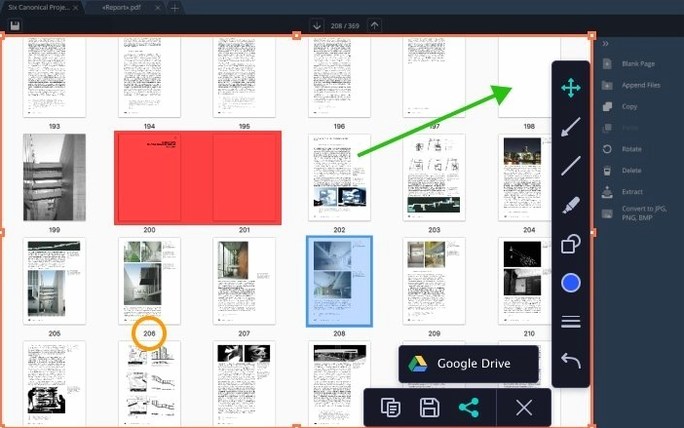
The screenshot editor deserves more attention than it usually gets. After you capture a still, a simple toolbar overlays the image. You can draw arrows, add text blocks, drop rectangles and circles, and blur sensitive areas with a smudge tool. The blur is genuinely useful before uploading a screenshot that contains an email address or a serial number. You apply the edits here, then save to PNG or JPEG, or copy the image straight to the clipboard—no trip through Preview or another editor required. If you regularly annotate bug reports or documentation, this small workflow saves a surprising number of clicks over the course of a week.
Right-click a video to open it in Movavi
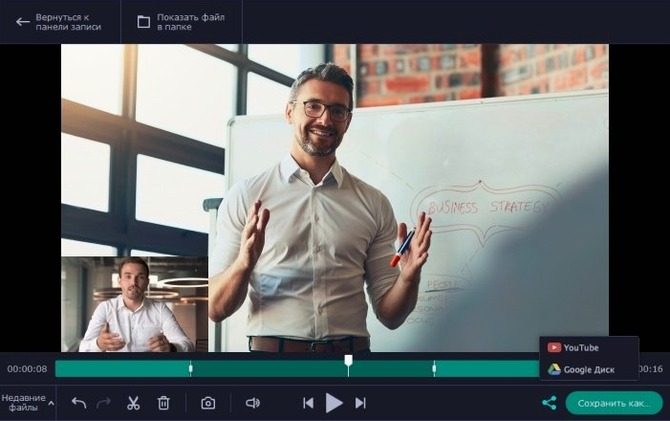
Movavi Screen Recorder respects several macOS conventions that make it easier to slot into an existing toolchain. Recorded files land in a folder you specify, and the app registers itself as a service for common file types. Right-click a video in Finder and you can open it directly in the recorder's trim window. The trim tool is basic—cut a section from the start or end, nothing frame-accurate—but it removes the need to launch a separate editor just to chop off the moment you fumbled for the stop button.
Integration with cloud services is straightforward. Once you authorise Google Drive or YouTube inside the app, the upload becomes a one-click step from the recording history panel. The YouTube uploader lets you set the title, description, and privacy level before sending, which matches the minimum you would fill in on the website. It will not handle playlists or custom thumbnails, but for quick unlisted shares—sending a draft to a colleague, posting a tutorial for a small audience—it does the job without opening a browser.
On the audio side, the app can pull in system sound alongside the microphone. This makes it suitable for capturing a video call with both sides audible, or recording a software instrument performance where you want the Mac's output and a spoken explanation together. One detail that often goes unmentioned: if you use a multi-output audio device set up in Audio MIDI Setup, Movavi sees it as a standard source. That means you can route audio through Loopback or BlackHole to record from separate applications without the app needing to know about the routing layer.
Records at whatever resolution your display runs
A few questions surface repeatedly in discussions about screen recording software, and the answers here are practical rather than theoretical.
Does it record 4K? The capture resolution follows whatever area of the screen you select, so if your display runs at a Retina resolution and you set the frame to full screen, the output matches that. The file format and quality settings in preferences let you choose between higher quality and smaller file size, but there is no hard upper limit on resolution beyond what your Mac's display hardware supports. A 4 track cassette recorder new is a very different piece of equipment, but the question sometimes drifts into search results for screen recording—Movavi has nothing to do with tape.
Will it slow down the Mac while recording? Any screen recorder adds a small overhead because it encodes video in real time. On an Intel Mac, the app uses the CPU for encoding, and the impact is noticeable mainly when you record at high frame rates with both webcam and system audio enabled. On a machine with a dedicated GPU, the load stays manageable. During a typical 1080p recording with microphone audio and no webcam, the processor sits at roughly 8–12% extra utilisation. That leaves enough headroom for the application you are demonstrating to run without stuttering, provided it was not already pushing the machine to its limit.
Can it record a single window if other windows overlap it? Yes, but only if you set the capture area manually to the window's bounds. The app does not follow the window if you move it, and it does not have a "record this window even when obscured" mode. If someone drags another window over the target, the overlapping content appears in the recording. The practical workaround is to clear the desktop before you start and use the timed-stop feature so you do not need to click the stop button and risk dragging something into frame.
Recording history panel with thumbnails loads instantly
After the initial launch, which takes a couple of seconds while the app checks for a microphone permission and loads the recording engine, the interface responds immediately. The recording history panel keeps a list of recent files with thumbnails, and clicking one opens it in the default video player rather than inside Movavi itself. That separation—record here, watch elsewhere—keeps the app's memory footprint from growing as you build up a library. A fresh recording session with the panel open uses roughly 180 MB of RAM on an Intel Mac running macOS 13. That figure climbs by about 30–40 MB during an active recording with webcam and system audio, then drops back when you stop.
Stability in version 23.1.1 is uneventful, which is what you want from a recording tool. I left it capturing a 90-minute screen session with microphone audio and it did not drop a frame or lose sync. The scheduled recording feature worked as advertised: set a start time, an end time, and the area, and the app woke up and recorded without intervention. One quirk worth noting—if you schedule a recording and then put the Mac to sleep five minutes before the start time, the app will not wake the machine. That is standard macOS behaviour, not a bug, but it catches people who assume the scheduler works like a calendar alarm.
People searching for a movavi screen recorder torrent or a movavi mac torrent are often looking for a way to evaluate the software before committing. The version described here is the full 23.1.1 release, and its behaviour on an Intel Mac under routine use is consistent: no crashes, no sudden CPU spikes after stopping a recording, and no leftover processes once you quit. The export step is quick for short clips—a five-minute 1080p recording saves in under fifteen seconds on a machine with an SSD. GIF exports take longer because the palette reduction step is CPU-bound, but a 30-second GIF at 15 frames per second finishes in roughly the same time as a video file twice its length.
The app sits quietly in the background when it is not recording. It adds no menu bar icon by default, no launch daemon, and no login item. If you install it and use it once a week, you will not notice it between sessions. For anyone whose work involves regular screen captures—whether for documentation, bug reporting, or teaching—that low idle presence matters. The tool does its job, writes the file, and gets out of the way.