Aspecten
 Download (421 MB)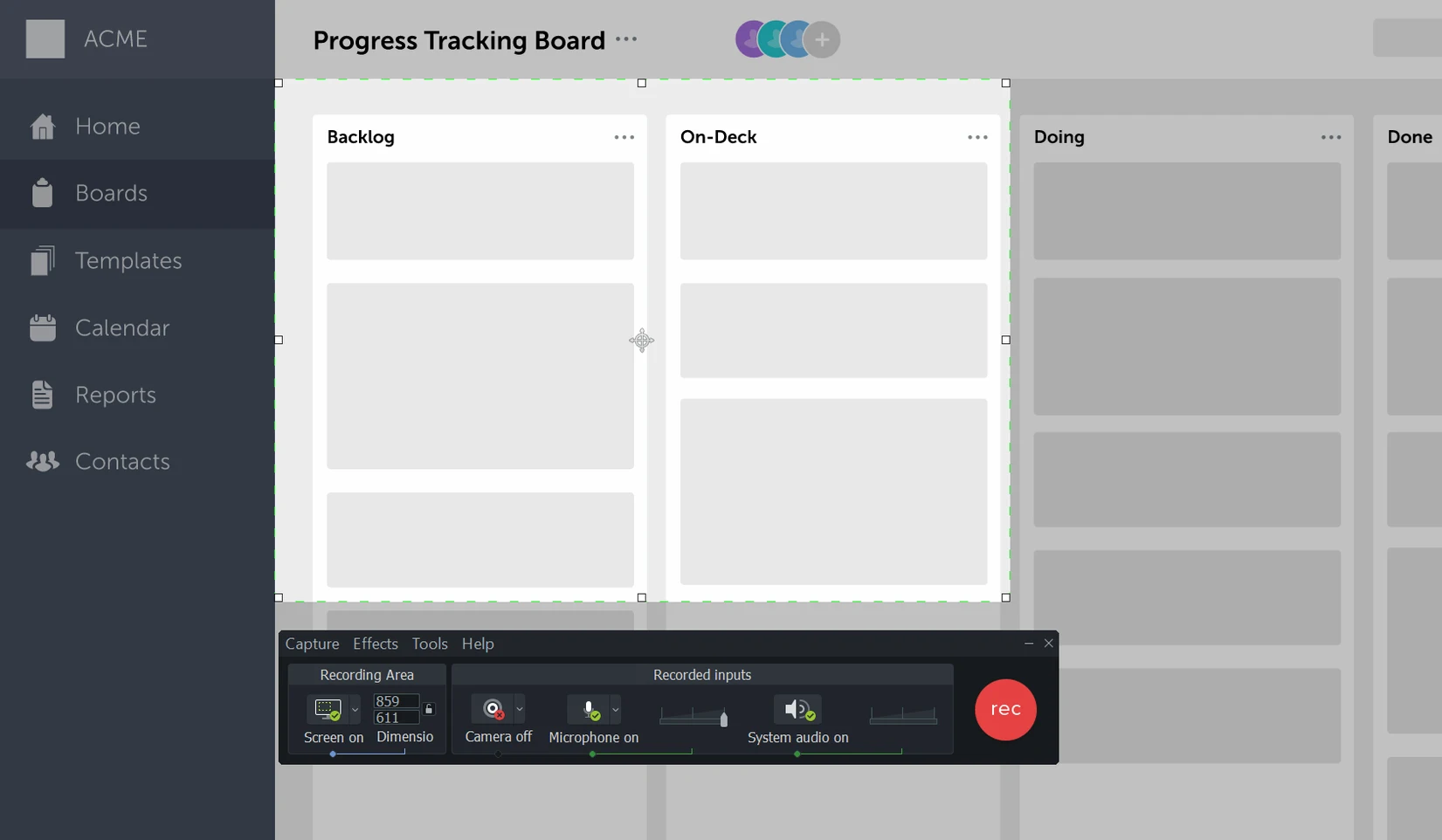
Showing someone how software works often means juggling a screen recorder, a separate editor, and a folder of half-finished clips. Camtasia puts the capture and the cut under one roof, so a workflow that starts with a quick recording can end with a finished video without leaving the app.
Screen recordings trimmed, annotated and shared
- Software demonstrations and product tutorials where you record a sequence of on-screen actions and trim, annotate or highlight the result.
- Online lessons and recorded presentations that combine screen footage with imported video clips.
- Sharing a draft with colleagues or learners — you can send a project or a rendered file directly from the timeline.
Single app combining capture with multi-track editing
- This is a single app for two distinct jobs. The editing side has enough depth for callouts, transitions and multi-track work, but it is not a general-purpose video editor.
- Interface languages cover English, German, Spanish, French, Portuguese, Japanese and Simplified Chinese, which helps in multilingual teams, though the underlying workflows stay the same across localisations.
Recording a six-minute feature walkthrough on a Tuesday
Imagine a Tuesday morning. You need to record a six-minute walkthrough of a new feature in your company’s web app. You open Camtasia and the recording controls appear in a compact floating panel. You set the capture area to a specific browser window, check that the microphone level moves when you speak, and toggle webcam off — this one does not need a face.
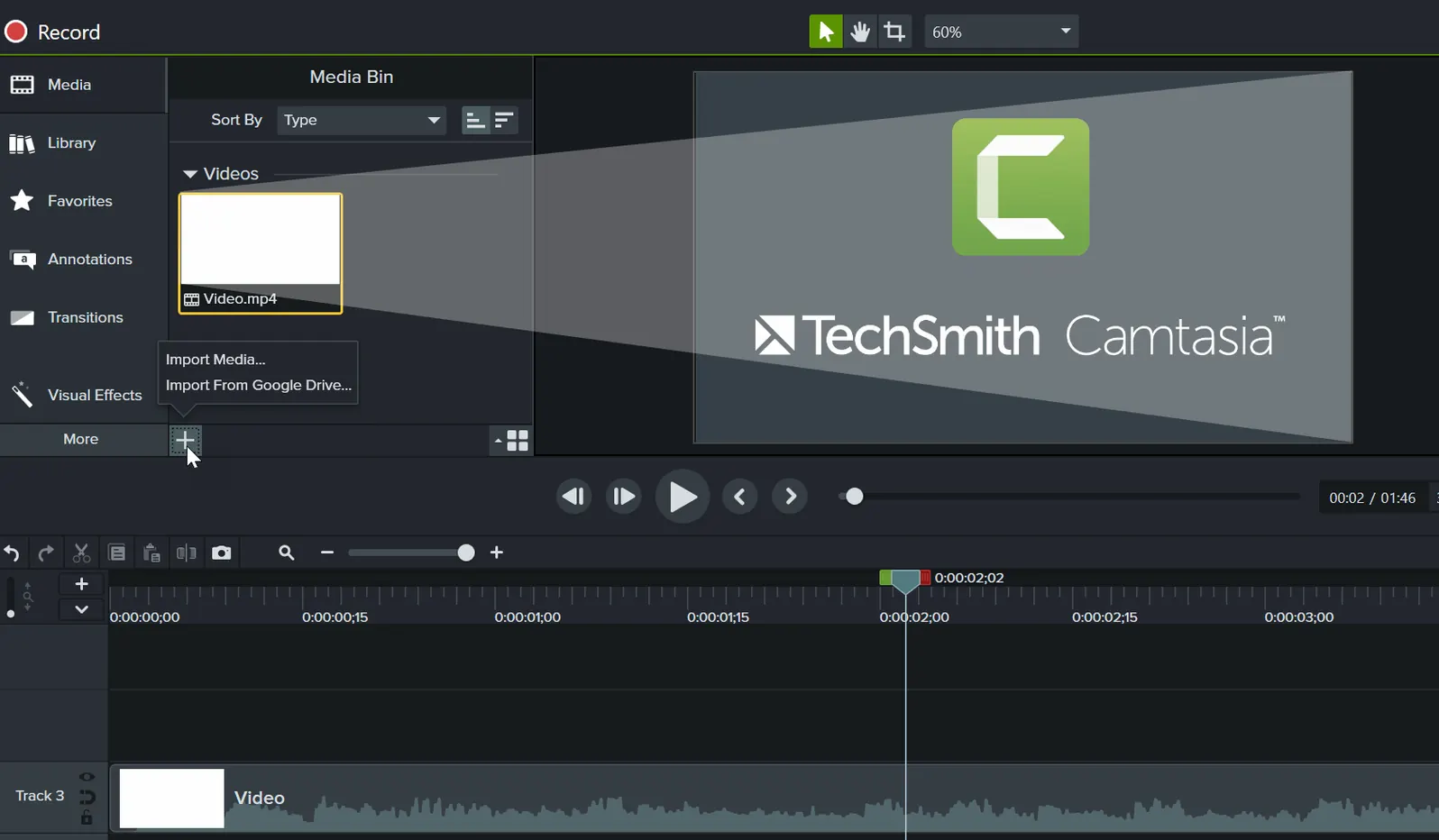
You press record. A three-second countdown ticks by, then the screen capture begins. You move through the feature slowly, narrating each step. A slip of the tongue halfway through does not matter; you pause, repeat the sentence, and keep going. When you finish, you hit stop and the raw recording drops straight onto the timeline. No import dialogue, no file browser.
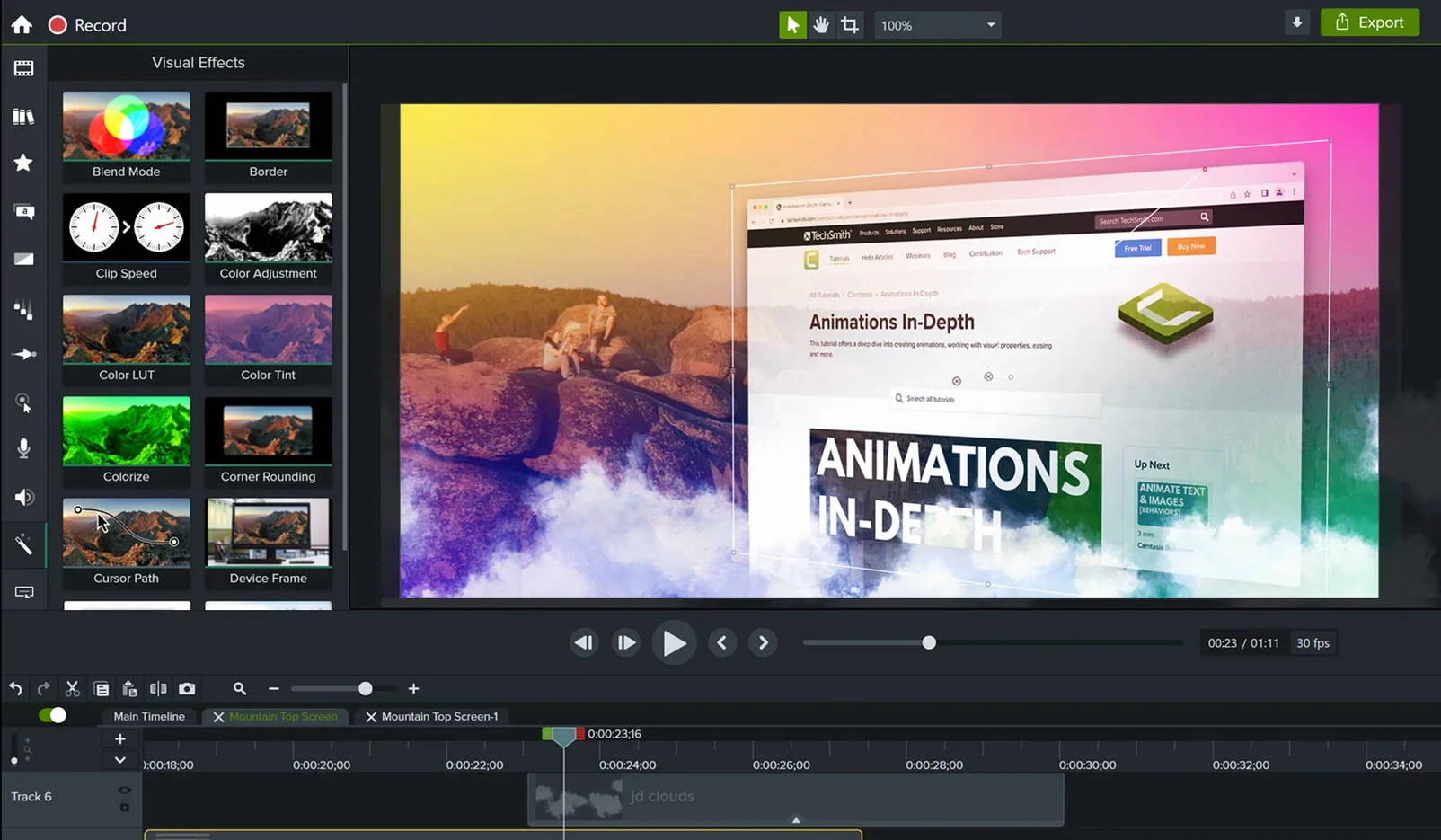
Now the editing. You scrub to the fluffed sentence, split the clip with a single keystroke, and cut the bad take. The two halves snap together. Next you drag a callout from the library onto a new track above the footage — a rounded rectangle with a soft shadow that draws attention to a dropdown menu. You stretch it to cover three seconds, then add a fade-in so it appears gently.
You record a short voiceover for a section where your original explanation was too rushed. Camtasia lets you record audio directly onto the timeline while the video plays, so you watch the silent footage and speak over it. The new audio sits on its own track, ready for a quick volume adjustment.
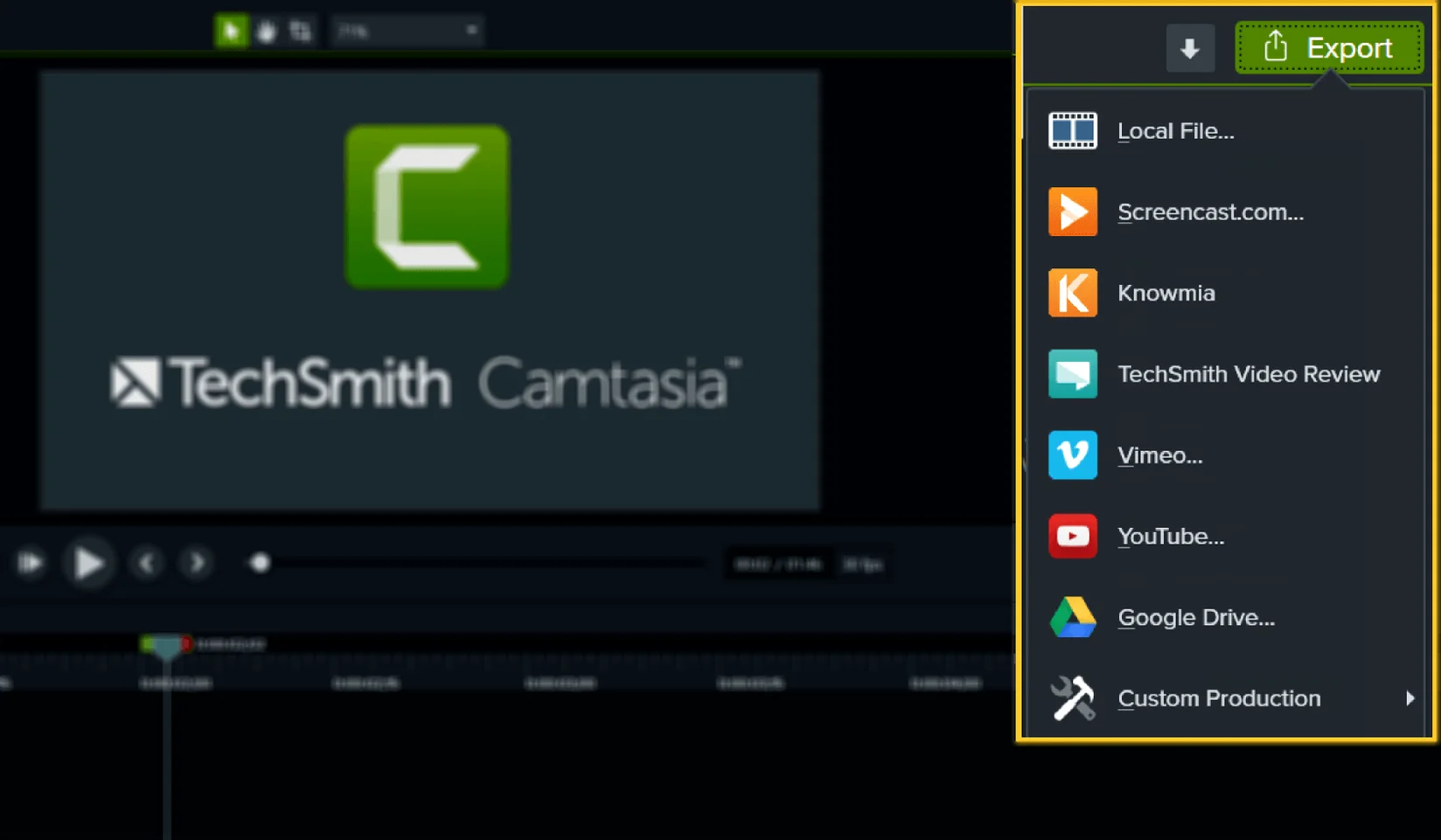
By 10:25 you have a clean video with an intro title card, two callouts, one transition between sections, and background audio ducked under the voiceover. You export it as an MP4 and share it to the team’s review channel. The whole thing took under an hour, and you never left one piece of software.
Apple Silicon launch in three seconds flat
Camtasia on a Mac with Apple Silicon launches in about three seconds on a reasonably clean machine. The media library populates without delay, and dragging a clip from the bin to the timeline feels immediate. Playback at full resolution is smooth for projects with four or five tracks, though scrubbing through a densely layered sequence — six tracks, multiple effects per clip — can show a momentary stutter before the frame catches up.
Export times are proportional to project length and complexity, not punishing. A ten-minute 1080p file with a handful of callouts and transitions renders in around a minute on a recent MacBook Pro. The fans stay quiet during most edits; only longer exports push the temperature up noticeably.
Memory use sits between 600 MB and 1.2 GB for typical projects. It climbs when you work with large source files — an hour-long 4K recording can push the figure past 2 GB, which is worth noting if you run several heavy apps side by side. Stability has been consistent through the current version. The 2026.2.3 update specifically addressed a crash that could occur on startup or export, and in daily use the app recovers gracefully from the rare lock-up, restoring the last saved state of a project.
Processor and GPU demands are modest during recording. The screen capture engine uses hardware encoding where available, keeping the CPU load low enough that you can record a live demonstration while other apps remain responsive. The one resource worth watching is disk space. Raw screen recordings in the default TREC format add up quickly — a twenty-minute capture at high quality can occupy several gigabytes until you render and clear it.
Set your recording preset, library and export profile first
Spend your first hour learning three things: the recording presets, the library, and the export profiles. Those three touchpoints shape every project you will make afterwards.
Start by setting up a recording preset that matches your usual scenario. Open the recorder, choose the capture area, select your microphone and decide whether the system audio matters. Save that configuration with a descriptive name. Next time you record, you pick the preset instead of reconfiguring every dropdown. Small time-saver, large cumulative effect.
Browse the library — not just the callouts and arrows, but the music tracks and the pre-built title slides. Drag a few you like into a test project so you understand how they behave on the timeline. Each asset lands on its own track type, and some include built-in animations that you can adjust or remove in the properties panel.
Make a short throwaway project from scratch: record thirty seconds of your desktop, add a title from the library, apply one transition, drop in a background music clip, and export it as MP4. This exercise teaches you more about the rhythm of the app than any tutorial video. You will discover where the trim handles are, how tracks expand when you double-click, and how the export dialogue groups its options.
Finally, decide on a location for your recordings and projects. Camtasia defaults to a folder inside your Movies directory. If you work with large files, point it at an external drive early, before the internal disk fills with raw captures you forgot to clear.
System sound, microphone or both at once
Does it record system audio, or just the microphone? Both. The recorder can capture system sound — the noises your Mac makes — and your voice through an external or built-in microphone. You can enable one, the other, or both in the recording panel. The two sources arrive on separate tracks if you want to edit them independently later.
Will a project I start on Mac open on Windows? Generally yes. Camtasia project files move between the two platforms, and the timeline structure, callouts and effects travel across. Some media files may need relinking if the file paths differ, and fonts not installed on the other machine will substitute, but the edit itself stays intact.
How much of a learning curve is there for someone who only needs quick screen grabs? The recording side is immediate — select area, press record, stop. The editing side takes a few sessions to feel natural. If your needs stop at trimming the start and end of a clip, you will be comfortable within an hour. Adding multi-track callouts, behaviours, and audio ducking requires more time, but the interface does not hide these features behind deep menus.
Can I edit the recording while it is still capturing? No. Camtasia records first, then hands the result to the editor. You cannot trim or annotate during capture, though you can pause and resume the recording to avoid one long, continuous take.
What happens to my old recordings if I uninstall it? The raw TREC files and exported videos stay on your drive exactly where you saved them. Removing the application does not touch your media folders. Projects saved as standalone files also remain, though you would need Camtasia to open them again.
Structured training content versus a traditional editing feel
ScreenFlow, from Telestream, covers the same capture-plus-edit territory and has a loyal Mac following. Where Camtasia leans toward structured training content — callouts, quizzes, templates — ScreenFlow feels more like a traditional video editor that happens to record the screen. Its multi-channel audio routing and finer keyframe control appeal to users who think in timeline terms. Camtasia trades some of that timeline granularity for a gentler ramp for people whose main job is not video production.
OBS Studio sits at the other end of the spectrum. It records and streams beautifully, costs nothing, and runs on practically any machine. But it is a recorder, not an editor. After you stop the capture, you need a separate application to trim, annotate or assemble anything beyond a raw clip. Camtasia collapses that gap into a single environment. The trade-off is weight: OBS is lean and single-purpose; Camtasia is a larger install and expects more from the machine.
Loom and similar quick-capture tools serve the fast, disposable recording — a thirty-second explanation sent over Slack. They skip editing almost entirely. Camtasia sits further along the same road, for work that needs to look finished, not just sent. Someone searching for a Camtasia Mac torrent or a Camtasia torrent often wants that finished quality without the subscription friction, though the app itself is the same software regardless of how it lands on the machine. The phrase Camtasia Mac torrent appears in forums alongside Camtasia Studio torrent and Camtasia 2025 torrent, usually from people evaluating the tool before committing to it long-term. The actual experience of using the current version — 2026.2.3 — is a stable, Mac-native one that runs on both Intel and Apple Silicon machines, and that is what matters day to day.