Aspecten
 Download (43 MB)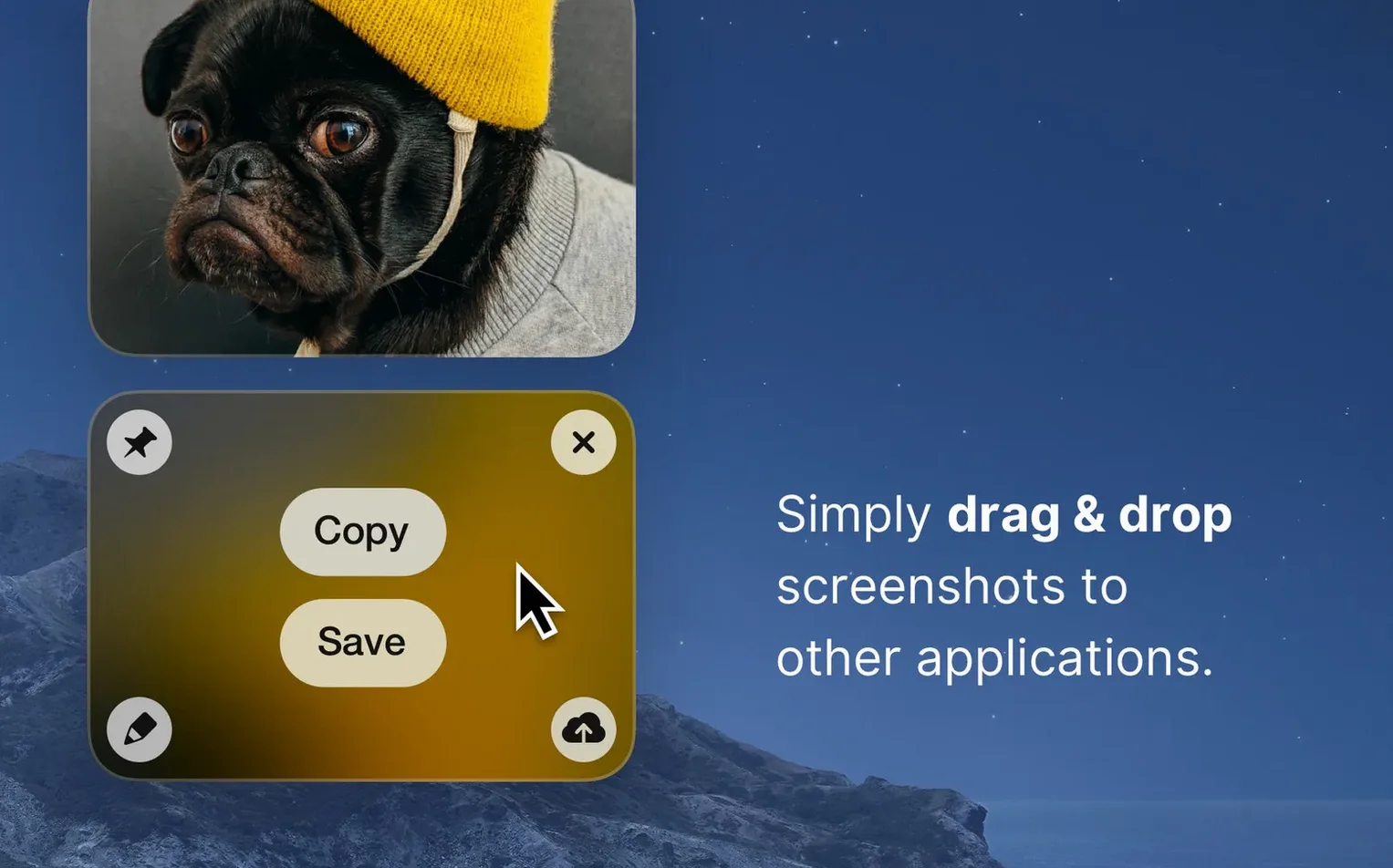
Designers, developers, and support staff who document interfaces all day tend to gravitate towards CleanShot X. It bundles the capture types you need — area, full screen, single window, or scrolling window — with a set of annotation and video trimming tools that live in a single Mac-native app rather than spread across three utilities.
Version 5.0.1 is a maintenance release with minor bug fixes and improvements, so the workflow remains exactly what returning users expect. You can still hide desktop icons before taking a screenshot, disable notifications during a recording, and switch between Retina and standard resolution without digging through separate export dialogs.
The app treats screen recording and still capture as two parts of the same task. After you record a clip, the built-in editor lets you trim the footage and export it directly, which keeps the number of apps involved down to one.
A capture-to-share walkthrough
Say you need to report a visual bug in a web app and send it to a developer. You open the CleanShot X overlay with the keyboard shortcut, drag a rectangle around the offending area, and let go. The floating toolbar appears immediately next to the selection. You press the annotate button — a pen icon — and the editor opens in under a second.
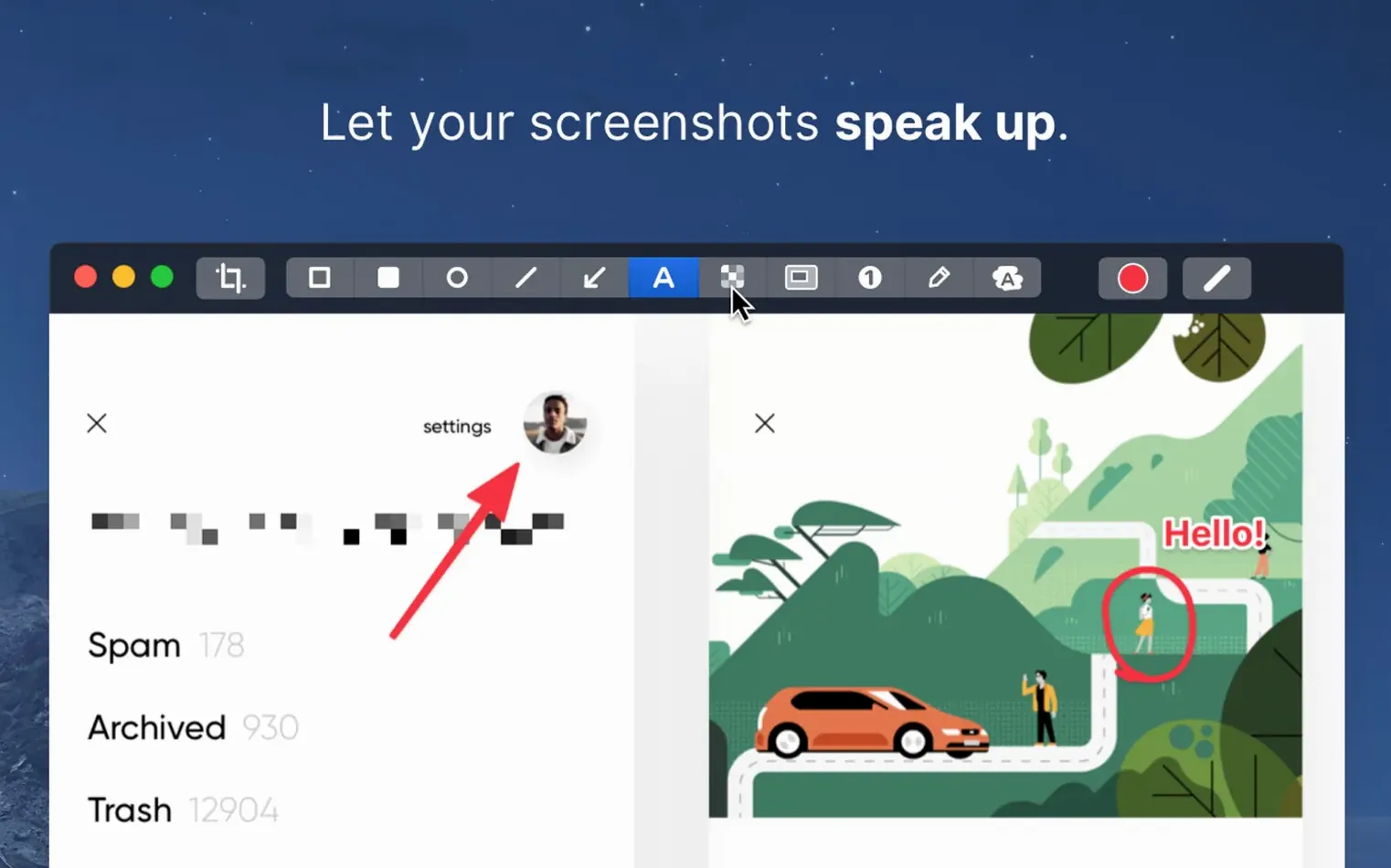
You add a red rectangle around the broken element, draw an arrow pointing to it, and type a short note below in white text on the default semi-transparent background. The text tool snaps neatly to the grid. You click the copy button in the editor toolbar, which places the marked-up image on the clipboard. Back in your chat app, you paste it inline. You never touched the desktop or opened a file picker. The whole sequence — capture, mark up, share — took under fifteen seconds.
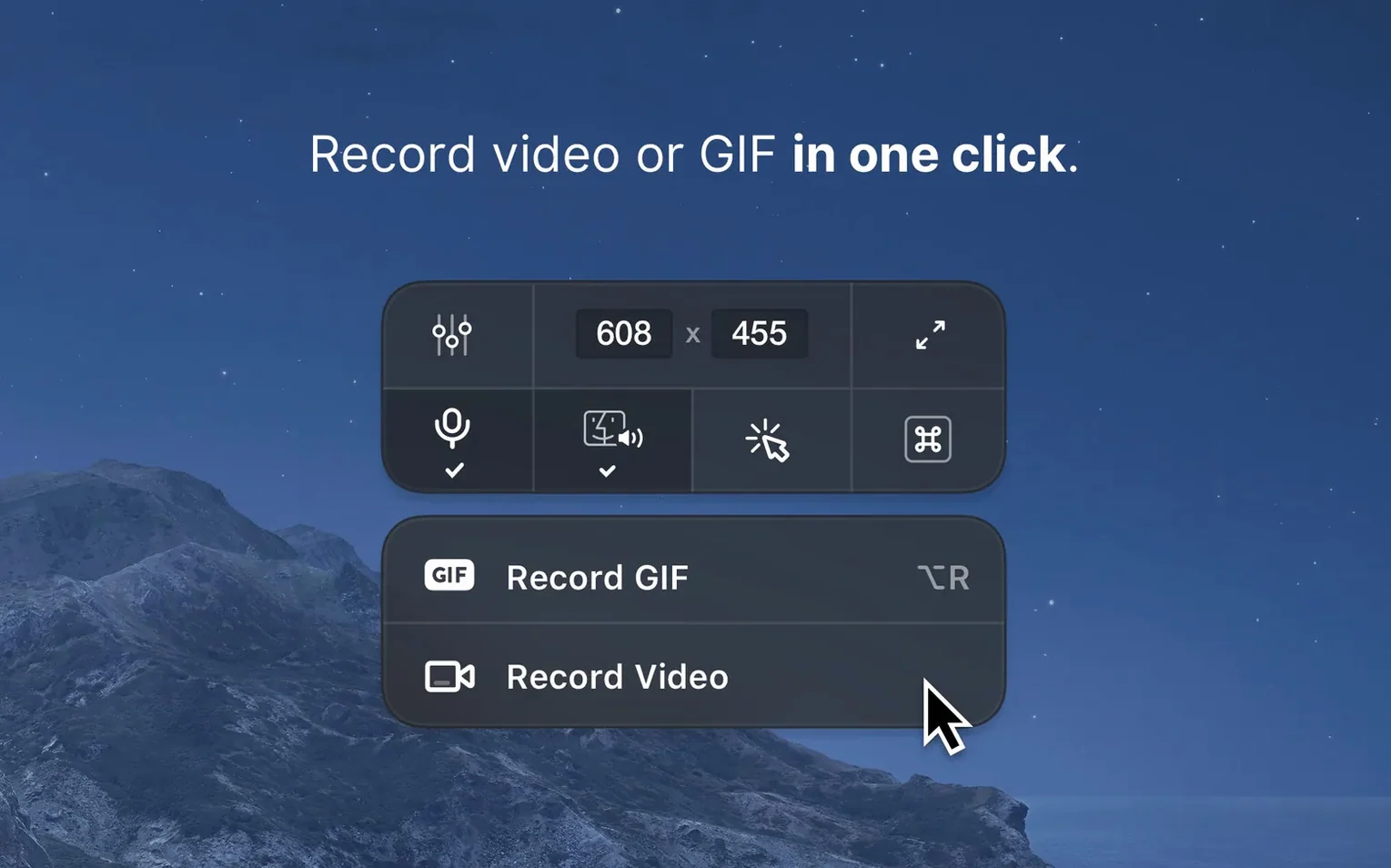
If the bug needs motion to reproduce, you select the same area but press the record button instead. CleanShot X captures a video clip, opens it in the trimmer, and you drag the start and end handles to keep only the relevant five seconds. You export as an MP4, drag the file straight into the chat window, and the developer sees exactly what you saw. The app stayed responsive throughout, with no dropped frames in the recording.
When scrolling capture skips Electron or custom UI
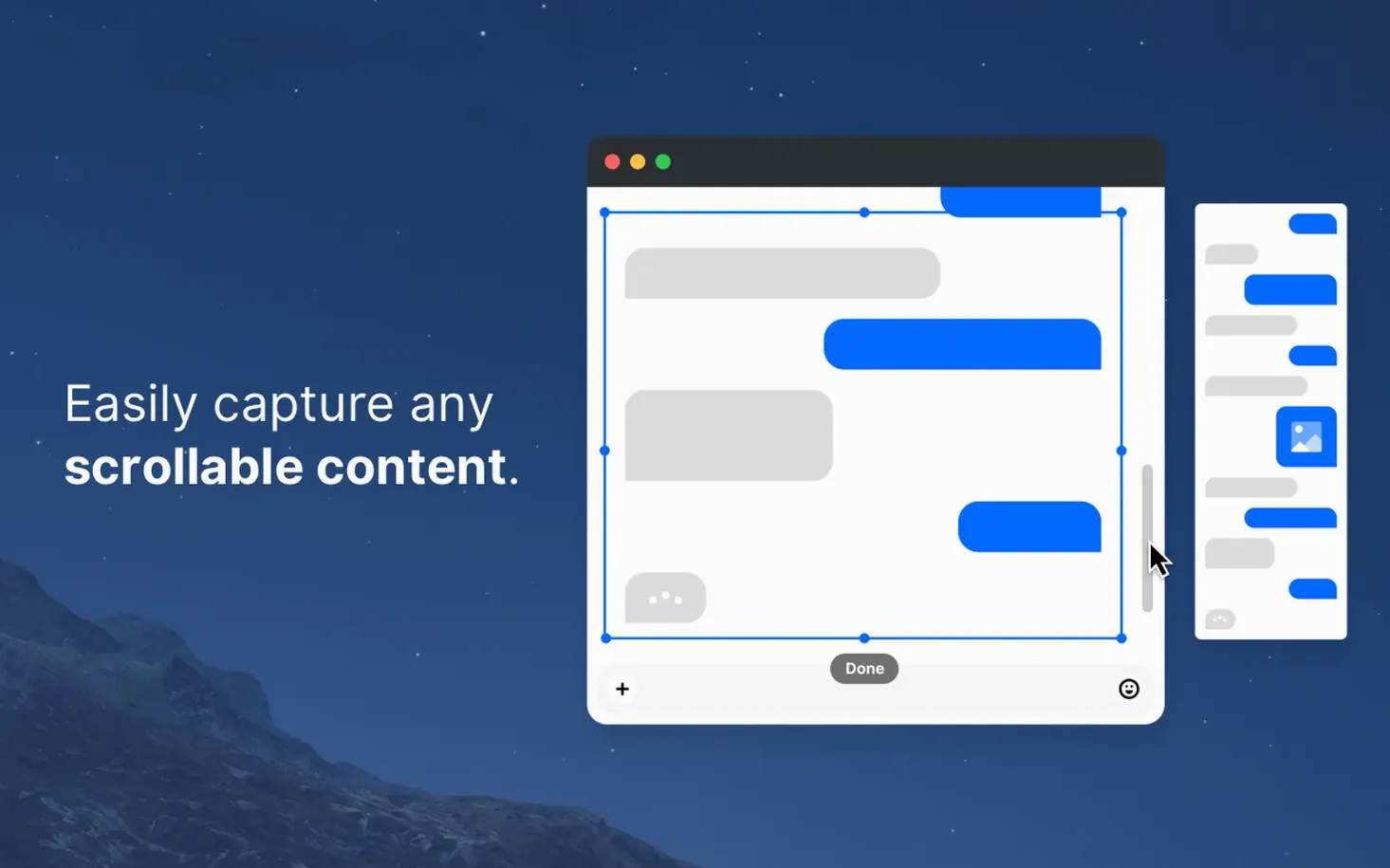
One frequent point of confusion is the scrolling capture feature. It works reliably in apps that use standard macOS text views — Notes, Safari, Mail — but it can miss content in Electron apps or custom-drawn interfaces. If the scrolling capture stops partway down the page, try switching to the window capture mode first, then triggering scrolling capture while the window is fully frontmost. Reducing the scroll speed in the preferences sometimes helps with jumpy web content.
Another recurring issue is the notification-blocking preference. People tick the box to disable desktop notifications during recording, but macOS banner alerts still pop through from some apps. That happens because the setting suppresses CleanShot's own notifications, not system-level ones. The workaround is to enable a temporary Focus mode, or to use the menu bar icon to pause notifications manually before a long recording session.
GIF exports occasionally come out larger than expected. The default colour palette and frame rate are geared towards smooth playback, not small file size. If your GIF weighs in above ten megabytes, open the export options and drop the frame rate to 10 fps and the colour count to 128. The file shrinks dramatically with little visible quality loss for UI recordings.
People also trip over the pinning feature. A pinned screenshot floats above other windows, but it can get lost under a full-screen app. When that happens, bring CleanShot X to the front from the menu bar — the pinned image pops back into view alongside it. And if you close the pinned image accidentally, the original file remains in the default save location, so nothing is lost.
Annotation palette reshuffled after version 5.0
Version 5.0, released in September 2026, reshaped a handful of daily interactions without disrupting the core capture loop. The most visible shift came in the annotation editor, where the tool palette got a spatial reorganisation. Text, arrow, and shape tools now sit closer to where the cursor rests after a capture, so the mouse travel to the first annotation step is shorter. It is a small ergonomic change, but it adds up across dozens of captures in a workday.
Recording workflows also tightened up. The video trimmer in version 5.0 gained frame-by-frame stepping via the arrow keys, which makes precise cuts faster than dragging the handles alone. Before that update, you had to approximate the cut points and re-export if you missed a frame. Now you nudge the playhead one frame at a time and the trim snaps exactly where you stop.
Version 5.0.1 is quieter — minor bug fixes and improvements, according to the changelog. In practice, that translates to fewer random hangs when the editor opens over a large Retina screenshot, and a fix for an edge case where the scrolling capture would stall on certain macOS dialog windows. Nothing flashy, but the kind of polish that keeps the tool out of the way.
Memory jump from 80 MB idle to 180 MB during recording
CleanShot X launches as a menu bar app and stays there, using roughly 60 to 80 MB of RAM at idle. During an active screen recording at 30 fps on a Retina display, memory climbs to somewhere around 180 to 250 MB, which is modest on a machine with 16 GB or more. CPU load during recording sits at 6 to 12 percent on Apple Silicon, mostly from the hardware-accelerated video encoder. Intel Macs push the encoder harder, but the fan stays quiet unless you run a recording longer than ten minutes.
The capture overlay responds instantly. There is no perceptible lag between pressing the shortcut and seeing the crosshair, even with several other apps open. The editor opens a full-resolution Retina screenshot in well under a second on an M1 or later chip. On older Intel machines, a 5K screenshot from a Studio Display takes about a second and a half to appear, which is acceptable but noticeable.
Stability has been solid across version 5.0 and the 5.0.1 patch. The app does not crash during long recording sessions, and it handles rapid successive captures without building up memory pressure. The one scenario that occasionally causes a brief beachball is opening the editor on a very long scrolling capture — say, a web page that produced a 10,000-pixel-tall PNG. The app recovers within a couple of seconds and the file is intact.
Battery impact is mild. A thirty-minute screen recording on a MacBook Pro sips about eight to ten percent of battery, which is comparable to the built-in macOS screenshot tool. The background menu bar presence costs essentially nothing; you can leave it running permanently without noticing it in the energy tab of Activity Monitor.
Red box and numbered callouts without saving a file first
Designers and product people who review interfaces daily benefit the most from the annotation speed. The ability to capture, draw a red box, add a numbered callout, and paste the result without saving a file first cuts out the middle steps that pile up when you switch between a system tool and a separate image editor. The pinning feature also resonates with this group — keeping a reference screenshot floating above a Figma window saves constant tab-switching.
Support and QA staff who document bugs with video clips find the recording-and-trimming flow a genuine efficiency gain. The trimmer opens on the same screen as the recording, so you never wait for a separate app to launch. Exporting as a compact MP4 or a GIF directly from the trimmer means a bug report leaves your machine in under a minute from the moment you spotted the issue.
Educators and tutorial creators who produce how-to content lean on the scrolling capture and the annotation tool together. Capturing an entire settings panel as a single tall image, then adding numbered steps and arrows, produces a visual guide faster than assembling the same thing from separate screenshots. The timer option also helps here — set a five-second delay, position a menu or tooltip, and the capture fires while both hands are free to show the interface state you want.
Casual users who only take the occasional screenshot will find CleanShot X overkill. The built-in macOS screenshot tool covers that ground adequately. But anyone who captures, annotates, or records more than five times a day — and who values the seconds saved not switching between capture, editor, and file manager — will feel the difference within the first hour of use. The app earns its keep by compressing a multi-tool workflow into a single, fast surface that stays out of the way until you call it.