Aspecten
 Download (17 MB)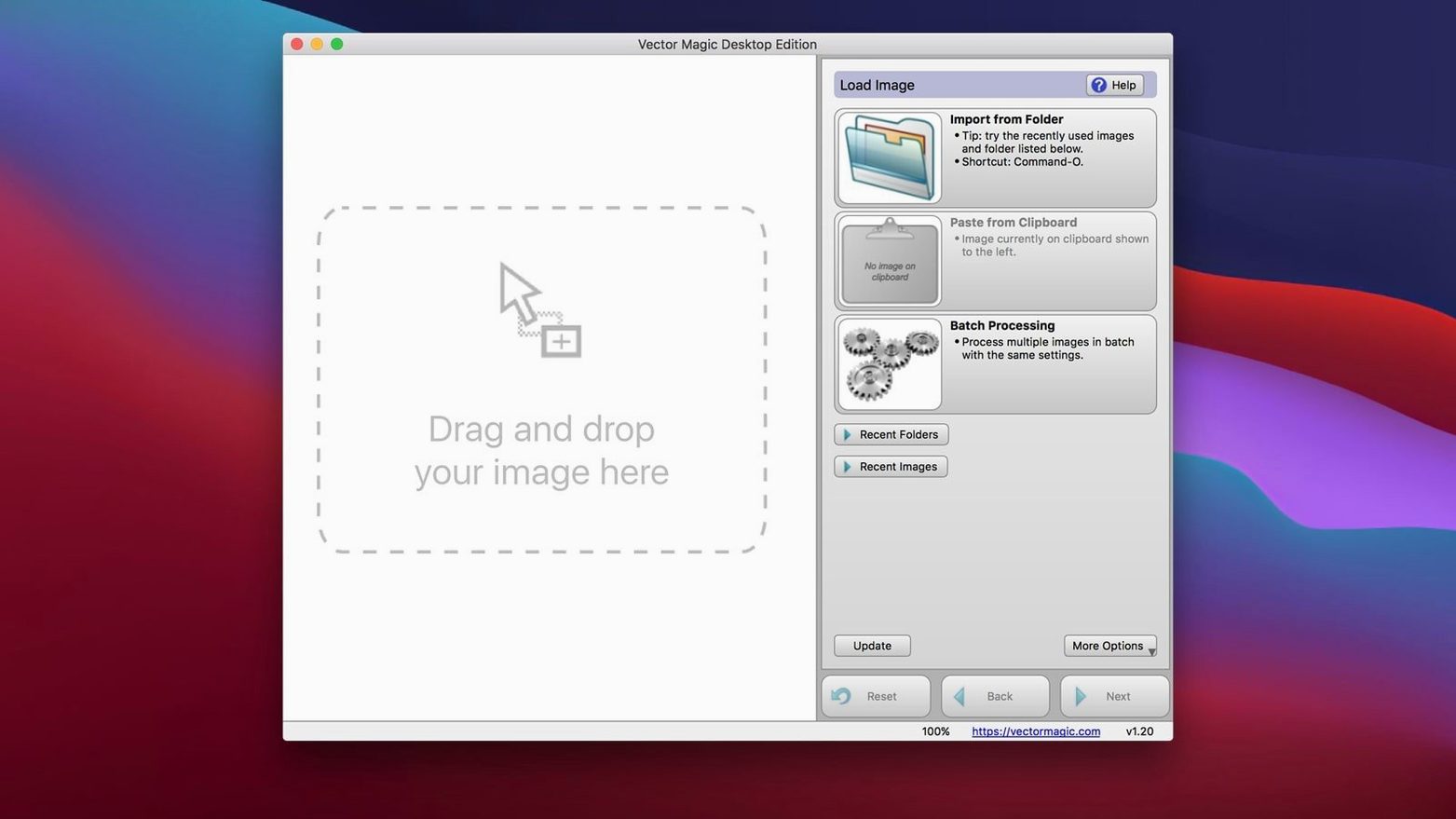
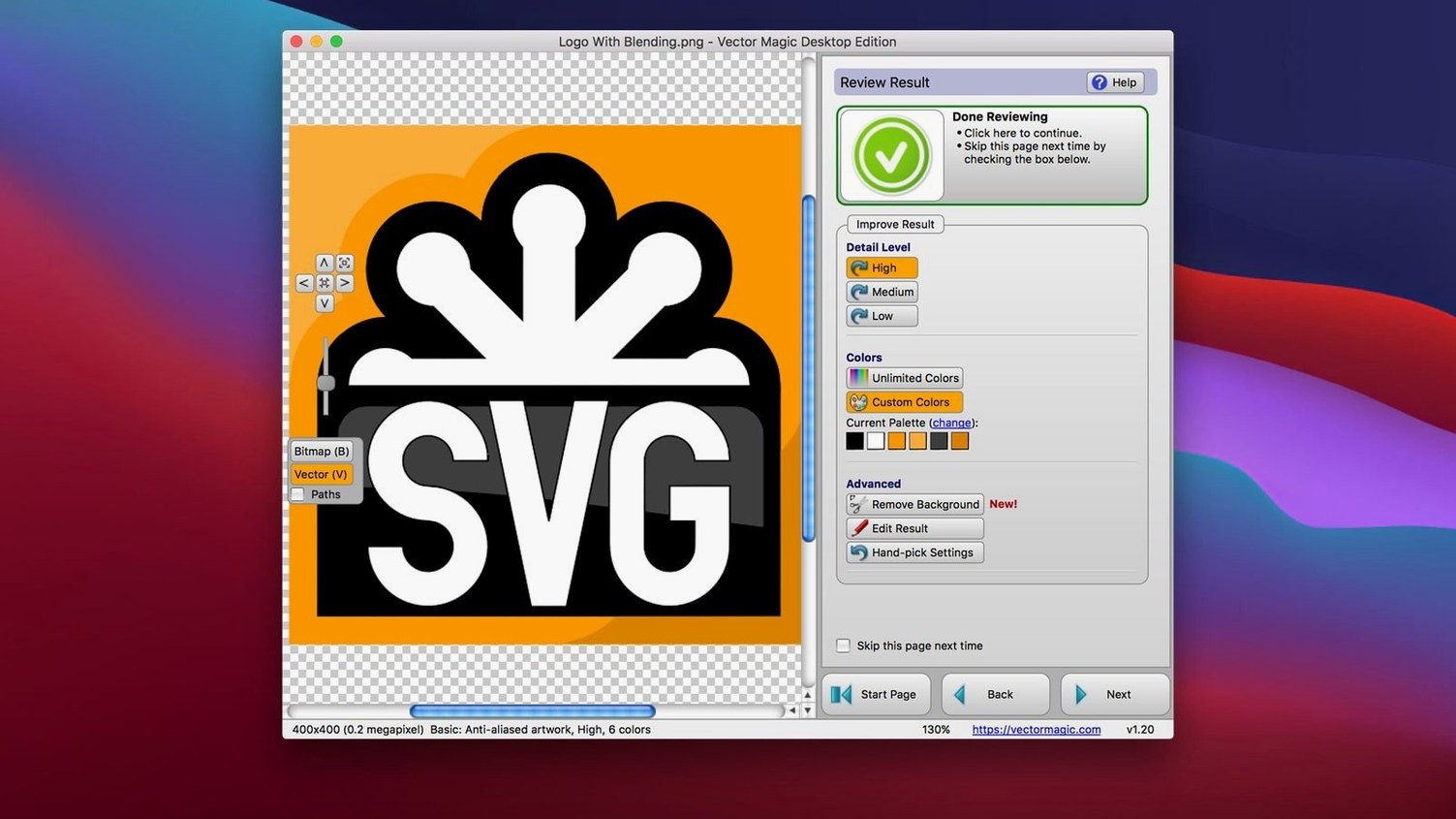
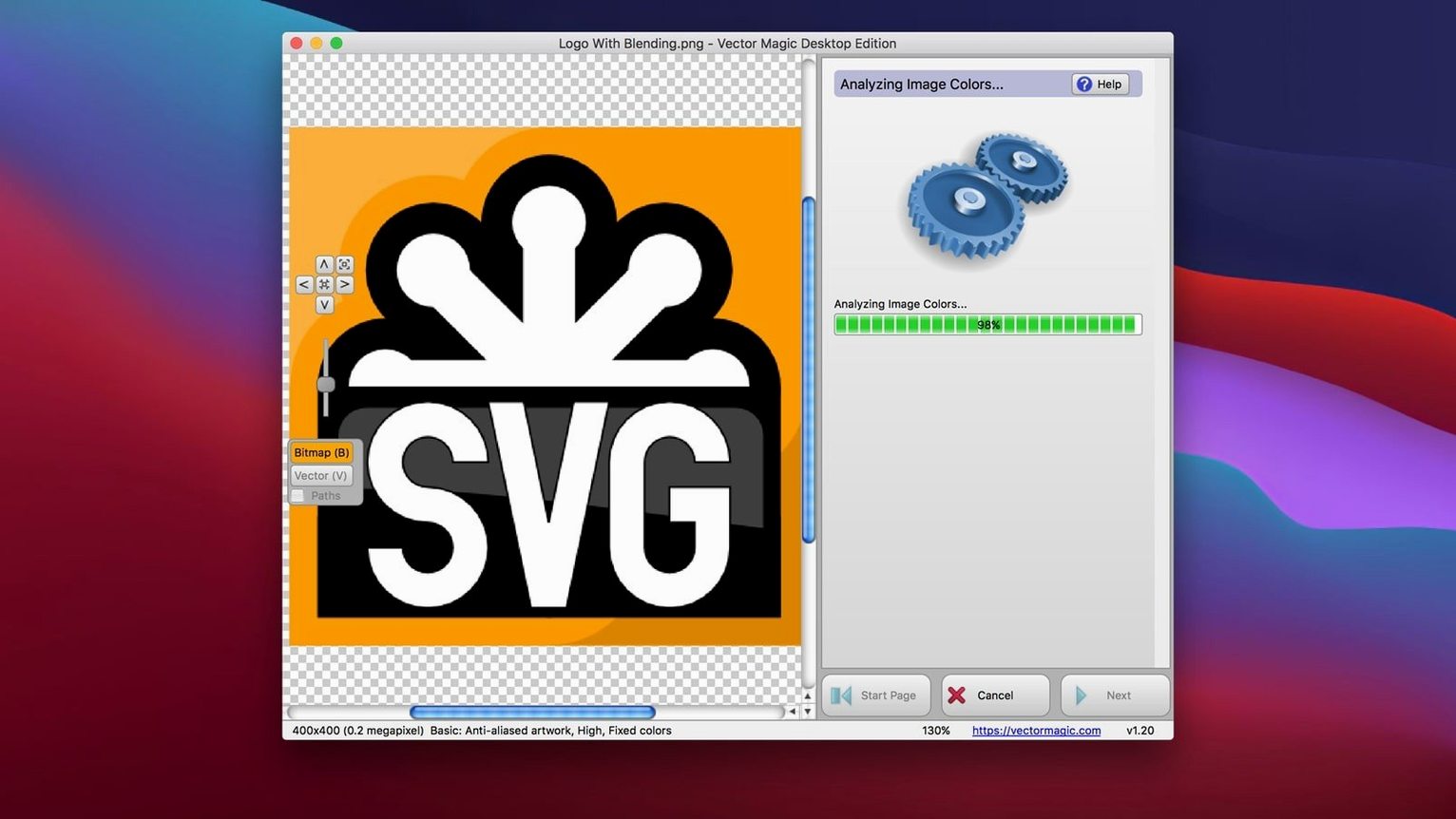
A designer receives a logo as a low-resolution JPEG for a large-format print job. Opening it in Vector Magic produces a clean, scalable vector in a few steps.
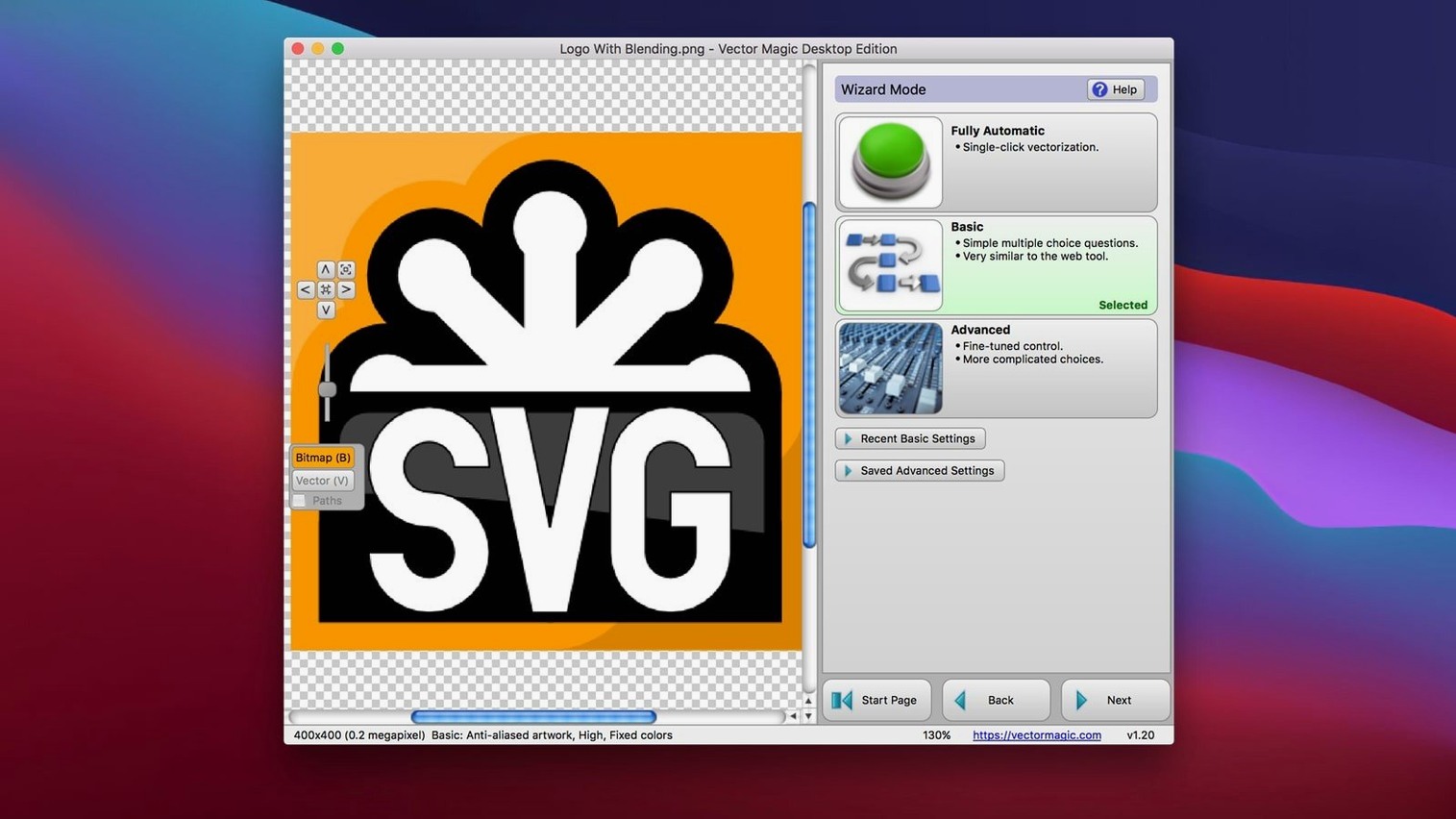
Vectorisation mode — the method the app uses to trace a bitmap. Three tiers are available: fully automatic, a basic wizard for guided choices, and a manual mode with detailed segmentation controls. Newcomers often start in automatic to see the engine’s default reading of shapes and colour regions, then switch to manual for edges that need tighter definition.
Input — the bitmap file types accepted. JPEG, GIF, PNG, BMP, TIFF, and PSD all open directly. The app enforces a 10.0 MB file limit and a 10.0 megapixel image ceiling, which covers most screen-resolution and scanned artwork.
Output — the vector formats you can write. EPS, SVG, PDF, AI, DXF, and EMF sit alongside a PNG export for raster copies at higher resolutions. Choosing EPS or SVG gives a clean path into layout and web tools.
Clean-up tools — aids for tidying the source before tracing. Background removal is the stand-out: drop out a flat or busy backdrop without leaving the app. The built-in help explains each slider, though the effect on complex photographs can be uneven.
The interface stays in English, with a straightforward macOS 10.7+ footprint on Intel. A limitation worth noting: the megapixel cap means very large scans, such as high-dpi site maps, need resampling before import.
Vector Magic alongside Super Vectorizer, Image Vectorizer and Potrace
Placed beside a few other Mac raster-to-vector tools, Vector Magic shows a distinct approach. Super Vectorizer handles colour reduction aggressively and can produce tight, low-node-count SVGs for simple icons. Where it sometimes falters is on photographs with subtle tonal shifts — the palette simplification can flatten details that Vector Magic’s manual segmentation preserves. Image Vectorizer, another desktop option, leans heavily on edge detection rather than colour region analysis. That gives crisp line art traces but often creates fragmented shapes in images with soft gradients. Vector Magic’s region-based engine keeps those gradients as coherent colour bands, which makes post-edit work in Illustrator less patchy.
Potrace is a different beast. It ships as a command-line utility, included in Inkscape and other front ends, and excels at monochrome bitmaps — think scanned signatures or black-and-white technical drawings. It will not touch full-colour photographs the way Vector Magic does. People who need a quick, single-pass vector from a clean two-tone image might drift toward a Potrace wrapper, but once multiple colours and anti-aliased edges appear, Potrace simply is not the right tool. Vector Magic fills the gap for anything polychromatic.
A practical difference worth noting: Super Vectorizer and Image Vectorizer both offer live side-by-side previews of the original and the trace while adjusting settings. Vector Magic’s preview lives inside the same window as the source, with a toggle to flash between raster and vector. It is a minor interface difference, but it can affect how quickly someone spots a mis-traced curve in a complex illustration.
Mistakes beginners bump into
The most common stumble is feeding Vector Magic a heavily compressed JPEG and expecting crisp corners. Artefacts from low-quality compression — blocky 8×8 pixel squares and ringing halos — get faithfully traced into little rectangular vector chunks. A cleaner PNG from the original source or a light despeckle pass before import nearly always yields smoother results.
Another early misstep involves the blending of anti-aliased edges. Beginners sometimes drag a small web icon straight in, select fully automatic mode, and wonder why the edges look wobbly. The engine reads semi-transparent pixels as separate colour bands. Switching to manual mode and nudging the colour count down, or using the simplification slider, collapses those unintended micro-bands into the main shape. The built-in help mentions this under segmentation controls.
People also over-tweak the palette in manual mode before checking the image at actual pixel size. Zooming in first reveals whether what looks like a solid red region on a thumbnail is actually a dither pattern. Dithering confuses the region detector and produces a mosaic of tiny shapes. A quick blur or median filter in an external editor beforehand, or simply accepting a slightly higher shape count, avoids hours of node clean-up later.
There is a tendency among new users to overlook the background removal tool and instead trace the entire canvas. A photograph with a busy backdrop traces into an enormous tangle of paths. Running background removal first, even roughly, cuts the shape count dramatically and keeps the vector file workable in layout apps.
When a scan exceeds the megapixel limit on import
A recurring issue with large, detailed scans is hitting the 10.0 megapixel ceiling. The import dialog simply refuses the file. The workaround is resampling the bitmap to fit within the limit — image editors can batch this — and then tracing. The resulting vector can then be scaled up without pixelation, so the temporary downsampling rarely harms the final output.
Another snag surfaces with TIFF files containing embedded alpha channels. Vector Magic reads the transparency but occasionally misinterprets a pre-multiplied alpha edge, leaving a faint halo in the vector. Opening the TIFF, exporting to PNG with transparency, and re-importing tends to clear the problem.
EPS output can occasionally trip older versions of CorelDRAW. The path winding rules — even-odd versus non-zero — sometimes produce hollow cutouts where a solid fill was intended. If the recipient reports missing fills, re-exporting to SVG or AI and converting inside the receiving application usually sidesteps the winding-rule mismatch.
Some users find that copy-and-paste into Illustrator works cleanly, yet drag-and-drop produces a slightly different grouping structure. Neither method is broken; the clipboard route embeds a flatter hierarchy, while drag-and-drop preserves more of the internal layer arrangement from the trace. If you prefer to ungroup everything anyway, the clipboard path is quicker.
Click a swatch to highlight every shape of that colour
The segment editing pane has a subtle behaviour: clicking a colour swatch in the segmentation list highlights all shapes of that colour on the canvas. This makes it simple to spot stray fragments of a background colour that survived the removal pass. Selecting them and merging with a neighbouring region cleans the vector without hunting through the outline view.
Batch processing works silently. Dragging a folder onto the dock icon or the application window queues every compatible bitmap inside. The progress indicator is minimal — a thin bar at the bottom of the window — but the real time-saver is that previously used settings are remembered per session. Trace one image manually, confirm the output, and the rest of the batch inherits those parameters.
A keyboard shortcut that goes underused: holding the Option key while clicking the zoom tool toggles zoom-out mode. The scroll wheel zoom works without modifiers, but the Option-click alternative keeps one hand free for the trackpad. Double-clicking the zoom tool resets to fit the whole image in the window, which is handy after inspecting tiny edge details.
The preview toggle — the small eye icon beside the vectorisation mode — can be left in vector view while adjusting sliders in manual mode. Each slider movement triggers a near-instant re-trace on a low-resolution proxy, so the visual feedback loop is tight. Some people assume they must click “apply” between adjustments and end up working far slower than necessary.
When tracing line art that will end up as a single-colour overlay, setting the output colour count to two in manual mode — foreground and transparent background — produces a path that strokes cleanly. The default automatic mode usually guesses more colours than needed for such cases. Saving a two-colour preset speeds up repeated jobs, though the app does not advertise preset saving prominently.
For those exploring download options, searches like vector magic mac full crack or vector magic torrent occasionally surface. Some people also look for vectormagic torrent or vector magic mac torrent, and a few specifically seek a vector magic mac crack. The desktop edition available here handles batch work and manual segmentation without needing an internet connection.