Aspecten
 Download (129 MB)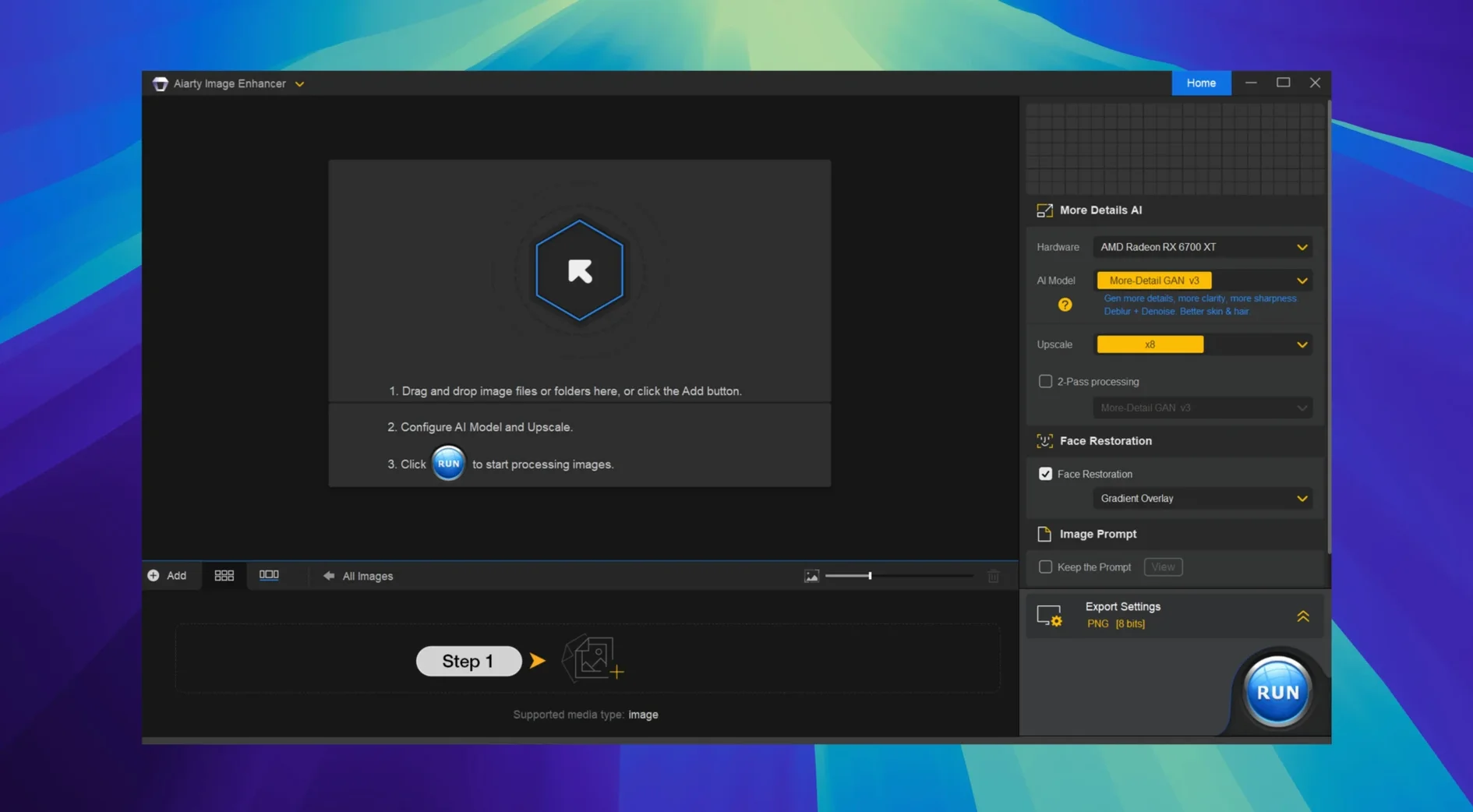
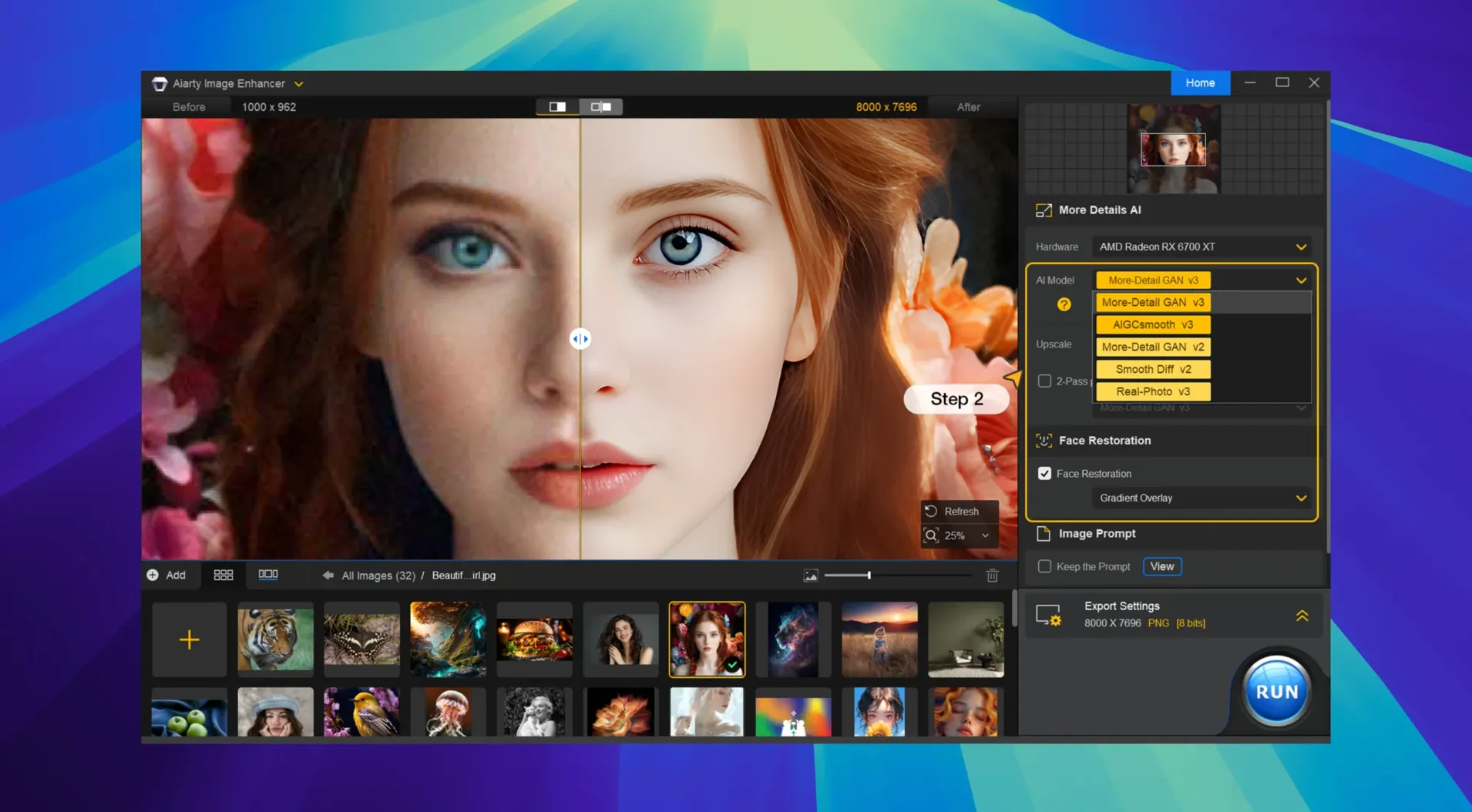
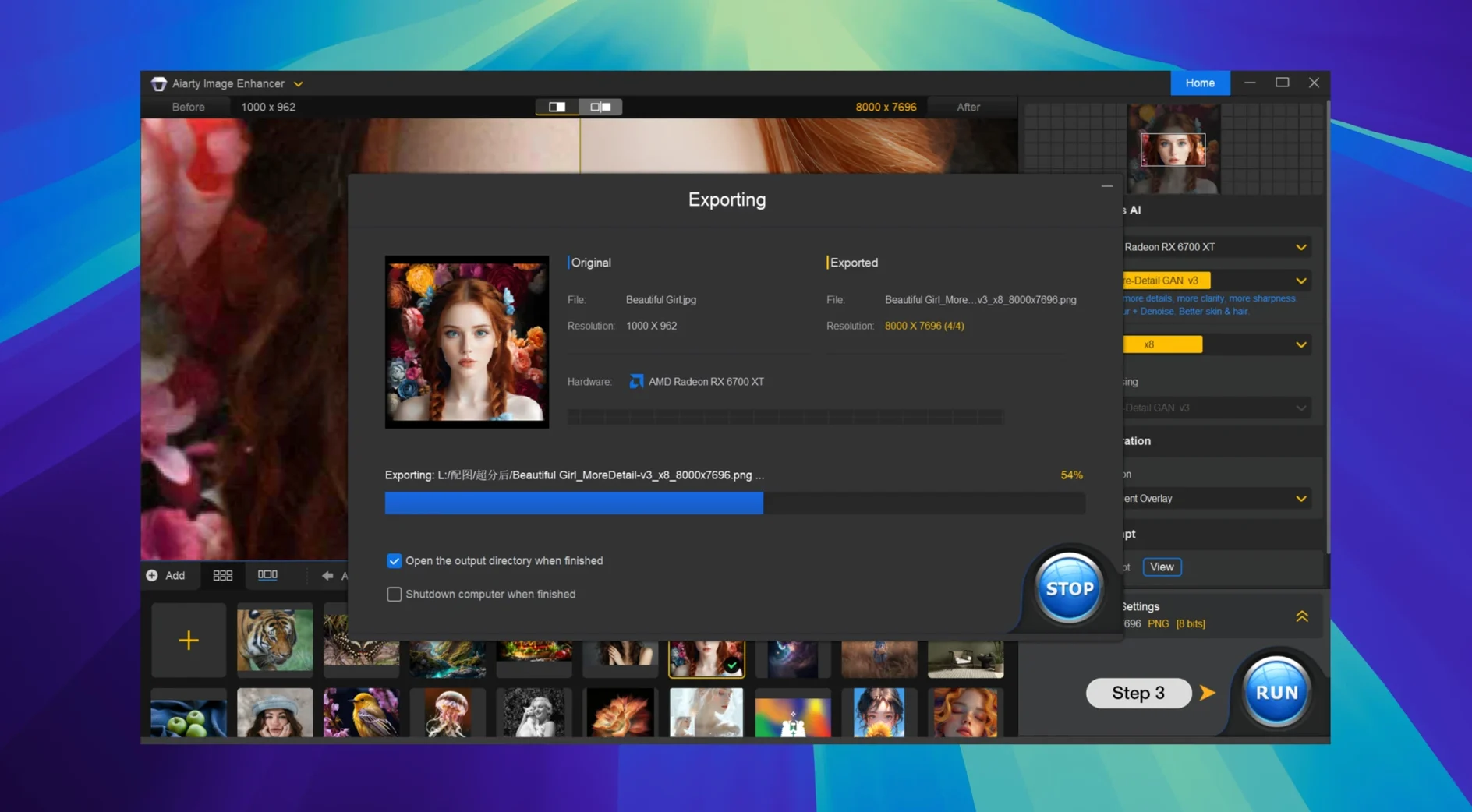
Noise creeps in at high ISOs. Old scans soften with time. A slightly out-of-focus shot feels like a lost opportunity. Aiarty Image Enhancer 3.14 is a desktop tool built to address those exact frustrations — denoising, deblurring, restoring and upscaling images through AI processing without sending files to a browser.
High-ISO rescue, soft-focus fixes, and JPEG restoration
- Cleaning up high-ISO noise while preserving detail
- Sharpening mildly soft or slightly out-of-focus photos
- Restoring compressed or aged JPEGs to a cleaner state
- Upscaling images for print or larger displays
- Working with RAW files directly, including Lightroom Classic round-trips
Mac 11+ requirement, sustained fan activity, and EXIF metadata in 3.14
- Requires macOS 11 or later; runs on both Intel and Apple Silicon Macs
- AI processing is compute-heavy — expect fan activity on sustained batches
- EXIF metadata access is new in 3.14, useful for checking processing history
6-12 seconds for a 4x upscale on Apple Silicon
On an Apple Silicon Mac, a single 24-megapixel upscale to 4x completes in roughly 6–12 seconds depending on the AI model selected. Batch processing a folder of forty JPEGs at 2x enlargement pushes the machine harder — the fans become audible around the tenth image and stay there until the queue finishes. Memory pressure sits around 60–70% on a 16 GB system during a batch run, leaving enough headroom for a browser and a lightweight editor to stay responsive. On Intel hardware the same tasks take about twice as long and the system feels noticeably heavier under load, though it never locked up during testing.
Stability is a quiet strength here. Through several days of mixed single-image and batch work — including RAW files from a Nikon D750 and Sony A7 III — the app did not crash once. Cancelling a batch mid-queue cleans up cleanly; the processed files written so far remain intact and the interface returns to idle without hanging. One quirk: after waking a Mac from sleep with a batch paused, a few images came out as blank output files with correct filenames. Restarting the batch fixed it, and no source files were touched.
The GPU is the main workhorse. Aiarty leans heavily on the Neural Engine and GPU cores when available, which explains both the speed on Apple Silicon and the heat on Intel models with discrete graphics. For users who regularly process hundreds of images, running batches overnight or during breaks is the practical approach — the app handles long queues without drifting into instability.
Aiarty, Topaz Photo AI, and the desktop enhancer divide
Three desktop-class enhancers occupy similar territory on macOS: Topaz Photo AI, hitpaw video enhancer 3.3.0 crack (which also handles stills in some versions), and Aiarty Image Enhancer. Each takes a different approach to the same core problem.
Topaz Photo AI combines denoise, sharpen and upscale in one pipeline with more granular controls per module. Its face recovery is stronger out of the box — it reconstructs eyes and facial structure more convincingly on severely degraded portraits. Aiarty holds its own on texture generation, particularly fabric weaves and foliage, where Topaz sometimes over-smooths. Topaz feels more mature overall but demands more decision-making; Aiarty gets to a usable result with fewer clicks, though the fine-tuning options are shallower.
HitPaw (via its image enhancer, separate from the video-focused hitpaw video enhancer 3.3.0 crack) prioritises speed and a simpler interface. It upscales anime-style artwork and illustrations exceptionally well but shows artefacts on natural skin textures — a waxy look that Aiarty generally avoids. Aiarty's RAW support and Lightroom Classic integration give it an edge for photographers who work in a raw-centric workflow, which HitPaw does not address directly.
Where Aiarty fits: it occupies the middle ground between HitPaw's speed-first simplicity and Topaz's deep toolkit. For a photographer who wants to drop a folder of high-ISO wedding shots into a queue and get clean, naturally detailed results without tweaking a dozen sliders, Aiarty is the most direct path. Users who need per-image masking or advanced sharpening models will feel the ceiling sooner than in Topaz.
Dragging a 12MP shot to 32K invents painterly artifacts
Over-upscaling is the most common misstep. Dragging a 12-megapixel image straight to 32K output resolution does not yield a magical result — the AI invents detail that was never there, and at extreme ratios the invented detail looks painterly and unconvincing. A 2x or 4x upscale from a clean source produces far more natural output than an 8x jump from a noisy original.
Another frequent error: running denoise and upscale simultaneously on an image that only needs one of the two. The combined processing can mush fine textures — denoise first, check the result, then upscale separately if needed. The app allows disabling either step, but the default preset enables both.
Beginners also tend to ignore the output format setting. Saving a carefully enhanced image back to a compressed JPEG at quality 80 undoes much of the work. Switching output to TIFF or PNG preserves the recovered detail. The EXIF metadata panel — new in 3.14 — helps track which processing steps were applied, but first-time users rarely check it before overwriting files.
Finally, some users mistake Aiarty for an adobe ai video enhancer and attempt to load video files. It handles still images only — MP4 and MOV files will not import, and the error message does not spell this out clearly.
Rescuing 140 ISO 6400 ceremony photos from an X-T5
Claire shot a small outdoor wedding the previous weekend. The light faded faster than expected during the ceremony, forcing ISO 6400 on her second body — a Fujifilm X-T5. Back in her office, she has 140 ceremony photos with visible luminance noise and a handful of group shots that are slightly soft because the autofocus locked on a jacket instead of the faces in the back row.
She opens Aiarty Image Enhancer and drags the ceremony folder into the batch panel. She selects the denoise model, keeps the default strength, and sets output to TIFF in a new subfolder. The batch runs while she makes coffee. Ten minutes later she skims through the results: the noise grain is gone from the dark suits and the shadow side of faces, but the lace patterns on the bride's dress still read as fabric rather than mush — exactly what she needed.
For the soft group shots she switches to single-image mode. She applies a gentle deblur pass at 2x upscale, checks the result against the original in the split view, and exports. The back-row faces are now sharp enough for a 10x8-inch album print. The whole task — from drag-and-drop to final exports — takes under twenty-five minutes, and she still has the RAWs untouched for any image that needs heavier retouching later.