Aspecten
 Download (3.5 GB)
You open a raw photograph shot in flat morning light. Rather than nudging sliders one by one, you describe the look you want in a short sentence and let the software handle the rest. That blend of direct image work and natural-language editing is what defines Photoshop on macOS at version 27.10.
| Detail | Note |
|---|---|
| Minimum macOS | macOS 14 |
| Architecture | Intel and Apple Silicon |
| Key additions | Light adjustment layer, AI Assisted editor (Beta), Prompt to Edit |
Compatibility is straightforward: the application runs natively on both Intel and Apple Silicon Macs, provided you work on macOS 14 or later. The installer itself handles Rosetta if it is missing, so the extra step only matters when something goes wrong during setup.
Once running, the feature set splits roughly between classic layer-based editing and the newer AI-assisted tools. The Light adjustment layer gives you non-destructive control over exposure, contrast, highlights and shadows in a single panel. Dynamic Text for shapes and paths keeps type flexible when you revise a layout. On the generative side, Prompt to Edit interprets natural-language requests for image changes, while masks and selections let you limit exactly where those edits apply. The AI Assisted editor (Beta) wraps several of these functions into one workspace, though its beta label suggests a few rough edges during complex compositing work.
Drop Adobe’s defaults so the workspace feels yours
Fresh installations of Photoshop carry a lot of Adobe defaults that suit nobody in particular. Spend ten minutes tuning a handful of preferences and the application will feel less like a rental and more like your own workspace.
Open Preferences > General and disable the Home Screen. Its thumbnails of recent files seem helpful for a week, then turn into visual noise. Switch it off and let Photoshop open to a clean canvas or the last document instead. In the same panel, set Image Interpolation to Bicubic Sharper when you regularly downscale photographs for output; the default Bicubic Automatic guesses well, but picks softer resampling now and then.
Next, head to Performance. Photoshop grabs 70% of available RAM by default. On a Mac with 16GB or less, dial that back to 60% to leave breathing room for a browser and other tools. If you work on a MacBook, uncheck “Use Graphics Processor” for a test drive—battery life improves measurably during simple retouching, and you can re-enable it for GPU-heavy filters later. Scratch disk order matters more than people realise. Place the fastest internal SSD first, and avoid external drives for scratch unless you enjoy watching progress bars.
The File Handling pane contains one small but useful change: under “File Saving Options,” pick “Never” for Image Previews if you rarely browse PSD files from Finder and value smaller file sizes. Set “Maximize PSD and PSB File Compatibility” to “Ask”—the prompt is a minor nuisance, but keeping full compatibility layers embedded in every file bloats sizes unnecessarily for most solo workflows.
Finally, open Tools and enable “Overscroll.” It lets you drag the canvas past the document edge so you can paint or clone right to the boundary without the view snapping back. For drawing tablet users, switch on “Use Graphics Processor for Accelerated Drawing” in the same panel and test a large brush; the difference in stroke smoothness is noticeable on Apple Silicon machines.
Common snags in the first week—and how to unstick them
A handful of friction points appear often enough that knowing them ahead of time saves a bout of frustrated searching.
Pressure sensitivity stops working after a sleep/wake cycle. Disconnect and reconnect the tablet. If that does not help, open Photoshop’s ~/Library/Preferences/Adobe Photoshop 2025 Settings/ folder, locate the file PSUserConfig.txt, and add the line UseSystemStylus 0. Save and restart. This forces Photoshop to rely on the tablet driver rather than macOS ink services, which sometimes drop connection after sleep.
The AI Assisted editor panel stays greyed out. In some installations, the beta feature only activates after you create a pixel layer or open a rasterised document. Working on a blank document with only a background layer? Flatten or duplicate the layer first. Also check that the document colour mode is RGB; the editor does not engage in CMYK or Grayscale spaces yet.
Rosetta prompts during installation. If the installer complains about Rosetta despite being on Apple Silicon, the likely cause is a stray Intel-only helper binary. Install Rosetta manually through Terminal—softwareupdate --install-rosetta—and restart the installer. The issue rarely recurs once the translation layer is in place.
Performance hiccups with large brushes on 5K displays. A 2000-pixel brush on a Retina canvas hammers the GPU. Reduce the brush size, drop the canvas zoom to 50% for broad strokes, or temporarily set the document to “View > Proof Setup > Monitor RGB” to lighten the rendering load. For painting-focused workflows, turning off rulers and grids also frees up small but cumulative GPU cycles.
Save As shows only a few formats. Photoshop 27.10 respects a preference under File Handling > File Saving Options where you choose which formats appear in the Save As dialog. Tick PSD, TIFF, JPEG and PNG there if you use them daily. Formats you omit still show up under “Save a Copy,” so nothing is lost—the setting only controls what the quick dialog presents.
Cold launch in four seconds on Apple Silicon
On an Apple Silicon Mac, Photoshop 27.10 launches in roughly four seconds cold and two seconds warm. Opening a 200-megabyte layered PSD from an internal SSD takes about three seconds; over Thunderbolt from an external NVMe drive, expect five. These are not benchmarks, just the rhythm you settle into after a few days of regular use.
Memory use settles around 1.2GB to 1.8GB at idle with a few documents open and climbs to 4GB or more during a session involving several large composites and smart objects. The application releases memory cleanly when closing documents, though leaving it open across a full workday shows a slow upward drift—a restart every few days keeps things tight. CPU usage during brushwork and transform operations is modest, rarely pushing the efficiency cores above 30% unless you invoke a heavy filter like Liquify or run a batch process.
Stability in 27.10 is solid but not flawless. Crashes are rare during layer-based editing and retouching. The weak points sit in the beta tooling. The AI Assisted editor occasionally freezes for a few seconds after a complex natural-language prompt, and the Markup feature can misread annotations when the canvas contains many overlapping vector shapes. Autosave recovery picks up the pieces reliably, and Photoshop does not lose unsaved work during these hiccups—the interruption is time, not data.
Battery impact on a MacBook Pro varies heavily with workload. Simple retouching and layer adjustments sip power at a rate that suggests eight to nine hours of screen-on time. GPU-accelerated filters and the AI Assisted editor halve that figure. For long sessions away from mains power, switching off the GPU compositing in Performance preferences is a practical trade-off, even if it slows a few canvas operations.
Raw shooters get tone control in one non-destructive layer
Photographers who shoot raw and spend hours on colour grading and retouching will find the Light adjustment layer alone a reason to update. It consolidates tone work into one non-destructive step, which speeds up batch look development considerably. The non-destructive workflow also suits anyone who revisits images across days or weeks, since every adjustment stays tweakable without rebuilding layers from scratch.
Graphic designers working on posters, banners, packaging and web layouts benefit from Dynamic Text on shapes and paths. The visual type tools make quick layout exploration possible without round-tripping to a vector app for every text tweak. Combined with smart objects, the workflow stays flexible late into a project—something that earlier Photoshop releases handled less gracefully.
Digital artists and illustrators gain the most from the brush engine and custom brush support. A large library ships with the application, but the real value comes from importing or building brushes tailored to a specific style. On Apple Silicon, large brushes track smoothly at canvas sizes that would have stuttered on Intel Macs a few years back. The Markup feature also helps artists guide generative edits with sketches rather than text alone, which suits visual thinkers who find prompt engineering unnatural.
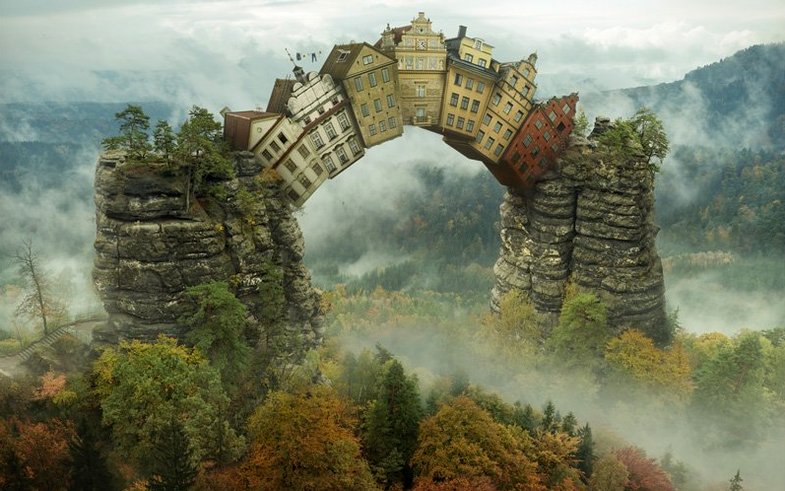
Users who regularly combine photographs into composites—product mockups, surreal imagery, multi-exposure landscapes—will lean heavily on the automatic masking and one-click selection tools. The AI-assisted subject isolation works best on photographs with clear foreground-background separation, cutting mask creation time by enough that compositing feels more playful than procedural. The ability to restrict generative edits with masks means you can ask for a new sky behind a tree and get plausible results without painting dozens of manual mattes.
Users on older Intel Macs still benefit from the 27.10 feature set, though the AI tools run more slowly and the GPU-accelerated filters feel less fluid. For pure photo editing without the generative features, the performance gap narrows enough that the upgrade from an earlier Photoshop version remains worthwhile. Those who spend most of their time in Camera Raw or doing precise retouching will notice the interface improvements more than the raw speed difference.
Anyone searching for a photoshop 2025 download torrent or an adobe photoshop torrent mac often does so to test whether the latest version fits their hardware and daily workflow before committing. Running the application against your own files, your own tablet and your own display setup answers questions that reviews cannot—and Photoshop 27.10, once set up with the preferences described above, gives a realistic picture of what the current release can handle on your own machine.