Aspecten
 Download (25 MB)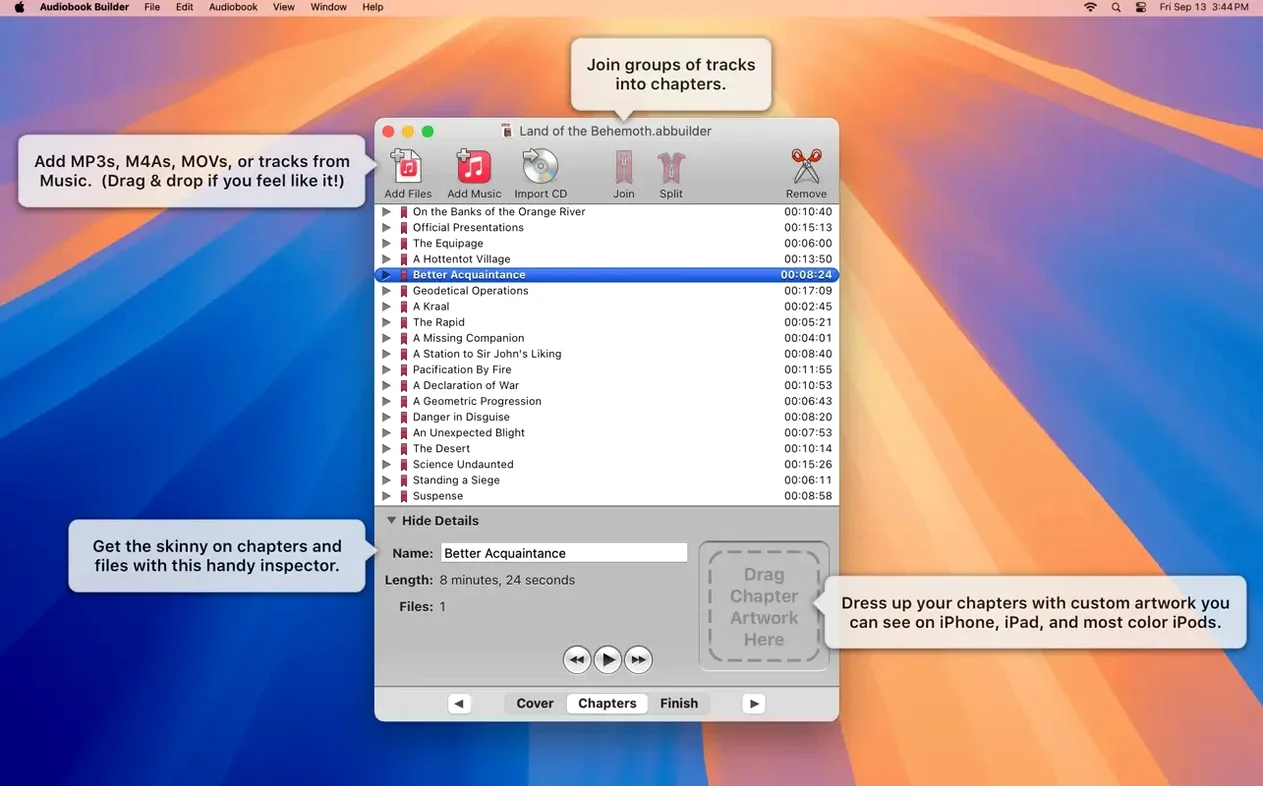
Join and split files
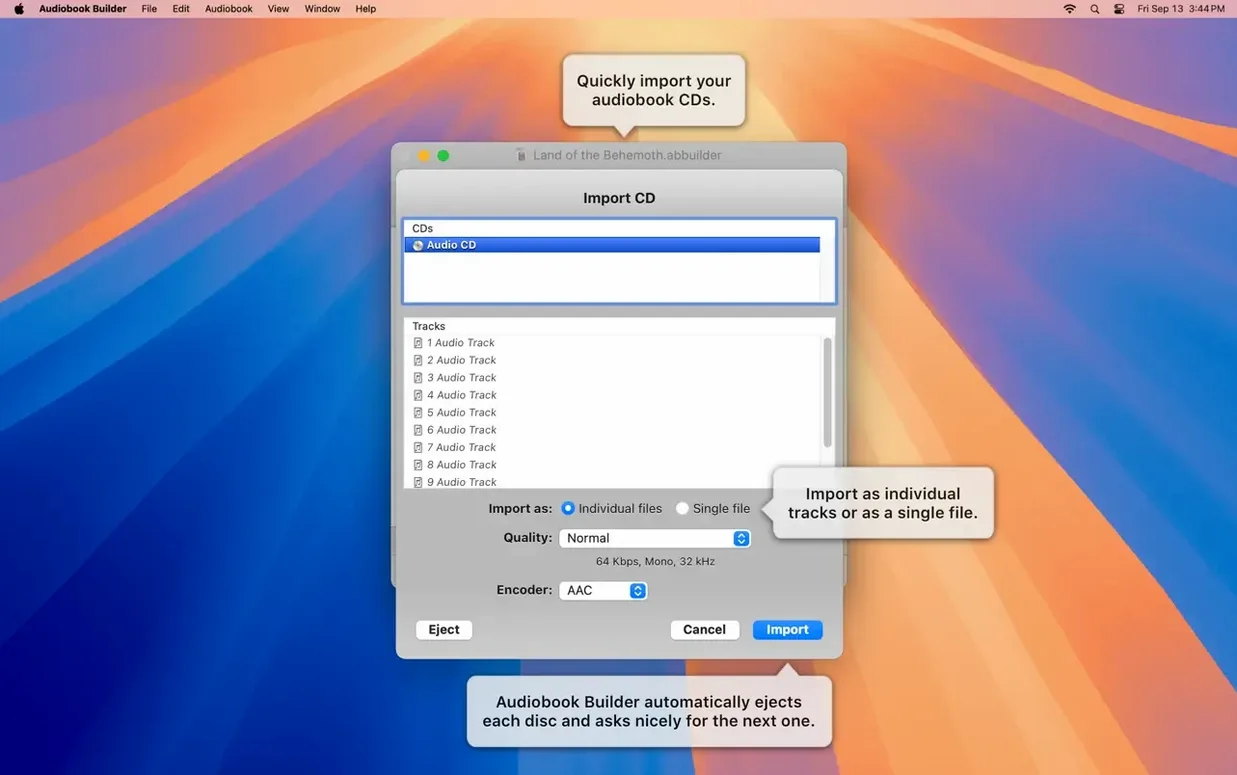
The Join feature sits at the heart of Audiobook Builder’s workflow, letting you collect a stack of audio files—AAC, MP3, WAV, FLAC, or a ripped CD—and combine them into a single m4b book. You decide whether chapters follow the original file boundaries or get split at timed intervals.
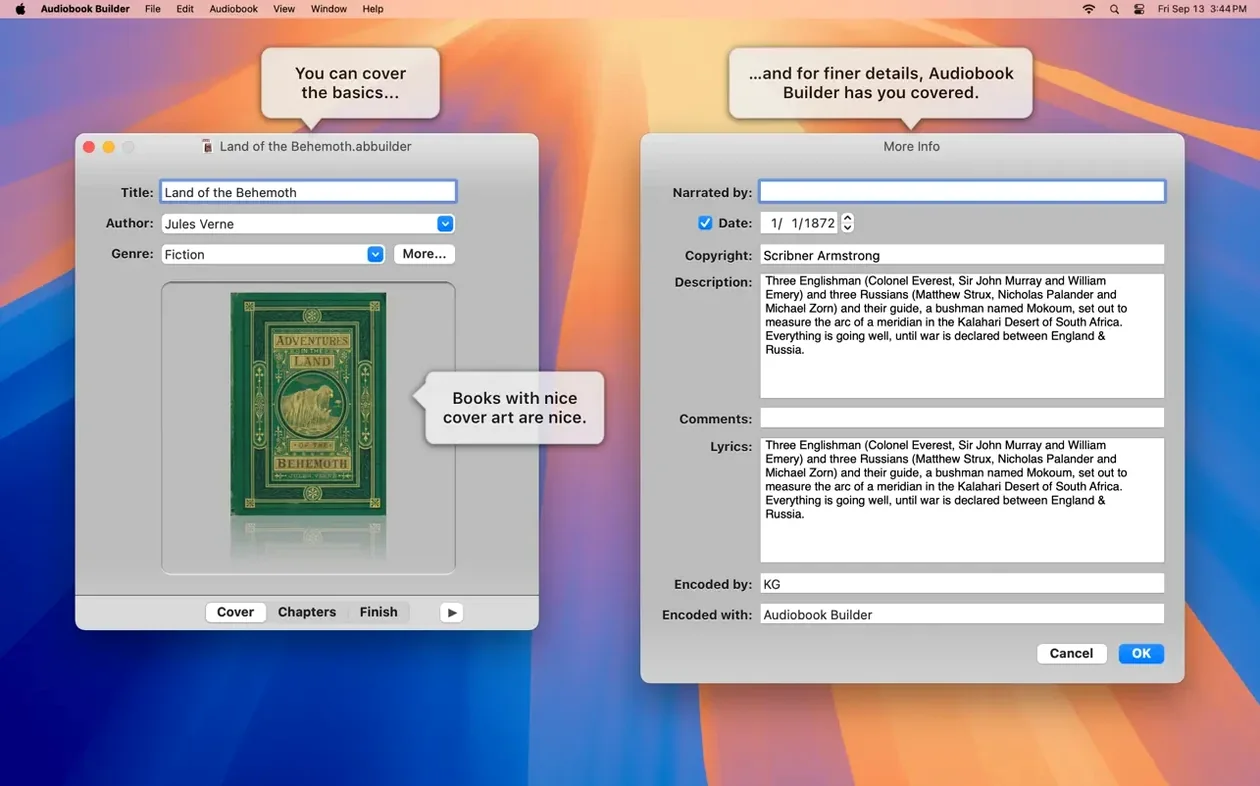
Set book details
The project window asks for title, author and cover art before the build runs, so the finished file lands in Apple Books with proper metadata. Chapter stops can carry their own images too, and the artwork pipeline stays dependable right through macOS 15 Sequoia.
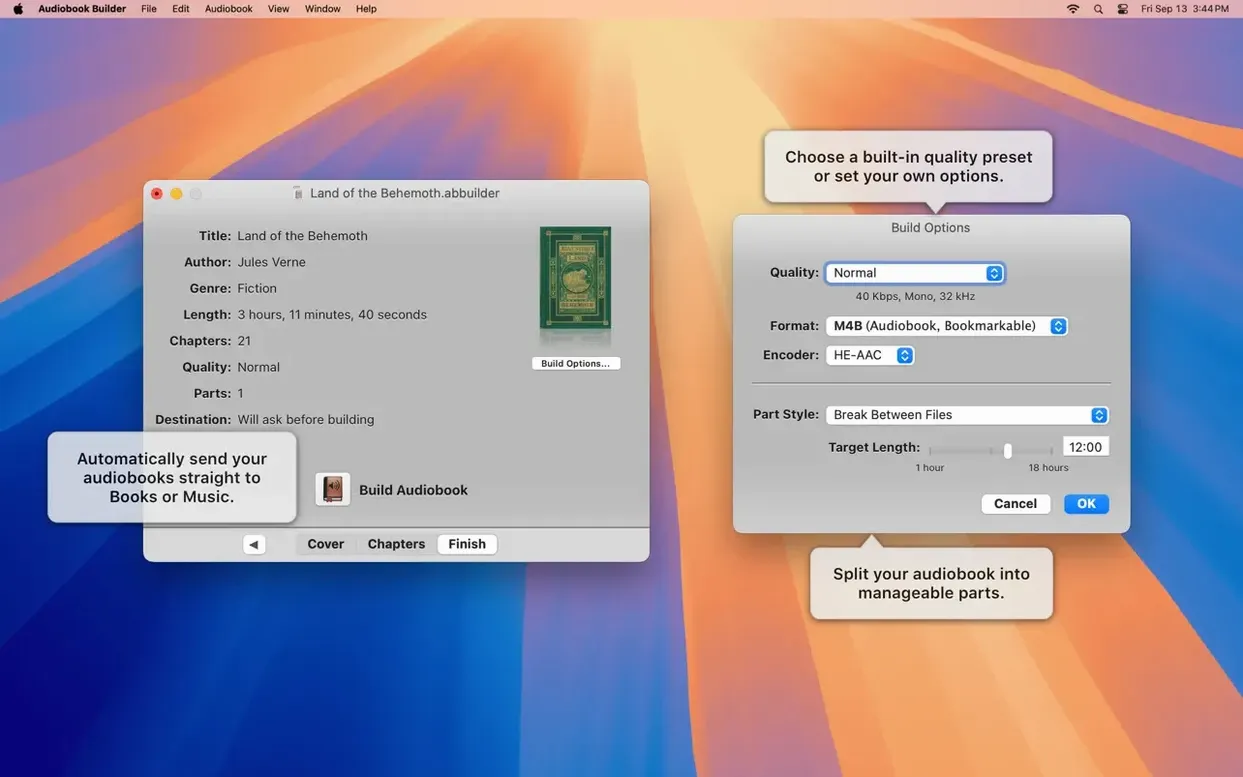
Choose output settings
You control the audio parameters—bit rate, sample rate, mono or stereo—rather than accepting a one-size-fits-all encode. The resulting audiobook syncs to an iPhone or iPad through Finder or Apple Books, sitting alongside purchases and library rips as a standard m4b.
Tracks sort as Chapter 1, 10, 2 instead of 1, 2, 10
A common misstep is dropping a folder of MP3s into the project window without checking the sort order first. Audiobook Builder respects whatever sequence Finder hands it, and if the tracks land alphabetically as Chapter 1, Chapter 10, Chapter 2, that is exactly how they play back. Drag files into the list one by one in reading order, or rename them with zero-padded numbers before you start.
Another early slip is building a six-hour audiobook without a single chapter marker. The result plays fine, but skipping back to find a passage becomes a chore. Set chapter stops at natural breaks—every file, every twenty minutes, or wherever the narrative shifts—and give each a short descriptive name. The time you spend on chapters pays off the first time you rewind to catch a missed detail.
Beginners also tend to leave the cover artwork at whatever thumbnail-sized JPEG they grabbed from a search result. Apple Books displays covers at generous sizes on an iPad screen, and a 300-by-300 image will show as a blurry rectangle. Use artwork at least 1400 pixels on the shorter side, and make sure it is a square crop. The app scales it down during encoding, but it cannot add detail that was never there.
WAVE files that say “no audio in file”
WAVE files that report “no audio in file.” Version 2.2.9 fixed one cause of this—WAVE containers holding MP3 data—but you might still encounter it with oddly formatted PCM files from older recording software. Convert the source to FLAC or Apple Lossless in another tool, then re-import. That almost always clears the error.
The finished m4b does not appear in Apple Books. On recent macOS versions the app hands the file to the system, and where it lands depends on your Books settings. Check File > Import inside Books if it did not show up automatically. You can also drag the m4b directly onto the Books window from the Finder. The file itself sits in your project’s output folder, so nothing is lost even when auto-adding stumbles.
Chapter artwork vanishing after a sync. Some older iOS versions dropped embedded chapter images during an iCloud sync. If you notice blank squares where artwork should be, connect the device with a cable and transfer the audiobook through Finder. A wired sync preserves all the metadata including per-chapter images.
Encoder hangs on a large project. A book with thirty chapters and custom artwork for each one asks a lot of the encoder. If the progress bar freezes, let it sit for five minutes before you force-quit. Often the app is simply chewing through a particularly dense section of audio. Splitting the project into two smaller builds and merging the resulting files later works as a fallback.
Workflow: turning a multi-CD audiobook into a single m4b
Suppose you have borrowed a twelve-disc audiobook from the library and want a tidy digital copy for an upcoming flight. Each disc holds roughly seventy minutes of spoken word across a handful of CD tracks. The goal is one m4b file with chapter stops at every disc boundary.
- Rip each CD to a separate folder using an external drive. Name the folders
Disc 01throughDisc 12so the sort order stays obvious. - Open Audiobook Builder and create a new project. Enter the title and author, then drop the cover art—a square scan of the dust jacket works well.
- Select the Join tab and click Add Files. Navigate into
Disc 01, select all its tracks, and add them. Repeat for each disc in order. - Switch to the Chapters tab. Choose Custom and click Group Files into Chapters. Set the grouping to one chapter per disc. The app stacks all the tracks from
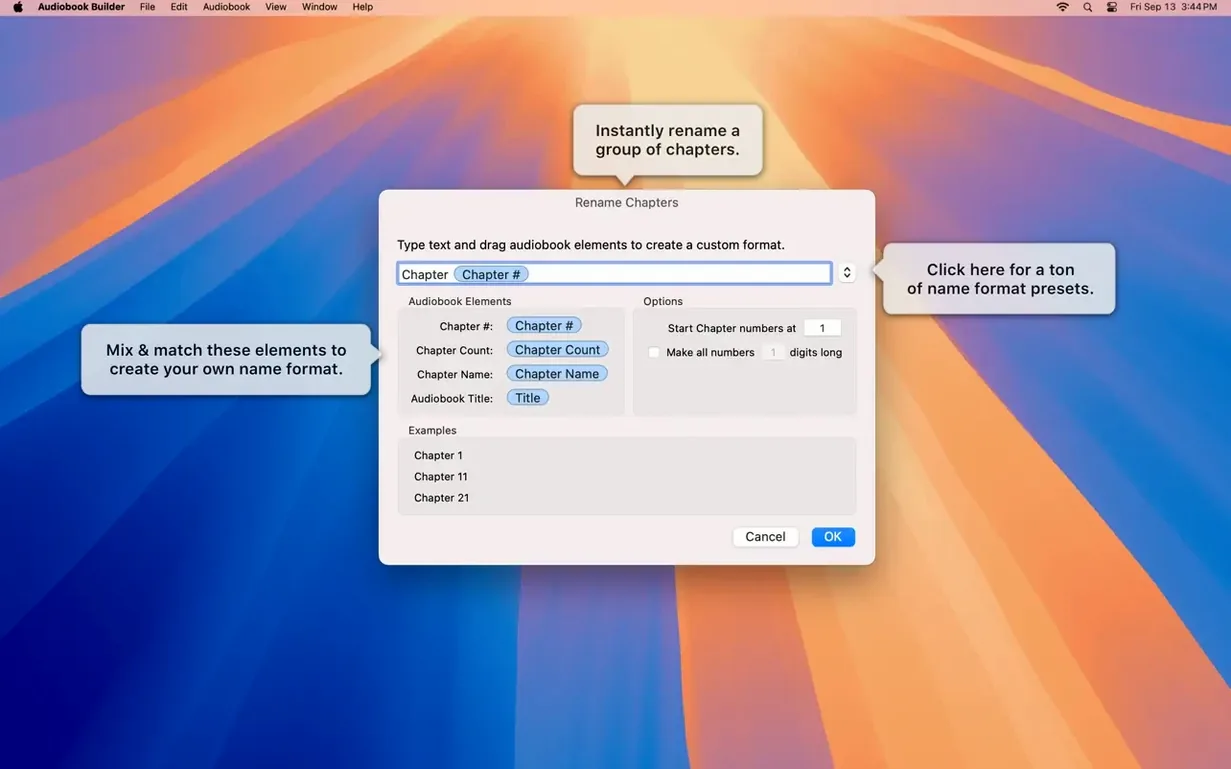
Disc 01into Chapter 1,Disc 02into Chapter 2, and so on. - Rename each chapter to something useful—Disc 1: Chapters 1–3 or The Journey Begins, whichever you prefer. If you scanned the disc sleeves, add a chapter image for each one.
- Move to the Build Options pane. Choose Audiobook as the output preset, set quality to Spoken Audio, and pick 64 kbps mono AAC. That keeps file size manageable for a flight without muddying the narration.
- Name the output file and pick a destination folder. Click Build and let the encoder run. Twelve discs at seventy minutes each takes roughly fifteen to twenty minutes on an Apple Silicon Mac.
- When the build finishes, double-click the m4b to add it to Apple Books. Connect your iPhone via cable, select the audiobook in Finder’s Books tab, and sync.
The empty window and that first New Project click
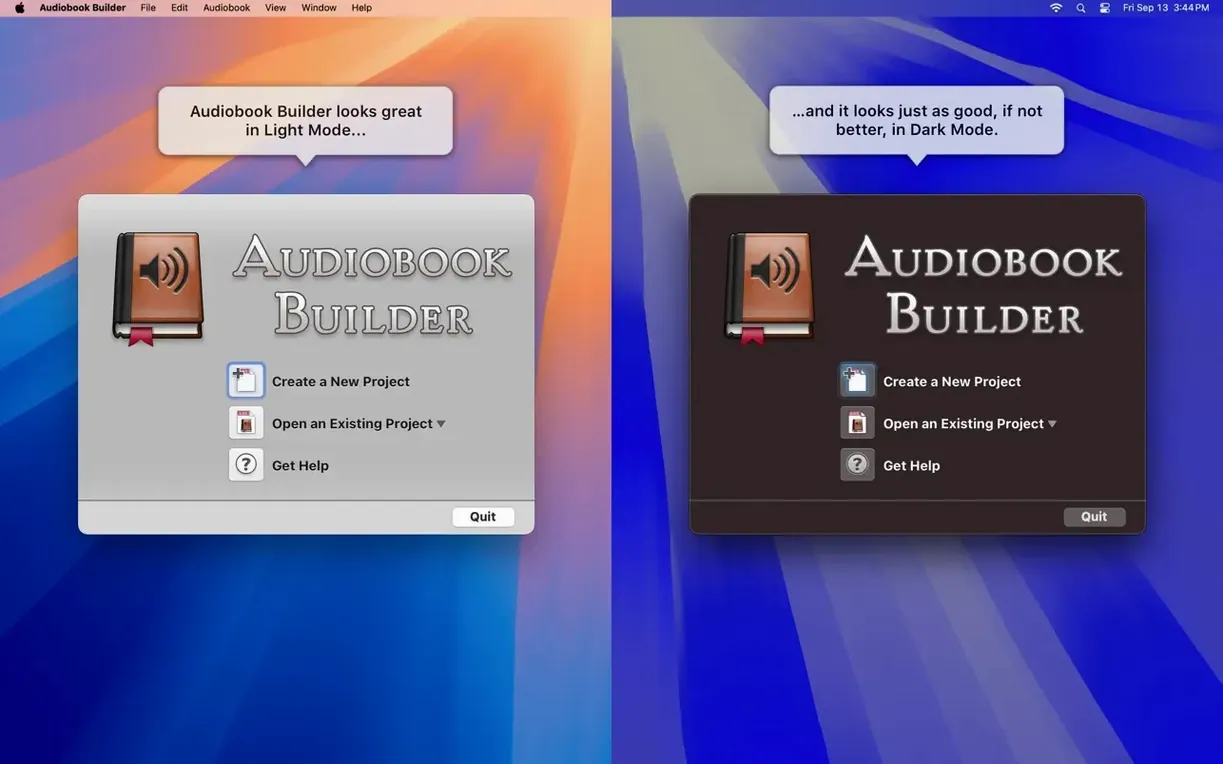
You have just downloaded an audiobook builder from a trusted source and launched it for the first time. The main window sits empty, a single New Project button in the centre. Clicking it opens a project sheet that asks for a title and author straight away—no wandering through menus first.
You type The Wind in the Willows and drop a cover image onto the well. The artwork snaps into place and stays sharp as you resize the window. Over in the Join tab, you drag eight MP3 files from a folder on the desktop. The list populates instantly, showing filename, duration, and a small waveform icon for each entry. You click one and tap the spacebar to preview it; the playback is clean and immediate.
Switching to the Chapters tab, you set chapter breaks at every file boundary and type short titles: The River Bank, The Open Road, The Wild Wood. The third chapter runs long, so you split it into two parts with a right-click. A few keystrokes later the structure feels right.
You head to Build Options and choose the Spoken Audio preset. The summary at the bottom estimates a 140 MB output, which seems reasonable for five hours of mono speech. You click Build, and a progress bar crawls across the bottom of the window while the encoder does its work. The fan on your MacBook stays quiet throughout.
A notification chimes when the build completes. The m4b file appears in the output folder you specified, and a second later it pops into Apple Books with artwork and chapter markers intact. You grab your phone, sync the file over, and ten minutes later you are listening on the bus. The whole session, from empty project to headphones-on listening, ran under half an hour.