Aspecten
 Download (26 MB)
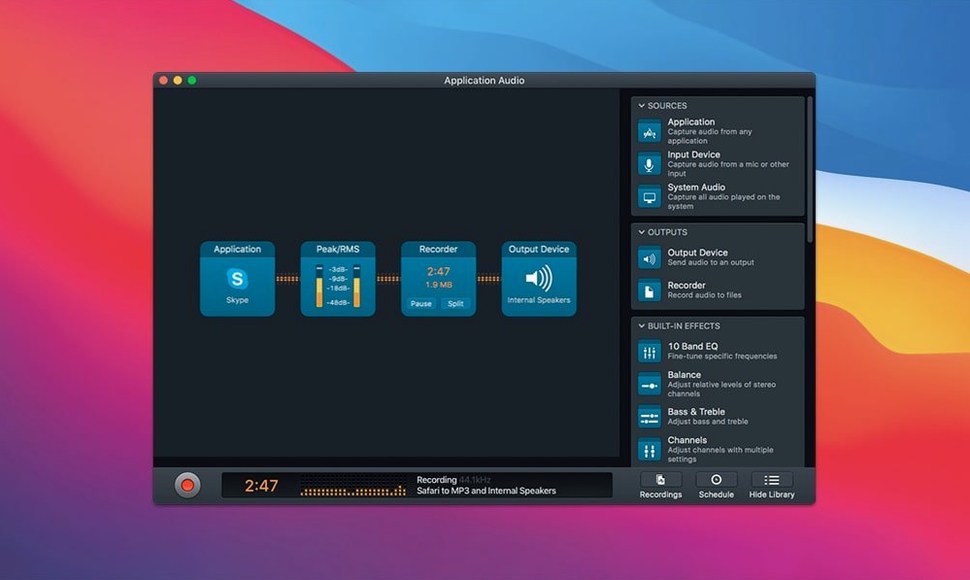
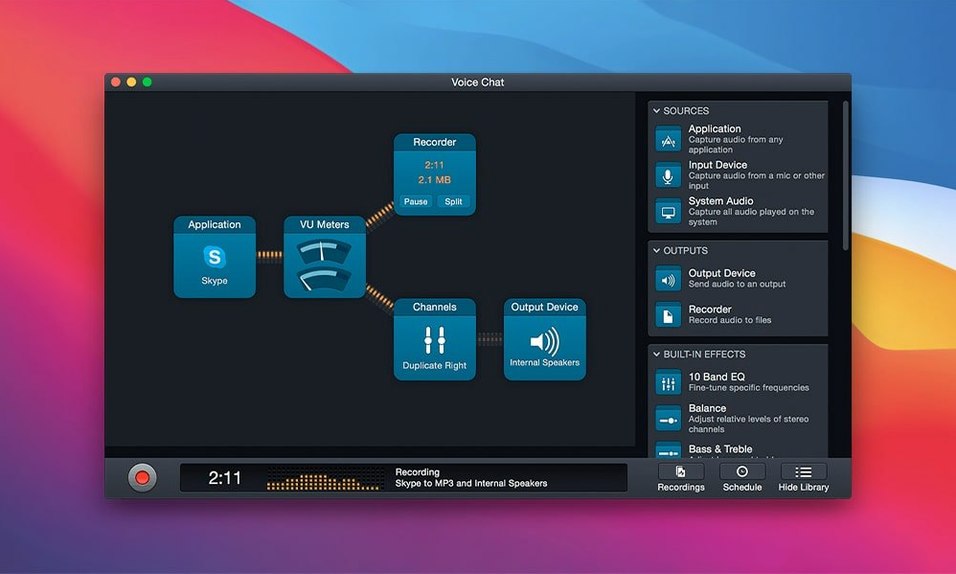
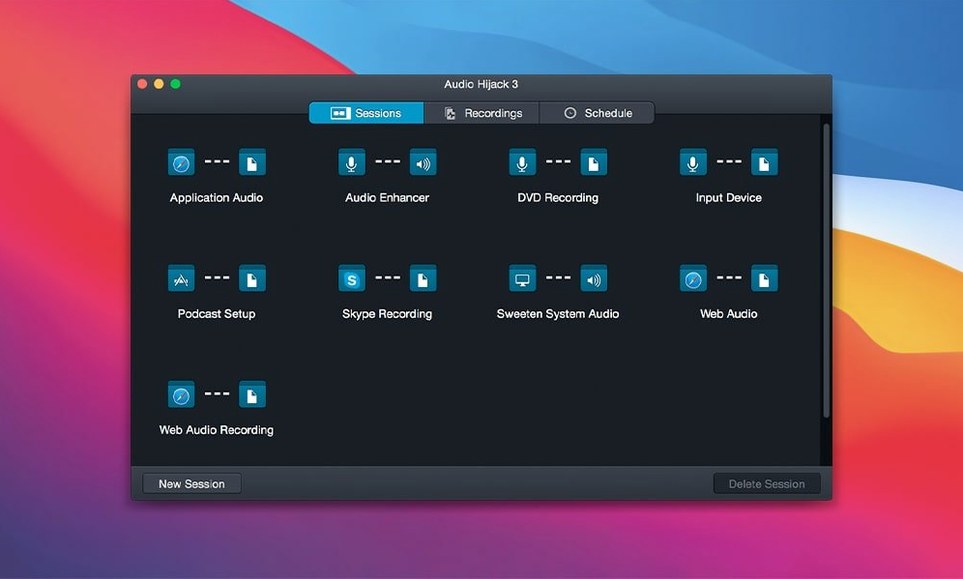
Audio Hijack is a Mac utility that records audio from any source your computer can play or receive. Applications, internet streams, VoIP calls, microphones, and DVD players are all fair game—often in a single session.
Version 4.6.0 arrived on 27 August 2026 and keeps the block-based interface that has defined the app for years. You build a recording setup by dragging blocks onto a canvas: one for the source, another for effects or processing, a third for the output format. Templates give you a head start for common tasks, but the real value lies in how freely you can combine blocks once you understand the logic.
What changed this time is mostly under the hood. The built-in Transcribe block now defaults to a Recommended transcription model, and the Whisper.cpp backend moves from version 1.7.4 to 1.9.2, which brings better accuracy for speech-to-text jobs without touching the familiar block arrangement. The update also adds explicit support for macOS 27 (Golden Gate), keeping the app current as Apple pushes the operating system forward.
Much of what made Audio Hijack useful remains untouched. You can still pull audio from iTunes or Safari, mix multiple sources, and save the result as a standard file. The app stays macOS-only, with system requirements sitting at macOS 14.4 and above. For anyone who regularly needs to capture sound from a Mac, the tool still does exactly what its name suggests.
A short recording scenario
A university researcher needs to save a panel discussion streamed live via a browser, capture her own microphone commentary for later notes, and run the combined signal through a dehum filter because the venue’s PA produces a low mains-frequency buzz. She opens Audio Hijack, drops in an Application source block set to Safari, a Microphone source block, a Dehum effect block, and a Recorder block pointed at a folder on her desktop. The two sources feed into the effect block; the effect block feeds the recorder. She ticks ‘Save as FLAC’ in the recorder settings, clicks the run button, and gets a clean, lossless recording with her spoken annotations baked into a single file. Later she drags the same session into the Transcribe block for a rough text version.
The default two-hour recording cap cuts off long sessions
New users often set up a working chain but forget to adjust the global recording timer. The default stops capture after two hours, which catches people out during long meetings or multi-hour streaming sessions. Checking the Timer tab early saves a truncated file.
Another common slip is selecting the wrong input device in a source block. A microphone source block might default to the Mac’s internal mic even though an external USB microphone is plugged in. The block shows the device name in small text below its title—glancing at it before running the session avoids a silent recording or, worse, capturing fan noise from the laptop.
Beginners also tend to stack multiple effect blocks without listening to the output in stages. Adding Denoise, Declick, and a ten-band equaliser before checking whether the raw recording is even usable can turn a slightly imperfect source into a muddy, over-processed mess. The better habit is to apply one effect, listen via the built-in monitor, then add the next.
Quieter remote voices fixed with a Volume block
One frequent headache involves capturing a video call where one side of the conversation sounds much quieter than the other. Voice-over-IP apps sometimes route local and remote audio at different levels. The fix is to insert a Volume block between the VoIP application source and the recorder, then use the block’s per-channel slider if the app exposes stereo channels separately. If not, applying light compression via the Dynamics block can even things out without constant manual fader riding.
Some users find that Audio Hijack records system alert sounds—message pings, calendar notifications—alongside the intended audio. That happens when the source block captures an entire application rather than a specific audio stream inside it. Switching to a ‘System Audio’ source and then using the app’s built-in routing table to exclude unwanted sounds solves the problem, though the routing table takes a few minutes to understand.
A less obvious snag: the Transcribe block produces garbled text when the source audio contains music or heavy background noise before speech begins. The block’s accuracy improves noticeably if you trim silent or noisy lead-in sections with the built-in Silence Monitor block placed directly before transcription. Setting the monitor to skip any segment below a certain threshold cleans the input that reaches Whisper.cpp.
People sometimes report that a session simply fails to start. Nine times out of ten, a different application holds exclusive access to the audio device. Quitting other sound-recording or conferencing tools—even ones sitting idle in the menu bar—releases the device and lets Audio Hijack connect on the next attempt.
Trade disk space for quality at 96 kbps mono or 256 VBR
The default MP3 bit rate of 128 kbps is conservative. For spoken-word material, 96 kbps mono is perfectly adequate and saves disk space. For music capture from streaming services, 256 kbps VBR produces a file that holds up better on decent speakers. Open the Recorder block’s format options and set your preferred default early, so every new session inherits it.
The Transcribe block’s ‘Recommended’ model, new in version 4.6.0, is worth selecting explicitly even though it is now the default. The previous ‘Small’ model finished faster but made more errors with accented speech and technical vocabulary. The Recommended model runs a little slower on Intel Macs but produces significantly cleaner transcripts on both architectures.
Under the Audio Hijack menu, the ‘Preferences’ pane contains a checkbox labelled ‘Pause iTunes during recording.’ If you capture system audio while also playing music locally, leave this off. Ticking it means the app will interrupt playback the moment you start a session, which may be what you want for VoIP calls but not for recording a streaming radio show you are also listening to live.
The global hotkey for starting and stopping the current session is unassigned out of the box. Setting it to a combination like Control-Option-Space means you can begin recording without switching away from the application you are capturing, which matters during live presentations where mousing over to Audio Hijack would be visible on screen.
Audio Hijack versus other Mac capture apps
Audio Hijack versus Loopback
Loopback, also from Rogue Amoeba, is a virtual audio routing tool rather than a recorder. It creates pass-through devices that other apps see as sound inputs and outputs. Audio Hijack records directly; Loopback wires things together but relies on separate software for capture. The two complement each other well—Loopback sets up the routing, Audio Hijack handles the recording and effects—but someone who only needs to save a call or stream will find Audio Hijack more self-contained. Loopback’s strength is permanent virtual-device creation, which persists across reboots. Audio Hijack sessions are ephemeral unless saved as templates.
Audio Hijack versus Piezo
Piezo is Rogue Amoeba’s simplified recorder. It records from a single application or input at a time, offers no effect blocks, and skips the session canvas entirely. Audio Hijack’s block-based routing and multi-source mixing put it in a different category for complexity and control. Piezo suits someone who wants to click one button and capture Skype. Audio Hijack suits someone who wants to capture Skype, apply a dehum filter, mix in a local microphone, and save as FLAC—all at once. The gap widens further with the Transcribe block, which Piezo lacks entirely.
Audio Hijack versus GarageBand
GarageBand records audio but sits on the creative-production side of the fence. It is a multitrack digital audio workstation, not a system-audio capture tool. You cannot point GarageBand at Safari and grab a streaming radio show without additional routing software. Audio Hijack does that natively. GarageBand retaliates with virtual instruments, MIDI editing, and a timeline-based arrangement view that Audio Hijack does not attempt to replicate. For archiving live audio as it plays, Audio Hijack is the more direct route. For building a podcast with music beds and chapter markers after recording, GarageBand takes over where Audio Hijack stops.