Aspecten
 Download (582 MB)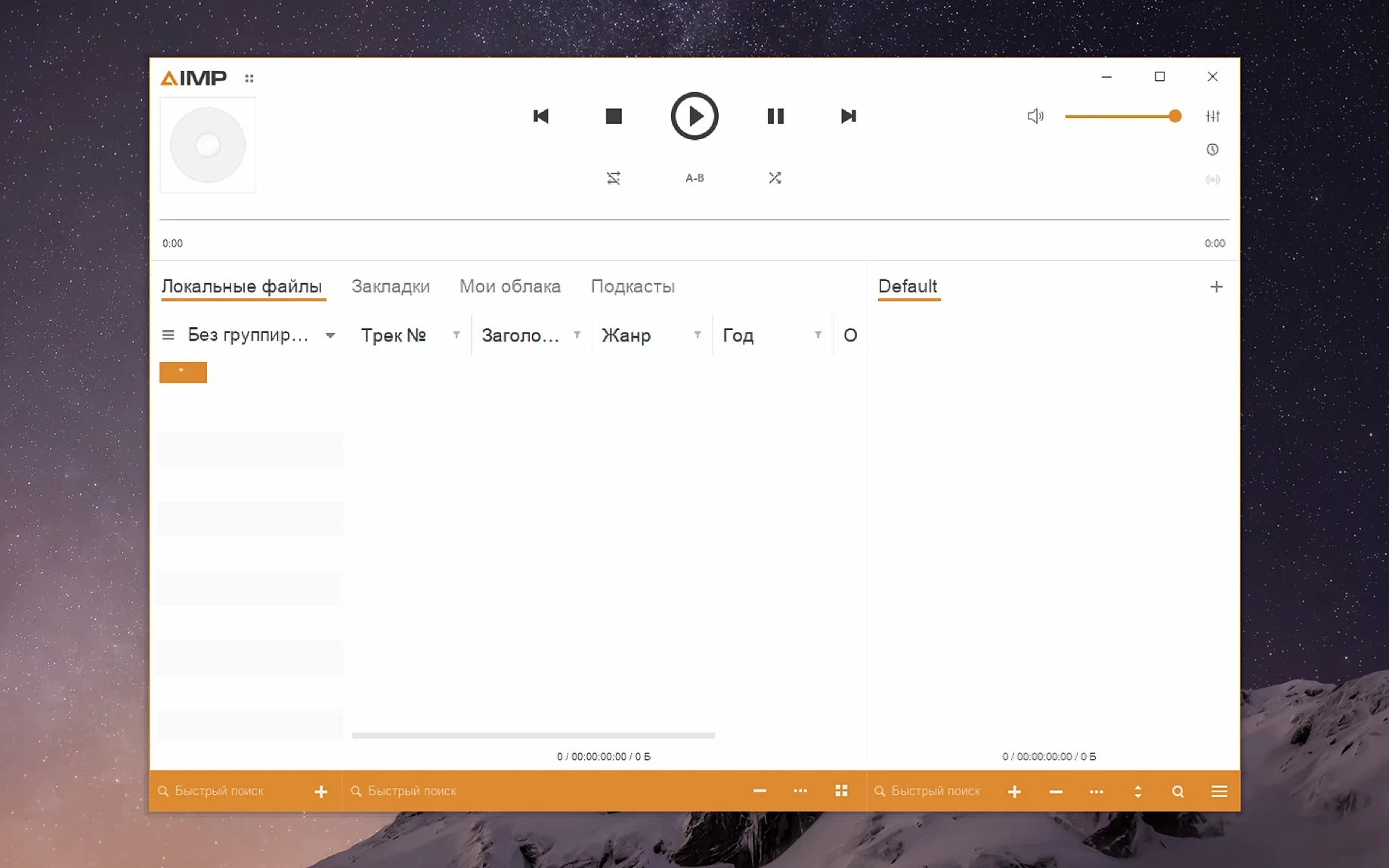
Apple Silicon required, runs under Wineskin
AIMP 5.40.2675 requires an Apple Silicon Mac with macOS 11 or later. The player is packaged with Wineskin, so it runs the Windows build inside a compatibility layer rather than as a native macOS application.
What does the interface look like?
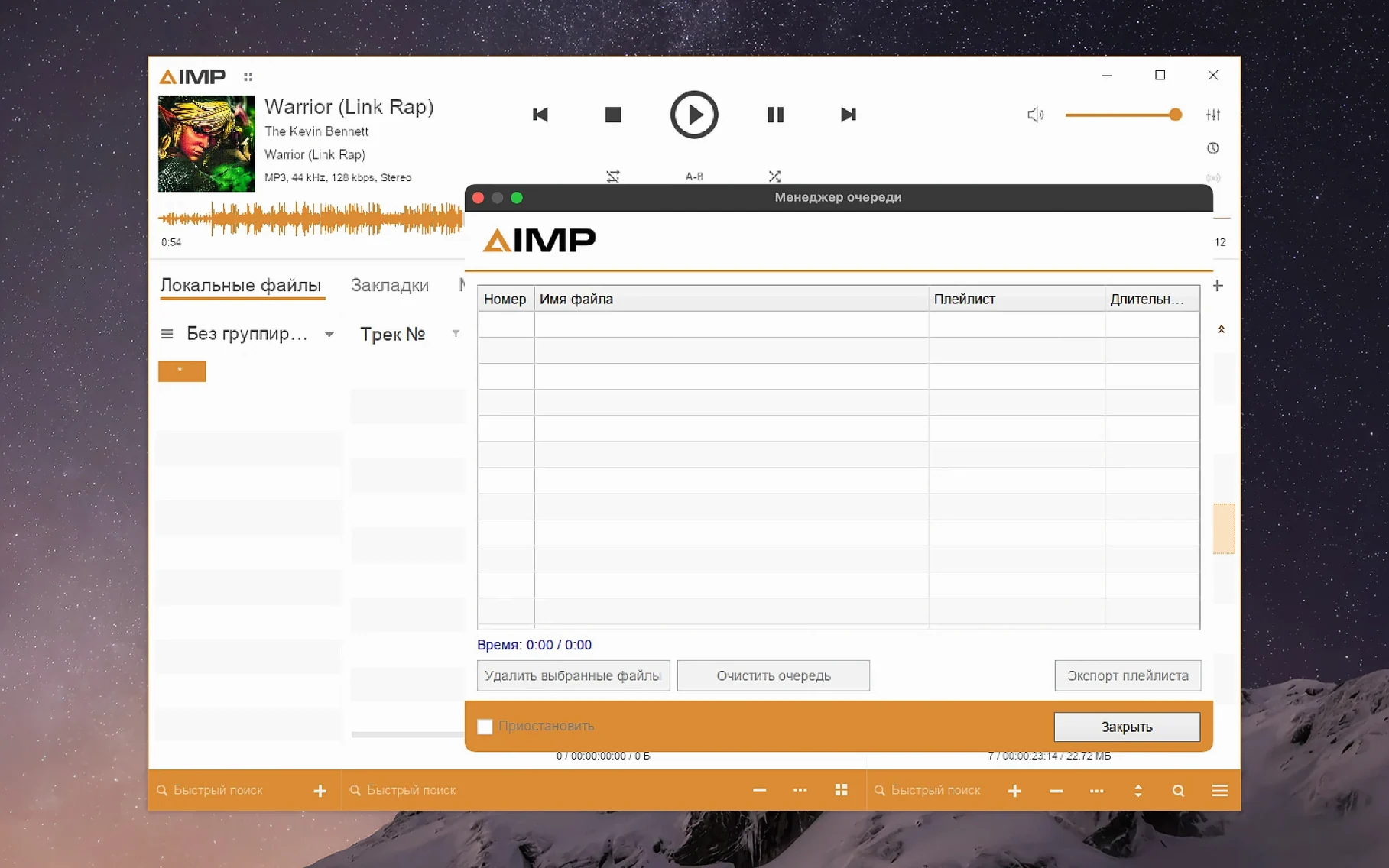
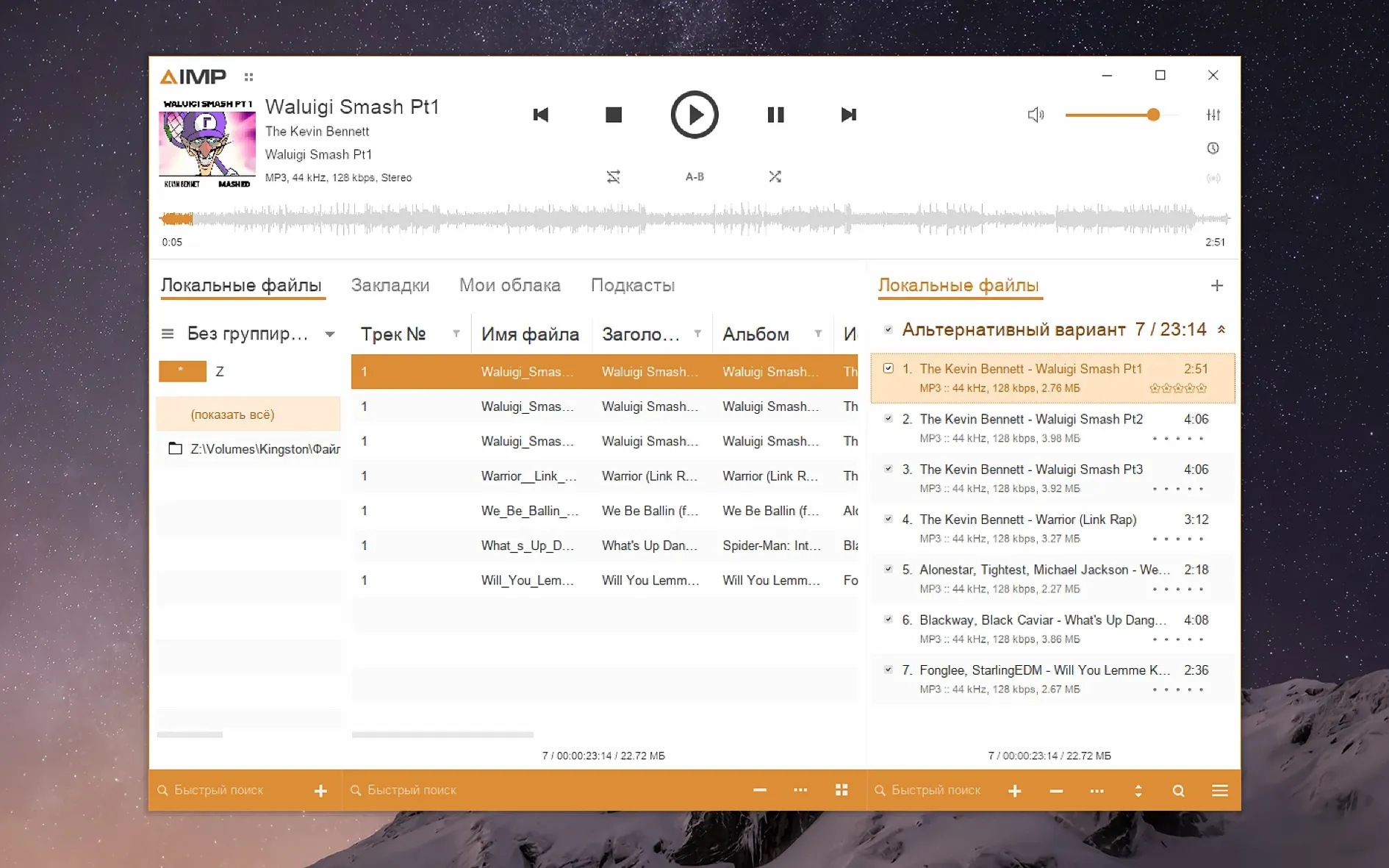
The familiar AIMP layout carries over from the Windows version: a main player window, playlist manager and separate panels for visualisation. Interface languages include English, Russian, German, Japanese, Turkish, Portuguese, Hungarian and Swedish, among others.
What audio features are included?
You get the full player with playlist management, skin support and codec handling. The current build updates the Monkey's Audio codec to version 11.08 and speeds up waveform calculation.
How stable is the macOS version?
Recent fixes address a libVorbis conflict with third-party plugins and a sampling-frequency buffering issue. The Skin Engine mouse wheel problem in the visualisation window has also been corrected.
Dragging the wrapper to the Trash instead of using the Fix file
One early slip is treating the Wineskin wrapper as if it were a native Cocoa app. Dragging the app to the Trash instead of using the Fix file when a launch error appears wastes time, because a corrupted wrapper configuration is often the culprit, not a broken download. Running the Fix script from the disk image restores the default Wineskin settings and almost always resolves the first-launch hang.
Another common mistake is ignoring the interface scaling step. Out of the box, AIMP can look tiny on a Retina display, and beginners sometimes assume the player lacks HiDPI support. The screen resolution setting inside KegworksConfig, set between 122 and 144 dpi, makes text and controls comfortable without blurring. Skipping this step leads to squinting at playlist rows or misclicking transport buttons.
Beginners also tend to point AIMP at their entire Music folder and expect a library to build itself. The music library module works best when you add folders gradually and let the grouping tree populate before doing anything else. Adding 40 000 tracks in one go can stall the interface, especially under Wineskin’s I/O translation layer. Start with a small test folder of 50 albums and confirm that the library tree updates cleanly before scaling up.
Finally, some users close the playlist manager window without realising it is the main workspace. AIMP treats tabs and playlists as persistent; closing the manager does not stop playback, but it hides the queue and makes the player feel unresponsive. The habit of double-clicking the tray icon or dock icon to bring the full window set back takes a day or two to form.
Increase the playback buffer for network or slow drives
- Playback engine buffer length. The default buffer suits local files on a quiet machine. If you play files from a network share or a slow external drive, increase the buffer to 500–750 ms under Preferences → Playback. This reduces micro-gaps when macOS prioritises other I/O threads.
- Resume playback on start. Off by default. Turning it on under Preferences → Player means returning to the same track and position you left, which feels more natural for a desktop player you close and reopen several times a day.
- Output device selection. AIMP defaults to the system output, but the Wineskin layer can sometimes latch onto the wrong audio device after sleep. In Preferences → Playback → Output, explicitly select your DAC or interface by name rather than leaving Default Device ticked.
- Playlist saving behaviour. The playlist manager marks content as modified too eagerly in earlier builds. Version 5.40.2675 fixes the worst of this, but to avoid unwanted prompts, set Automatically save playlists on exit and untick Confirm on clear. This keeps the workflow silent and quick.
- Skin scaling and font size. After setting the screen resolution via KegworksConfig, pick a skin that handles larger fonts gracefully. The default skin tolerates scaling well; some third-party skins do not. Stick with the built-in choice for the first week while you settle the DPI value.
Run the Fix file and set resolution before rebuilding your library
On day one, resist the urge to rebuild your entire listening setup. Install the player, run the Fix file if macOS blocks the launch, and set the screen resolution via KegworksConfig as described in the install steps. Spend ten minutes with a short playlist of ten lossless files. Verify that the waveform visualisation draws without flickering and that the Monkey’s Audio codec handles .ape files correctly — version 11.08 should parse high-compression APE without stalling.
By day two, begin exploring the tag editor on a copied album, not on originals. AIMP’s tag editor can rewrite fields in bulk, and a misstep with an unnamed MP4 field — a bug fixed in this build — could previously raise a parser error. Testing on duplicates lets you learn the multi-panel layout without risking metadata loss. The editor handles ID3v2, Vorbis comments and MP4 atoms in a single unified pane, which differs from the tabbed approach in some native Mac taggers.
During the first three days, keep the music library grouping tree small. Add one genre or one artist folder at a time and use Alt+Click on a tree node to expand it without selecting. The changelog for 5.40.2675 notes an Alt+Click fix, so this gesture should now behave predictably. If you plan to use third-party plugins, test them one by one. The libVorbis conflict mentioned in the changelog means some older input plugins that bundle their own Vorbis decoder can clash with AIMP’s internal libVorbis. Loading plugins incrementally helps you identify which one causes a silent fail.
Keep a note of any crash. The build includes fixes for several incoming crash-report issues, but the Wineskin environment is not immune to edge cases. If a specific action — switching sampling frequency mid-track, toggling visualisation while a skin is loaded — causes a reproducible quit, you have a clear reportable scenario rather than a vague “it closed.”
Tagging community radio FLACs on a NAS with one tool
Consider someone who records weekly community radio broadcasts as FLAC files, stores them in dated folders on a NAS, and tags each file with station name, date and genre. Before adopting AIMP, this person juggled a tag editor, a separate player for quick checks and a file browser to move completed recordings into an archive.
After installing the Wineskin-packaged build on an M1 Mac mini, the archivist points AIMP’s music library at the NAS mount and adds only the current month’s folder to start. The grouping tree, filtered by genre and then by date, makes finding last Tuesday’s jazz set a matter of two clicks. The tag editor opens on the selected file with the station name already filled in a custom field; a quick Ctrl+S writes the metadata back without leaving the player. Playback of the FLAC file confirms the levels are good, and the waveform visualisation — now calculating faster thanks to the improved routine in 5.40.2675 — shows at a glance whether the recording has a long silent tail that needs trimming.
When the archivist needs to check an older recording encoded in Monkey’s Audio, the updated 11.08 codec decodes it directly. No auxiliary converter opens, no extra step interrupts the listening check. By the end of the week, the archivist has a single application handling tag review, playback and library browsing, with the NAS folder structure mirrored in AIMP’s playlist tabs. The workflow that once required three separate tools now fits inside one wrapper window, and the library tree grows only as new folders arrive, keeping the grouping snappy even across a network link.