Aspecten
 Download (76 MB)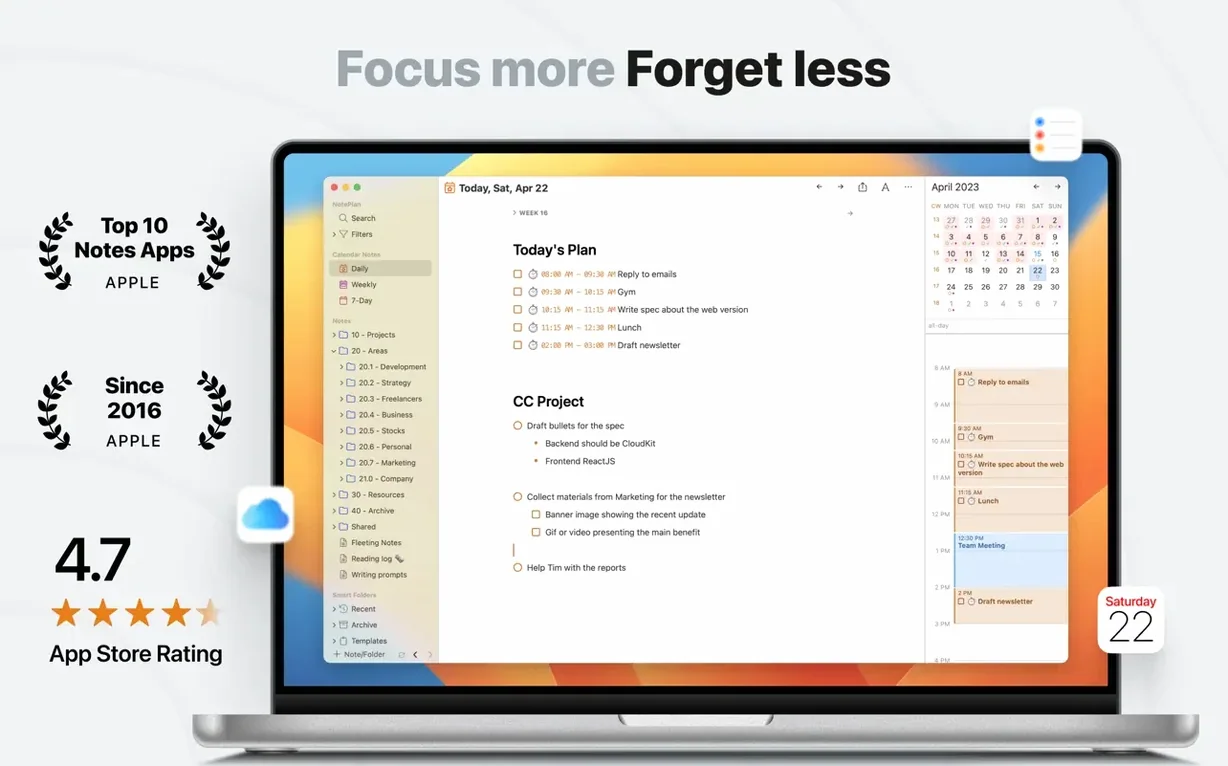
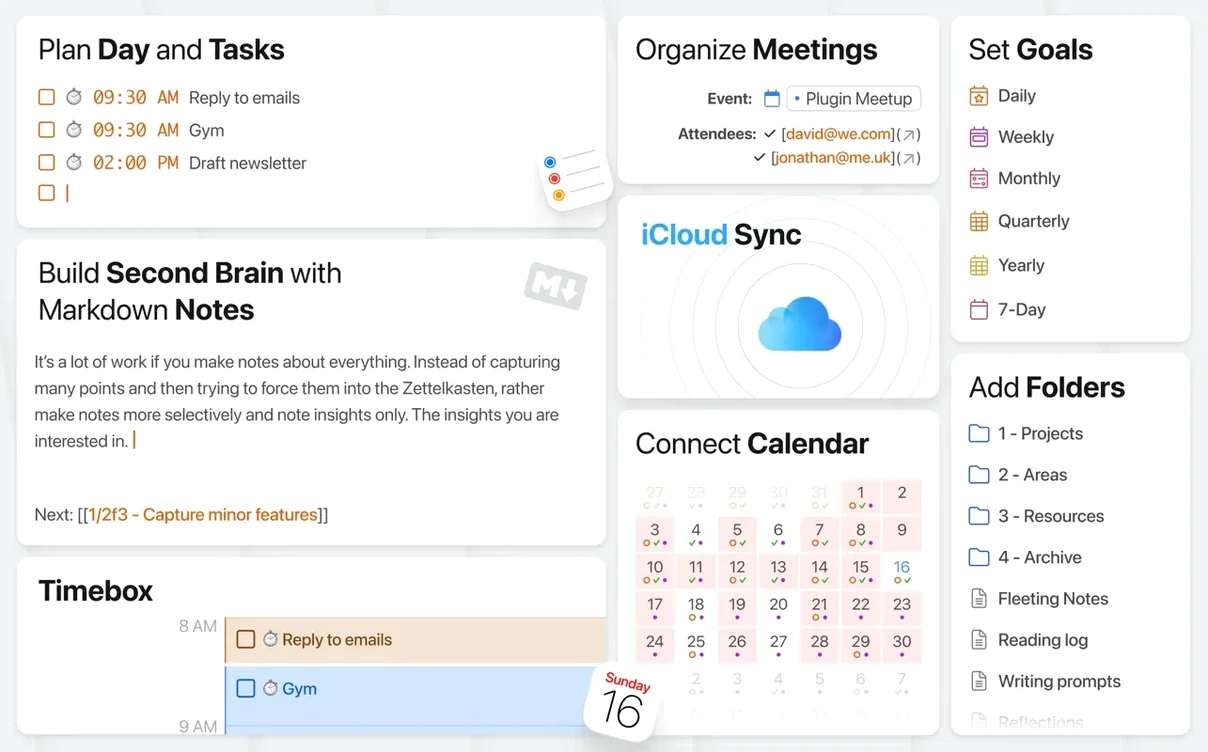
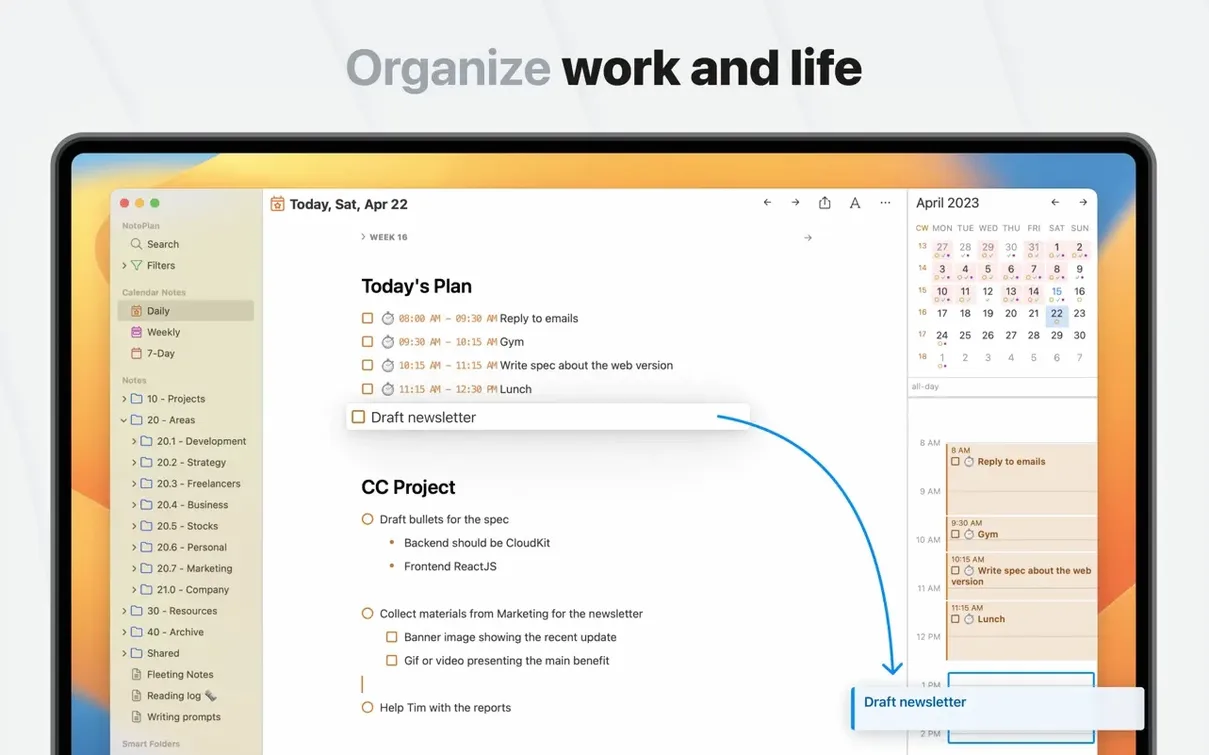
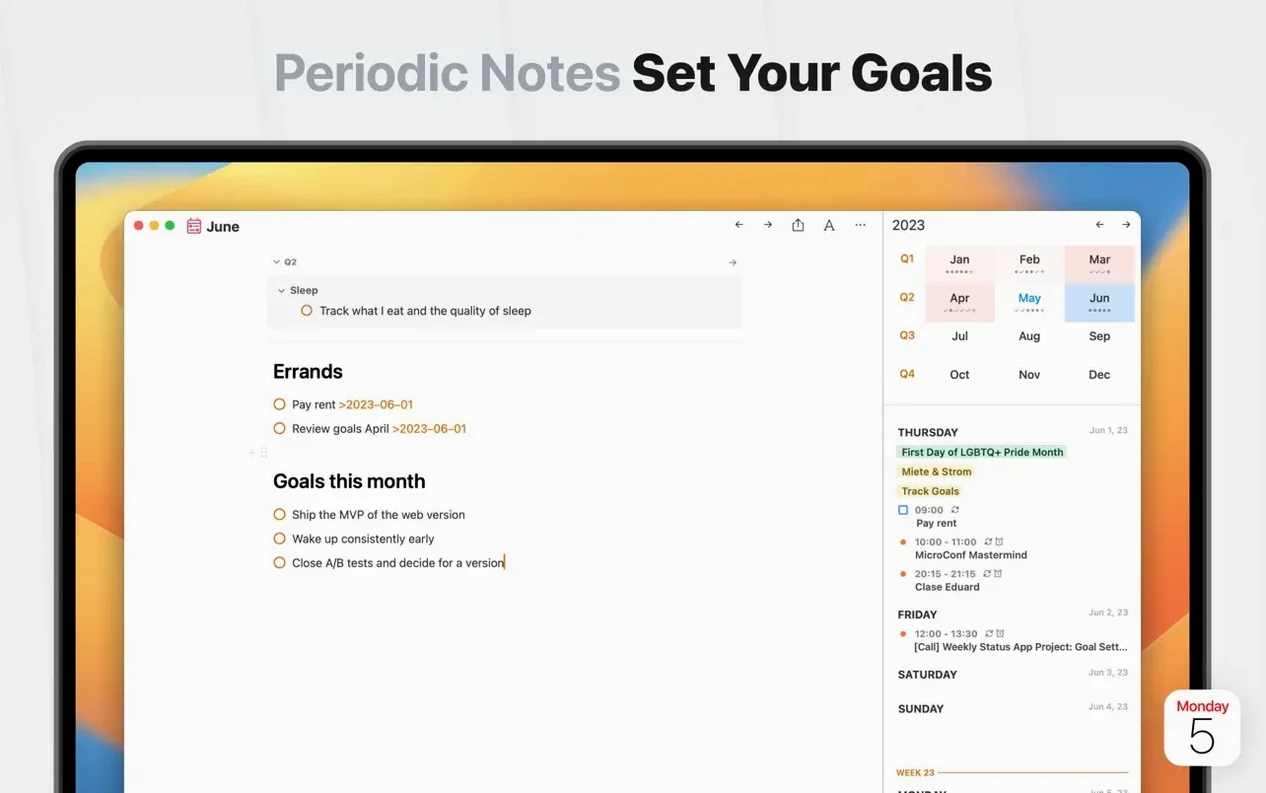
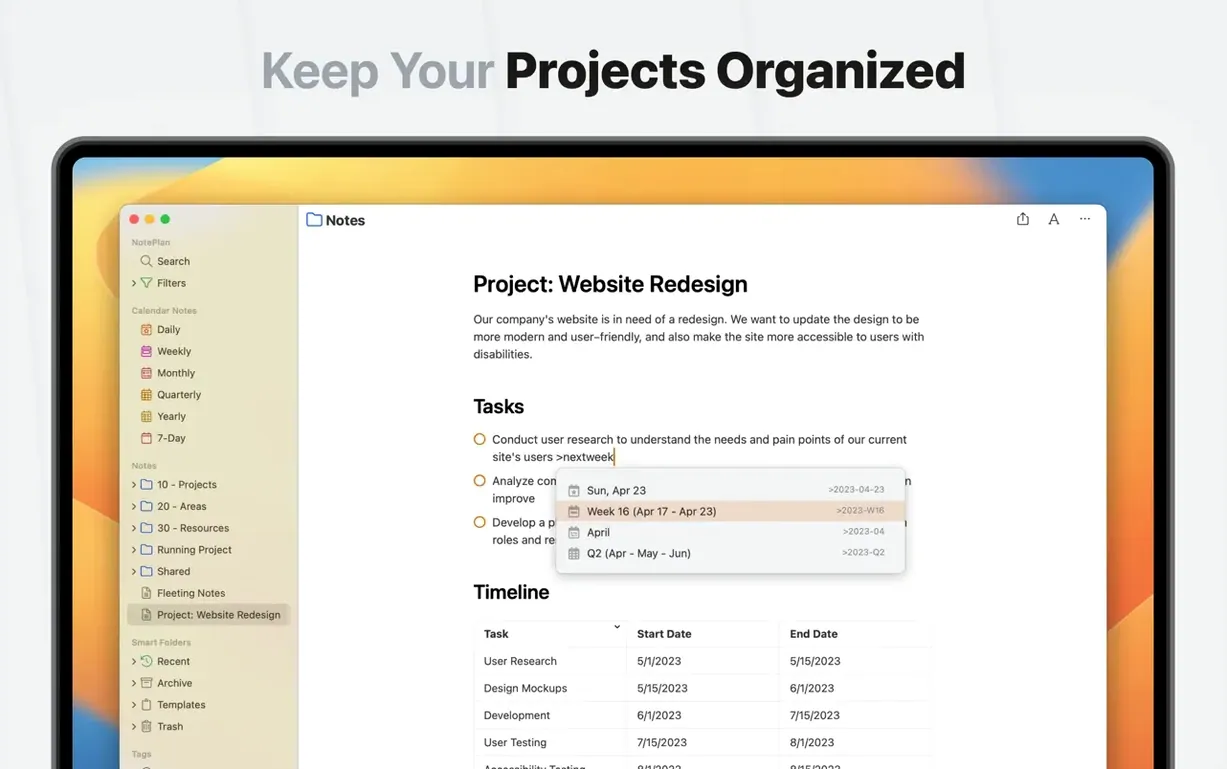
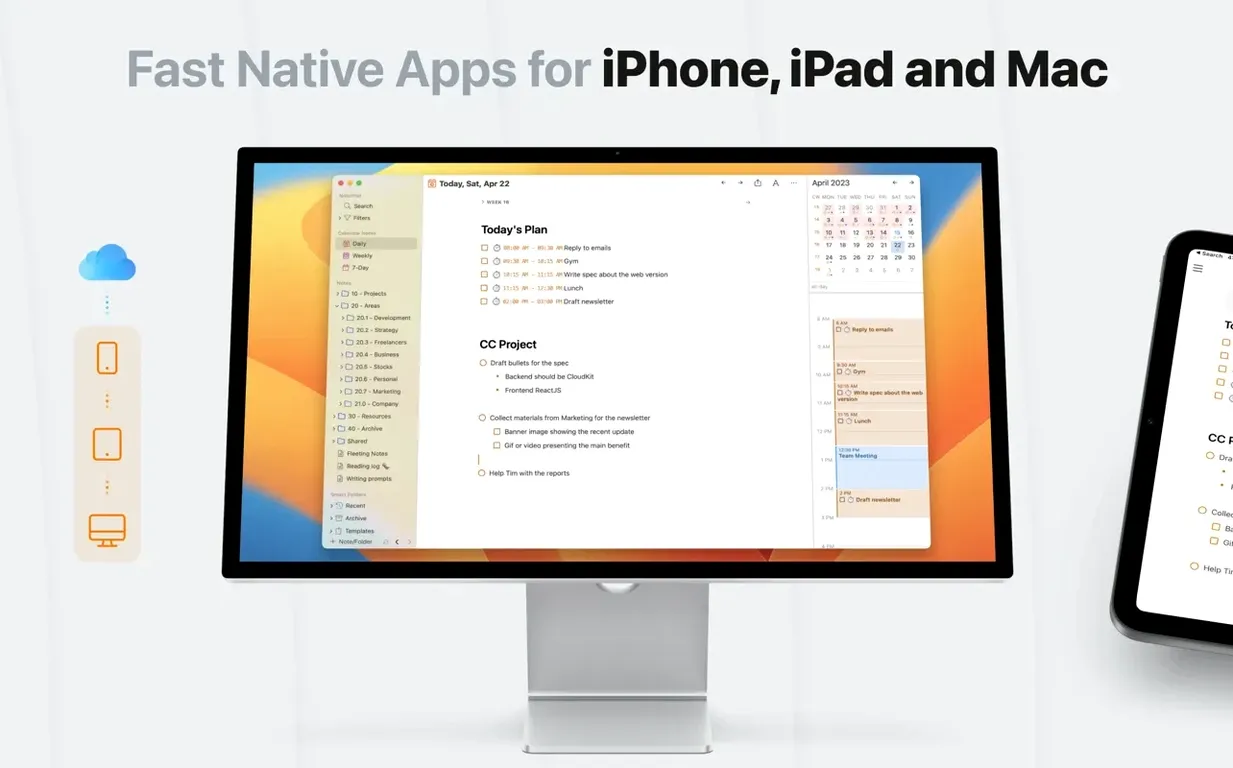
Most planning tools pull you in two directions — a calendar for time and a separate list for tasks. The friction lies in stitching the two together yourself. NotePlan keeps both in a single view, so a day's meetings and a day's errands share the same space.
Recurring tasks — set a task to repeat on a schedule without creating a dozen copies. Handy for weekly reviews, invoicing, or any routine that risks being forgotten.
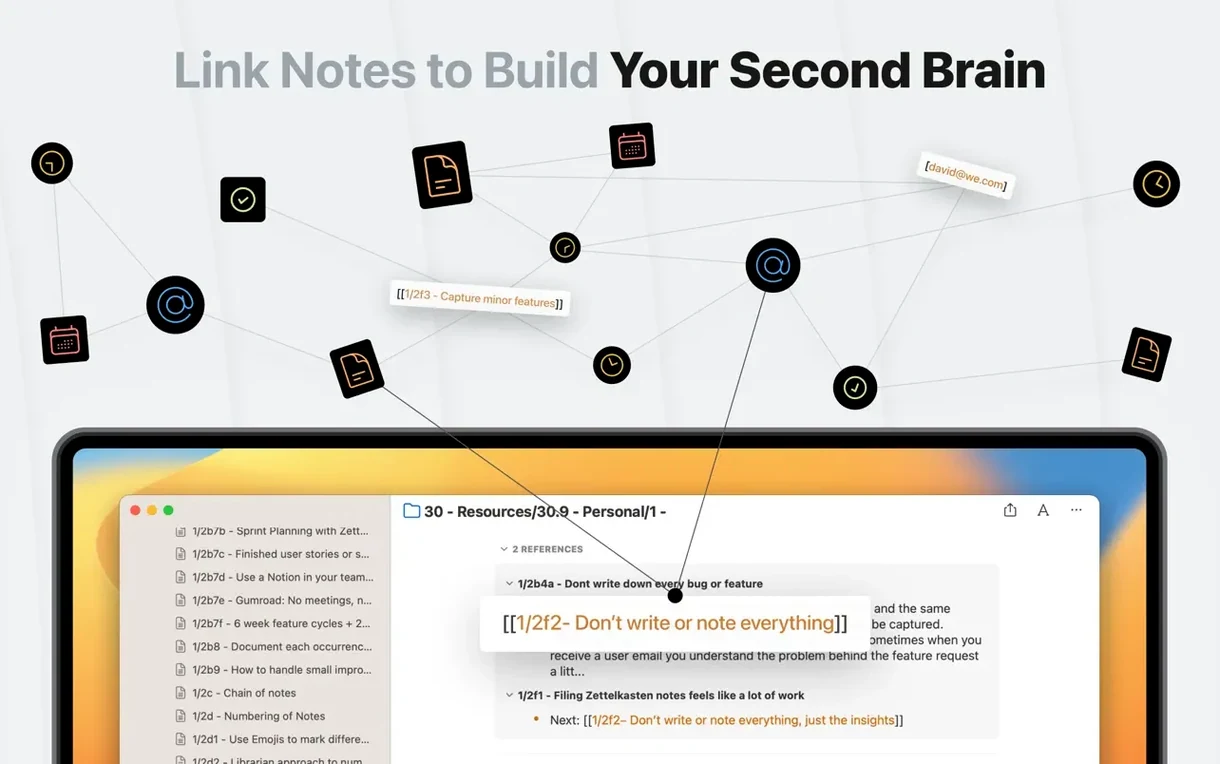
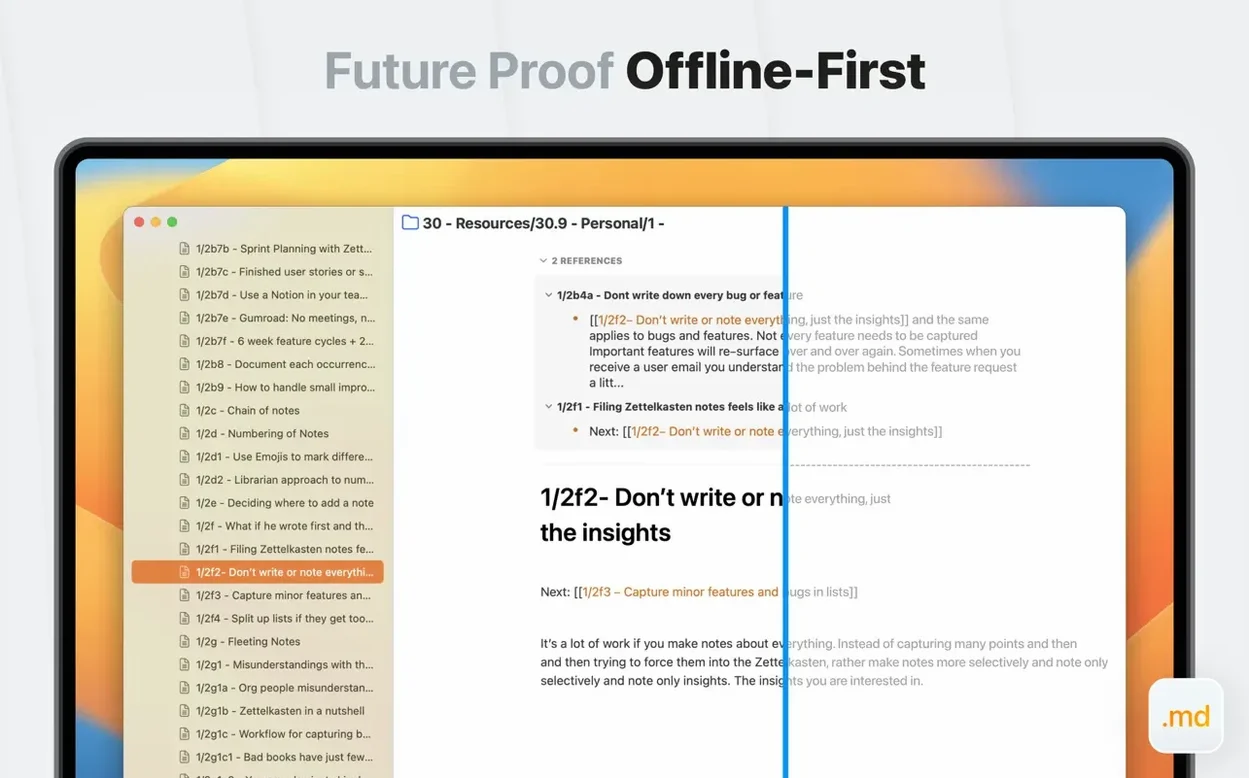
Bidirectional linking — link one note to another and the connection appears in both places. A meeting note can reference a project page, and the project page automatically shows the meeting. The trail builds itself.
Nested folders and tags — organise notes in a folder tree or with tags, or both. A structure for broad areas and a tag for granular detail lets the same note live in two retrieval systems.
Dynamic upcoming list — tasks from daily notes, weekly notes and backlogs surface in one rolling view of what's due. The list draws from everywhere, so nothing slips behind a date boundary.
First days with NotePlan
Open the app each morning and write three to five tasks in that day's daily note. Keep them small — things you can finish before lunch. The daily note is the centre of the system; letting it sit empty defeats the purpose. Over the first week, resist the urge to build elaborate folder structures. Let a few days of notes accumulate, then look for natural groupings.
Press Cmd-J to open the command palette early on. Typing a few letters of an action or a note title is often faster than clicking through the sidebar. It also surfaces features you might otherwise miss, like the quick date jump or the filter commands.
Try dragging a task from one day to another in the sidebar calendar. The drag-and-drop rescheduling feels immediate, and seeing a task land on a Thursday often prompts a more realistic assessment than retyping a date. If a task has no fixed day, park it in the weekly note at the bottom — it stays visible without cluttering a specific Monday.
Link two notes on the second or third day. Type [[ and begin a note title. Open the backlink in the target note to see how the connection registers. Once that mental model clicks, the urge to duplicate information across notes drops away.
Your calendar stays untouched
Does it replace my calendar, or sit alongside it? NotePlan pulls events from Apple Calendar and displays them above your daily tasks. You still manage appointments in Calendar; NotePlan adds the task layer. It reads your calendar but doesn't write to it, so your existing setup stays intact.
What happens to tasks I don't finish on the day? They don't vanish. An undone task from Tuesday appears in the dynamic upcoming list. You can reschedule it by dragging, or leave it to carry forward as an overdue marker. The choice is yours — nothing auto-deletes.
Can I use it without Markdown experience? Yes. Bold, lists and headings work with familiar shortcuts. The formatting bar sits at the bottom of each note for basic styling. Markdown syntax is there if you want it, but the editor handles plain typing without ceremony.
How does it handle the noteplan - to-do list & notes mac download and setup? After mounting the disk image and dragging the app to Applications, launch it from Launchpad. The first-run window asks for Calendar and Reminders access — grant both to see events and tasks in your daily notes. The app creates a local folder for your notes; no online account is needed to begin.
Overloading a single daily note
- Writing long task lists in a single daily note. A page with thirty unchecked boxes becomes noise. Spread tasks across the week, or use the weekly note for lower-priority items. The daily note works best when it holds what you can actually touch today.
- Ignoring the weekly and monthly notes. The daily note handles the immediate; the weekly note holds reflections, loose ideas and tasks that need a week but not a day. Skipping these larger views turns the app into a simple checklist when it's built for longer arcs.
- Tagging everything lightly. A tag like
#workapplied to eighty notes offers almost no filter value. Use tags for cross-cutting categories that folders don't capture — energy level, context, person — and keep the set small. - Creating folders before the content demands them. A single folder called "Projects" with ten notes inside is clearer than six subfolders holding one note each. Let the structure grow from what you actually write, not from what you expect to write.
- Forgetting that the command palette searches actions too. Typing "recur" or "time block" into the palette often reaches a setting faster than hunting through menus. New users tend to treat it as a note finder only, which leaves half its utility unused.