Aspecten
 Download (36 MB)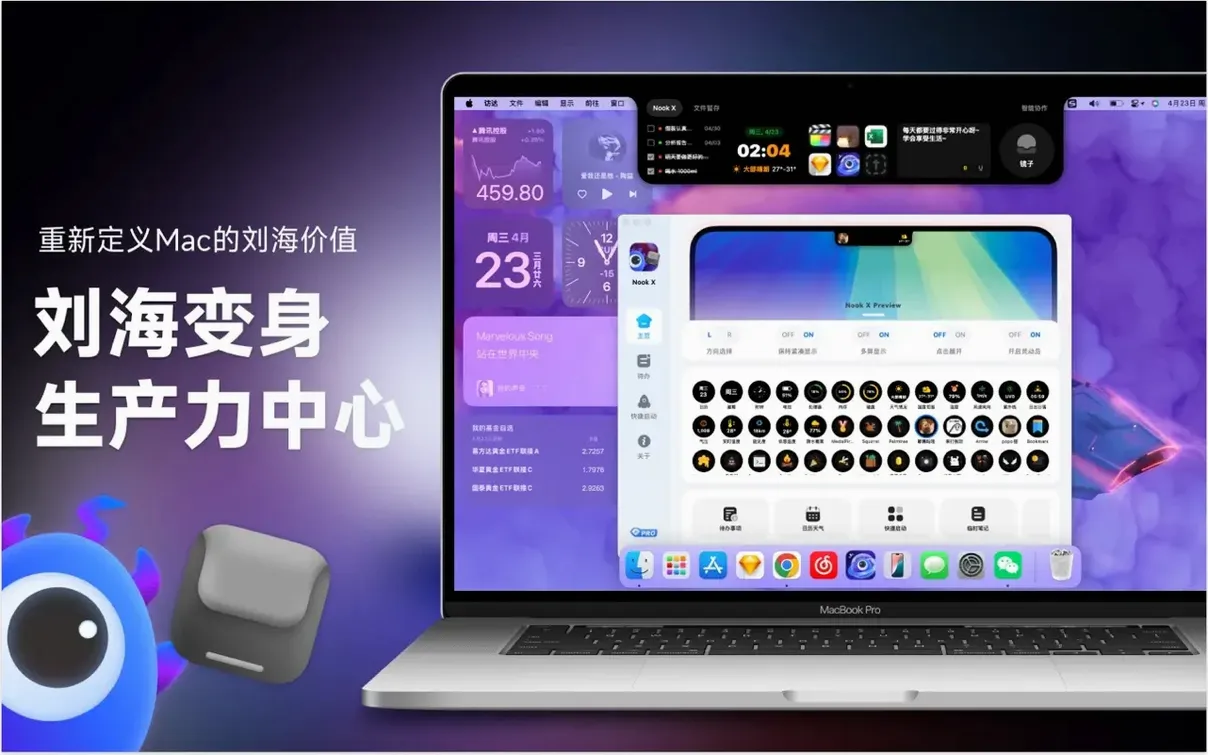

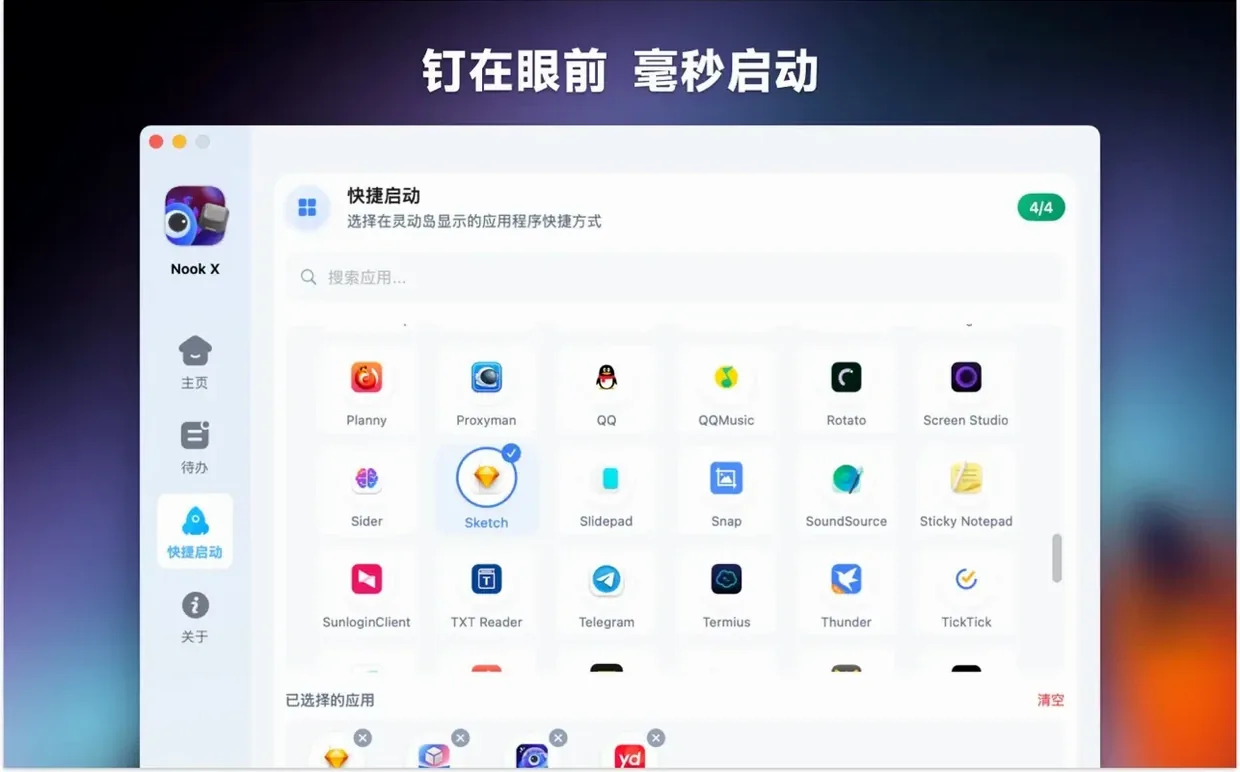

Nook X requires macOS 13 or later, and runs natively on both Intel and Apple Silicon Macs. If your machine is still on Monterey or earlier, the app won't launch — that is the hard floor for this utility.
| Detail | Note |
|---|---|
| Current version | 2026.09.15 |
| Architecture | Intel and Apple Silicon |
| Interface languages | 14, including English, German, Japanese, and Simplified Chinese |
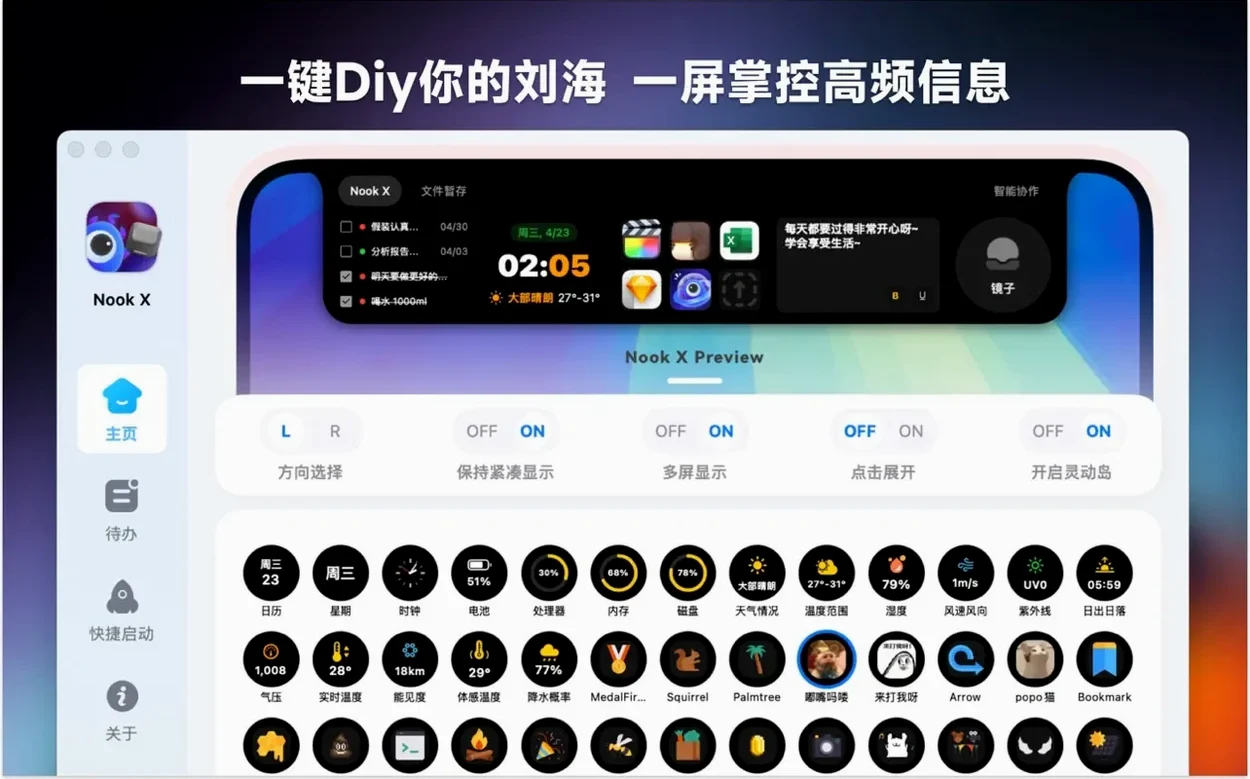
What gives a newcomer pause is the combination inside one window: a to-do list, a music player that fetches song lyrics, and an AI chat panel. The chat can turn a conversation into a task with a reminder and a priority, which links the otherwise separate pieces. For music, you can search by a remembered line of a song and play common audio formats through the built-in player. The broad language support makes it usable across several locales, though that also means the interface has to stay legible across fourteen script systems — a detail worth watching on first launch.
Two or three tweaks after first launch
Out of the box, Nook X makes a few assumptions that not everyone will want to keep. After launching it for the first time, there are two or three adjustments that improve the daily experience noticeably.
The app lives in the notch area of the screen by default, which means it claims a strip of the menu bar. If you use Bartender, Hidden Bar or another menu bar organiser, the two can collide. Open Nook X's preferences and look for the notch behaviour setting. Switching it from "always visible" to "show on click" reclaims the space and stops the app from fighting with other menu bar utilities. The click target remains — a small indicator in the notch — but the full panel only slides down when you need it.
Next, the AI chat panel defaults to sending every query with voice input enabled. If you work in a shared office or a quiet household, the microphone indicator blinking in the corner draws more attention than you might want. Disable voice input on launch in the chat preferences. You can still toggle it with a keyboard shortcut when you actually need speech-to-text.
For the music side, the lyrics search pulls from an online service that returns results in the language of your system locale. If you listen to music in a language different from your macOS interface — Japanese songs on a German system, for instance — set the lyrics language fallback to match what you actually play. Otherwise the karaoke mode sometimes shows a machine translation instead of the original text.
One more small thing: task reminders default to a gentle ping that is easy to miss. The sound can be swapped to something more assertive in the notifications pane, and the snooze duration shortened from the generous ten-minute default to something tighter like three or five minutes.
A translator’s task list on a secondary display
A freelance translator working across English, Vietnamese and German keeps Nook X open on a secondary display. During the morning, the task list holds a queue of chapter deadlines — each with a priority level and a reminder set to thirty minutes before the client's time zone hits end of day.
While working through a dense passage, they highlight a phrase in the source document and ask the AI panel for a rephrasing suggestion. The assistant returns three alternatives. One works. They type "remind me to check this term against the glossary tomorrow 9am" into the same chat field. Nook X parses the sentence, creates a task titled "check term against glossary" with a 9:00 reminder, and files it under the current project list. No switching to a separate to-do app.
After lunch, they queue up an album from the built-in player. The lyrics panel shows the Vietnamese original alongside an English translation, synced line by line. A distracting notification from another app pulls focus, but Nook X stays tucked in the notch, and the music keeps playing. By the end of the work block, three tasks are checked off, the AI chat history holds a thread of translation notes, and the playlist has moved on to a second album. None of this required opening a browser or a separate notes app.
Where Nook X draws the line against Finder and Reminders
Nook X and NotchNook
nookx mac and NotchNook both claim the notch as their home, but they do different things with it. NotchNook turns the notch into a dock-like tray for files, shortcuts and widgets — it is a launcher with flair. Nook X occupies the same physical space yet behaves more like a three-in-one mini-app: tasks, music and AI chat. NotchNook does none of those. If your need is a quick file shelf, NotchNook fits better. If you want to manage a small list of reminders and ask an AI something without leaving your current window, the nookx mac app covers more ground.
Nook X and TickTick
TickTick is a dedicated task manager with calendar views, Pomodoro timers and habit tracking. Nook X's task list is simpler — it handles priorities, reminders and list grouping, but it does not attempt a Kanban board or a Gantt chart. Where nook x pulls ahead is the integration of tasks with chat. TickTick has no AI assistant that can create a task from a natural-language sentence inside the same window. For someone who already uses a full-featured task manager, Nook X might be a companion rather than a replacement. For lighter workloads, it removes the need to install a separate to-do app entirely.
Nook X and MacGPT
MacGPT puts a ChatGPT client in the menu bar or a floating window. It does one thing cleanly. Nook X's AI panel is less configurable — it does not expose model selection or temperature sliders — but it binds chat to tasks and music in a way MacGPT does not attempt. The voice input on nook x mac is also built in from the start, whereas MacGPT relies on macOS dictation or third-party shortcuts. If you only need an AI chat window, MacGPT is the more focused tool. If you find yourself switching between chat, a to-do list and a music player, Nook X saves those extra app launches.
120 MB idle, more when the AI panel opens
On an M1 MacBook Air with 16 GB of memory, Nook X idles at around 120 MB of RAM with the chat panel closed and the task list visible. Opening the AI panel and sending a query pushes memory use up to roughly 180–200 MB, which settles back down after the response arrives. On an older Intel i5 Mac mini, the same pattern holds but with slightly longer response times from the AI — not surprising, given how the app handles network requests on the main thread.
Launch speed is quick. From a cold start, the app appears in under two seconds on Apple Silicon and about four seconds on the Intel machine tested. The notch panel animation is smooth at 60 frames per second on both architectures, though the Intel Mac shows a brief stutter when the lyrics panel loads a long song text for the first time in a session.
Stability over a two-week period was uneventful. The app survived sleep/wake cycles, display disconnections and language switching without crashing. One quirk: when the Mac ran low on disk space — under 2 GB free — the music player refused to cache the next track and silently stopped playback instead of showing a warning. Clearing space fixed it immediately.
CPU use stays low for the task and music features. The AI panel, predictably, spikes during query processing — about 15–20% of one performance core for a few seconds while the response streams in. This is in line with any app that makes asynchronous network calls to a language model. Nook X does not keep a persistent connection open when the chat panel is closed, which keeps background activity near zero.
Copy tasks as plain text into other apps
Nook X does not try to replace Finder, Calendar or Reminders. It sits alongside them and picks up a few integration points that make practical sense. Tasks created inside the app can be copied as plain text and pasted into Apple Notes or a third-party markdown editor. Dragging a task row out of the window does not work — the app does not support drag export — but the copy button in each task's context menu is reliable.
The music player handles files from the Music app library as long as they are in a format the built-in decoder understands. It does not read Apple Music's DRM-protected tracks, which means it works best with your own ripped or downloaded files. Lyrics fetched during playback are cached locally and survive app restarts, so a song you played once will show its lyrics again offline.
With the notch behaviour set to "show on click", Nook X coexists peacefully with the macOS menu bar and with third-party utilities like Bartender and CleanShot X. The click target in the notch is small enough that it rarely catches an accidental mouse pass. The app also respects Focus modes: when a Focus mode is active, task reminders are suppressed unless you explicitly whitelist Nook X in System Settings under Notifications.
For users who rely on Spotlight or Alfred, Nook X does not register its tasks or chat history with the system index. You cannot search your to-do items from the Spotlight bar. This keeps the app self-contained but means it works best when you keep its window or notch panel accessible. The AI chat history can be exported as a plain text file from the chat panel's menu, which is handy for dropping a transcript into a project folder or sharing a thread with someone who does not use the app.