Aspecten
 Download (7 MB)
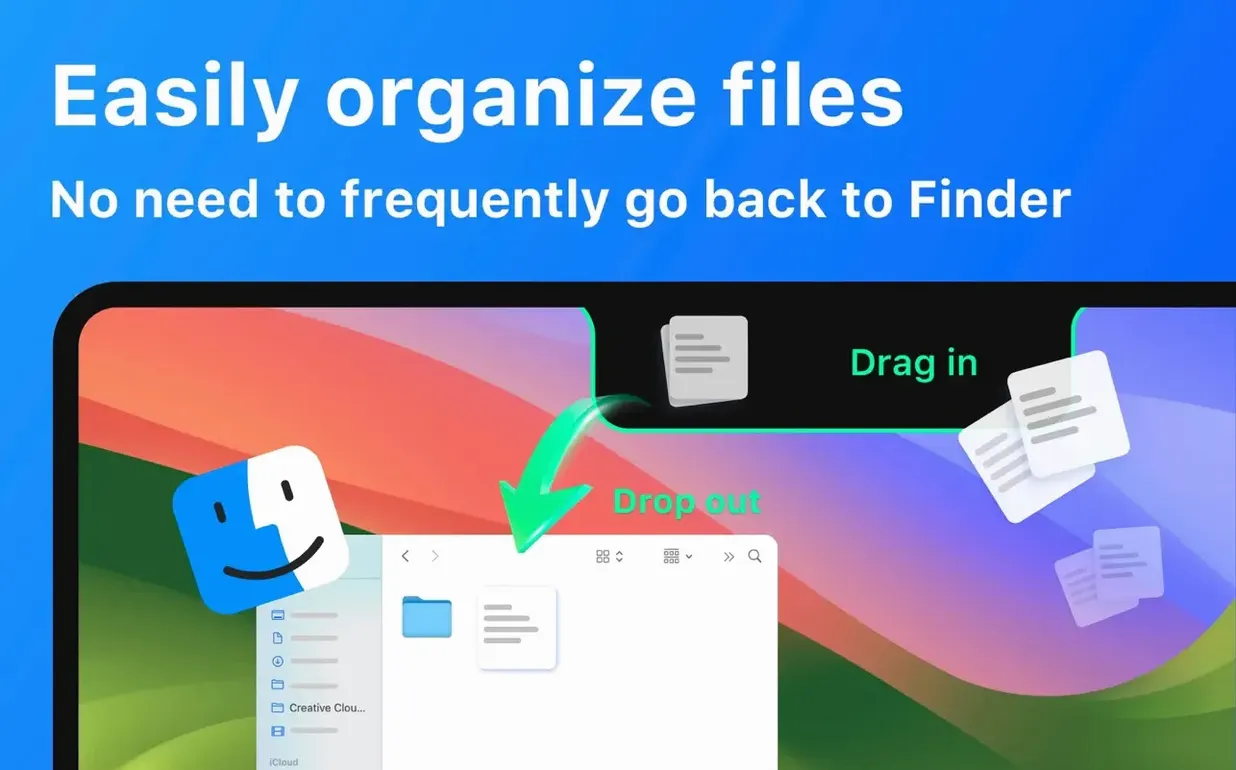

Students and anyone who keeps quick-reference files close will find NotchBox a practical addition. It repurposes the camera cut-out as a small interactive panel for daily bits and pieces.
File shelf — drag a document, image or folder onto the notch and it stays there until you drag it out again. Handy for assembling attachments or holding a working file between apps.
Clipboard history — the notch keeps a list of recently copied items. Tap the notch to recall a snippet you copied ten minutes ago without recopying.
Music controls — Apple Music playback sits in the notch. Skip tracks or glance at the current song without opening the full Music window.
Countdown timer — set a short focus block or tea timer directly from the notch. The remaining minutes stay visible while you work in other windows.
Date and time — a compact clock lives in the notch, saving a little space in the menu bar on smaller screens.
Dragging files onto the notch and missing the drop target
Dragging files onto the notch can feel hit-or-miss on a first try. The Mac treats the notch as a narrow target, and if you drop a file just above or below it the Finder reclaims the item. Slow down the drag: move the file toward the centre of the screen top until a subtle highlight border appears around the notch, then release. With a trackpad it helps to keep one finger on the file and use a second hand to tap the notch area once before letting go. Practice drags with a tiny text file until the motion becomes automatic.
AirDrop sharing via the notch occasionally stalls when the receiving device is not immediately awake. If a file sits in the notch and no transfer starts, wake the target iPhone or Mac screen first, then drag the file out toward the Finder or a chat window and try again. Wi‑Fi and Bluetooth need to be on, and the receiving device should have AirDrop set to Everyone if the two machines do not share an iCloud account.
The clipboard history panel can grow crowded. NotchBox stores recent copies but does not automatically prune old entries. If you notice the history slowing down, manually clear it through the app preferences — Cmd‑comma from the notch panel — and set a habit of purging once a week if you copy passwords or sensitive text.
Spotify integration sometimes lags behind Apple Music. If track info fails to update after a song change, quitting and reopening Spotify usually restores the handshake. The NotchBox music widget reads what the Spotify desktop app reports, so keeping Spotify up to date matters more than updating NotchBox itself for this particular feature.
Losing stashed files when you quit the app
The most frequent early mistake is treating the notch as a permanent folder. Files dropped there stay only for the session or until you drag them out; quitting NotchBox clears the shelf. Beginners who stash a draft there and restart their Mac without saving elsewhere lose the file. Use the shelf as a temporary clipboard for active transfers, not as storage.
Another common slip: hiding the notch panel behind a full-screen window and then wondering why drag-and-drop does nothing. On Macs with a notch, full-screen apps push the menu bar off-screen, which also hides the NotchBox interaction area. Switch to windowed mode or hover near the top edge for a second to bring the notch back into view before dragging a file up.
New users often overlook the camera mirror. It lives as a tiny preview that can be handy for quick framing checks before a video call, but some open it without realising it keeps the camera active and the green privacy light lit. Glancing at the indicator dot in Control Centre can confirm whether the camera is still in use after dismissing the mirror.
Setting a countdown timer and forgetting it runs silently in the background is another beginner pattern. The timer shows minutes remaining inside the notch but does not play an alarm sound by default. If you rely on it for breaks, check that macOS notification sounds are enabled for NotchBox in System Settings, otherwise the timer will expire quietly while you work.
NotchBox does work, Alcove sticks to decoration
NotchBox versus Alcove — Alcove focuses purely on cosmetic embellishments around the notch: animated borders, custom colour fills and a small strip of shortcuts. NotchBox leans functional, with file shelf, clipboard history and music controls doing actual work rather than decorating the cut-out. Alcove feels lighter to run because it adds no background file handling, but it also lacks the timer, AirDrop drop zone and calendar glance that give NotchBox a broader toolkit. If you want looks, Alcove wins. If you want a mini hub, NotchBox covers more ground.
NotchBox versus MediaMate — MediaMate turns the notch into a Now Playing display with a waveform visualiser and a hardware-style volume HUD. It does music beautifully but nothing else. NotchBox handles music too, yet also stores files and shows clipboard entries. MediaMate appeals to audio-first users who prize a polished, single-purpose design. NotchBox suits people who want one notch utility to cover several small jobs at once, even if the music widget feels a little more utilitarian.
NotchBox versus Dropover — Dropover creates a floating shelf anywhere on screen for temporary file staging, with cloud upload and share-link generation. It is a dedicated file-transfer tool, not notch-specific. NotchBox borrows the shelf idea but anchors it to the notch and adds music, timer and calendar tools. Dropover handles larger file batches and cloud workflows better; NotchBox keeps things local and immediate, with less friction for a couple of files at a time but no sharing links. The two complement each other: Dropover for heavy lifting, NotchBox for quick drags and glances.
Memory use around 90–120 MB on Apple Silicon
On an Apple Silicon Mac NotchBox stays quiet. The notch panel draws with no perceptible lag when moving the pointer across it, and dragging files in triggers a near-instant highlight. Memory usage hovers around 90 to 120 MB during normal use — a few open clipboard entries, a timer running and music playing — which is modest for an always-on utility. Intel Macs see a slightly higher CPU footprint, especially when the camera mirror is active, but it remains in single-digit percentages for most tasks.
Stability holds up across long sessions. Leaving the shelf populated overnight with a handful of small files does not cause leaks or beachballs the next morning. The clipboard history can become less responsive if it accumulates thousands of entries, so occasional clearing keeps it snappy. Music controls have remained stable with Apple Music throughout the day; Spotify reconnections after sleep are the only intermittent hiccup, and they resolve without restarting the whole app.
NotchBox does not interfere with other notch-aware apps, which matters if you run something like Bartender or a menu bar organiser alongside it. The panel respects the standard notch exclusion zone and does not fight for the same pixels. Resource spikes are rare — launching the camera mirror briefly nudges CPU use up for a second, then it settles. For a utility that combines shelf, clipboard, music and a timer into a tight always-visible strip, the energy impact in daily work is low enough to forget it is there until you need it.