Aspecten
 Download (41 MB)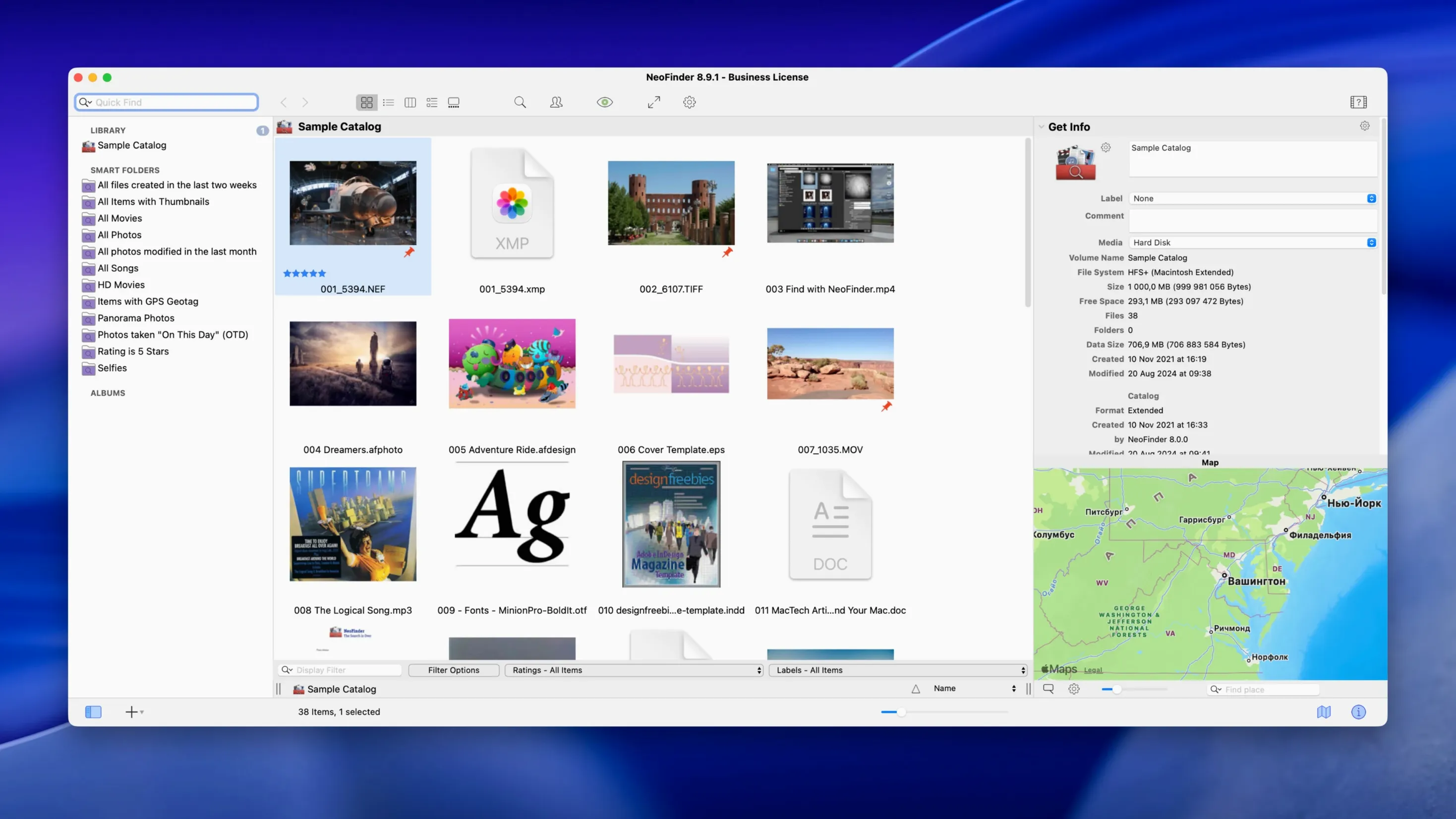
NeoFinder 9.3.1 catalogues well over a hundred file formats, reading embedded IPTC, EXIF, Adobe XMP and GPS geotags as it scans. A single catalogue database can hold millions of files, yet searches stay quick because the index is built on-disk rather than kept in memory.
Will NeoFinder run on my Mac?
NeoFinder 9.3.1 requires macOS 10.15 Catalina or anything newer. It is a universal binary that runs natively on both Apple Silicon and 64-bit Intel hardware, so there is no Rosetta penalty on M-series chips.
What does NeoFinder actually catalogue?
It catalogues the contents of external disks, network volumes, memory cards and optical media. That covers photos, music, videos, documents and any other file type—once indexed, you can browse and search them without the original disk being mounted.
How do you find files later?
You search by name, by file type, or by the metadata that NeoFinder extracted during cataloguing. Thumbnails, XMP sidecar data, IPTC captions and GPS coordinates all become searchable fields inside the catalogue.
Annotate items and share bookmarks across languages
In version 9.3 you can add multi-line annotations to individual records and place bookmarks for sharing specific catalogue entries with a colleague. The interface handles eight languages, so the working environment can match your own language without affecting the catalogue content.
First days with NeoFinder
After you drag the app into Applications and launch it, the first thing you will see is an empty catalogue window. Resist the urge to catalogue every drive at once. Start with one external disk that holds a manageable set of files — perhaps a project archive or a year’s worth of photos. This first scan teaches you the rhythm of the software without overwhelming the interface.
During that initial scan, open the preferences and set the thumbnail size to something your screen handles comfortably. The default works, but a slightly larger thumbnail makes visual browsing of photo catalogues more practical later. Also check the metadata extraction options: NeoFinder reads EXIF, IPTC and XMP by default, yet you may want to disable certain fields if you never search by them. Fewer extracted fields means faster scans and smaller catalogue files.
When the scan finishes, spend ten minutes exploring the catalogue while the original disk is still connected. Click a few files to see which metadata fields populated correctly. Add a test annotation to one record and confirm it sticks. Create one smart folder based on file type or date. These small experiments build familiarity with the search syntax and the way filter results update as you type.
One habit worth forming early: name your catalogues by the physical label on the disk they represent. Six months later, when you have eight catalogues open, the name “LaCie 2TB silver” will mean more than “disk1.cat”.
Cataloguing a field shoot from start to finish
Imagine you return from a weekend shoot with two SD cards, each holding roughly 800 raw files and a handful of short video clips. The cards are not yet backed up, and you need to find all shots taken with a specific lens before importing into your editor.
Step one. Insert the first card. In NeoFinder, choose New Catalogue and point it at the card’s volume. The software reads the directory structure, extracts thumbnails and pulls every scrap of EXIF and XMP metadata from each raw file and video. Depending on the card speed and your Mac, this may take a few minutes.
Step two. Repeat for the second card, creating a separate catalogue. Keeping cards separate avoids confusion about which file lives where.
Step three. Eject both cards. Now open both catalogues and run a combined search. Type the lens model into the search field — NeoFinder indexes EXIF lens names automatically — and set a filter for file type “RAW”. The result list shows every matching shot across both cards, with thumbnails and capture timestamps visible.
Step four. Select the keepers. Use the multi-line annotation feature added in 9.3 to jot a brief note against each selected file: “sharp, good light” or “crop left side”. These annotations live inside the catalogue and do not alter the raw files on the still-ejected cards.
Step five. Create a bookmark set for the annotated files. Share that bookmark file with an assistant or open it later when the cards are mounted, so NeoFinder can lead you straight to the physical files for import. The entire workflow keeps the original media untouched until you are ready to copy.
Your files stay put — catalogues only store metadata
A common concern is whether NeoFinder duplicates file data. It does not. A catalogue stores only the directory structure, thumbnails and metadata — the actual files remain where they are. A catalogue of a 4 TB disk might occupy a few hundred megabytes at most. You can catalogue dozens of drives without filling your internal storage.
Another frequent question is about offline searching. Once a disk is catalogued, you can eject it and still browse its entire contents inside NeoFinder, including thumbnails and all extracted metadata. The software simply marks the original files as offline and waits for the disk to reappear before you can open or copy anything. People who use neofinder for mac often cite this as the feature that changes how they manage archive disks stored on a shelf.
Users sometimes ask whether cataloguing is one-way or whether changes sync back to the files. By design, NeoFinder reads but does not alter the original files during scanning. Annotations, ratings and keywords you add inside the catalogue stay there unless you explicitly write them back to the files using the metadata export tools. This separation suits anyone who prefers not to touch archival media.
There is also the question of speed. Scanning a full 2 TB drive with mixed media takes time — perhaps half an hour — but subsequent scans of the same disk only check for changes and complete much faster. You can also schedule automatic catalogue updates for drives you connect regularly, so your catalogues stay current without manual intervention.
Finally, people who have used older Mac cataloguing tools sometimes ask whether neofinder mac replaces what they lost when Apple discontinued optical media support in the Finder. The answer is yes, and it extends the concept further: NeoFinder catalogues not just CDs and DVDs but any volume your Mac can mount, including network shares and cloud-synced folders presented as local mount points. If you previously relied on CDFinder, the transition is straightforward because NeoFinder opens legacy CDFinder catalogues directly.