Aspecten
 Download (60 MB)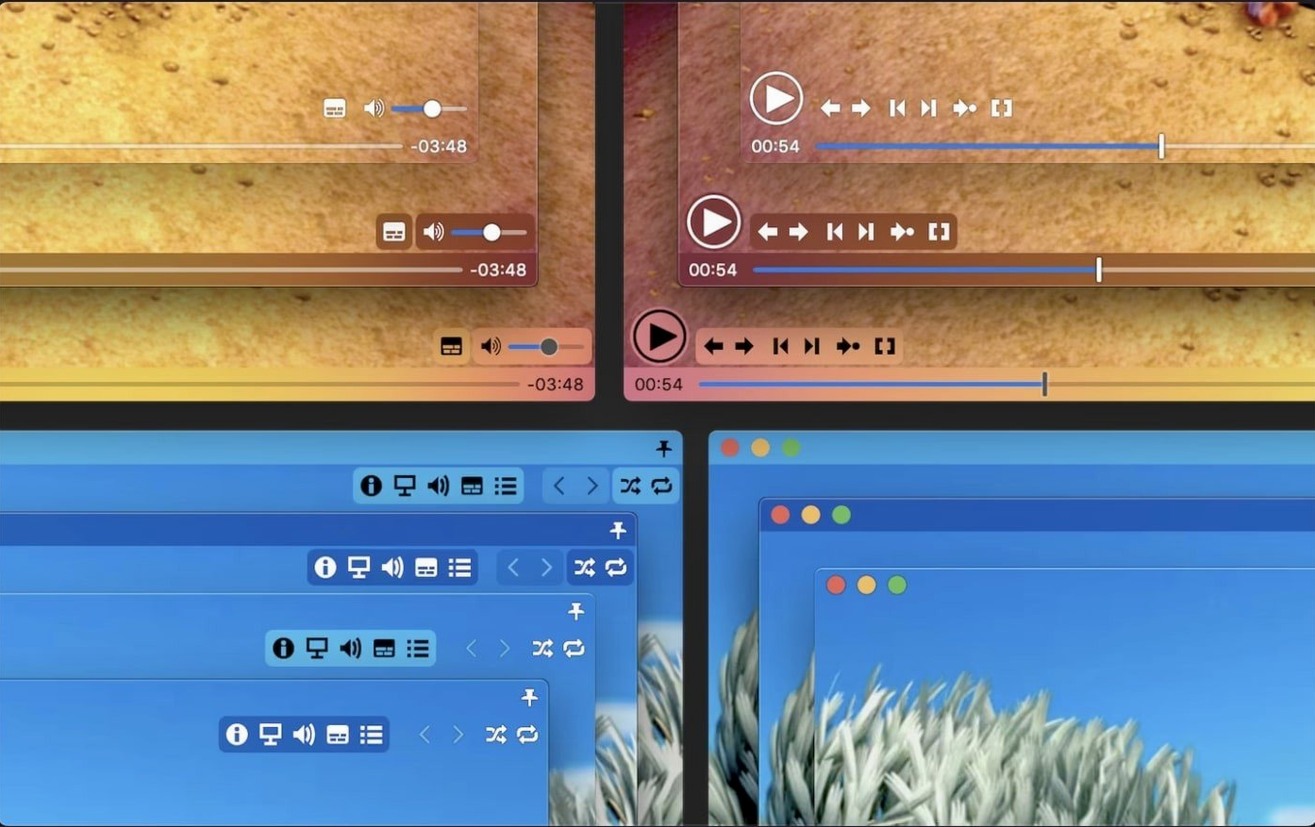
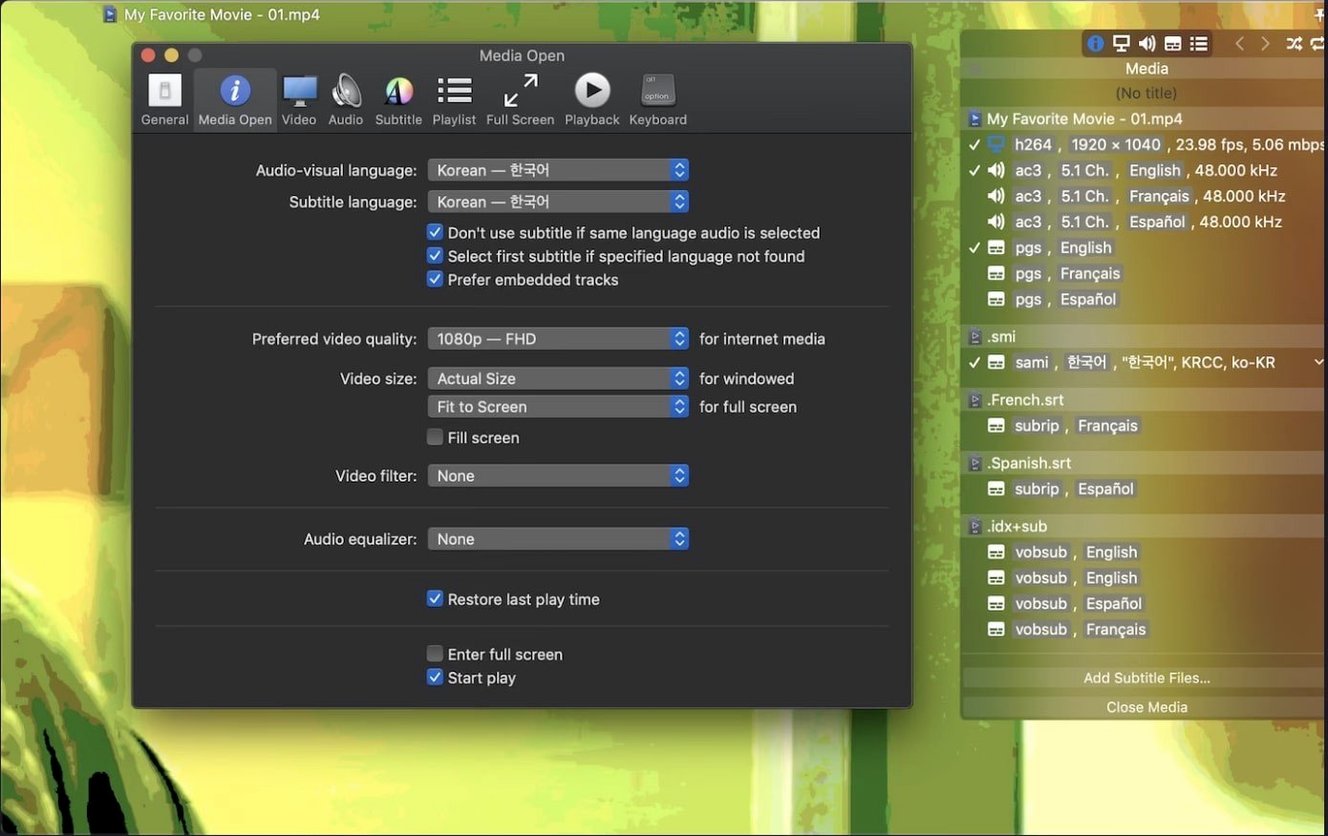
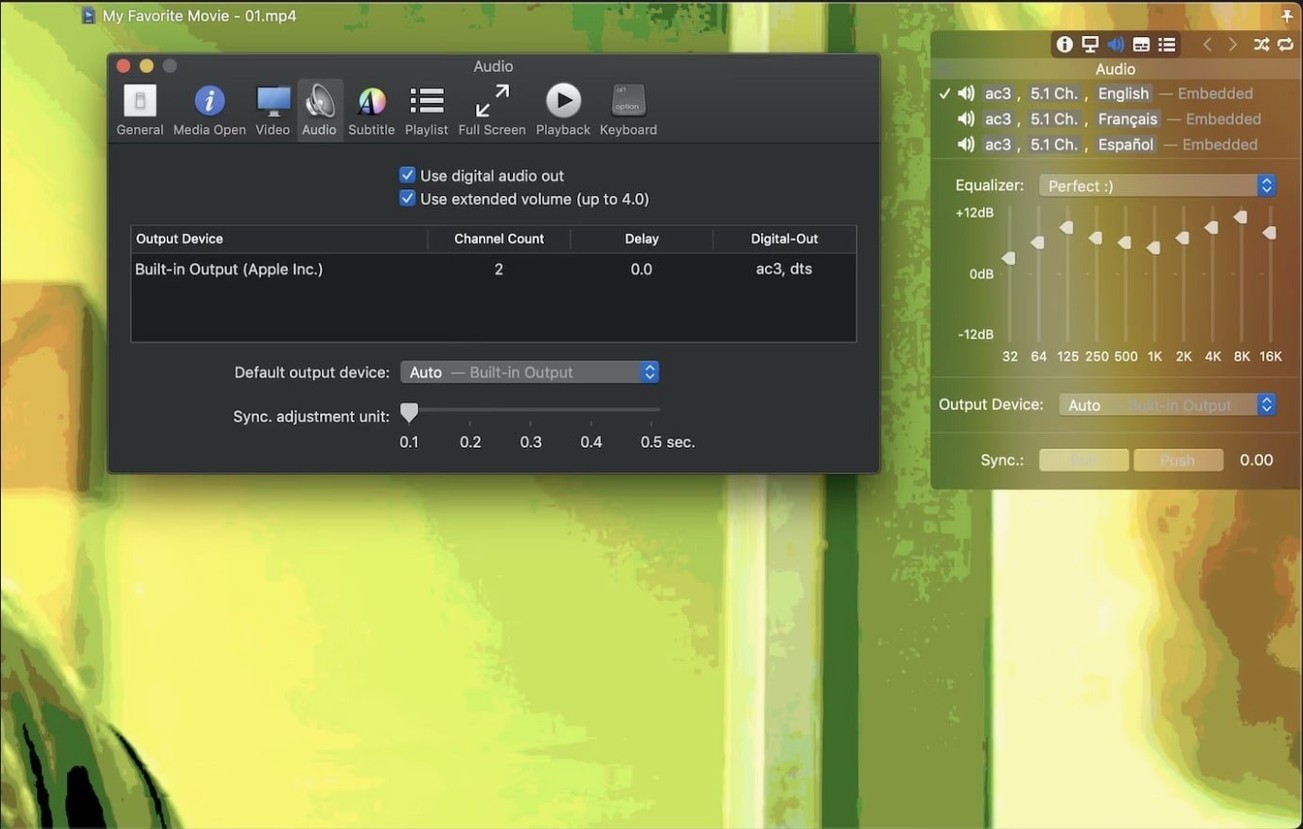
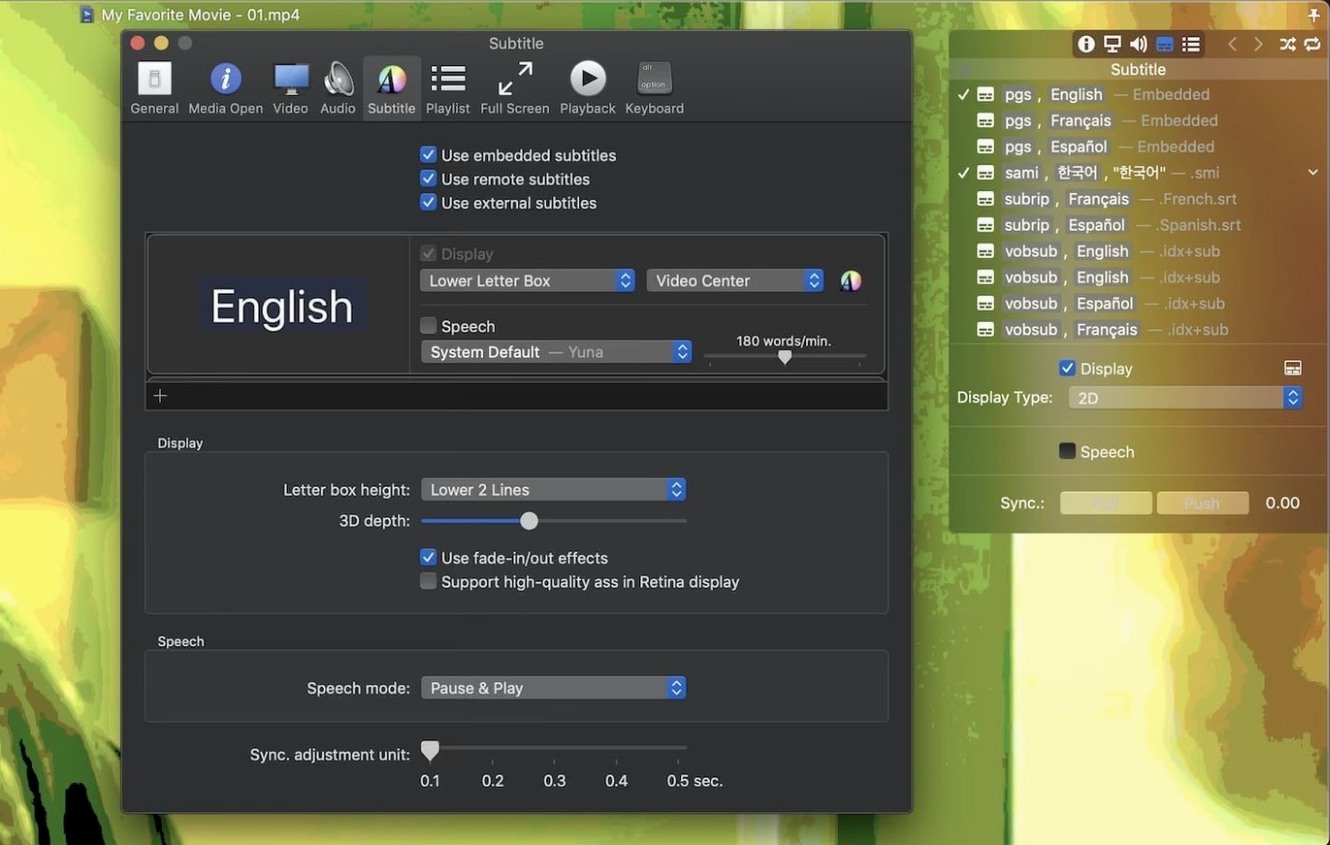
Movist Pro attracts people who want a single video player that handles both common QuickTime formats and the wider range of codecs FFmpeg opens up. It sits between the simplicity of QuickTime Player and the complexity of full media centres, offering a clean, adaptable workspace for watching films, series and downloaded clips. If you have just installed it, a few aspects are worth exploring straight away.
Single-window versus multi-document mode
The first choice you face is between single-window and multi-document mode. Single-window keeps everything tidy — one video at a time, no clutter. Multi-document mode lets you open several videos simultaneously in separate windows, which suits comparison work or keeping a playlist visible alongside the current file. Spend a few minutes with each to see which fits your habits. Also worth noting is the HDR tone mapping, which improves the look of high-dynamic-range content on standard displays without any manual adjustment.
Playlist saves a loaded folder for later recall
Load a folder of videos and save it as a playlist; you can recall it later without re-searching your drive. Playlists support shuffle and repeat modes, so a series or a shuffled music video collection becomes a set-and-forget experience. Subtitles are an area where Movist Pro rewards early attention. It automatically detects text encoding, supports compressed subtitles inside .zip and .rar files, and allows unlimited simultaneous subtitle tracks — useful for language learners comparing translations. The display is fully customisable, including a Letter Box mode that places subtitles in the black bar below the picture, keeping the frame clean.
A concrete task: pairing a series with external subtitles
Suppose you have a folder of ten episodes and a separate folder with matching subtitle files, some still zipped. Open the first episode, then drag the whole episode folder into the playlist area. Movist Pro detects the sequence and offers to autocomplete the playlist — accept it. The episode order snaps into place.
For subtitles, drag the subtitle folder onto the player window. The app scans through compressed and plain files, matches names against the playlist entries, and attaches each subtitle track to its episode. Press Cmd+S to save the playlist. When you return tomorrow, open the saved file and playback resumes with subtitle tracks intact. If a subtitle drifts out of sync, use Cmd+Shift+Left or Cmd+Shift+Right to nudge it per half-second, and the adjustment persists for that session.
No cap on secondary subtitle tracks unlike IINA
IINA draws a similar crowd — FFmpeg under the hood, modern Mac look, open-source development. Where Movist Pro pulls ahead is in multi-subtitle handling: IINA limits you to one secondary subtitle track, while Movist Pro imposes no cap. The playlist autocomplete and compressed subtitle support in .rar files also have no direct equivalent in IINA. IINA responds faster to community UI requests, but Movist Pro feels more settled for subtitle-heavy, multi-file viewing sessions.
Elmedia Player shares the dual-engine idea, switching between native and FFmpeg decoding. It offers a more guided streaming-to-TV feature set, yet its playlist tools are simpler — no episode autocompletion, no saved playlist reloading. Movist Pro’s multi-document mode gives you separate windows for separate videos, something Elmedia does not replicate cleanly. If your use centres on downloaded series with external subtitles, Movist Pro fits the shape of the task more directly.
VLC sits on the other side as the everything-player. It opens more obscure formats, but its Mac interface remains clunky, subtitle customisation is less fluid, and HDR tone mapping often needs manual tweaking. People who switch from VLC to movist pro usually comment on the cleaner Retina rendering and the quieter interface — fewer panels, less icon noise.
External subtitles need a matching filename or drag-and-drop
One common mistake is assuming the app will pick up external subtitles automatically without any action. You need to drag the subtitle folder onto the player or place the .srt next to the video with a matching filename — the auto-detection is good, but not telepathic. New users also overlook the single-window versus multi-document toggle early on, then wonder why double-clicking a second video replaces the first. Changing that preference in the General pane solves it.
Another stumbling block involves the sandboxed mode. If you enable it without understanding the consequences, file access becomes restricted and previously saved playlists may stop loading their contents. The mode exists for those who want it, but leaving it off avoids confusion. Finally, some beginners ignore the HDR tone mapping setting and complain about washed-out colours on a non-HDR screen — the feature is on by default and does its work, but knowing it is there helps when comparing playback with other players.
TS video files that refused to play now start without friction
Version 2.17.2 fixed a stubborn issue with certain TS video files that refused to play. If you had a collection of recorded broadcasts that previously showed a black screen or stalled on open, those files should now start without friction. The fix is narrow but practical — TS remains a common container for DVR recordings and stream captures.
The same update addressed a crash that occurred when System Integrity Protection was disabled. Most users keep SIP enabled, so the bug was invisible, but for those running movist pro mac on configured systems with SIP off, the crash made the app unusable. The patch restored stability for that setup, no workarounds needed.
Looking back a few releases further, the HDR tone mapping improvements meant less fiddling with colour profiles when switching between SDR and HDR content on the same display. The playlist autocompletion feature matured gradually, starting with simple sequential detection and growing to handle irregular episode numbering and mixed subtitle folders — a quiet evolution that regular movist pro users notice most when they sit down to binge a series.