Aspecten
 Download (68 MB)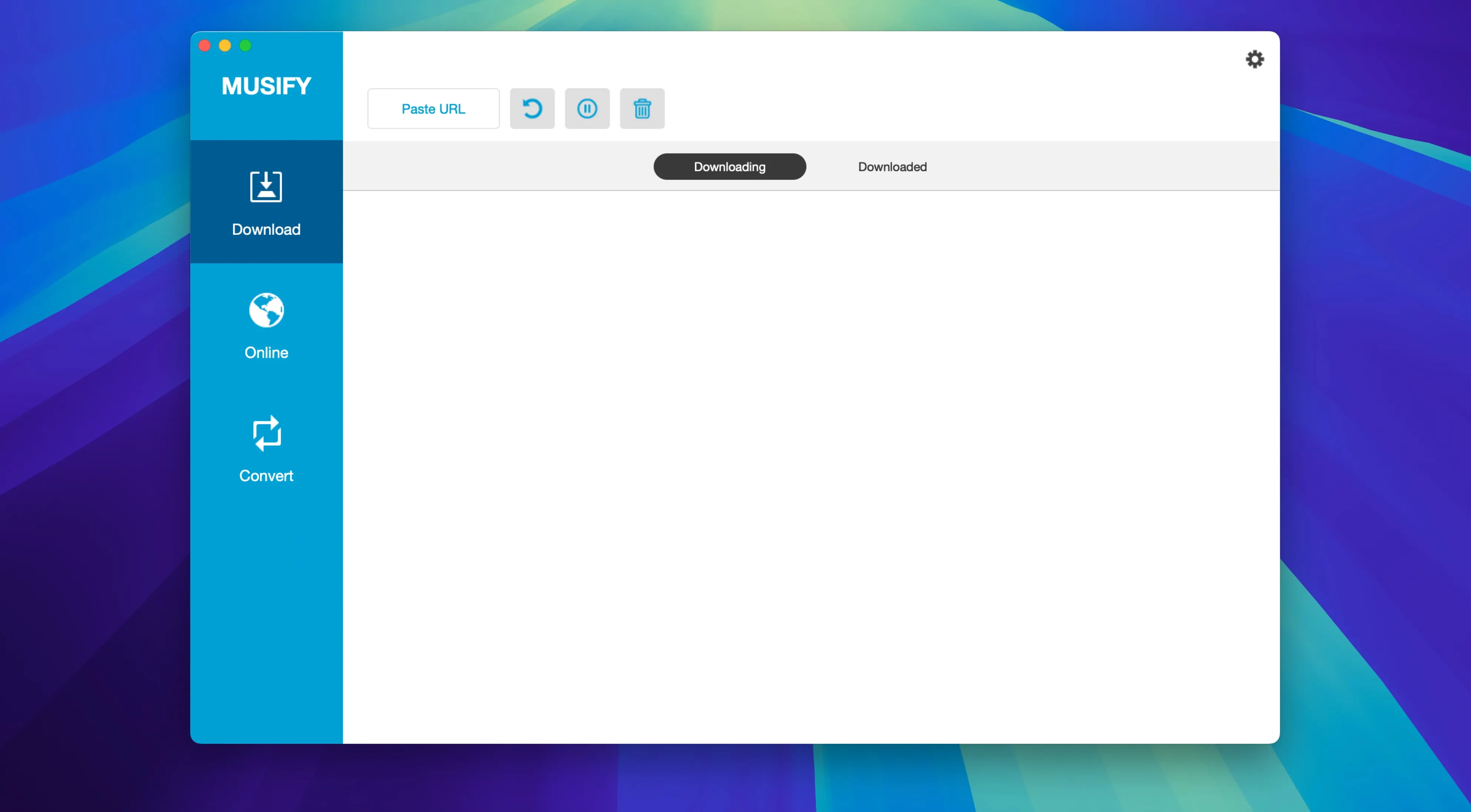
If you have used a simple YouTube-to-MP3 converter before, Musify expands that idea across more than a thousand music and video platforms. It is a Mac app built around three jobs: grabbing audio from sites like YouTube, Spotify, SoundCloud and Bandcamp, converting tracks between MP3, M4A and WAV, and keeping the resulting library organised with intact metadata. The current version runs on Intel Macs from macOS 10.12 onward, though Apple Silicon is not listed as a native target.
- Downloads audio from YouTube, Spotify, SoundCloud, Facebook, Instagram, MixCloud, Bandcamp, Freesound, Audioboom, Veojam and many more
- Converts files to MP3, M4A and WAV
- Preserves track metadata during download and conversion
- Transfers music to iOS and Android devices from within the app
- Compatible with Intel Macs running macOS 10.12 or later; no native Apple Silicon build listed
Installation is a little less direct than a standard drag-and-drop because you need to run an Open Gatekeeper friendly script from the disk image. That spares you a trip through System Preferences, and once the app sits in your Applications folder it is ready to use. The built-in device transfer feature means you can send converted tracks to an iPhone or Android phone without hunting for a cable or a separate sync utility.
Side by side with a few similar audio downloaders
Placed next to MediaHuman YouTube to MP3, Musify covers a wider spread of source sites. MediaHuman concentrates on YouTube, Vimeo and a handful of others, does that well and keeps the interface spare, but it stays a YouTube-first tool. Musify reaches into Spotify, Bandcamp, MixCloud and Instagram — services where a straight YouTube downloader cannot help. The trade-off is that MediaHuman installs without a Gatekeeper script and lists Apple Silicon support, while Musify still runs as an Intel binary through Rosetta 2 on newer Macs.
Sidify Music Converter takes a different approach. It records Spotify tracks during playback and wraps the result in a dedicated library manager. Musify does not record playback; it downloads source files where the platform allows it. That means faster processing for YouTube and SoundCloud, but it also means Spotify support inside Musify works differently and depends on what the service exposes at any given time. Sidify feels more like a controlled converter for one ecosystem. Musify behaves like a general grabber that happens to include Spotify in its list.
Pulltube sits somewhere between the two. It accepts a URL, lists all downloadable media on the page, and hands you format choices before downloading. Pulltube supports video and audio equally and feels more polished during batch work. Musify leans toward audio from the start — the interface steers you into MP3, M4A or WAV output without giving video options equal weight. For someone who only wants audio files, Musify cuts out the extra decisions Pulltube makes you click through. For someone who occasionally wants a video clip too, Pulltube is more flexible.
A 40-track YouTube playlist finishes in under four minutes
Download speed depends far more on the source server than on Musify itself. A YouTube playlist of forty tracks pulled over a 100 Mbps connection completed in under four minutes, with each track converting to MP3 as it finished downloading. The app runs parallel downloads by default, and on an Intel i7 machine from 2019 it kept CPU usage moderate — around fifteen to twenty percent during conversion, dropping to near idle between jobs. Memory use sat around three hundred megabytes with a queue of sixty tracks, which is heavier than MediaHuman but still modest for a media tool.
Stability held up across a week of daily use. Musify did not crash during single-track downloads, playlist grabs or batch conversions. One quirk appeared with Spotify playlist links: occasionally the app spent ten seconds parsing a long playlist before populating the track list, and during that pause the window was unresponsive. It recovered without intervention every time. The Intel-only build means Apple Silicon Macs run it translated, and on an M1 machine the same Spotify playlist took a few seconds longer to parse than on a comparable Intel Mac. Once downloading started, performance evened out.
The conversion engine is predictable. MP3 output at 320 kbps sounds clean, and the M4A option keeps file sizes compact without audible loss in casual listening. WAV conversion is available but adds bulk quickly — a three-minute track lands around thirty megabytes. For users who just want music on a phone, MP3 or M4A are the sensible defaults and Musify sets them without ceremony.
A playlist rescue workflow, start to finish
One practical scenario: a Bandcamp playlist you purchased but never downloaded, plus a handful of YouTube live sessions you want as offline tracks. Musify handles both in a single queue.
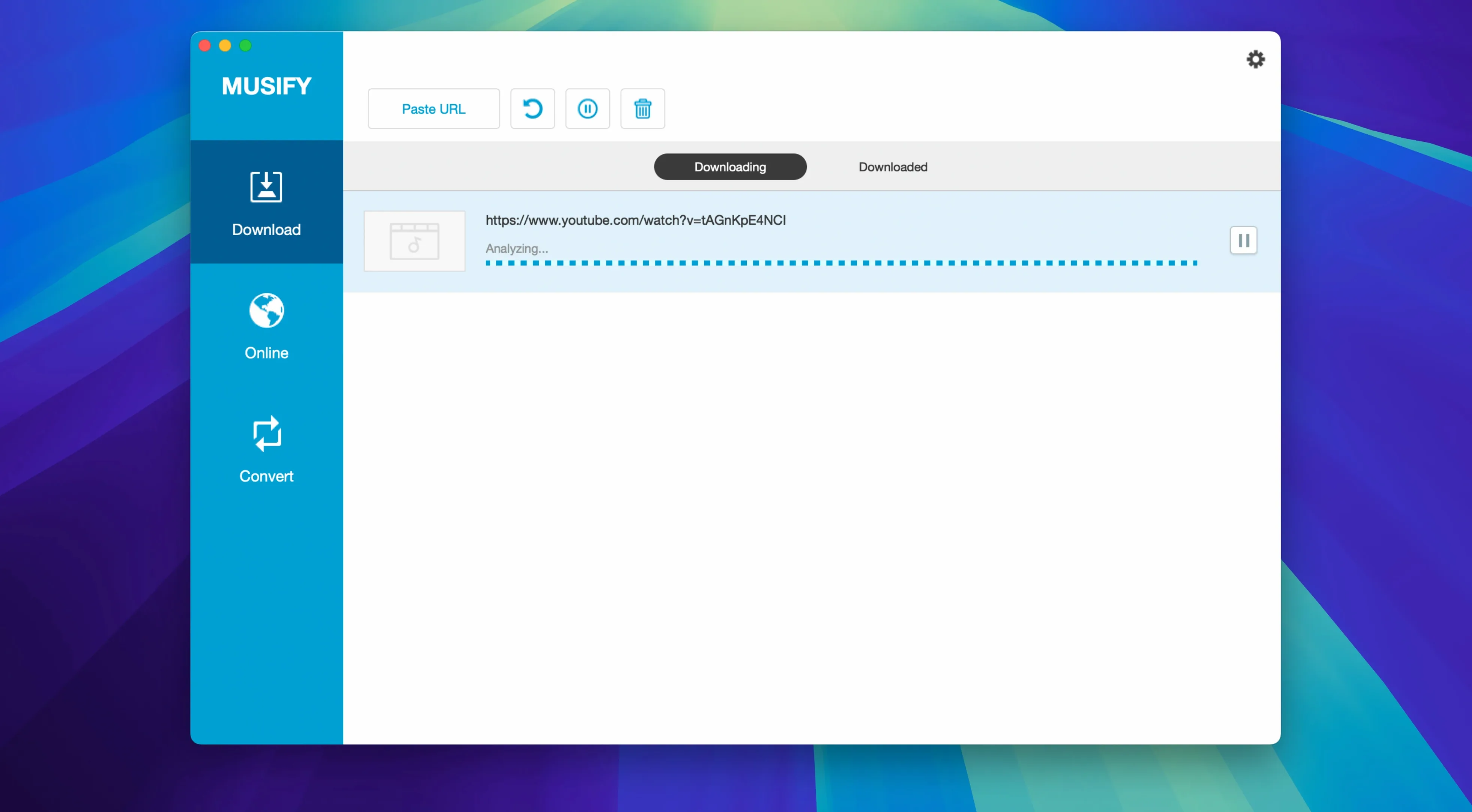
Open Musify and paste the Bandcamp album URL into the input field at the top. The app parses the page and lists every track with title, artist and duration. Tick the ones you need — or leave all checked — and set the output format to MP3 in the bottom-left dropdown. Click the download button. While those tracks come down, paste a YouTube URL for a live session. Musify adds it to the same queue below the Bandcamp items. Set that one to M4A if you want a smaller file, or keep it at MP3 for consistency. The queue runs both sources without mixing them up; each track keeps its source label in the download list.
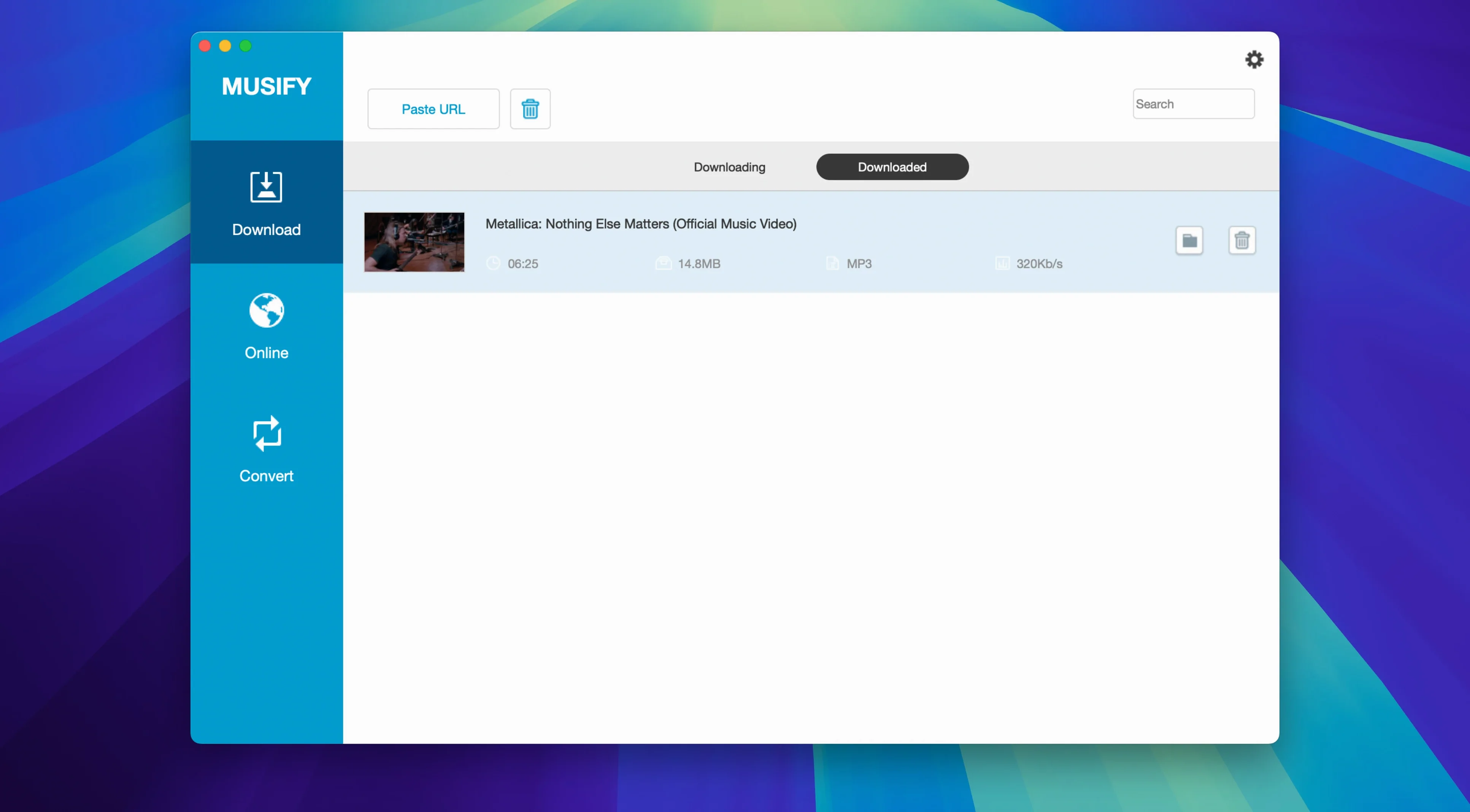
Once the queue finishes, switch to the Finished tab. Select everything you just downloaded, right-click and choose Transfer to Device. Connect an iPhone via USB, and Musify shows it as a destination. Tracks copy over with metadata intact — artist, album, track number and cover art all show up in the iOS Music app. For Android, the process is the same; the phone appears as a mounted volume and Musify writes directly to the music folder. The whole job, from pasting the first URL to unplugging the phone, took under eight minutes for a ten-track Bandcamp album and two YouTube videos.
Hold Option while clicking to reuse your last output format
Several details in Musify do not announce themselves. Holding the Option key while clicking a download button skips the format prompt and uses the last chosen output format — useful when you are grabbing a dozen singles in the same codec. Double-clicking a finished track in the download list plays a short preview directly in the app, so you can confirm audio quality before transferring to a device.
The URL field accepts text from the clipboard automatically if you open the app with a link already copied. Paste it once, or just launch Musify after copying a YouTube or SoundCloud link and it appears in the field without extra keystrokes. Right-clicking any track in the queue reveals a Copy Metadata option that puts artist and title on the clipboard, handy for renaming files outside the app or pasting into a playlist document.
Batch conversion of local files sits under the File menu rather than the main window. Drag a folder of WAV files onto the dock icon, then choose File → Batch Convert to MP3. Musify processes everything in that folder without adding them to a download queue, which keeps the interface uncluttered. The device transfer feature remembers the last used phone and pre-selects it on the next connection, cutting out a step for users who regularly top up the same device.
A less visible setting controls how metadata is written. In Preferences, under the Metadata tab, you can toggle whether Musify embeds cover art, writes composer tags or adds the source URL to the comment field. Disabling the source URL comment keeps libraries cleaner for anyone who does not need a breadcrumb trail back to YouTube or Bandcamp. These small switches stay out of the way during normal use but reward a few minutes of poking around after installation.