Aspecten
 Download (13 MB)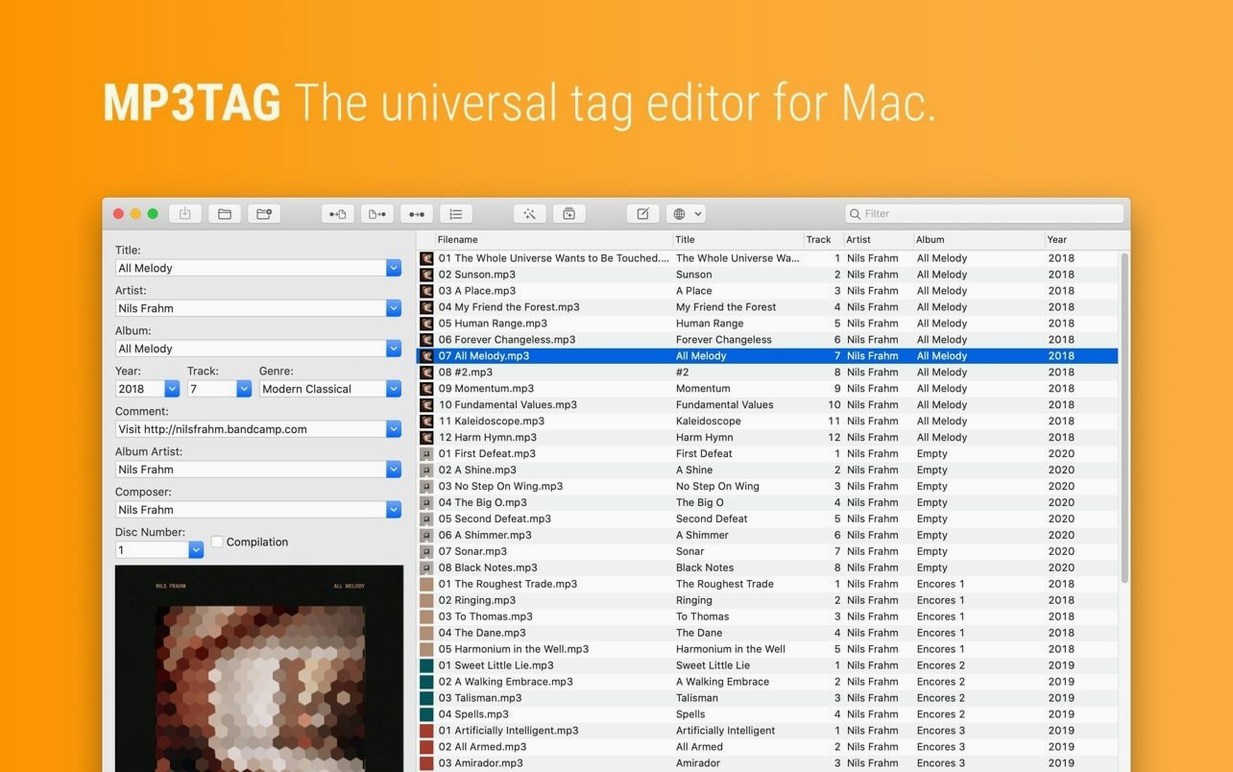
Action groups are the feature that turns Mp3tag from a tag editor into a small automation tool. A sequence of replacements, renamings, or tag adjustments can be saved and run against a folder of files in one pass.
Good for
- Batch edits across many files at once, rather than one track at a time
- Renaming files based on tag information such as artist, album, or track number
- Replacing characters or words in both tags and filenames
- Formats including MP3, MP4, M4V, FLAC, OGG, OPUS, AIF, DSF, MPC, and WAV
- Grouping repeated tasks into reusable action groups
Keep in mind
- Requires macOS 10.14 or later
- Interface available in nine languages, including English, German, Spanish, French, and Japanese
Loads hundreds of FLACs in under two seconds on Apple Silicon
Mp3tag loads a folder of a few hundred FLACs in under two seconds on Apple Silicon. The interface stays responsive while it parses tags, and scrolling through the file list feels immediate even with 2000 tracks in view. Batch operations on a modest library — renaming 500 files from tag data, for instance — complete in a blink. Larger jobs, like embedding cover art into a thousand MP4s, take a few seconds but never lock the UI. Memory use sits around 80 MB at rest and rarely climbs above 200 MB during heavy batch work. CPU spikes are brief and single-core; the app does not attempt to spread work across cores, but it is quick enough that this rarely matters.
Stability in version 1.14.1 is good. Crashes were a known issue in earlier builds, particularly around the Action Groups window, but the 2026-09-23 update fixed the main trigger. In daily use, dragging a folder of mixed formats onto the dock icon, editing tags, and saving produces no unexpected quits. The one area worth watching is cover art handling: changing artwork in the Tag Panel and then opening Extended Tags before saving used to discard the edit — now resolved. Unsaved Tag Panel changes are also properly preserved when triggering Cover Search or running actions, which makes the workflow feel less brittle than it did in previous versions.
Drag-and-drop zones feel native next to Kid3’s cross-platform toolkit
Next to Kid3, Mp3tag feels more Mac-like. Kid3 handles the same formats and offers a similar batch-renaming engine, but its interface carries the weight of a cross-platform toolkit. Mp3tag’s table layout, drag-and-drop zones, and Tag Panel feel closer to something built with AppKit in mind. Kid3 is strong on format depth — it exposes more esoteric frame types — while Mp3tag favours clarity over exhaustiveness. For someone tagging a music library day to day, Mp3tag is quicker to navigate.
Meta (the native Mac tagger) is prettier and integrates with the Music app, but its format support is narrower. It does MP3, MP4, FLAC, and not much else. Mp3tag pulls ahead the moment OGG, OPUS, DSF, or WAV files enter the picture. Meta’s batch editing works well for small groups but lacks the action group concept; there is no way to save a multi-step transform and replay it later. If your collection is MP3 and MP4 only, Meta is simpler. If it spans seven or eight formats, Mp3tag is the more practical tool.
Compared with Yate, Mp3tag is less of a power user’s scripting environment. Yate has a full automation engine with variables, conditionals, and deep MusicBrainz integration. It is also heavier — both in interface complexity and in the mental overhead required to set up a workflow. Mp3tag’s action groups cover perhaps eighty per cent of what Yate’s scripting does, but in a way that takes five minutes to learn rather than an afternoon. For most tagging tasks, that trade-off is a good one.
Cleaning up twenty-three untagged live-recording AIFs from a mess
A folder arrives with twenty-three AIF files ripped from a live recording. The filenames are a mess — Track 01.aif, Track 02.aif — and there are no tags beyond a guessed title in a few of them.
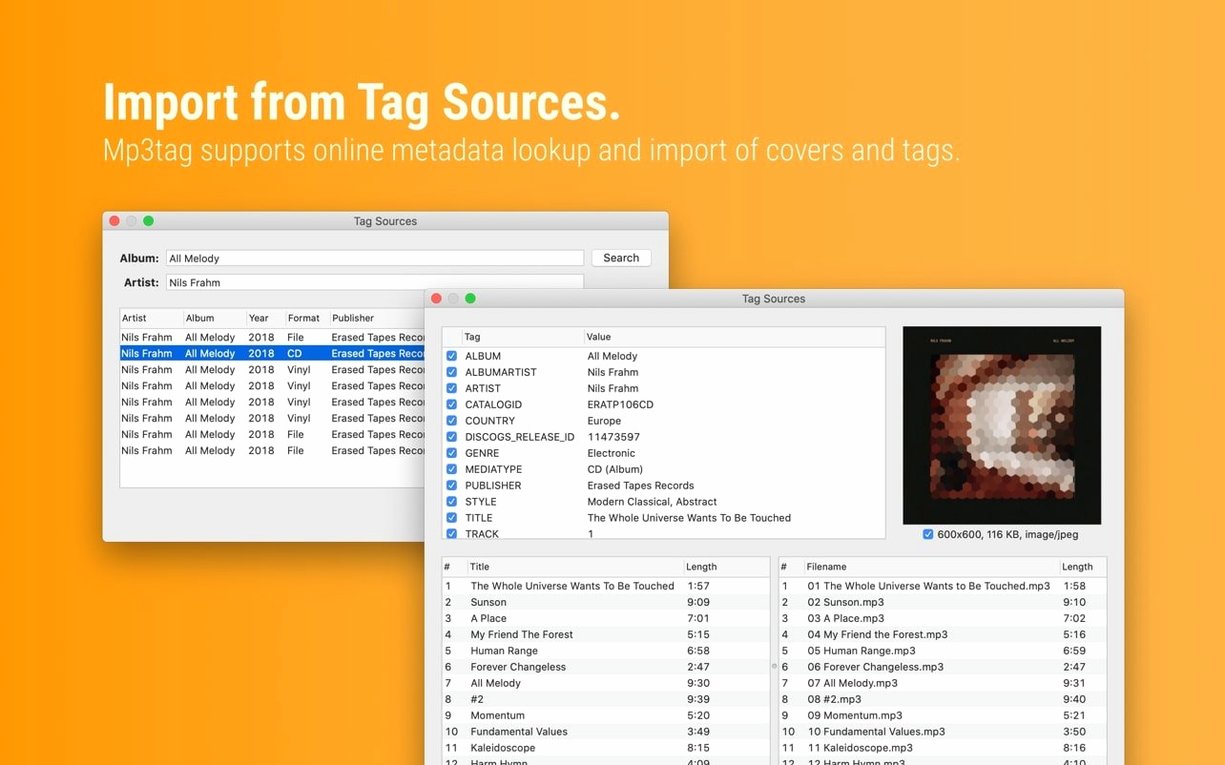
I drag the folder onto Mp3tag’s file list. The tracks appear in order. I select all of them and open the Tag Panel on the left. First, I set the artist and album fields — these are the same for the whole set — and type a quick album title. Next, I click the track number column header and use Auto-numbering wizard from the Convert menu to number them sequentially, starting at 1. I switch to the Tag Sources toolbar button, choose Discogs, and search for the artist and album name. Mp3tag returns a match. I select it, and the track titles populate down the list in one shot. The cover art appears in the preview pane; I drag it into the Tag Panel’s artwork slot and tick the box to embed it.
Now the tags look right, but the filenames still say Track 01. I open the Convert → Tag – Filename dialogue and set a format string: %track% - %title%. A preview column shows what each file will become. I hit OK, and the filenames update instantly. Before saving, I spot a stray uppercase word in one title. I select that cell, press F2, and type the correction. Finally, I press Cmd-S to write all tags to disk. The status bar flashes briefly. The folder is now tidy, properly tagged, and ready for the library.
Unsaved tag edits vanish after switching apps
One frequent surprise is that editing a tag in the file list does not save it until you press Cmd-S or move to another row. If you type a title, switch apps, and come back, the edit appears to have vanished. It is still there — it just has not been committed. Pressing Enter on the edited cell or saving explicitly avoids this confusion.
Another point of friction is mixed-format folders. If a folder contains MP3 and WAV files, some tag fields behave differently. WAV files have limited standard tag support; Mp3tag writes an INFO chunk, but not all playback software reads it. If tags appear to disappear after saving, check whether the files are WAV — they may need conversion to a more tag-friendly format first.
Cover art size can also trip people up. A high-resolution PNG embedded into hundreds of MP3s bloats the files noticeably. The Actions → Adjust cover dialogue lets you set a maximum dimension and convert to JPEG in one step. Setting a 600-pixel cap and JPEG quality of 85 keeps file sizes reasonable without visible loss on most screens.
Gatekeeper on newer macOS versions may block the app on first launch. The known workaround is to mount the disk image, open Terminal, drag the app icon into the window, and press Enter — the system then registers an exception. After that, Mp3tag launches normally from the Applications folder.
Typing part of an artist name instantly filters the file list
- Quick filter bar — the text field above the file list filters rows as you type. Typing flac shows only FLAC files; typing part of an artist name narrows the list instantly. It is the fastest way to isolate a subset of files for a batch edit.
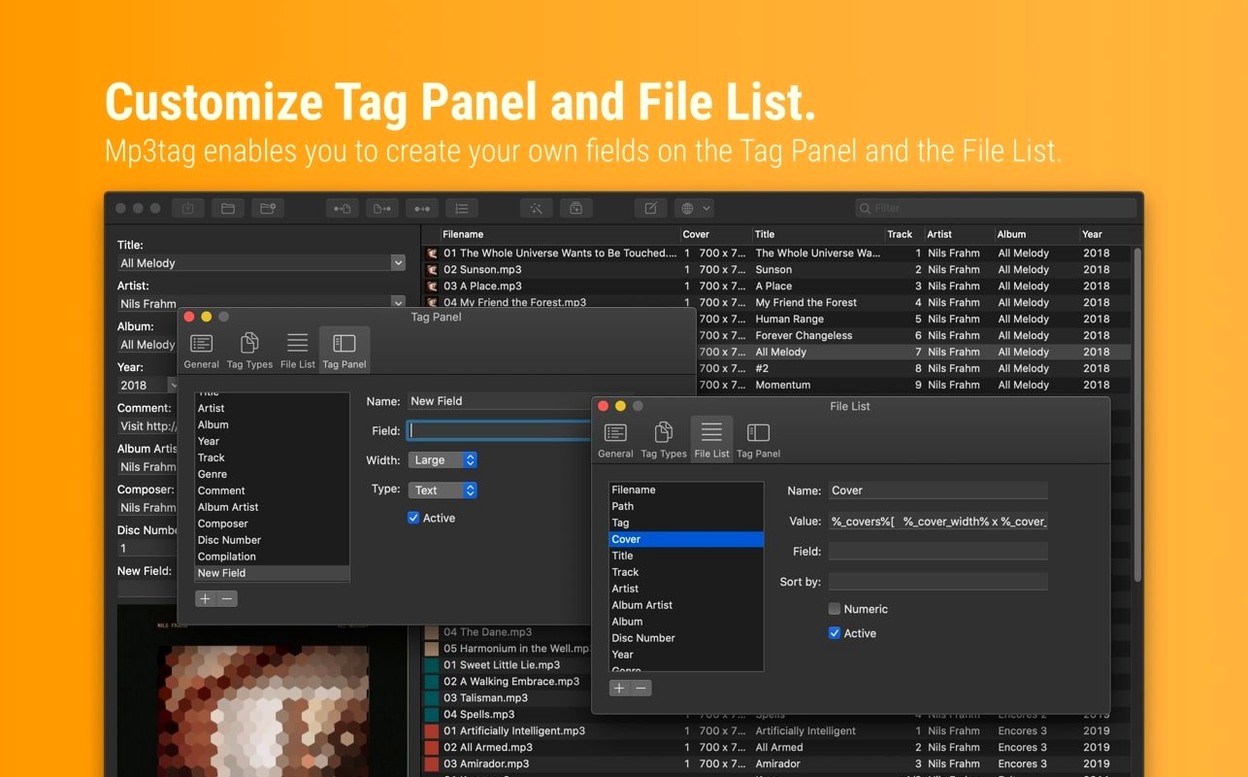
- Column layout is customisable — right-click any column header to show or hide fields. If you never use Composer or BPM, you can hide them and make the table cleaner.
- Drag-and-drop from Finder — you can drag a folder or a selection of audio files straight onto the file list or the dock icon. No need to use File → Open.
- Undo inside cells — while editing a tag cell, Cmd-Z undoes the last change within that cell only. It is not a full file-level undo, but it saves retyping a long title after a slip.
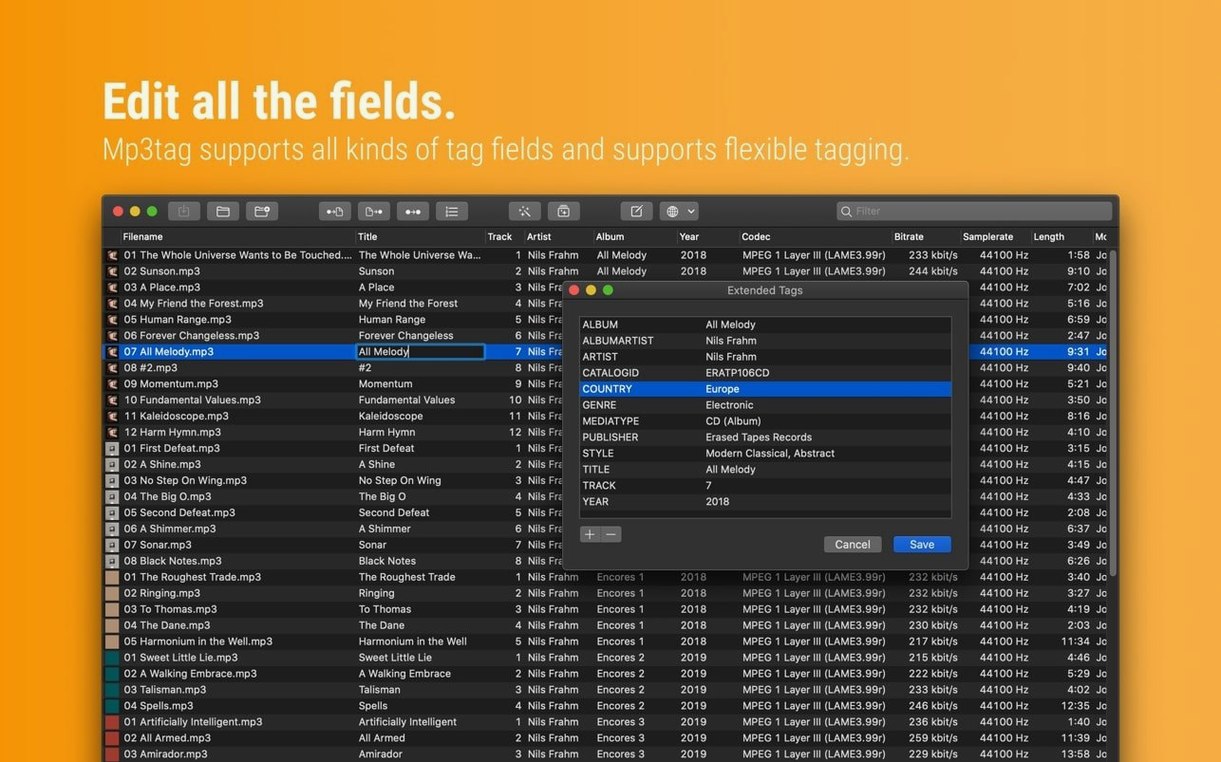
- Extended Tags panel — accessible via Cmd-T or the context menu, this shows every frame in the file, including ones not visible in the main columns. Useful for finding stray MusicBrainz IDs or legacy iTunes fields that need cleaning.
- Action group import and export — saved action groups can be exported as
.mtafiles and shared between Macs. If you build a careful renaming chain for your podcast workflow, you can back it up or pass it to a colleague.