Aspecten
 Download (79 MB)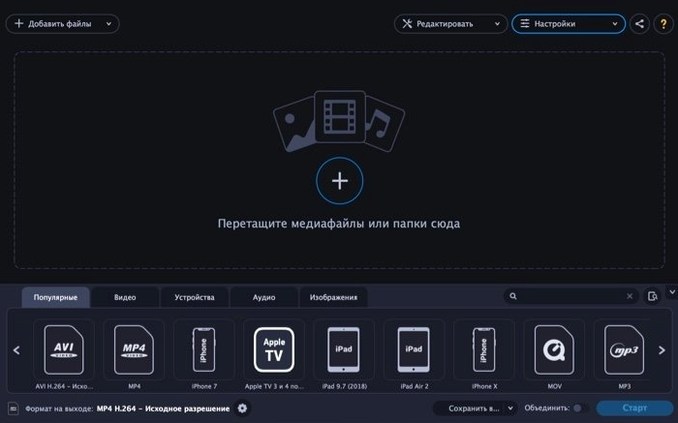
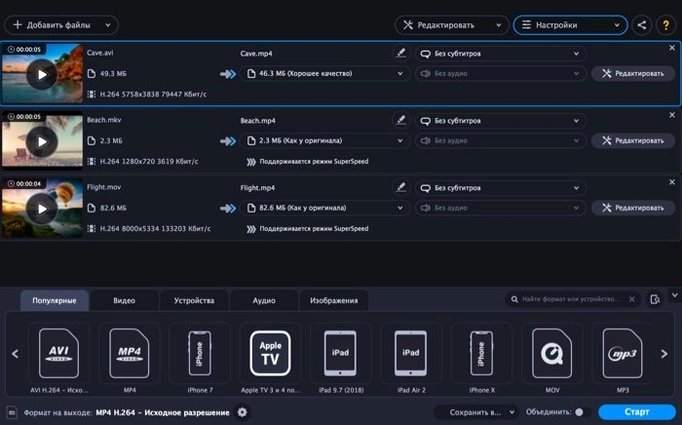
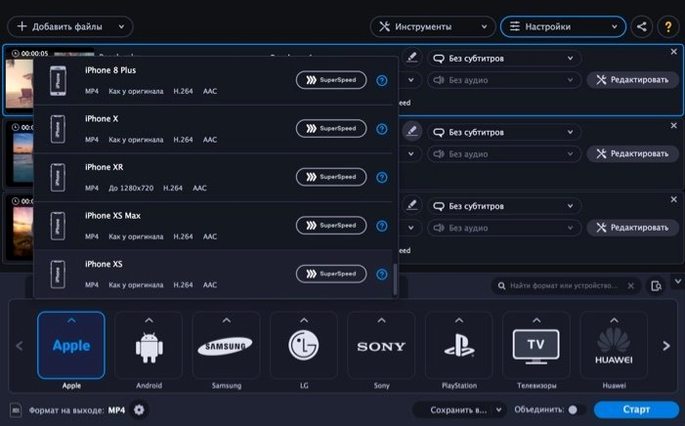
Over 20 input audio formats are listed in the spec, from common types like MP3 and WMA to studio-friendly FLAC and Opus. Movavi Video Converter is built around a single window where you add files, pick an output format, and run the conversion. Video output covers the expected containers — MP4, MKV, MOV, AVI — alongside WebM and WMV. Image conversion is included too, with output to BMP, JPEG, PNG, TIFF and GIF, and you can turn a short video clip into an animated GIF directly.
Convert, trim, stabilise and subtitle in one pass
- Converting between a wide set of video, audio and still-image formats from one app
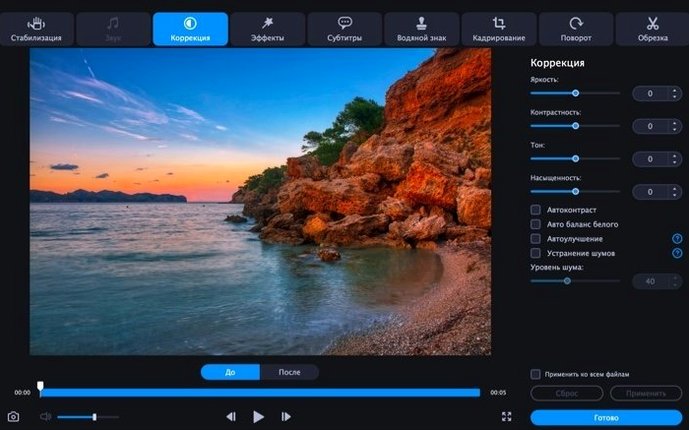
- Preparing clips with basic edits — trim, crop, rotate, colour correction and stabilisation — without leaving the converter
- Adding subtitles, text overlays or watermarks during conversion
- Reducing background noise and adjusting volume in the audio track
Runs on Intel Macs only, macOS 10.13 or later
- Runs on Intel Macs only; no native Apple Silicon support
- Requires macOS 10.13 or later
HandBrake digs deep into codecs; Movavi keeps trimming and overlays in reach
HandBrake sits at one end of the spectrum: open-source, deeply configurable, and focused almost entirely on video transcoding. Its encoding options are extensive — you can fine-tune x264 and x265 parameters, set custom frame rates, and build advanced presets. What you lose is the broader format coverage. HandBrake does not handle image files, does not extract audio to standalone files without re-encoding, and offers no stabilisation or noise reduction tools. For someone who only ever converts video between the major modern codecs, HandBrake is more than enough. Movavi Video Converter earns its place when the workload spans audio, images, GIF creation and light correction in a single session.
Adapter is a closer match in spirit: a straightforward drag-and-drop converter that covers video, audio and images. It runs well on current hardware and includes device presets that resemble the ones Movavi provides. Where Adapter pulls ahead is simplicity — it asks almost nothing of you beyond picking an output format. Where it falls short is editing. Adapter has no trim tool, no stabilisation, no subtitle overlay and no colour correction. If you regularly need to clean up a clip before converting, Movavi wraps those steps together without opening a separate editor.
Permute is often the fastest option for quick batch jobs. It converts video, audio and images, and its integration with the Mac’s share sheet and drag-and-drop workflows makes it feel almost invisible. Performance on Apple Silicon is excellent, and the interface is minimal to the point of being a single window with a target format selector. Permute lacks built-in editing of any kind. No cropping, no rotation, no watermarking. Movavi Video Converter trades some of that streamlined speed for a more hands-on feature set. If your workflow is “drop and go,” Permute is lighter. If you regularly adjust, trim or annotate before the output lands, Movavi’s editing sidebar saves opening another application.
Build a custom profile once so you never re‑tweak container and codec again
Start by building a small set of custom output profiles for the formats you use most. The device presets are handy in a pinch, but a profile that matches your preferred container, codec and quality setting saves repeated manual adjustments. Set up one for archival MP4 with a high bitrate, one for compact sharing, and one for audio extraction to MP3 at 320 kbps. The profile dropdown remembers them, and batch jobs go faster when you aren’t confirming settings each time.
Add a few test files to the queue before committing a large folder. Check the output in the player you actually use — QuickTime, VLC, or a television connected over DLNA. A preset that looks fine on the Mac’s screen may show colour shifts or sync issues on a different display chain. Catching that early avoids re-converting an entire batch.
When extracting audio from video, toggle the output format first, then check the audio tab. The default bitrate may be lower than expected for music-heavy clips. For spoken-word material, the default is usually fine, but for concert footage or carefully mixed video podcasts, pushing the bitrate higher preserves detail that a lower setting flattens.
Use the stabilisation filter sparingly. It works best on handheld footage with consistent, small-amplitude shake — walking shots, static hand-held pans. Footage with rapid direction changes can produce warping at the frame edges. Run a short preview before committing a long clip, and keep the original file until you verify the result.
4K at 60 fps converts steadily on a recent Intel iMac
One of the first concerns is whether the app handles 4K and high-frame-rate footage without choking. In practice, 4K h.264 material at 60 fps converts steadily on a recent Intel iMac, and the SuperSpeed mode — which leans on the GPU where possible — shortens pass-through and same-codec jobs noticeably. High-bitrate h.265 source files ask more of the processor, and conversion times lengthen. The app remains responsive during jobs; the interface does not lock, and you can queue additional files while a batch runs.
Another common question revolves around whether Movavi Video Converter can handle a folder of mixed file types in one go. The batch window accepts a folder as input, and the app picks up all recognised media inside it, skipping system files and unsupported formats without stopping. Video, audio and still images can sit in the same queue. You set an output format per file type, not per file, so all videos in one batch become MP4, all images become JPEG, and the audio files become MP3, each group with its own destination folder if needed.
People also ask about subtitle handling. Soft subtitles embedded in MKV or MP4 files are preserved during conversion when the output container supports them. The built-in subtitle editor adds a hard-burned overlay — useful for sharing clips where the viewer’s player may not read subtitle tracks. Font size, position and colour can be adjusted, though the styling options are basic compared with a dedicated subtitle tool.
A 10‑minute 1080p h.264‑to‑h.265 job finishes in about four minutes
On an Intel Mac with 16 GB of RAM, a 10-minute h.264 1080p MP4 to h.265 MKV conversion completes in roughly four to five minutes using the standard encoding path. Switching to SuperSpeed for same-codec remuxing cuts that to under a minute. The app occupies around 400–500 MB of RAM during conversion and moderate CPU load — typically 70–80% across all physical cores. Fans spin up on laptops, though the noise level is comparable with other video tools doing sustained encoding work.
Stability over a working day is solid. Queues of 30–40 mixed files rarely trip the app, and a cancelled job leaves the partially written output file in place so you can check what converted before restarting. One limitation worth noting: if the source file contains a data stream the parser does not recognise — some screen recordings with variable frame-rate metadata, for example — the conversion may fail silently or produce an output with audio sync drift. Checking the first minute of a new file type with a short test clip remains a sensible habit.
Disk I/O is moderate. The app writes temporary files to the system’s default temp location, and large batches on a slower external drive can bottleneck more than the CPU does. Moving the source files to an internal SSD before starting a big batch keeps the conversion queue moving at the app’s pace rather than the drive’s.