Aspecten
 Download (17 MB)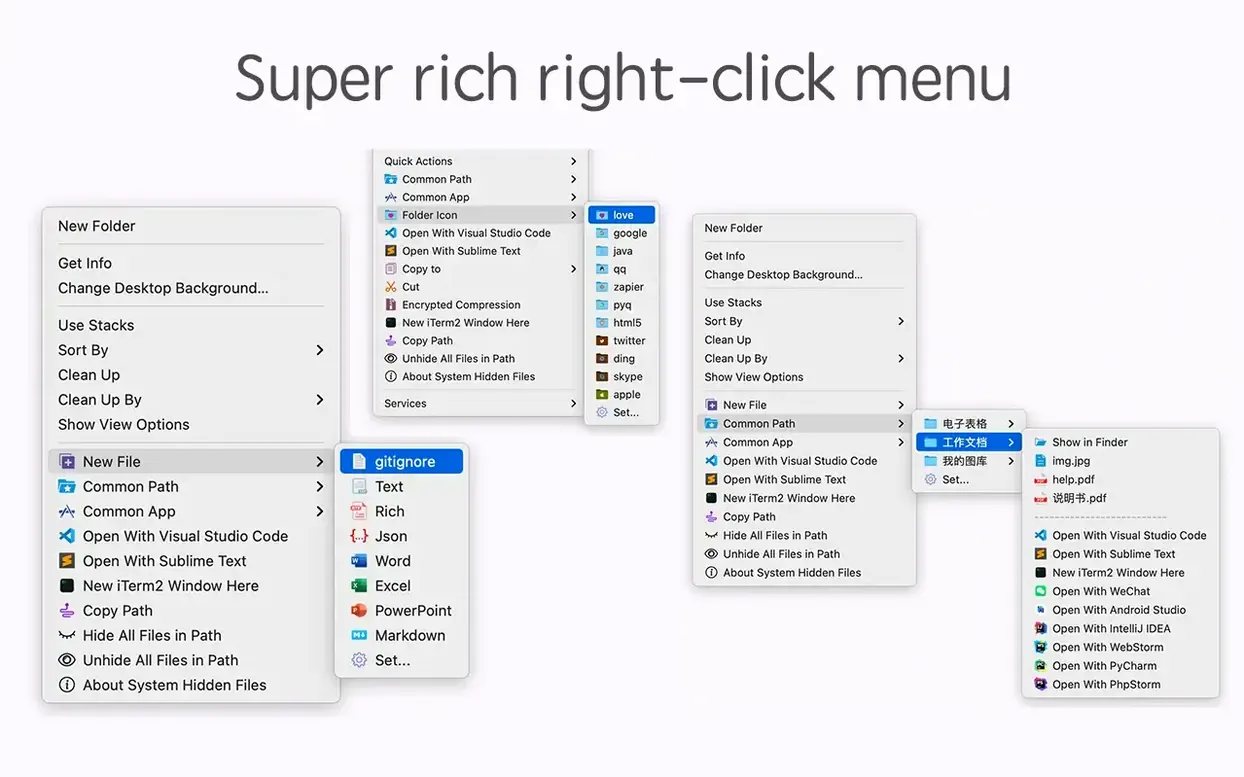
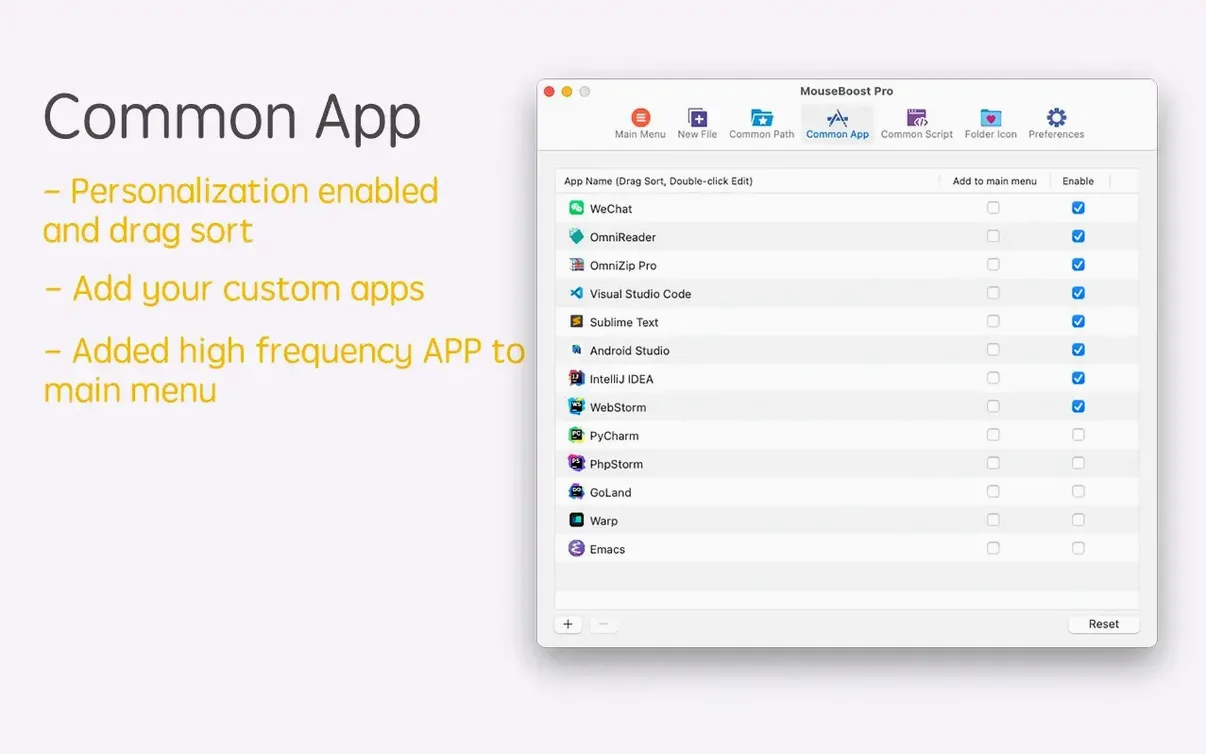
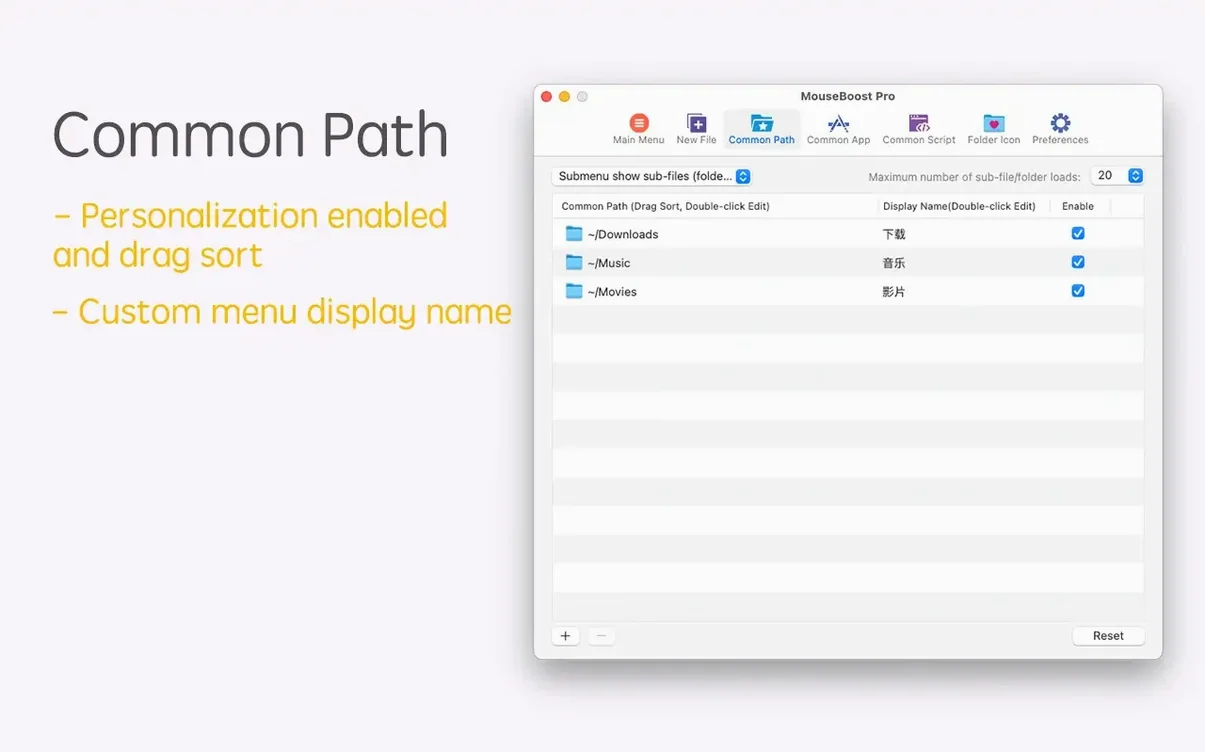
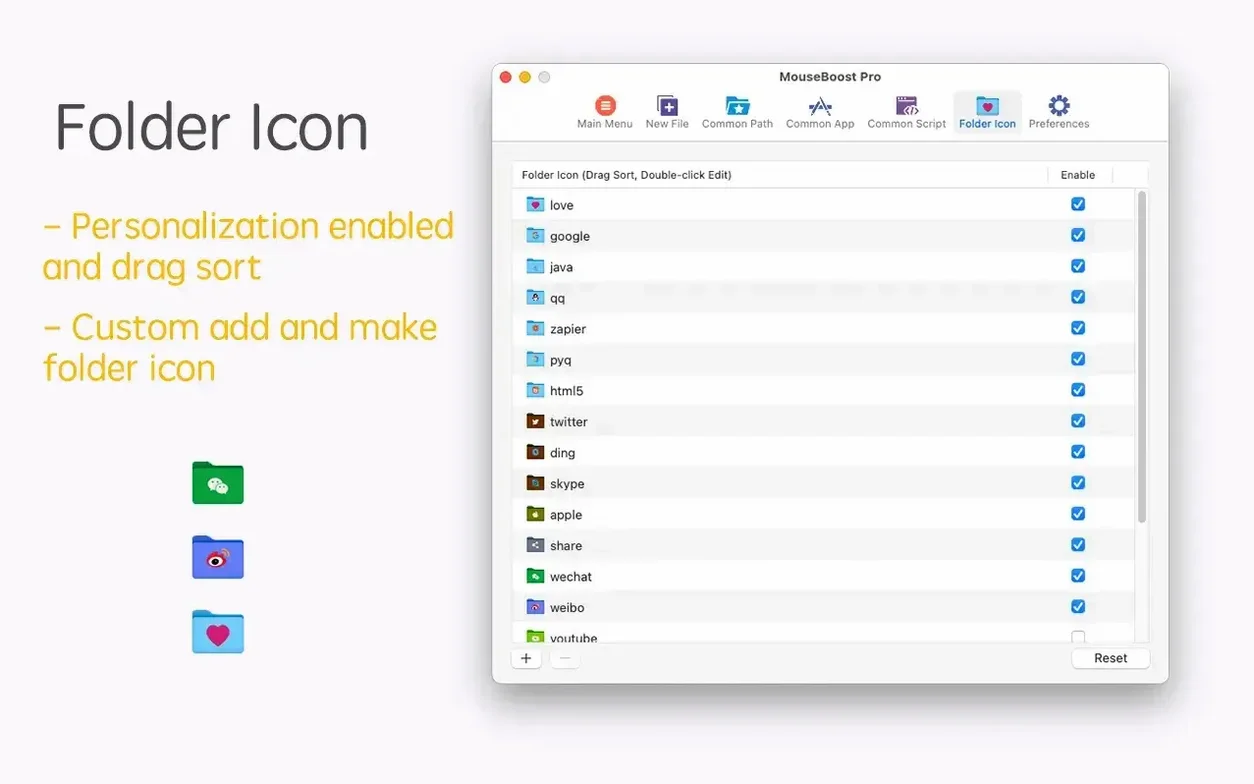
Finder's right-click menu covers the basics, but the gap between what macOS provides and what everyday file work requires can be substantial. MouseBoost Pro fills that gap by extending the menu with actions for file visibility, folder icons, permanent deletion and custom file creation.
Quick-access file creation and folder tools from any right-click
- Quickly opening a favourite folder from any Finder context
- Hiding or showing specified files without Terminal commands
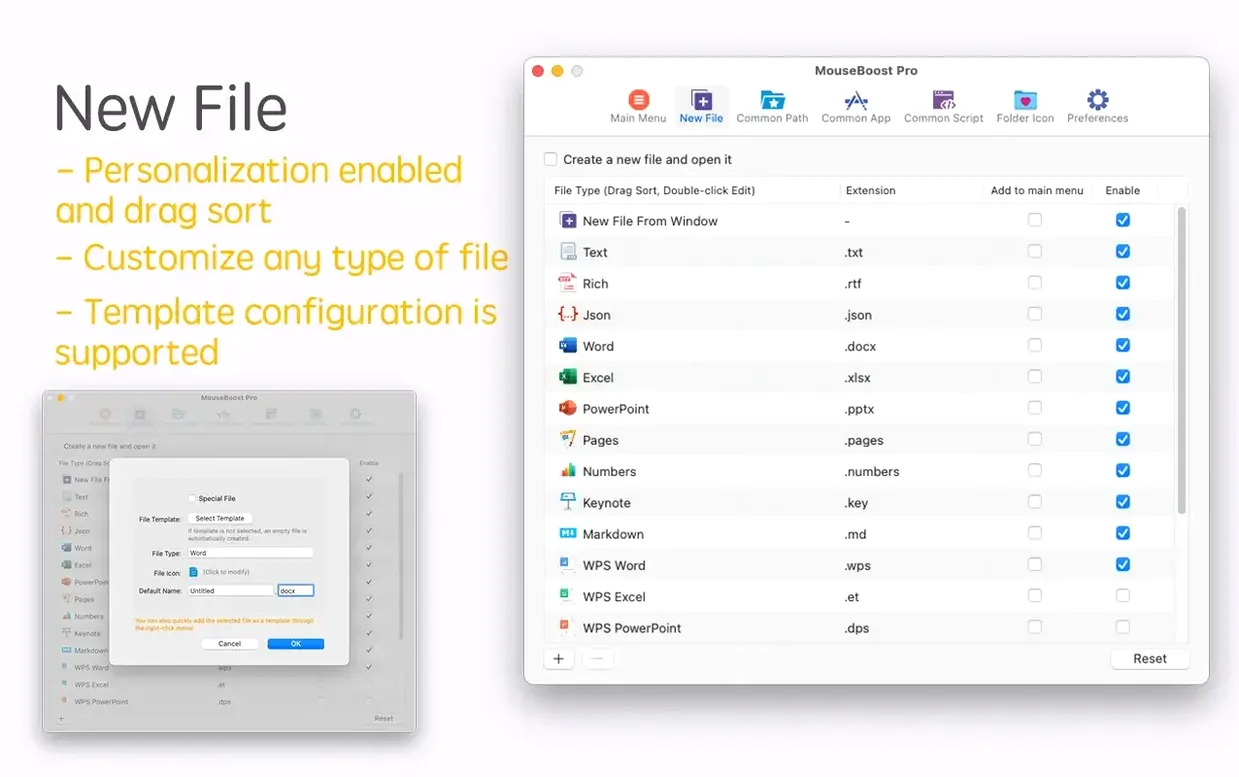
- Creating common file types from a custom menu
- Changing folder icons without third-party icon managers
- Copying the current path in one step
Requires deliberate menu setup before it feels seamless
- Requires macOS 10.11 or later
- Menu arrangement takes a short while to set up meaningfully
A typical task shows the practical shape of the tool. To prepare a project folder, one might first add a new text file via the custom creation menu, then hide an older draft, then assign a distinct folder icon. Each step stays inside Finder, with no need to open a separate utility.
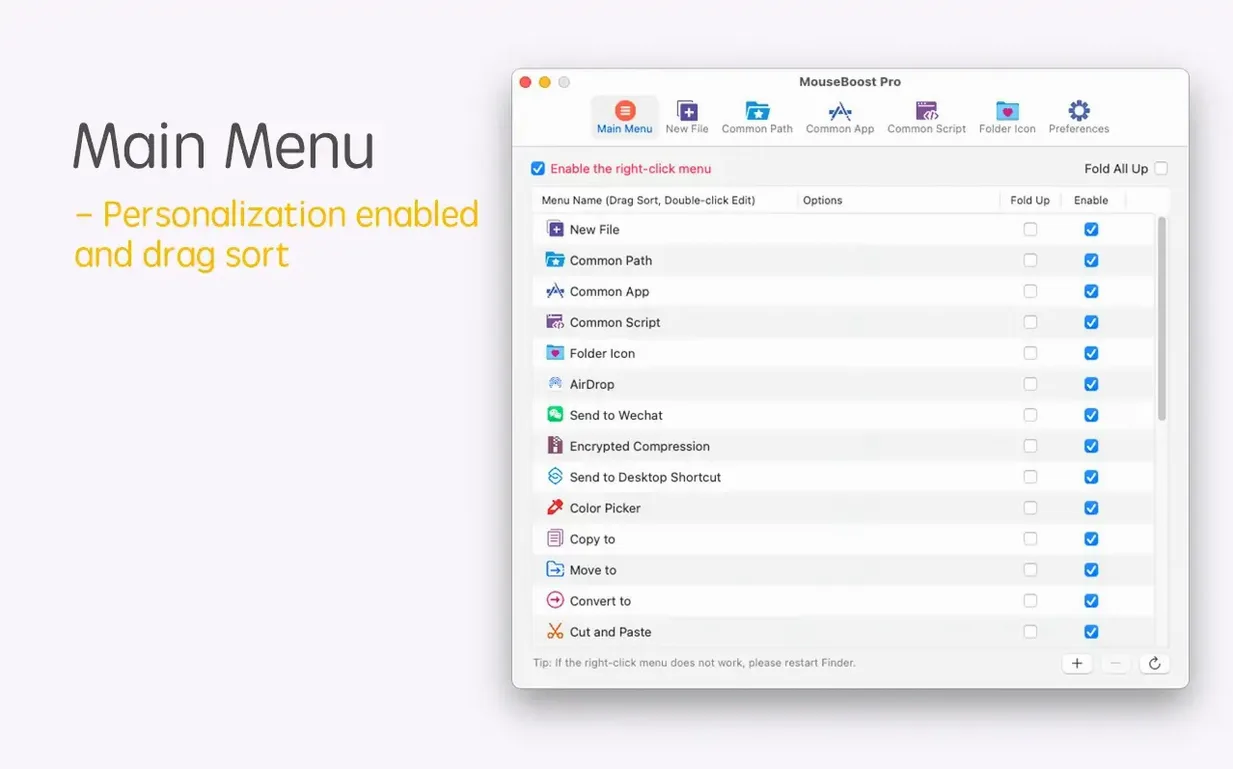
Menu customization and user sorting mean the added entries sit where they are actually useful, rather than at a fixed position. The result is a right-click menu that reflects how a particular Mac is used.
What the first days look like
After launching MouseBoost Pro, the right-click menu gains a handful of entries immediately, but the real benefit comes from a short configuration session. Open the app's preferences and spend ten minutes deciding which actions matter. Resist the urge to enable everything — a menu with thirty extra items becomes its own kind of clutter.
A practical sequence for day one:
- Enable Copy Path and Permanent Delete straight away; they replace two frequent Terminal trips.
- Add two or three favourite folders to the quick-access list. Choose locations you open several times a day, not every folder you own.
- Set up custom file templates for the formats you create most often. A bare
.mdfile, a.txtscratchpad and a blank.svgcover a lot of ground. - Drag the most-used actions to the top of the menu order. MouseBoost Pro respects user sorting, so the items you reach for daily sit under your cursor, not buried below a list you ignore.
On day two, pay attention to which actions you actually click and which you scroll past. Disable the ones that go untouched. The menu should feel like it shrunk to fit your habits, not like a feature checklist left fully ticked.
Actions missing from the menu after enabling them
A few friction points crop up regularly, and most have straightforward fixes.
Menu items not appearing. After enabling an action in preferences, it sometimes fails to show in the Finder menu. The usual cause is that the system extension needs a nudge. Open System Settings, navigate to Privacy & Security > Extensions > Finder Extensions, and confirm MouseBoost Pro is checked. If it is already checked, uncheck it, wait a moment, then re-enable it. A Finder relaunch (hold Option, right-click the Finder dock icon, choose Relaunch) often completes the fix.
Custom file templates not sticking. When a newly created file type appears empty or with the wrong extension, check the template file in the app's preferences. The extension must match exactly — a template named newfile.txt works; one named newfile.txt.rtf does not. Also verify the template file is not stored in a folder that gets cleaned or synced away by a cloud service.
Permanent delete warnings. The action bypasses the Trash, which is its purpose, but a moment's inattention can remove the wrong file. There is no undo. A sensible habit is to keep the confirmation dialog enabled in preferences for the first weeks, and only disable it once the muscle memory of right-clicking deliberately has formed.
Folder icon changes not visible. If a changed folder icon does not update in Finder, the icon cache is the likely culprit. A quick fix: copy the folder to another location, delete the original, then move the copy back. The cache refreshes and the new icon appears. Alternatively, running killall Finder in Terminal forces a full refresh, though it closes all Finder windows.
iTerm2 or editor integration failing. When the Open in iTerm2 or Open in VSCode actions do nothing, the app likely cannot locate the target program. Check that iTerm2, VSCode, Sublime Text or Emacs is installed in the standard /Applications folder. If an editor lives elsewhere — inside a developer tools subfolder, for instance — MouseBoost Pro may not find it automatically. The preferences pane for terminal and editor actions includes a path field where you can point directly to the binary.
Finder extension draws instantly with no lag
MouseBoost Pro runs as a Finder extension, which means it loads alongside Finder and stays quiet until a right-click triggers it. In practice, the menu appears with no perceptible delay — the actions list draws as quickly as the native macOS menu items above it.
Memory use sits modestly. On an Apple Silicon Mac with 16 GB of RAM, the background process typically occupies under 80 MB, and CPU time stays at zero when idle. The extension wakes only for right-click events, so it does not contribute to background energy drain. On older Intel machines running macOS 10.11 through 10.14, the footprint is similarly contained, though the initial menu draw on a cold launch can take a fraction of a second longer.
Stability over weeks of use is solid. The extension does not cause Finder crashes or freezes, and the few reported hiccups tend to trace back to conflicts with other Finder extensions rather than to MouseBoost Pro itself. If you run multiple extensions — cloud storage overlays, launcher bars, tag-based tools — test them together for a day. Disabling one overlapping extension almost always resolves any conflict.
Batch operations introduce the only situation where a pause becomes noticeable. Calculating checksums on large files (several gigabytes) or processing a deep directory tree with the new tree view feature can take a few seconds. The app remains responsive during these tasks, and a progress indicator appears when the operation extends beyond a momentary wait. This is normal behaviour given the disk I/O involved, not a sign of instability.
A worked example: preparing a release folder from scratch
Suppose a designer needs to assemble a folder for a client handoff. The folder must contain a PDF proof, a compressed archive of source files, a readme and a custom icon. All of it should happen inside Finder, with no trips to Terminal or separate archiving tools.
The workflow, step by step:
- Right-click an empty area in the project directory and choose New File from the MouseBoost Pro menu. Select the pre-configured
.mdtemplate. Name itREADME. The file appears instantly, ready for editing. - Select the folder containing source assets. Right-click and pick Compress (encrypted). Set a password and choose ZIP format. The encrypted archive is created in the same directory, with the original folder untouched.
- Right-click the final folder, select Change Folder Icon, and pick a prepared
.icnsfile. The icon updates in Finder within a moment. - Right-click the folder again and choose Copy Path. Paste the path into an email draft or a project management tool — no need to drag the folder or navigate through save dialogs.
- Select any interim working files that should not reach the client. Right-click and choose Permanent Delete. Confirm the deletion. The folder now contains only the deliverable.
The whole sequence takes under a minute, and the right-click menu supplies every action. No other application opened, no Terminal window summoned. For a task that repeats across multiple projects, the time saved accumulates quickly, and the consistency of staying inside Finder reduces the cognitive friction of context-switching between tools.
This pattern adapts easily to other professions. A developer might substitute Open in VSCode for the icon change and add a quick New File for .env or .gitignore templates. A photographer might use the tree view to verify folder structures before delivery. The menu becomes a reflection of a specific workflow, shaped by which actions are enabled and how they are ordered.