Aspecten
 Download (8 MB)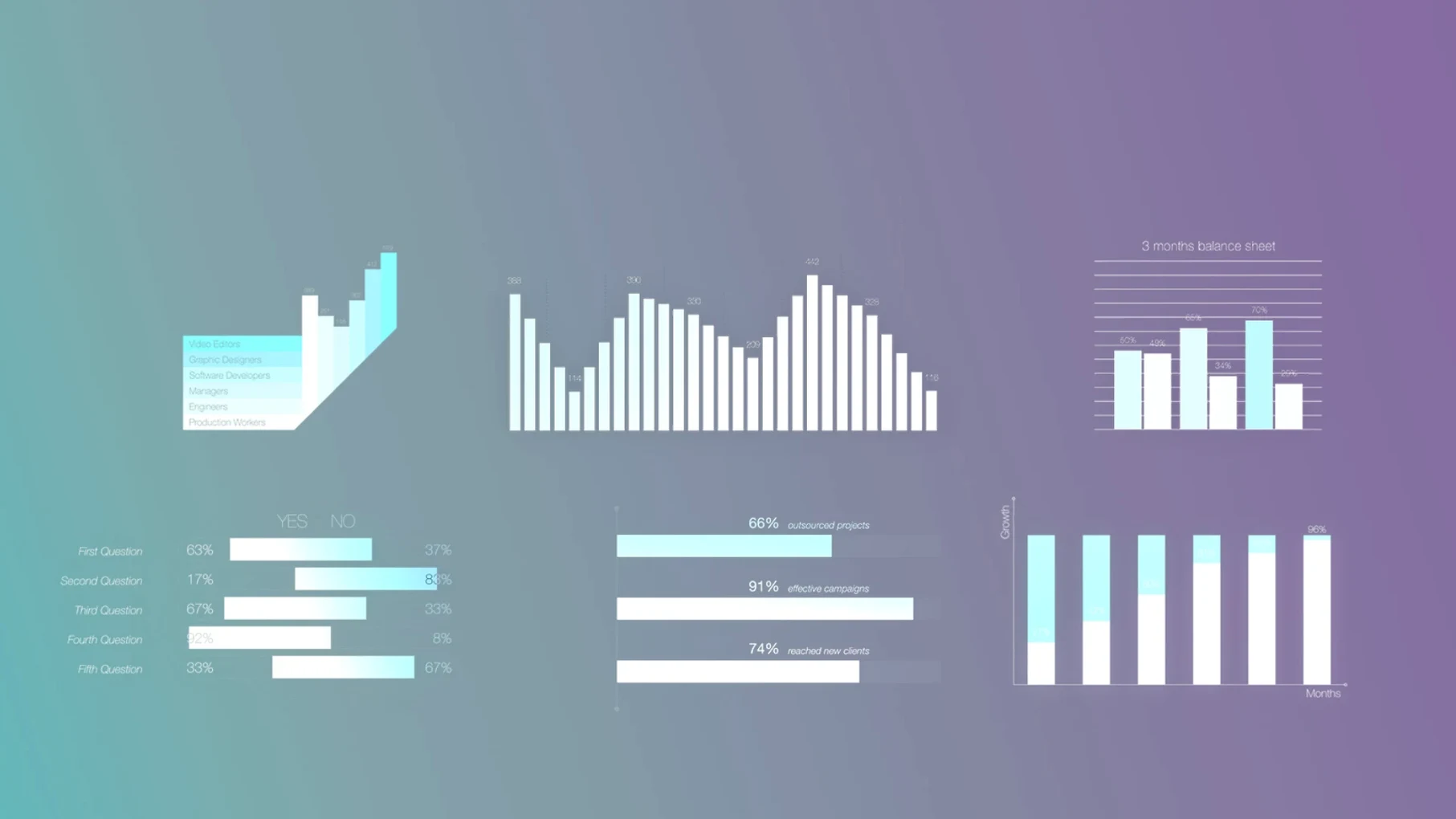
Editors who build explainers, corporate profiles, or data-driven reports often reach for mInfographics when a sequence calls for clear numbers without leaving Final Cut Pro. The plugin supplies sixty universal elements — charts, graphs, and typographic captions — that sit directly on the timeline rather than in a separate compositing round-trip.
| Scope | Detail |
|---|---|
| Type | Final Cut Pro plugin |
| Contents | 60 infographic elements |
| Key controls | On-screen handles for direct adjustment |
| Language | English |
A typical session places a bar chart or percentage ring over a talking-head clip, then pulls the on-screen controls to match the layout to the surrounding graphics package. The informational captions carry enough typographic styling to read well at playback speed, and because everything lives in the Titles browser, dropping an element into a project feels closer to applying a title than wrangling a motion-template stack.
Editable templates, not locked designs
One of the first things asked is whether the elements work as templates you can pick apart or as locked designs. The answer sits somewhere in the middle. Each of the sixty elements comes with on-screen controls that let you pull bar heights, adjust ring percentages, and edit the number fields directly in the Final Cut Pro viewer. You are not opening a separate motion-graphics project. The typography, colours, and base geometry are pre-styled, but the data itself and the captions are yours to change without leaving the timeline.
A related concern is whether mInfographics drags in extra dependencies. It does not. The package unpacks into a folder structure you move by hand — no installer, no licence manager, no background daemon. This matters to editors who keep their Final Cut Pro machines lean and prefer to know exactly what lands in their Motion Templates directory.
People also ask about performance with multiple elements stacked. A timeline carrying three or four infographics, each with its own caption, tends to hold up fine on Apple Silicon. Older Intel machines feel the weight sooner, particularly when the elements overlap at 4K with other effects beneath them. Keeping the number of simultaneous on-screen elements modest — two or three at most — keeps playback smooth without needing to render in advance.
Compound clips and built-in Final Cut Pro behaviours
Because mInfographics sits inside Final Cut Pro as a Titles collection, it inherits the built-in behaviours that editors already rely on. Compound clips wrap around an infographic as easily as around any title layer, so building a reusable lower-third with a percentage ring takes seconds. Transform, crop, and compositing controls all apply without special handling, which means the elements slot into an existing project structure rather than forcing a separate workflow.
Outside Final Cut Pro, the connection to Apple Motion is worth noting. Editors who own Motion can open an mInfographics template and adjust the underlying rig — changing the colour palette across a whole group of elements, for example, or tweaking the animation curve that brings a bar chart onto screen. The plug-in does not demand Motion, but having it broadens the customization path considerably without needing to touch the original template files.
macOS colour management carries through naturally. The elements render in the working colour space of the Final Cut Pro library, so a Rec. 709 timeline gets consistent results and a wide-gamut project does not produce clipped reds in a percentage ring. Spotlight indexes the template names after the initial folder copy, which makes searching the Titles browser quicker on subsequent launches. And because the templates live in the user’s Movies folder, Time Machine backups catch them without extra configuration — a small detail that saves hassle when migrating to a new Mac.
Wrong folder breaks browser visibility
The most frequent hiccup comes from placing the unpacked folders in the wrong location. Final Cut Pro looks specifically inside /Users/USERNAME/Movies/Motion Templates/Titles. Dropping the folder into the Effects or Generators subdirectory leaves the elements invisible in the browser. Moving them to Titles — and restarting Final Cut Pro if the app was open during the copy — resolves it cleanly.
Another occasional issue shows up when the on-screen controls feel sluggish. The cause is usually a heavily layered timeline beneath the infographic element. Temporarily hiding the other layers while adjusting bar heights and number fields returns the controls to responsive speed; re-enabling the layers afterwards keeps the edits intact. If sluggishness persists, switching the viewer to Better Performance rather than Better Quality often helps during the layout phase.
A few editors report that custom fonts in captions revert after a project is moved between machines. The element stores a reference to the font, not the font file itself. Keeping the same typeface installed on both Macs — or sticking with the built-in system fonts that ship with macOS — avoids the substitution altogether. When sharing a library with a collaborator, a quick note about which fonts the infographics use saves a round of last-minute fixes.
Rarely, someone copies the templates from an older Final Cut Pro setup and finds the elements appear but refuse to render. The fix is almost always a permissions mismatch: the Motion Templates folder needs read access for the user account running Final Cut Pro. A quick trip to the folder’s Get Info panel, checking that the account has at least Read permission, sorts it.
Corporate editors picking up quarterly rhythm
Corporate video editors who produce quarterly updates, internal reports, or training content tend to find mInfographics slots into their rhythm without friction. The elements look polished enough for a boardroom screen, and the ability to edit numbers directly in the viewer means a last-minute figure change does not derail the export schedule. When a CFO updates the revenue forecast an hour before delivery, pulling a single slider is faster than rebuilding a chart in a separate application.
Freelancers juggling multiple client styles also benefit. The sixty elements cover enough ground — donut charts, horizontal bars, percentage rings, labelled captions — that a single plug-in can serve a real-estate pitch one day and a tech-startup explainer the next. The consistent control scheme across the set means memorising one element’s adjustment logic carries over to the rest, which cuts down the fiddling time on tight-turnaround jobs.
Educators and tutorial creators get a quieter advantage. The captions carry enough typographic weight to stand alone as lower-thirds, and the number fields can double as step counters or chapter markers in a recorded lecture. A handful of users have built entire course segment transitions out of a single ring-chart element and a compound clip, keeping the visual language consistent across weeks of content without touching a separate motion-graphics tool.
Editors working in news or short-form social content sometimes overlook mInfographics because the marketing leans toward corporate explainers, but the bar charts and percentage rings fit naturally into quick-turnaround stories about polling, budgets, or demographic splits. The elements do not look out of place on a vertical timeline once the on-screen controls shrink the bounding box to the new aspect ratio. For anyone who has ever rebuilt a simple pie chart three times in a single edit session because the data changed, the direct-in-viewer adjustment alone justifies the addition.