Aspecten
 Download (12 MB)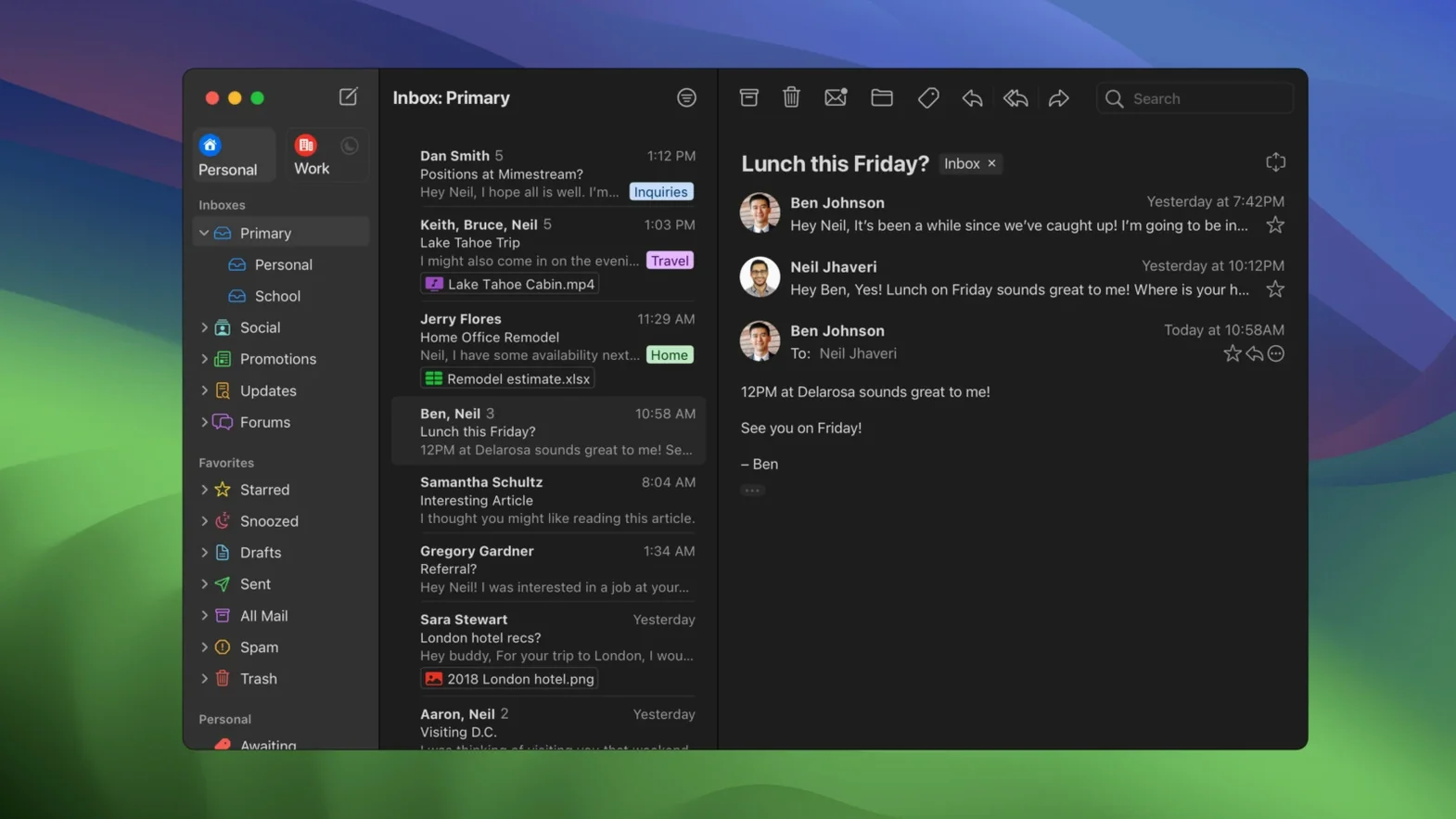
It is the client someone chooses after they have already tried a few. The sort of person who keeps a tidy inbox not because they have to, but because they have built habits around labels, filters and keyboard-driven sorting. They know Gmail’s web interface well enough to feel its friction, and they want to keep the engine while swapping the chassis for something that feels at home on a Mac.
Offline access — full. Not a partial sync or a bridge mode; the client works through cached mail without a connection, which matters during travel or on patchy Wi‑Fi.
Disk footprint — narrow. It caches recent messages but uses minimal space compared to a full local mirror, so a Mac with modest storage stays usable.
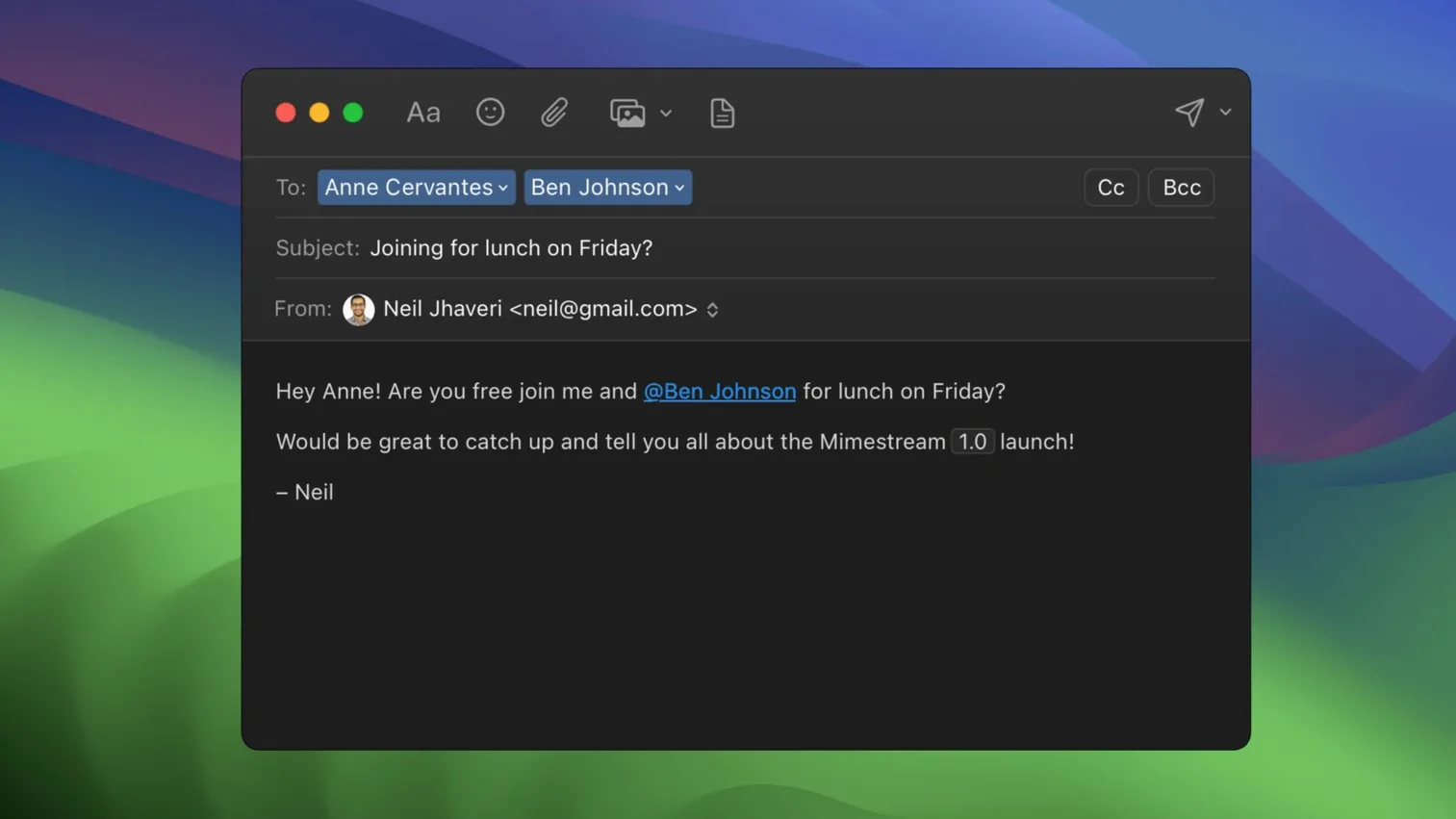
Alias and signature sync — invisible. Gmail aliases appear without manual entry; signatures mirror those set in Gmail and update automatically. No separate configuration panel to maintain.
Gesture integration — direct. macOS swipe gestures for sorting and archiving work with the system trackpad, keeping triage quick and touch-driven for those who prefer mouse-free handling.
Notification model — native macOS alerts. New messages trigger standard system notifications, so mail awareness integrates with a user’s existing Focus and notification-stacking setup rather than sitting apart.
Three‑second launch and zero‑lag label switching on Apple Silicon
After a week of regular use the impression settles into something predictable. The client launches in about three seconds on Apple Silicon, a fraction slower on Intel machines from 2018 or later. Once open, navigation between labels and conversations feels immediate — not web-immediate, but local-app immediate. There is no spinner when you click a thread, no pause while the interface catches up with itself.
Memory use sits around 300–400 MB with a moderate inbox open, climbing toward 600 MB when several conversations are loaded and search is active. That is heavier than Apple Mail but lighter than running Gmail in a Chrome tab with a few extensions enabled. The trade-off is straightforward: you exchange some RAM for the responsiveness of a native app that does not share resources with a browser engine.
Stability has been uneventful. Across weeks of daily use, crashes are rare enough to be memorable — perhaps one after waking from sleep on an older macOS build, not repeated. Background sync does not stall; the client picks up where it left off after a network drop without manual intervention. When offline mode kicks in, the transition is silent. Searches run against the local cache, and messages composed offline queue up and send once the connection returns.
Battery impact is modest. On an M-series MacBook, an hour of active email triage with the screen at medium brightness draws roughly the same charge as the same period in Apple Mail. Push notifications, now private by default on macOS 26 and later, do not cause the energy-use spikes that some third-party mail clients trigger with frequent polling.
Trying to treat Gmail labels like IMAP folders
Switching from another client or from the Gmail web interface brings a few habits that do not translate cleanly. Here are the ones that trip people up early.
Expecting IMAP-style folder management. A user coming from Apple Mail or Thunderbird sometimes looks for a way to create local folders or drag messages into a non-Gmail structure. Mimestream mirrors Gmail labels, not folders. Attempting to organise mail outside the label system leads to confusion; the client does not have its own storage hierarchy, and that is by design.
Ignoring the keyboard shortcut set choice. The preferences panel offers both Gmail and Apple Mail shortcut sets. New users often leave the default and then wonder why familiar keystrokes do not work. Choosing the set that matches muscle memory — usually the one from the previous client — removes most friction within the first hour.
Assuming all Gmail features made the cut. Gmail add-ons, Google Chat integration and certain admin-console settings for Google Workspace accounts are not present. A user who relies heavily on third-party Gmail extensions in the browser will find gaps. Checking which workflows depend on those extensions before switching saves a later retreat.
Not enabling offline mode early. The client supports full offline access, but it needs time to build the initial cache. Setting it up while on reliable Wi‑Fi, ideally overnight, means the first time you open the laptop on a train the inbox is ready. Waiting until you are already disconnected guarantees a blank window and frustration.
Overlooking the tracking-pixel blocker. The client blocks pixels from more than 50 known tracking services by default, but the setting is quiet. A beginner who does not explore preferences may never know it is there — and may assume images load the same way they do in a browser.
Gmail API means Google accounts only
Does it work with non-Google email accounts? No. The client uses the Gmail API and connects only to Google accounts. A personal Gmail address, a G Suite legacy account or a Google Workspace account all work; iCloud, Outlook, Yahoo and standard IMAP accounts do not. If you need a client that handles multiple providers under one roof, this is not the one.
How does it handle large mailboxes? Well, for most definitions of large. Accounts with tens of thousands of messages load without stalling, though the initial sync on a huge mailbox (over 100,000 threads) can take an hour or more. Once cached, search stays responsive and navigation does not degrade. The disk footprint remains modest because the client caches recent messages rather than pulling down a full local mirror.
Can I use it alongside the Gmail web interface? Yes. Because it syncs through the API, changes made in one place — labels applied, messages archived, drafts started — appear in the other within seconds. There is no conflict resolution to manage. Some people keep the web interface open for occasional tasks like managing filters, while doing daily triage in the native client.
What happens to my Gmail shortcuts? They carry over if you select the Gmail shortcut set in preferences. The mapping is close to identical, with a few additions for macOS conventions. If you prefer Apple Mail shortcuts, switching the set makes ⌘-Delete archive and ⌘-Shift-D send, matching years of muscle memory from the built-in Mail app.
Does it support multiple accounts? Yes. Each Google account appears in the sidebar as its own entry with its own label hierarchy, and notifications indicate which account received a message. Switching between accounts is a single click or a keyboard shortcut.
Private Push notifications arrive enabled by default
Version 1.10 brought a handful of changes that affect daily workflow rather than just the changelog. The most visible is Private Push notifications, now enabled by default on macOS 26 and later. In practice this means badge counts and alert previews update without the client needing to maintain a persistent connection to Google’s servers in the same way. Notifications feel faster to arrive, and the privacy model fits more naturally into a Mac setup where network activity is already under scrutiny.
The optional All profile — a unified inbox view across multiple accounts — arrived in the same release. Before this, users with several Google accounts had to switch between them to see everything. Now a single click collapses the divide, which changes the morning routine for anyone managing personal and work mail in the same client.
A smaller but practical addition: addresses for unknown senders now appear in the message header without needing to open a separate panel. For someone who gets legitimate mail from first-time contacts — freelancers, new clients, mailing lists — this removes a small but constant annoyance. The sender’s address is visible at a glance, making it easier to judge whether a message is genuine before opening attachments or clicking links.
Configurable notification actions round out the 1.10 changes. Users can set what a swipe or click on a notification does — archive, delete, mark as read — rather than accepting a fixed behaviour. For people who triage from the notification centre without opening the full client, this saves a step on every message.
Version 1.10.8, the current stable release, is a maintenance update that firms up the Private Push default and addresses edge cases with notification delivery on older macOS versions. The day-to-day feel is unchanged from 1.10, but notifications arrive more reliably for users who had intermittent delays.