Aspecten
 Download (118 MB)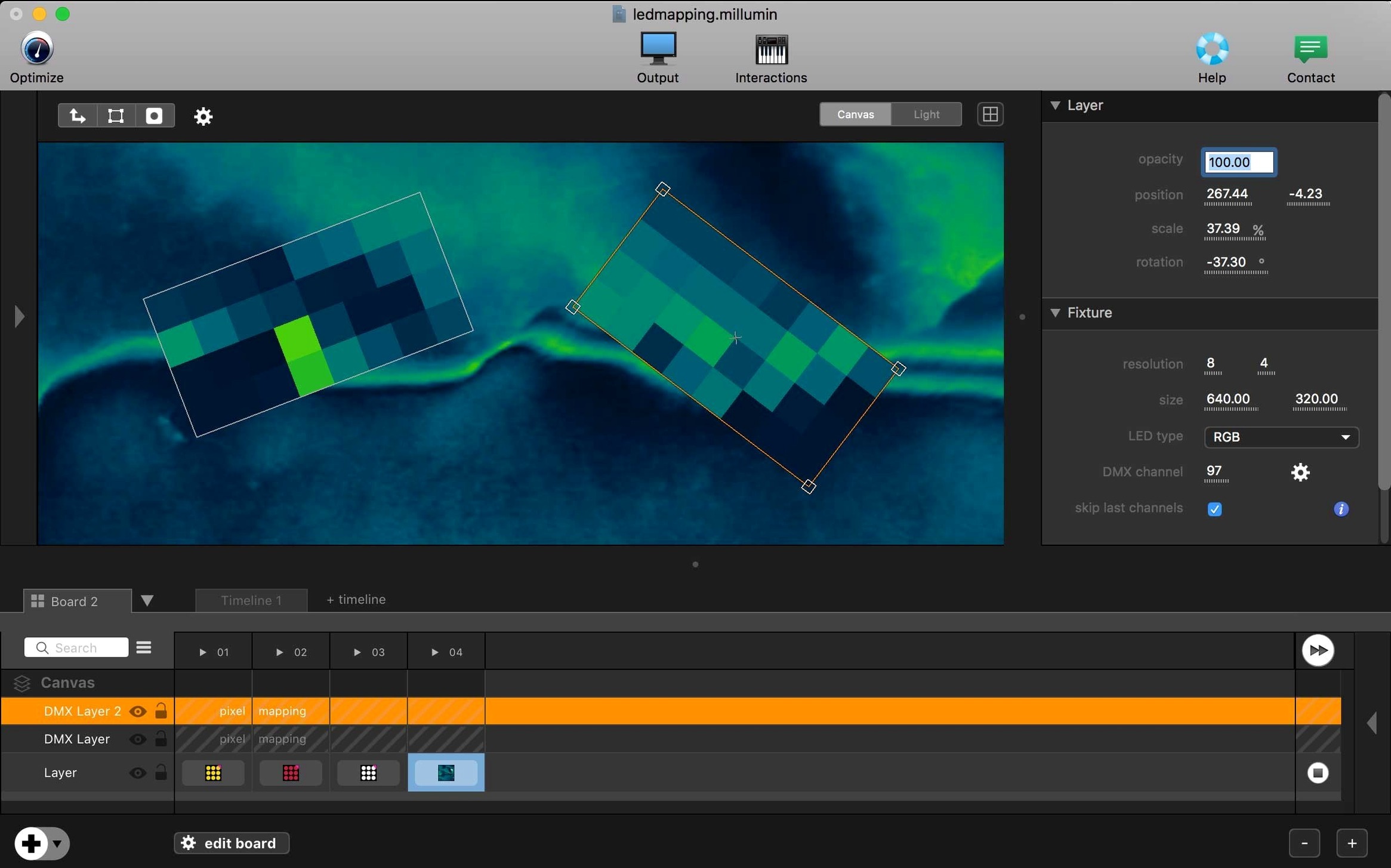
Checking what changed
No change notes for version 5.14.j were supplied, so the release appears to be a maintenance update rather than a feature drop. The core remains what it has always been: a tool for building audiovisual, interactive shows for theatre, dance, videomapping and installations.
Connecting the stage
Millumin links a growing set of devices and software into a single timeline. You control projectors, lights, cameras and audio from one place.
Learning as you go
Contextual help opens with the app, and online tutorials are included. When a newer V5 release appears, the help centre will already be aimed at that version.
Syphon and NDI connections that survive a show
Millumin does not try to be an island. It works alongside other Mac apps and system features in ways that matter once a show leaves the rehearsal room and hits the stage.
It understands Syphon and NDI natively, so you can feed live visuals from MadMapper, Unity or a Max/MSP patch straight into a Millumin layer without rendering files in between. A practical arrangement: generate content in one app, trigger and sequence it in Millumin, and send the result onward to a mapping processor or a media server.
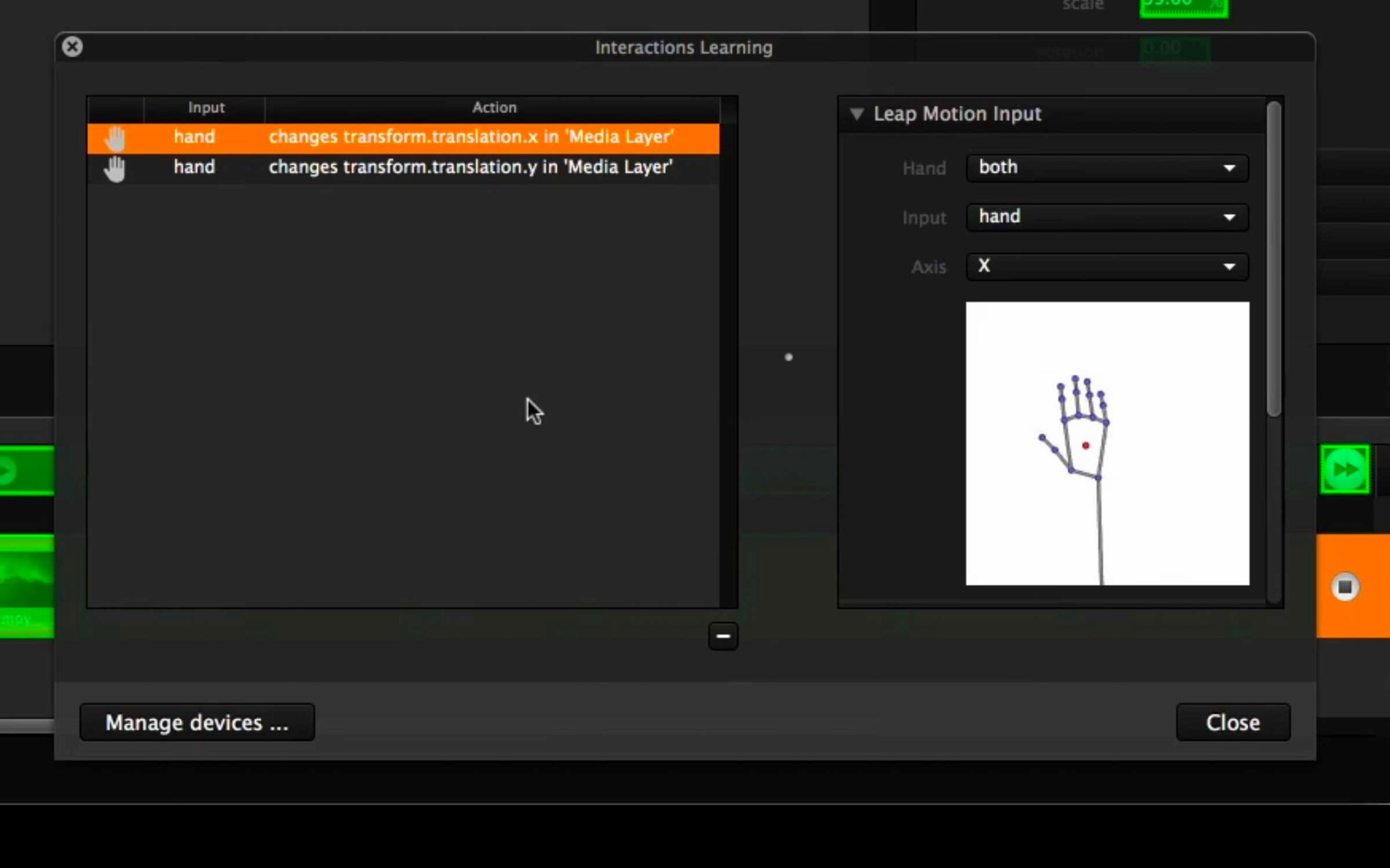
On the macOS side, Core MIDI support means any class-compliant controller lights up in the preferences panel without driver hunting. An Akai APC or a Korg nanoKONTROL plugged in over USB appears as a source you can assign to cues, layer opacity or column stepping. The same goes for OSC — TouchOSC on an iPad, a QLab machine sending network messages, or a custom script from a Node.js process can all poke Millumin during a performance.
AppleScript hooks exist but are lightly documented. You will not build a full automation suite from them, but triggering column jumps or timeline start/stop from a system-wide hotkey utility like Keyboard Maestro is straightforward enough. For audio, Millumin leans on Core Audio, so aggregate devices and multi-channel interfaces set up in Audio MIDI Setup carry over without extra configuration.
One area to watch: Millumin saves projects as bundles. Time Machine, Dropbox and iCloud Drive handle these safely, but do not keep a project open inside a synced folder while another machine reads it — the bundle structure does not lock, and you risk overwriting cues.
First days with Millumin
After dragging the app to Applications and launching it, a few habits will save time later.
- Let the contextual help panel stay open. It updates as you switch between the dashboard, the timeline and the canvas. Most controls explain themselves when you hover, but the panel catches the interactions that are not obvious — like how column behaviours inherit from the layer stack above them.
- Build a tiny two-column project before touching your real show file. Three layers: video, still image, a black solid. Assign them to different outputs if you have a second display attached. Step through the columns with the spacebar. Getting the playback logic straight on a toy setup prevents fumbling during tech week.
- Set your output canvas resolution early. Changing it later does not scale existing layer positions; you will have to re-place everything. Decide whether you work at 1920×1080 or a custom mapping resolution before importing media.
- Check the media import settings. By default, Millumin references files rather than copying them into the project bundle. If your media lives on an external drive, keep the drive name and path stable — the project expects the exact same location every time.
- Run through the online tutorials labelled for V5. Even if you know earlier versions, the interface shifted enough that ten minutes with the sample projects will clarify the new column and dashboard behaviour.
A scenographer preparing a site-specific piece
Consider someone designing projection for a dance piece in an old factory hall. Three projectors cover uneven brick walls, a concrete pillar and a shallow alcove. The choreographer wants textures that shift with the dancers' positions, triggered not by a fixed timecode but by a stage manager watching the performance.
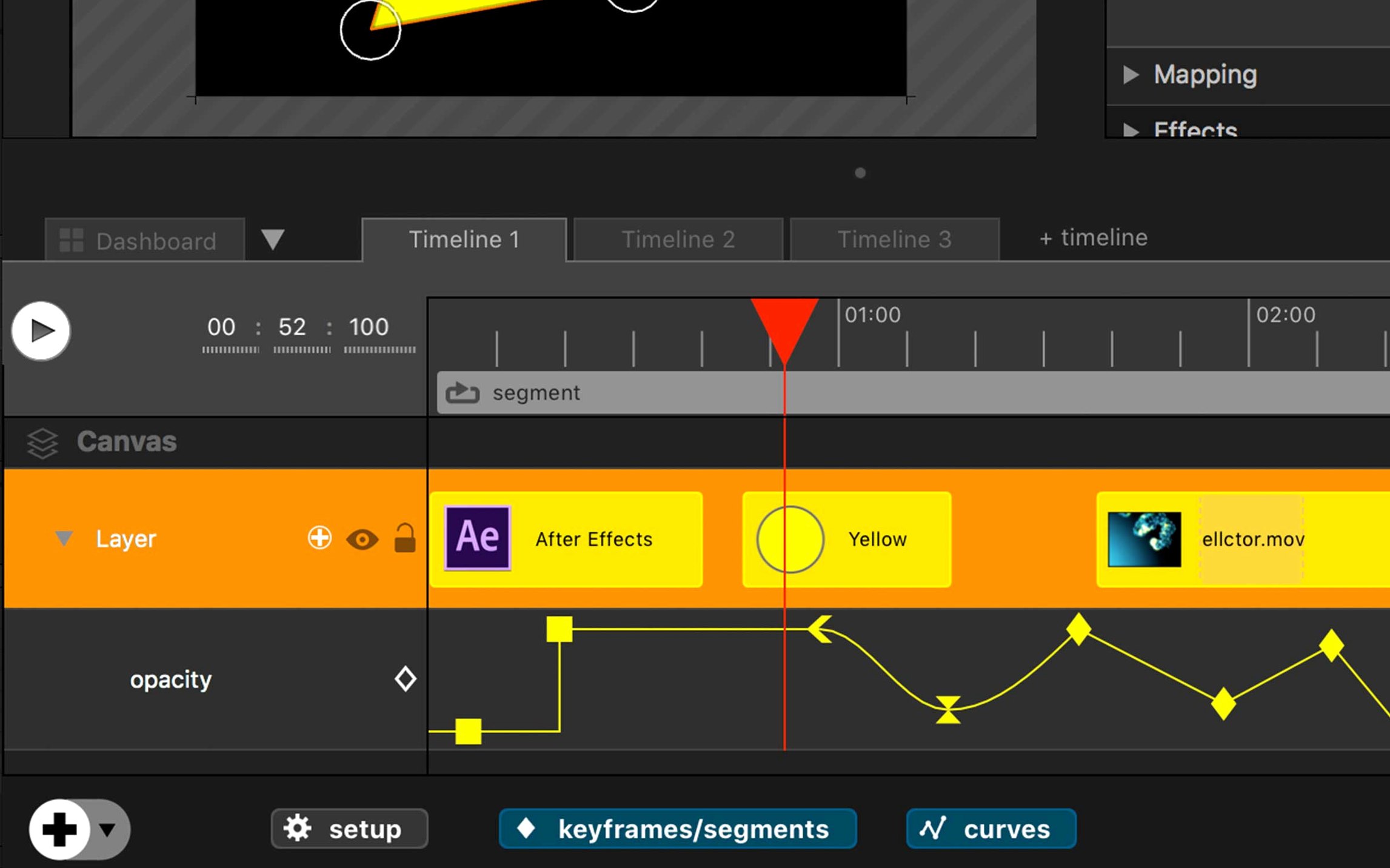
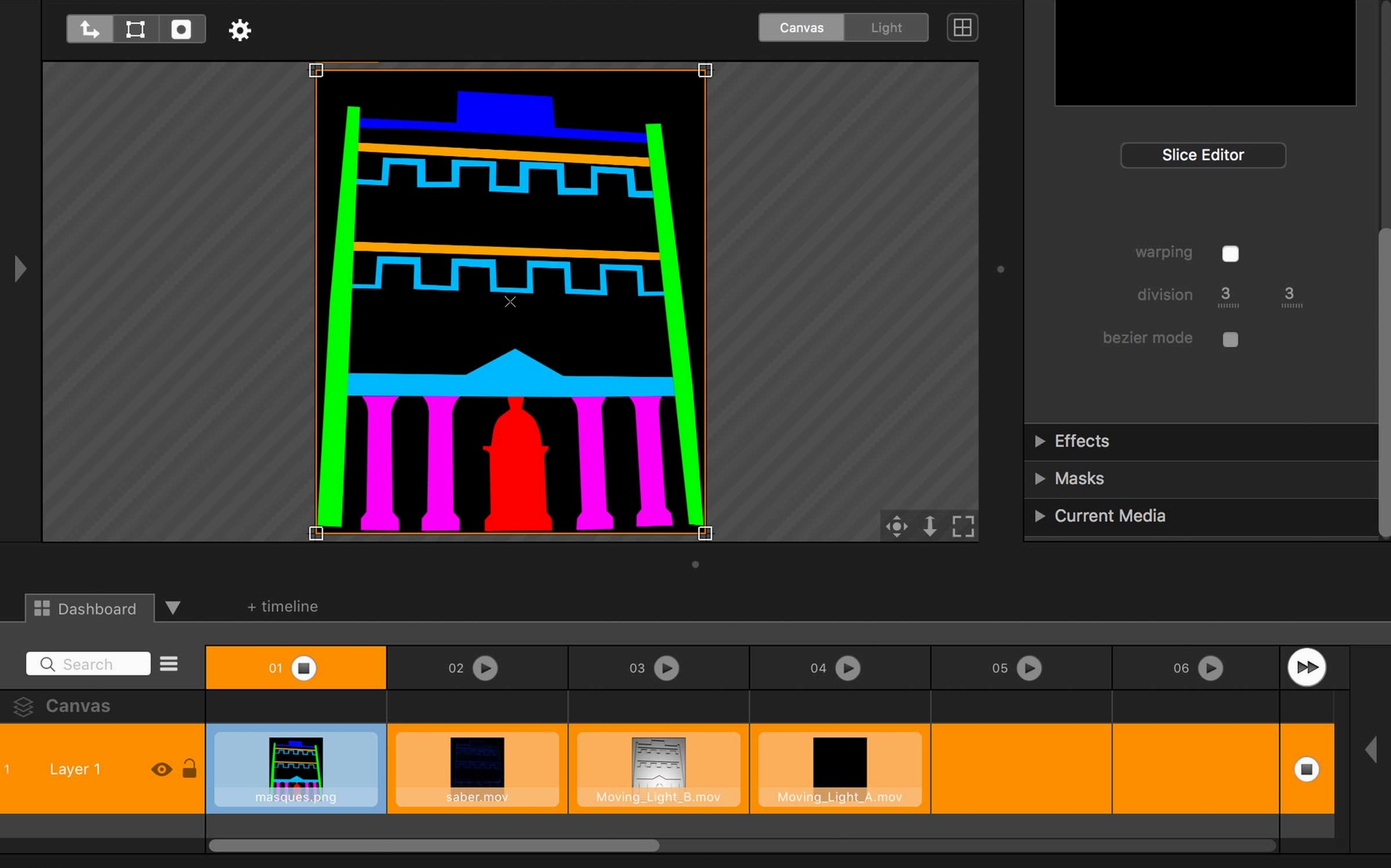
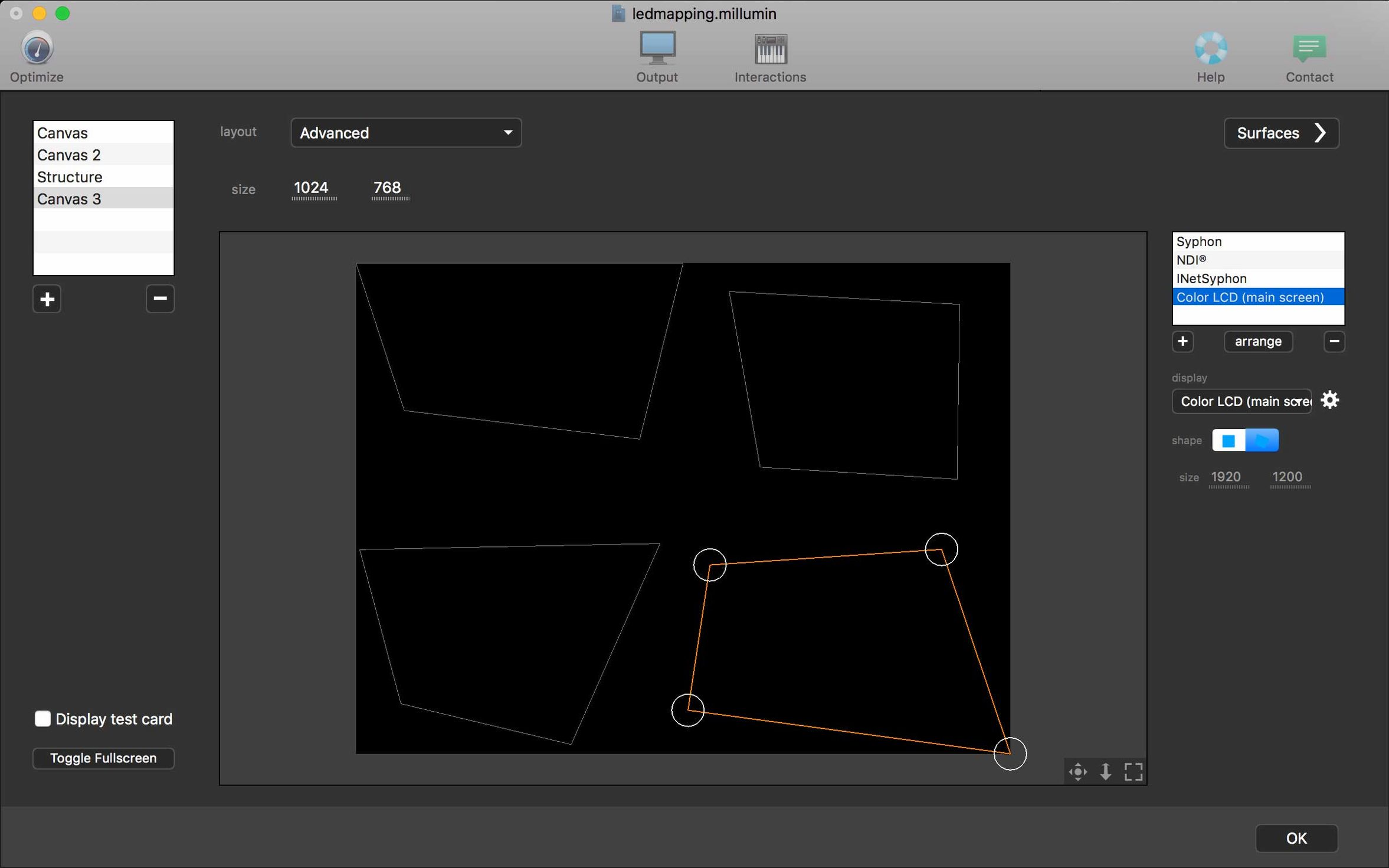
This user imports architectural photos into Millumin as reference stills, then draws soft masks on each output canvas to match the three projection zones. Video layers hold looped abstract textures — water reflections, grain, slowly drifting shadows — all at different blend modes. The timeline stays simple: each column represents a distinct visual state. The stage manager steps through columns via a MIDI foot pedal, advancing when the dancers reach a mark.
During an afternoon session, the scenographer adds an OSC trigger from a phone running a custom TouchOSC layout. A single button press sends a "go next" command, which feels less intrusive than reaching for a laptop in a dark room. Millumin accepts it without fuss. The whole setup runs on a MacBook from 2019, Intel-based, driving three outputs through a DisplayLink dock. Not elegant, but stable.
Double‑click the project and the dashboard paints a composite preview
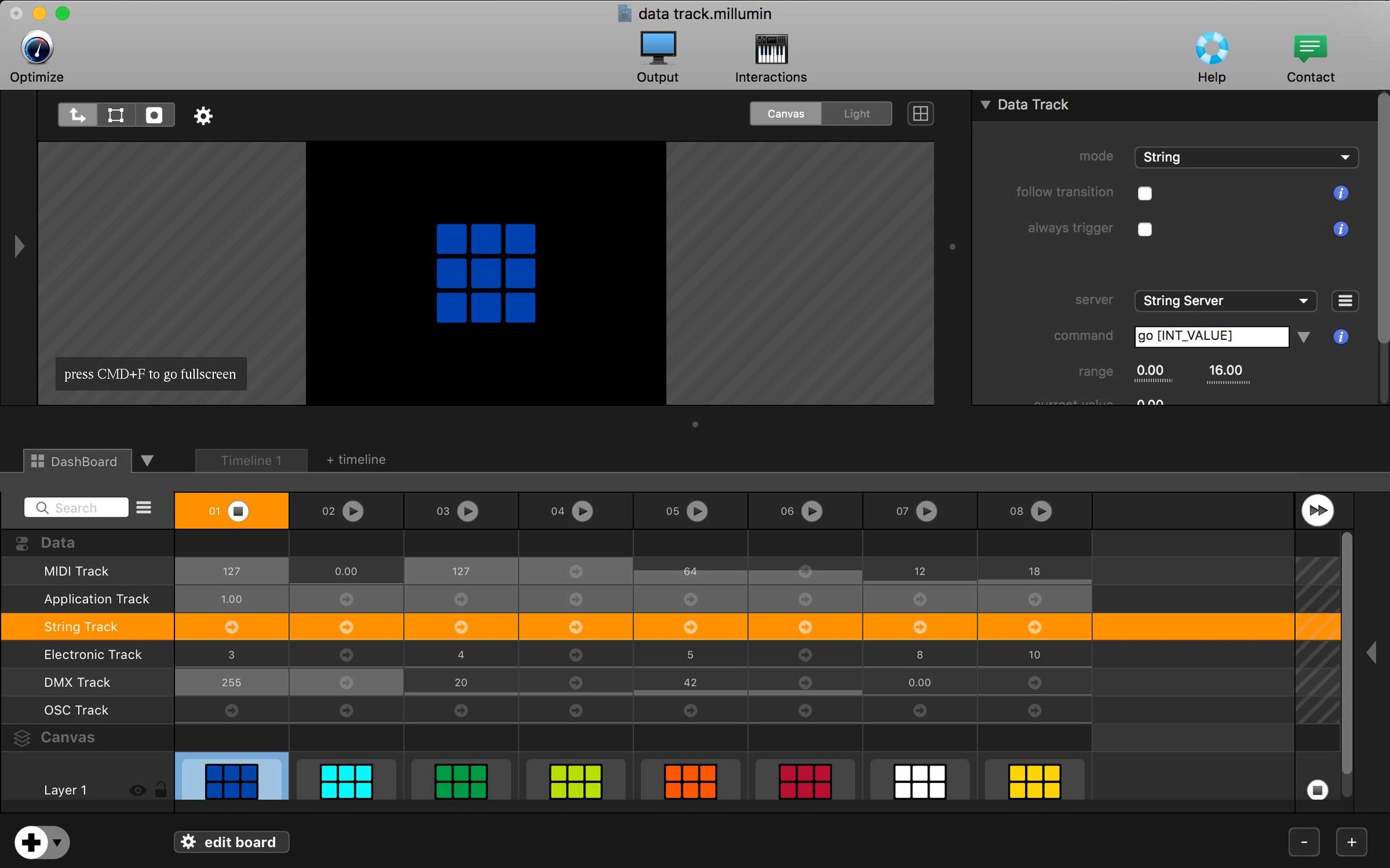
It is 09:30. The Millumin project from last night is waiting on the desktop. Double-click, and the dashboard opens — a grid of columns and layers, the canvas showing a composite preview on the primary display while a projector shows the mapped output fullscreen on a second monitor.
First task: replace a placeholder video of drifting smoke with the final render from the animator. You drag the new file from Finder onto the layer thumbnail. The old clip swaps out, keeping its in-point, out-point and blending mode intact. A quick scrub through the timeline confirms the loop transition is clean.
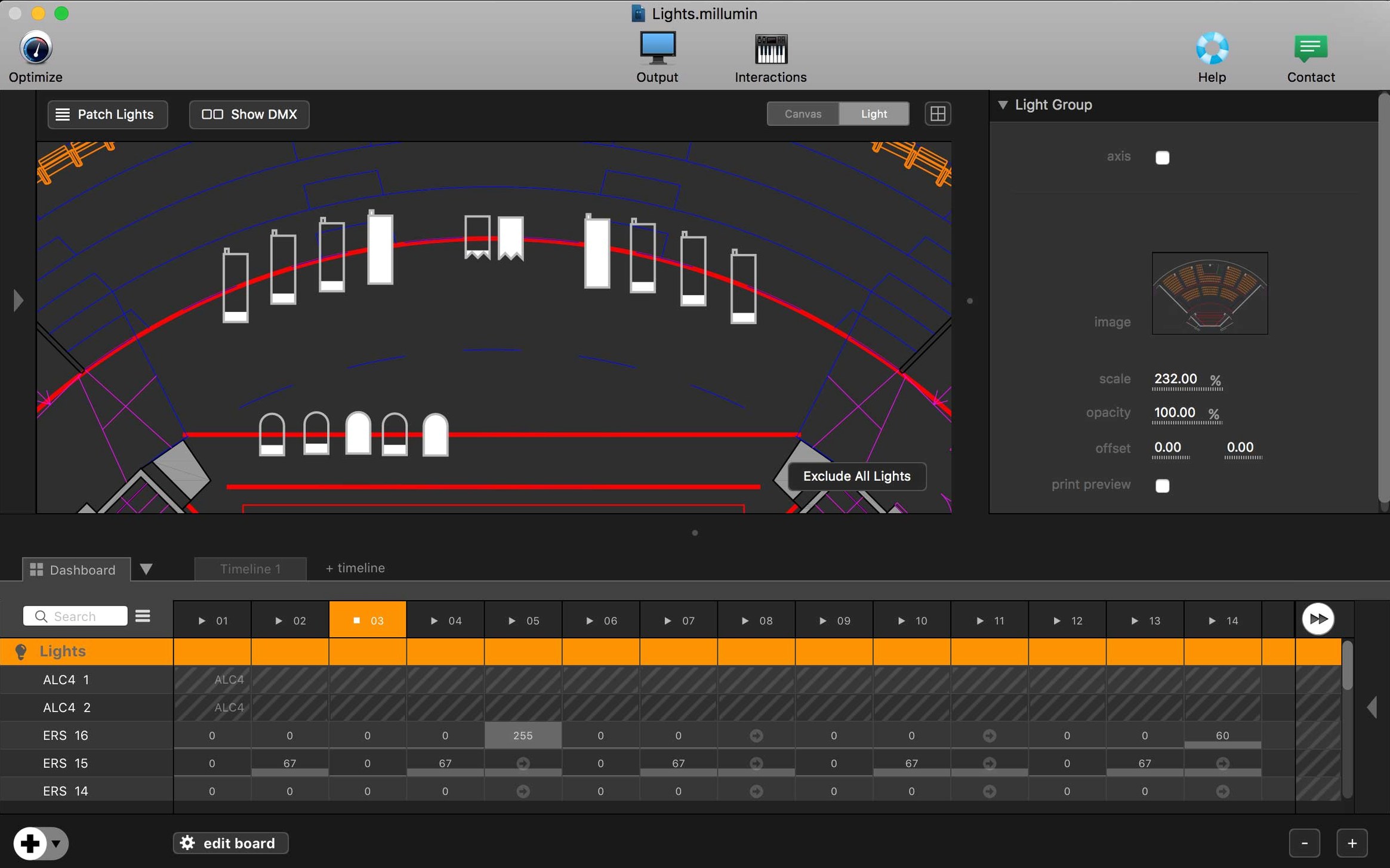
Next, a lighting cue needs to land exactly as the video fades. You select the column, open the dashboard inspector, and add a DMX cue to a generic RGBW fixture patched via Art-Net. Millumin sends the values over Ethernet. No external lighting console involved — one less piece of kit to lose sync.
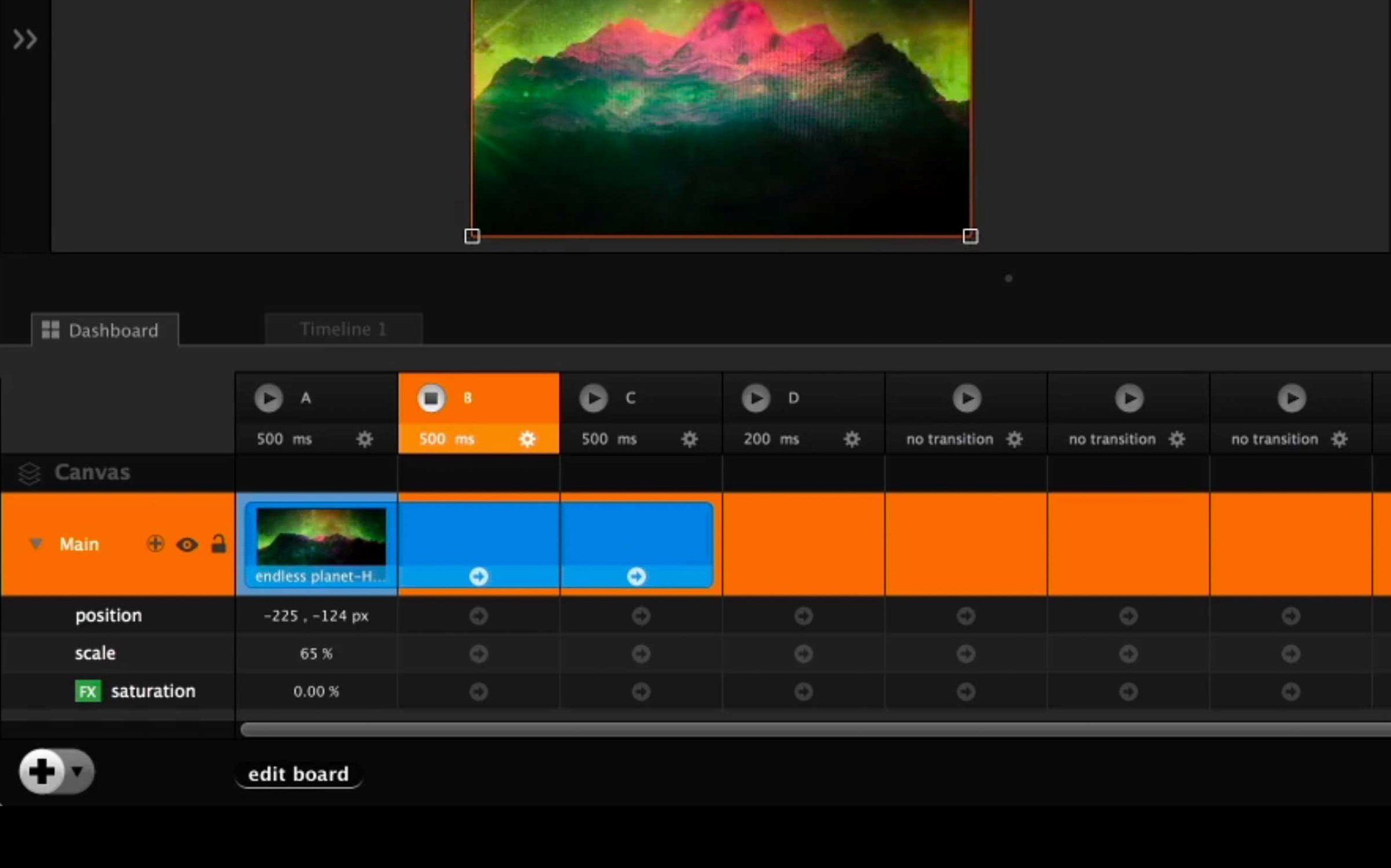
Now you want the next column to auto-follow after twelve seconds, but only if nobody has overridden it manually. You set the column duration to 12s and leave the trigger mode as auto. A small flag in the column header changes colour to remind you it will advance on its own.
A test run: spacebar starts playback. Column 1 holds a title card. Column 2 begins the smoke loop, the DMX cue fires, and at the twelve-second mark the timeline slides to column 3 — a blackout state. The projector fades to nothing. You tap the spacebar again and the show stops, ready to reset to the top.
Before closing the project, you check the media manager pane. One file is flagged with a warning icon — the path is absolute and points to a drive that is not connected. You relink it to the copy sitting in the project folder and save. The warning clears. The project is portable again.
By 10:15, the file is on a USB stick, headed to the venue. No rendering, no exporting. Millumin reads its own project, and the Mac at the venue only needs the app and the media files — nothing else.