Aspecten
 Download (2.4 GB)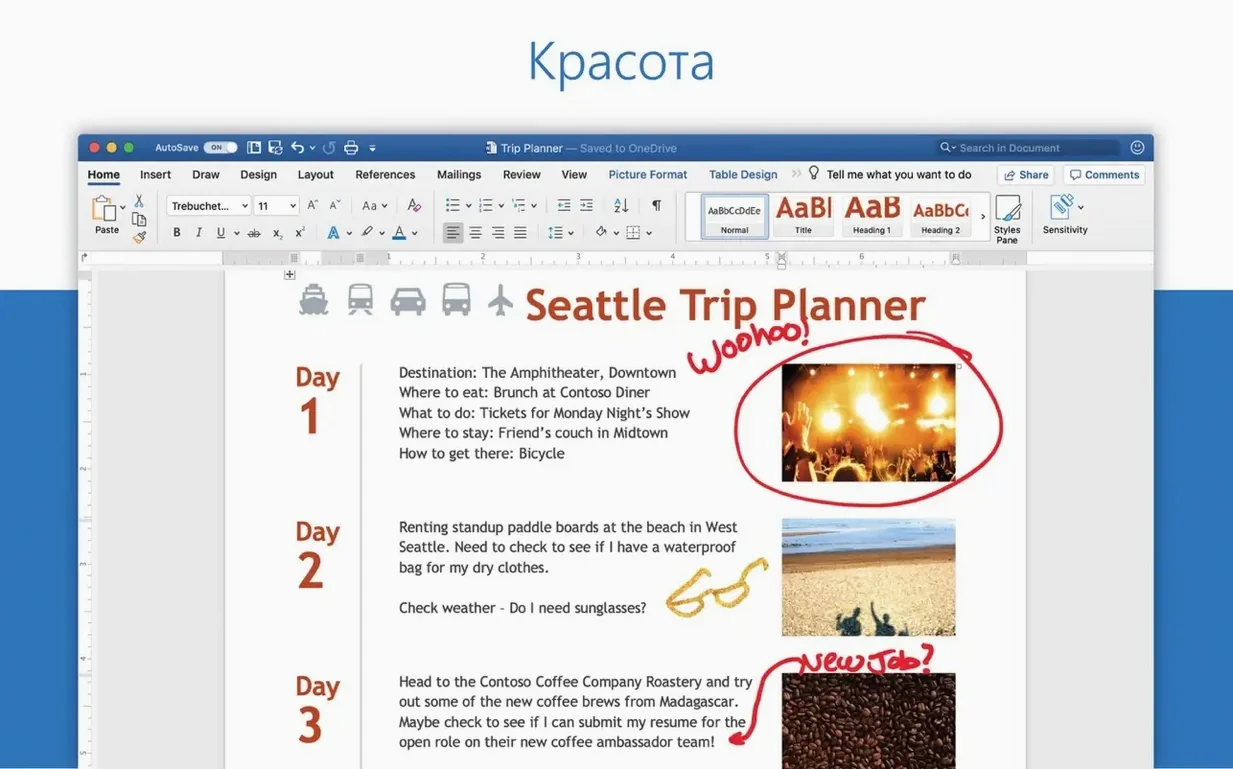
Word for Mac 16.93 needs macOS 13 (Ventura) or later, and the installer runs natively on Apple Silicon as well as Intel machines. The interface comes in seventeen languages, including Dutch, Japanese, and Polish.
Good for
- Creating, editing, and sharing text documents, including files attached to email messages.
- Working on the same document with others through built-in collaboration tools.
- Accessing a familiar writing environment as part of Microsoft 365, without needing a separate purchase of the full Office suite.
Keep in mind
- Equation editing had a known bug in a prior build — fixed in the 16.93.2 update alongside general performance work.
Works offline for most editing and saving tasks
One question surfaces more than any other: does the app work without an internet connection? The answer is yes, for most tasks. You can create, edit, and save documents locally without a network. Collaboration features and cloud sync through OneDrive require a connection, and the software checks licence status periodically, but offline writing is a core scenario Microsoft designed for.
Another recurring concern is file compatibility with older versions of Word. Documents saved in the current .docx format open in Word 2010 and later without trouble. For recipients stuck on much older software, the app still exports to the legacy .doc format. Tracked changes, comments, and formatting survive the round trip better than many expect, though complex layouts built with newer layout tools may simplify when opened in versions before 2016.
People also ask whether Word for Mac behaves differently from its Windows counterpart. The short answer: the document engine is shared, so text flow, pagination, and style handling match. Differences live at the edges — keyboard shortcuts follow macOS conventions, the ribbon has its own Mac layout, and some advanced automation features like ActiveX controls are absent on the Mac side. If you exchange files with Windows users daily, the fidelity is high enough that discrepancies rarely interrupt work.
Finally, a practical question about disk space. The app itself is not especially large — around a gigabyte and a half once unpacked — but the full Office 2024 package adds several more. If you only need Word, the standalone installer keeps the footprint modest. Font caches and autorecovery files accumulate over time, so a few hundred megabytes of breathing room beyond the base install is sensible.
Turn on Always create backup copy before you write
After installing, spend five minutes in the Preferences dialogue before writing anything serious. Three settings shape daily comfort more than any others.
First, under Save, turn on Always create backup copy. It places a duplicate of the previous saved version alongside your working file, which has rescued more drafts than any other single checkbox. Second, check the AutoRecovery interval. The default is ten minutes; writers who type fast or work on battery power often shorten it to five. Third, in View, decide whether you want the ribbon collapsed by default. Many Mac users prefer the single-line toolbar that appears when the ribbon is hidden, clicking through to tabs only when needed.
The first time the app launches, it offers to sign in with a Microsoft account. Doing so activates the collaboration features and ties the app to OneDrive. If you work alone and store files locally, skipping this step keeps the experience simpler. You can always sign in later from the top-right corner of the window.
Templates deserve early attention. The built-in gallery under File > New from Template holds dozens of starting points — meeting minutes, résumés, flyers — that save layout time. Many people never open it after the first week. Browsing it once and pinning the two or three you might use regularly makes future document setup faster.
A small but useful habit: set the default paste behaviour. Under Edit > Paste Options, the app can match destination formatting by default instead of keeping the source formatting. For anyone who copies text from web pages or emails into documents, this removes a frequent annoyance.
Quick Look previews and right-click Open With in Finder
Word integrates with Finder at a level many users overlook. You can select several .docx files in Finder, press the spacebar for Quick Look, and read them without opening the app. Right-clicking a file and choosing Open With offers the choice between Word and TextEdit, but also Pages if it is installed. Drag a .docx file onto the Word icon in the Dock, and it opens in a new window. These are small things that add up during a working day.
The app responds to standard macOS text services. Select a paragraph and press the keyboard shortcut you have assigned to a systemwide Service — summarise, make new sticky note, send to Reminders — and Word passes the text along just as TextEdit or Mail would. The Share button in the toolbar connects to Mail, Messages, and AirDrop, wrapping the document as an attachment. For people who send drafts to colleagues frequently, this cuts out several steps.
OneDrive integration runs deeper than simple file storage. When you save a document to a OneDrive folder, the app enables real-time co-authoring. Other invited editors see changes as they happen, with coloured cursors marking each person's position. The version history panel, reached through the document title bar, lets you browse and restore earlier states, much like Time Machine but contained within the file itself.
Dictation works through the macOS microphone. Press the microphone key or use the system dictation shortcut, and spoken words appear in the document. Accuracy depends on microphone quality and background noise, but for quick brain-dumps before editing, it is a practical alternative to typing. Word also respects the system spelling and grammar settings, layering its own proofing tools on top of macOS text-checking without conflicts.
For reference management, the app connects to Zotero and Bookends through their plugins. Citations inserted this way update automatically when the source list changes. People writing academic papers or long reports often set this up in the first week and then forget it is there — which is exactly how good integration should feel.
Apple Pages feels more at home on the platform
Three other word processors occupy the same space on macOS: Apple Pages, Nisus Writer Pro, and LibreOffice Writer. Each solves the same basic problem differently.
Apple Pages ships free with every Mac and feels more at home on the platform. Its interface is sparser, its template designs are more elegant, and it handles images and layout with a drag-and-drop freedom that Word's ribbon-bound approach lacks. The trade-off comes with document exchange. Pages can open and export .docx files, but complex formatting — multi-level numbered lists, certain table styles, tracked changes from Word — often shifts. For someone who writes alone and prints or exports to PDF, Pages does everything needed. For someone who must send editable .docx files to colleagues on Windows, Word remains the safer bet.
Nisus Writer Pro is a niche tool with a devoted following among technical writers and people who work with long, structured texts. Its style system is more logical, its find-and-replace supports regular expressions natively, and its file format is based on RTF — open, readable, and unlikely to become obsolete. But it lacks real-time collaboration, its .docx export is functional rather than pixel-perfect, and its interface looks like it belongs to an older macOS era. It suits solo authors who value search power and file longevity over team features.
LibreOffice Writer is open-source and cross-platform, with file compatibility that approaches Word's own. It handles .docx well and opens legacy .doc files that even Word sometimes struggles with. The interface is functional but busy, and macOS integration is thinner — no native Share menu support, no system dictation passthrough, and a slightly sluggish feel on Apple Silicon compared to Word's native build. For occasional document work, it is more than capable. For daily professional use where speed, polish, and collaboration matter, Word pulls ahead.
What Word offers that none of these match is the combination: real-time co-authoring, deep .docx fidelity, a polished (if complex) interface, and an ecosystem that reaches into Outlook, Teams, and OneDrive without friction. The cost is the weight of the app itself and the subscription model Microsoft favours. Choosing between them depends less on features than on who else reads your files.
Launches in about three seconds on Apple Silicon
Word 16.93 launches in about three seconds on a recent Apple Silicon Mac, with a cold start taking a second or two more. Once open, document rendering is immediate for files under fifty pages. Scrolling through a 200-page manuscript with embedded images remains smooth, without the micro-stutters that plagued earlier versions on Intel hardware.
Memory use sits around 400–600 MB for a typical session with three or four open documents. That figure climbs when working with image-heavy files or when the collaboration engine is active, but rarely exceeds a gigabyte. For an app of this complexity, the footprint is reasonable. The background process Microsoft AutoUpdate (MAU) adds a negligible 50 MB and checks for updates without noticeable CPU spikes.
Stability in the 16.93 release is solid during ordinary use. The app has not crashed once during a week of drafting, reviewing, and printing across a mix of local and OneDrive-stored files. The one known wobble — equation editing misbehaving — was addressed in the 16.93.2 patch, and the fix appears to hold. Users who work heavily with the equation editor in earlier 16.93 builds should apply the update, as the bug could corrupt the layout of mathematical notation on reopening.
Battery impact is moderate. Writing for an hour with Wi-Fi on and the screen at medium brightness draws about 8–10 percent of a MacBook battery. That is comparable to Pages and lighter than a web browser with many tabs open. Background autosave and spellcheck contribute little extra drain. If you work on battery with large documents, turning off real-time co-authoring when not needed trims a few more percent.
The app's responsiveness under load deserves a note. Running a complex find-and-replace across a 400-page document, with formatting changes included, completes in under a second. The same operation in LibreOffice Writer takes visibly longer. Word's native Apple Silicon support shows in moments like these — the app feels tuned for the hardware it runs on, not ported across with compromises.