Aspecten
 Download (37 MB)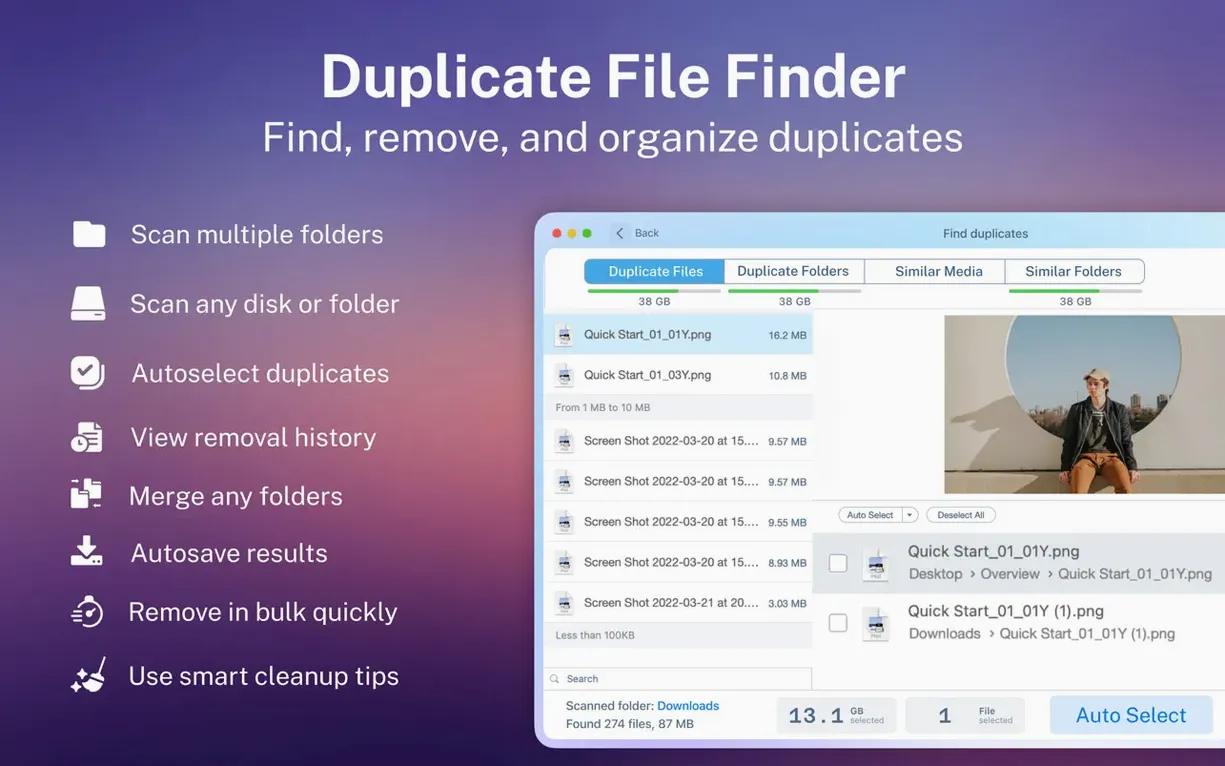
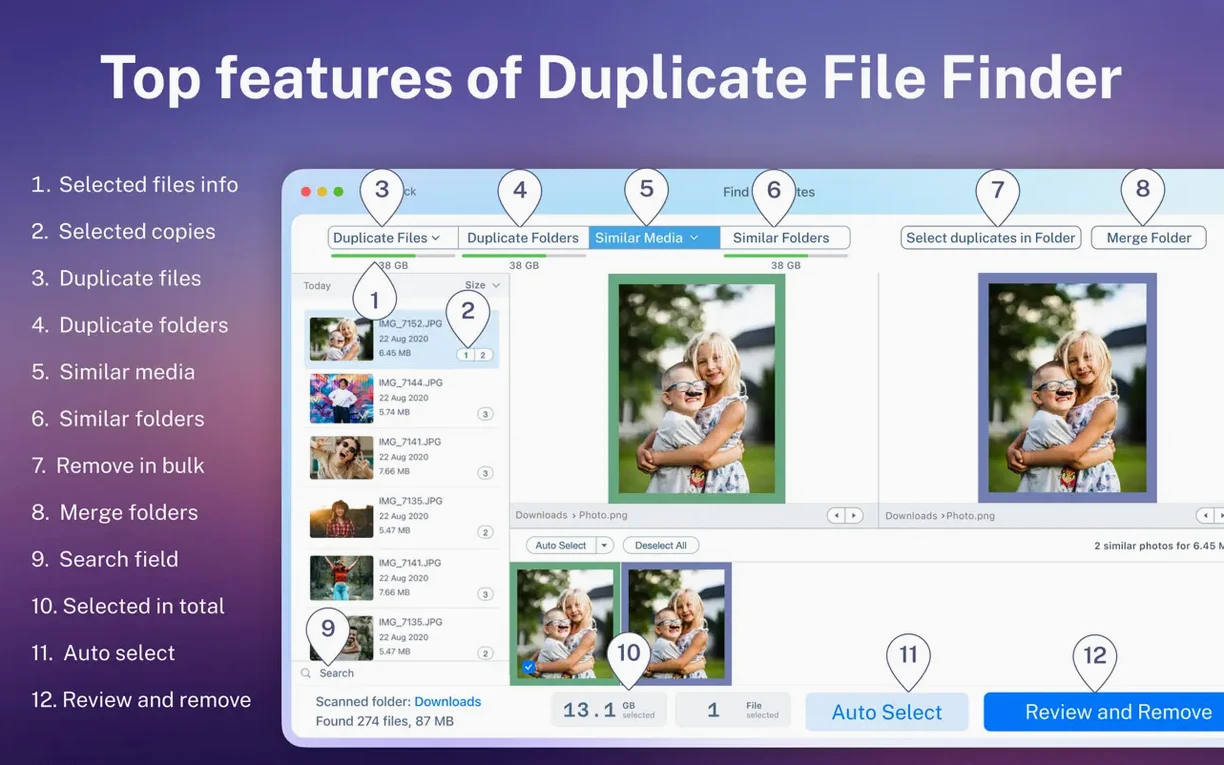
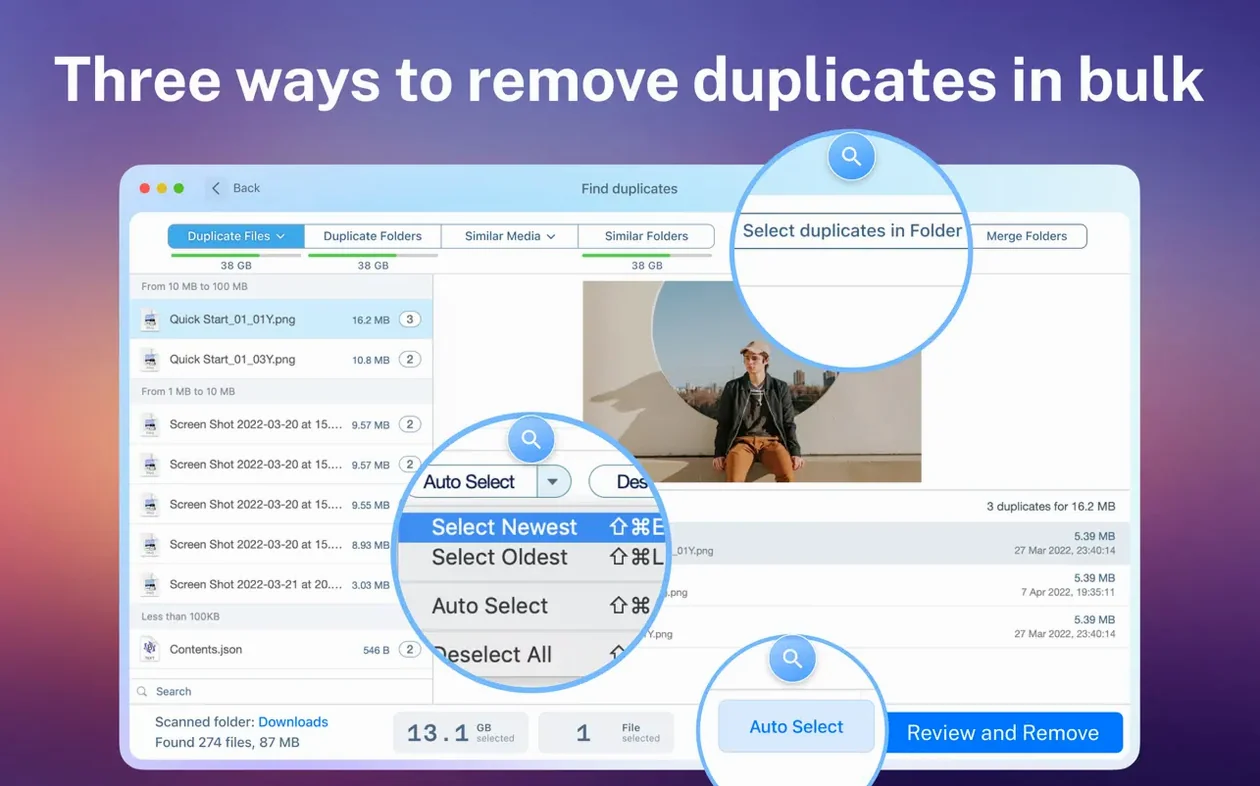
The ‘Smart Select’ button is one of the first controls worth getting to know. After a scan finishes, it automatically marks all but the oldest copy in each duplicate group, though you can configure it to keep the newest or files in a particular location instead. It removes the guesswork when a scan returns hundreds of groups and you simply want a safe, one-click selection to review.
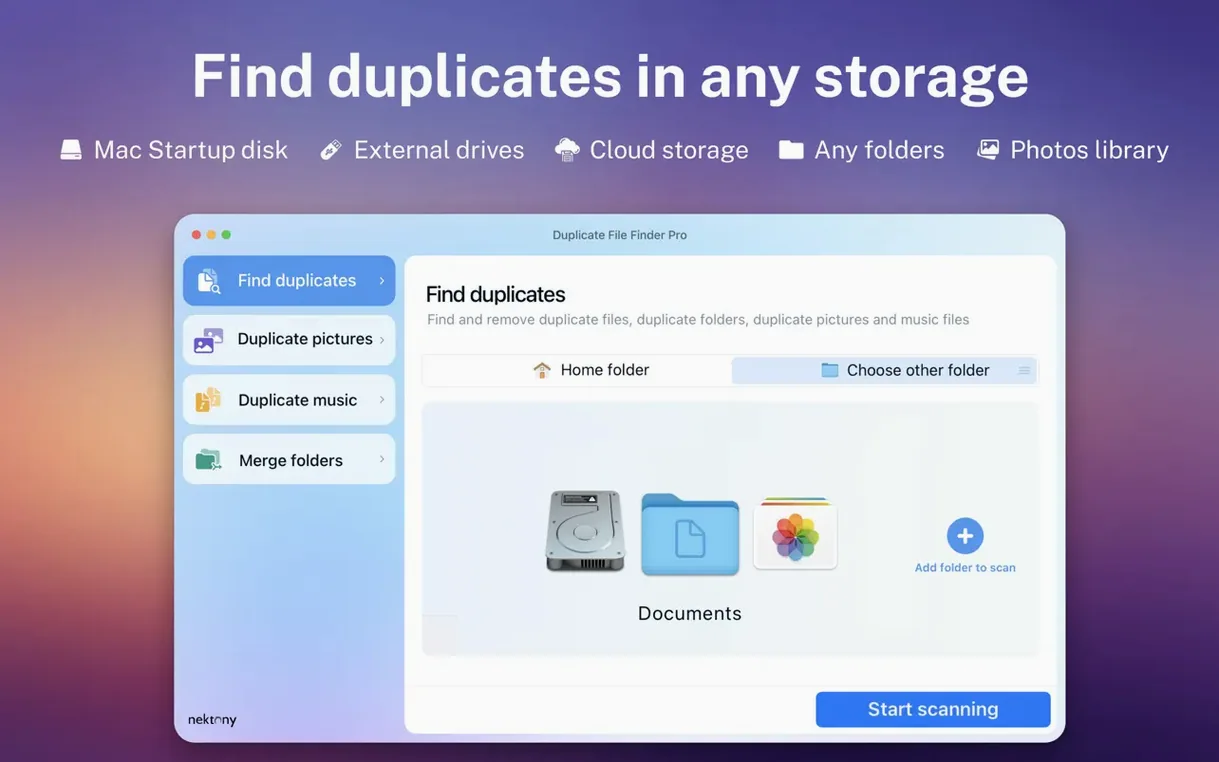
Scanning multiple folders or entire disks in a single pass is the natural next step. Adding folders from different drives lets you catch duplicates that have drifted apart over time, such as a photo library backed up to an external disk and a local copy you forgot about. The scan stays responsive on both Apple Silicon and Intel Macs, and the finder window integration means you can drag folders straight into the scan list.
Once the results appear, the file preview deserves attention. It shows enough detail — image thumbnails, document contents, file metadata — to confirm a file really is a duplicate before you move it to the Trash or delete it permanently. This is especially useful when the file names differ but the content matches, which happens often with renamed downloads or exported media. You can also restore recently removed duplicates if you change your mind.
The ‘Similar Folders’ feature is less obvious but equally practical. It finds folders that share a certain percentage of files, not just exact copies. This helps when you have several half-synced backup folders or a project that was duplicated and then edited in two locations. From there, you can merge folders to consolidate the contents without losing anything unique that each folder holds.
Scans 180k files in under four minutes while staying responsive
A scan of a 256 GB internal SSD with around 180 000 files completes in just under four minutes on an M1 Mac with 16 GB of RAM. The app stays responsive throughout, letting you browse results while scanning continues. Memory use sits around 280 MB during a scan and settles lower at idle, which is modest next to some bulkier cleanup utilities. CPU load is noticeable but not intrusive — the fans stay quiet on Apple Silicon and only spin up briefly during the final phase of a deep scan on older Intel hardware.
Stability has been consistent across several days of use. No crashes occurred when scanning network-attached storage, including a Samba share added through the macOS Connect to Server dialogue. Progress bars update honestly, and cancelling a scan midway does not leave orphaned temporary files or lock up the interface. Scanning a folder with over 400 000 small log files did introduce a brief pause during result sorting, but the app recovered without intervention.
Granular duplicate control versus Gemini 2's quick-sweep auto-select
Set against Gemini 2, Duplicate File File Finder Pro takes a more granular approach. Gemini leans heavily on a streamlined, single-view interface and auto-selects duplicates with minimal user input, which suits quick sweeps of a home folder. Duplicate File Finder Pro gives you category tabs, a detailed scan report and finer control over selection rules. The trade-off is a busier window, but the benefit is more confidence when cleaning a mixed set of work documents, media libraries and archived projects.
Compared with dupeGuru, the Nektony app feels more at home on modern macOS. dupeGuru runs on Apple Silicon through Rosetta and lacks a native file preview panel; its strength is its fuzzy matching algorithm, which catches similar images and audio tracks with slight differences. Duplicate File Finder Pro does not attempt fuzzy content matching for media, so dupeGuru still wins for spotting resized photos or re-encoded MP3s. In return, Duplicate File Finder Pro offers folder merging, a restore function and an interface that follows current macOS conventions, including dark mode and a sidebar layout familiar to anyone who uses the Finder.
CleanMyMac X bundles duplicate detection as one module among many. Its scan is faster on a first pass, but the results lack the category breakdown and the smart selection logic available here. If duplicate cleaning is the only task, Duplicate File Finder Pro is the more thorough tool. CleanMyMac makes sense when you also want malware scanning, app uninstallation and maintenance scripts in one package.
Workflow: cleaning a scattered photo library
A typical workflow for consolidating a photo collection spread across two drives goes like this:
- Open the app and drag the local
~/Picturesfolder and an external drive’sPhoto Backupfolder into the scan list. - Start the scan and switch to the category view once results begin populating. Select the Images tab to isolate JPEG, PNG and RAW files.
- Sort the duplicate list by Total Size so the largest clusters of wasted space appear first.
- Use the file preview panel to spot-check a few groups where the file names differ. Confirm they are genuine duplicates, not different exposures shot in burst mode.
- Click Smart Select and set it to keep files from the external drive, so the local copies are marked for removal.
- Review the selection quickly in the summary bar at the bottom of the window, then move the marked files to the Trash.
- Switch to the Similar Folders section and run a comparison between
PicturesandPhoto Backup. Merge any folders that are largely overlapping, keeping unique items from both sides.
The whole process takes under ten minutes and reclaims space while leaving one coherent folder structure behind.
Untangling six months of back-and-forth project copies across two drives
A freelance graphic designer keeps project files on the Mac’s internal drive and on a portable SSD that travels to client meetings. Over six months, several project folders were copied back and forth, edited in both places, and left in a state where neither drive holds a complete set. The designer runs Duplicate File Finder Pro with both drives added to the scan list. The duplicate file list reveals exactly which assets exist in both locations, while the similar folders feature identifies three project directories that share over 70 percent of their contents. Merging them through the app consolidates the scattered revisions into single folders on the SSD. The internal drive is then cleaned of duplicates, freeing 34 GB without losing a single working file. What would have taken an afternoon of manual comparison in Finder columns is resolved in one scan and two merge operations.