Aspecten
 Download (42 MB)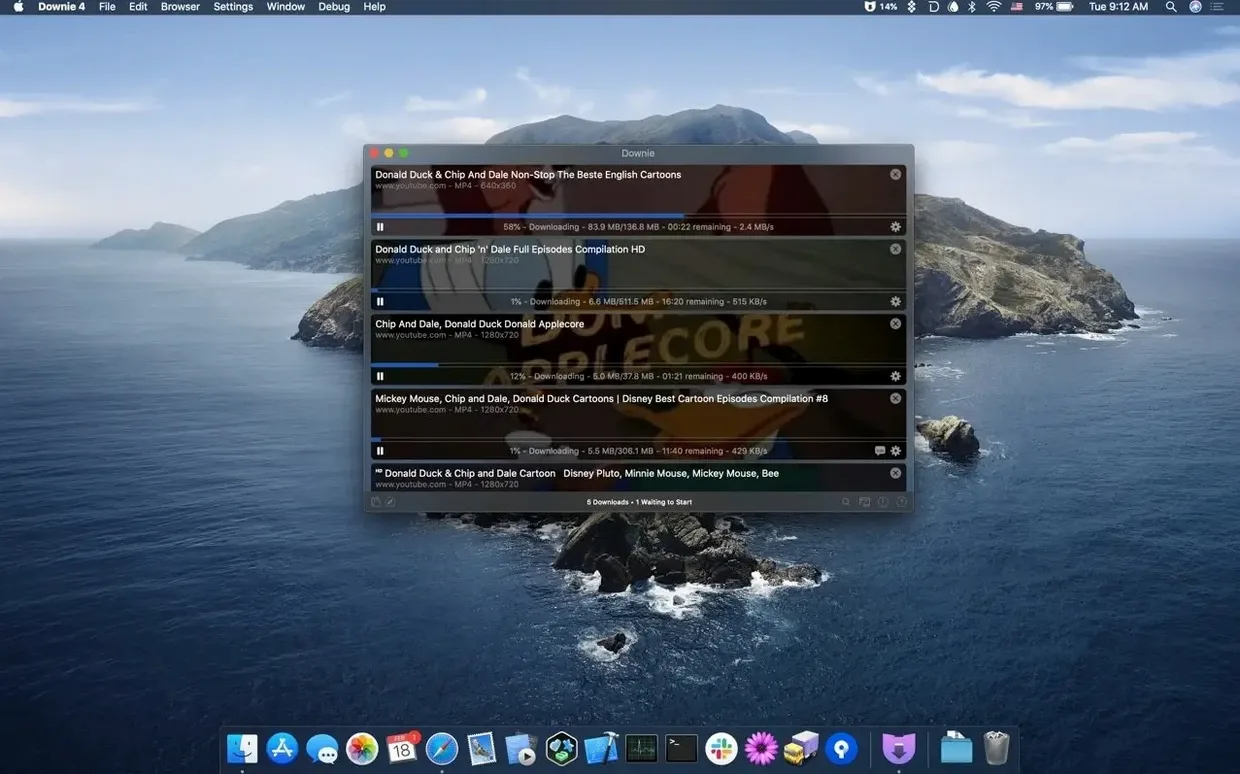
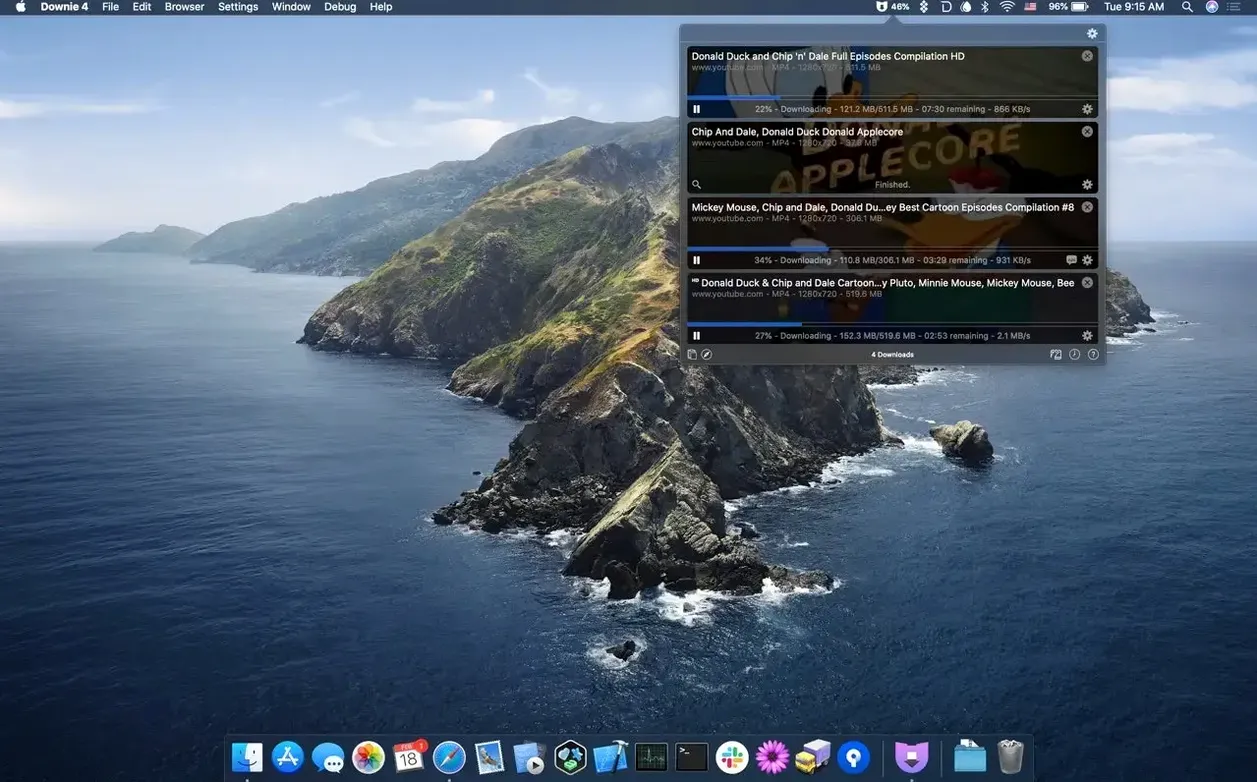
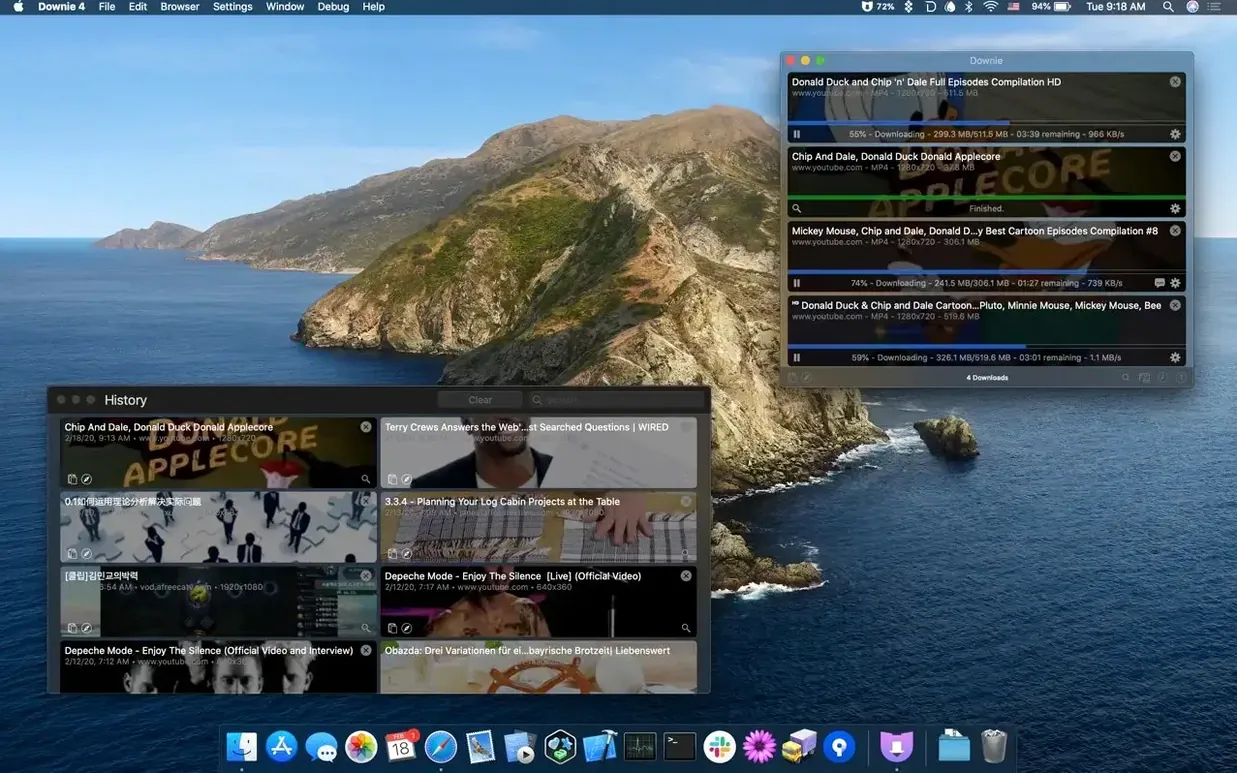
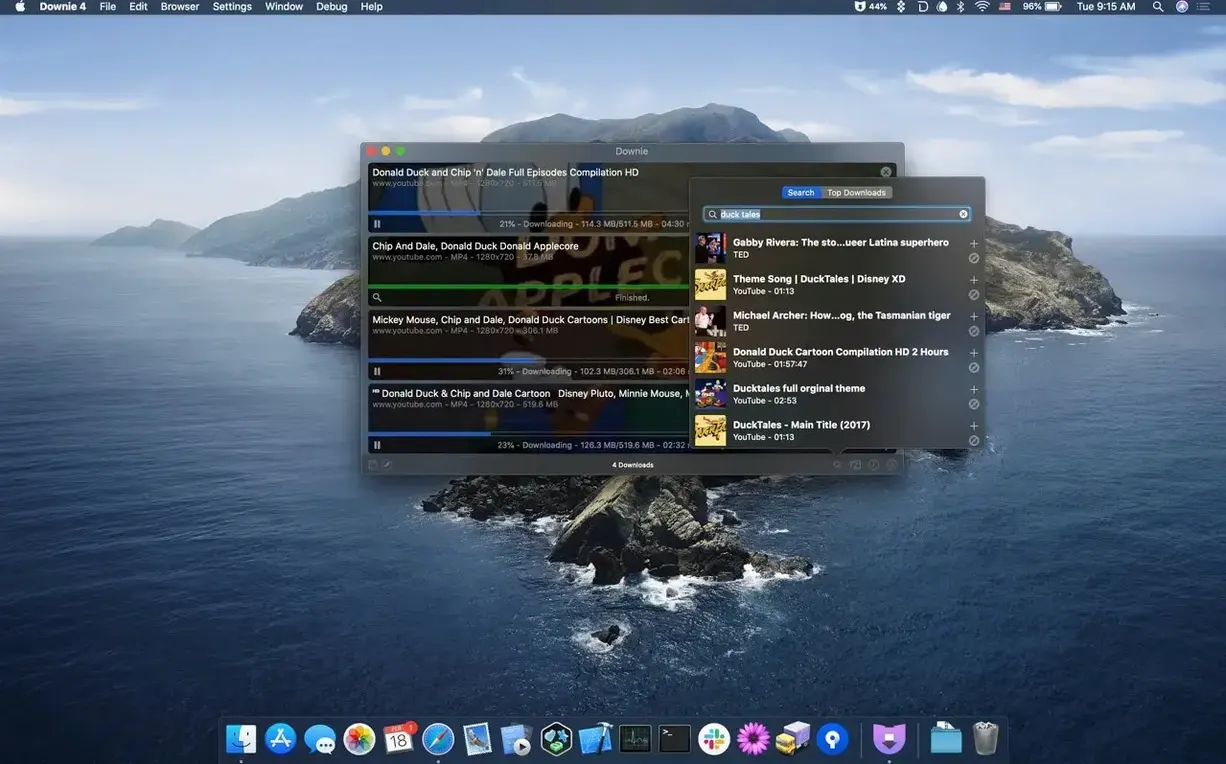
Over a thousand sites are supported, but the first thing to know is that YouTube in 4K is handled without fuss. Paste a link and Downie pulls the highest available resolution, then saves it as MP4 if you have set that preference. The progress panel stays out of the way, and the download queue runs in the background while you work in other apps.
The app sits neatly alongside the tools a Mac user already has. A Safari or Chrome extension catches video links before you even switch windows, so Downie feels more like a system service than a separate destination. It also talks directly to Permute. When a download arrives as a format you did not ask for, or when a playlist arrives in pieces, Permute can convert or stitch the result without you opening a second interface.
Localisation covers 32 languages, from Afrikaans to Vietnamese, which matters when the app is shared across a household with different system language settings. The interface uses the same terminology as the Finder and standard Mac share sheets, so the learning curve is shallow even for someone who only downloads a video once a week.
It runs on any Mac with macOS 11 or later, native on both Apple Silicon and Intel, and draws little attention to itself. That is the real fit: not a media library, not a player, just a quiet pipe between a URL and a file on your disk.
How Downie fits with other apps and macOS
Downie does not try to be a media player or a library manager, and that restraint makes it play well with the rest of the system. The Safari and Chrome extensions are the most obvious link. Install one and a button appears in the browser toolbar. Click it while a page with a video is open and Downie wakes up, grabs the URL and starts downloading without you switching applications. The extension also catches links you deliberately copy — a small overlay asks whether you want to send the copied address to the queue.
The Permute integration runs deeper than a simple hand-off. When a download finishes, Downie can send the file to Permute with a conversion preset already chosen. A YouTube playlist saved as a series of WebM clips can emerge as a single joined MP4. A long talk saved as video can land in your Music folder as an AAC audio file. The two apps share a developer, so the connection is direct and reliable, not a hack built on watched folders.
Outside that pairing, Downie leans on standard macOS behaviour. The share sheet lets you pass a downloaded file straight to AirDrop, Messages, Mail or any app that registers a share extension. Downloaded files land in a folder you specify — the default is a Downie folder inside your Movies directory — and from there Spotlight indexes them, Time Machine backs them up and Finder tags work as usual. There is no proprietary database, no hidden library bundle. A downloaded video is just a file on your disk.
For automation, Downie accepts CSV or XML files listing URLs and custom titles. Drop such a file onto the dock icon and the queue populates. Shortcuts on macOS 12 and later can trigger downloads via a URL scheme, which means a simple shortcut can watch a clipboard, extract video links and feed them to Downie without any scripting knowledge.
JDownloader, ClipGrab, and yt-dlp each have their own vision
Three other downloaders cover similar ground: JDownloader, ClipGrab and youtube-dl (or its active fork, yt-dlp). Each has a different idea of what a video downloader should feel like on a Mac.
JDownloader is a cross-platform workhorse written in Java. It handles an enormous range of sites and link types — far beyond video — but the interface is dense and the Mac version ships with an installer that bundles OpenJDK. It runs as a background service with a web interface option, which suits a server or a machine that queues downloads unattended. The trade-off is that it never feels like a native Mac app: window behaviour is off, text rendering looks foreign and the preference panels are deep enough to need a search box.
ClipGrab is simpler and closer to Downie in spirit: paste a link, pick a format, click a button. However, its site support skews heavily toward YouTube, Vimeo and a handful of others. The built-in search is YouTube-only. It does not offer browser extensions, queue management is basic and the interface uses a cross-platform toolkit that looks acceptable but does not follow macOS conventions for toolbar layout or keyboard shortcuts. It suits someone who downloads a YouTube clip once a fortnight and wants nothing more.
yt-dlp is the command-line champion. It supports more sites than any graphical tool, handles authentication, cookies, rate limiting and output templating with surgical precision. A single command can pull an entire channel, rename files by upload date and embed subtitles. The cost is that you work in Terminal. There is no queue panel, no drag-and-drop, no progress bar outside what the shell prints. It pairs well with Downie: yt-dlp for bulk or edge-case work, Downie for everyday clicking and pasting.
Downie sits between these worlds. It has the site coverage and queue management that ClipGrab lacks, the native Mac feel that JDownloader never achieves and the convenience that yt-dlp deliberately trades away for power. For someone who wants a tool that behaves like a well-made Mac utility — extensions, share sheet, AppleScript hooks, Retina-clean interface — it fills the gap.
Changing the default save format to MP4
The defaults are sensible, but a few changes make daily use smoother. Open the preferences (⌘,) and work through these:
- Post-processing — set the default format to MP4 unless you have a reason to keep WebM or MKV. The conversion is handled by Permute if installed, or by Downie's own remuxing logic when only the container needs changing. Either way, you get a file that QuickTime and the Finder preview column understand.
- File naming — by default, Downie uses the video title as the filename. Long titles with special characters can trip up file systems or look messy in a folder. Switch on sanitisation for special characters and consider adding the site name as a suffix if you collect from multiple sources.
- Clipboard watching — the app can listen for copied URLs and offer to download them. This is off by default. Turn it on if you do not use the browser extension. Without it, pasting a link into the main window is an extra deliberate step; with it, copying a YouTube link while browsing triggers a small notification panel.
- Browser extensions — check which browsers are enabled in the Extensions tab. The Safari extension needs manual enabling in Safari's own preferences after installation. For Chrome-based browsers, the extension installs from a bundled file. The preference pane shows the current status, and a green dot means it is active.
- Download destination — the default
~/Movies/Downiefolder works, but if you use an external drive or a synced folder for media, set that here. Downie creates the folder if it does not exist.
Streams straight to disk so memory stays low
Downie is lightweight in daily use. Idle, it sits at around 40–60 MB of memory. During a download, memory use rises modestly — rarely above 150 MB — because the app streams to disk rather than buffering large chunks in RAM. CPU use during a single download is negligible; the work happens in network I/O. When post-processing kicks in, particularly with a Permute conversion of a long 4K video, CPU and GPU use climb briefly, then settle back.
Multiple simultaneous downloads are where the app's efficiency matters. Downie defaults to one download at a time, which is sensible for most connections. You can raise the concurrent limit in preferences. Even with four or five downloads running, the interface stays responsive and the queue panel updates without stutter. The app uses a hybrid architecture: the interface is native AppKit, while the download engine runs as a separate background process. A crash in the engine — rare but possible with a malformed stream — does not take down the window with your queue.
Stability in version 4.13.1 is solid on both Apple Silicon and Intel. The app has been through enough point releases that the obvious race conditions and memory leaks are long gone. A download that fails due to a server error retries automatically with an exponential back-off, and the queue persists across app restarts. If you quit while downloads are running, Downie pauses them cleanly and resumes when you reopen it.
When a site changes and Downie calls it unsupported
No downloader works with every site forever. Sites change their delivery methods, and Downie's site definitions update periodically. Here are the problems that come up most often and what to do about them.
Download fails with "unsupported" or "extraction failed". This usually means the site changed something and the bundled definition is out of date. First, check for a definition update: go to the Downie menu and choose Check for Updates — the app updates its site definitions independently of the main binary. If that does not help, try copying the URL again from a different browser or in a private window; some sites serve different page markup depending on login state. As a last resort, drag the URL directly into the Downie window instead of relying on clipboard watching.
YouTube age-restricted videos refuse to download. Downie cannot authenticate on your behalf for age verification. The workaround is to log into YouTube in Safari, play the video once to confirm your age, then copy the URL and use the Safari extension. The session cookie gets passed along and the download usually proceeds.
Browser extension disappears or stops working. Safari disables extensions after certain system updates. Open Safari's settings, go to the Extensions tab and re-enable the Downie extension. For Chrome, the extension sometimes needs reinstalling from the Downie preferences panel after a Chrome version bump.
4K downloads arrive as 1080p. Some YouTube streams separate video and audio at higher resolutions. Downie merges them into a single file, but the merge step can fail silently if Permute is not installed and the codec combination is tricky. Installing Permute solves this in most cases. Also check that the quality preference in Downie is set to "Highest" rather than a fixed resolution cap.
App appears to hang during post-processing. A large 4K file can take over a minute to remux or convert. The progress bar may sit at 100% while the background task finishes. Check the activity panel (Window > Activity) to see the current post-processing stage. If it stays stuck for more than a few minutes, the file may be corrupted; cancel it, delete the partial file and try the download again with a lower quality setting.