Aspecten
 Download (33 MB)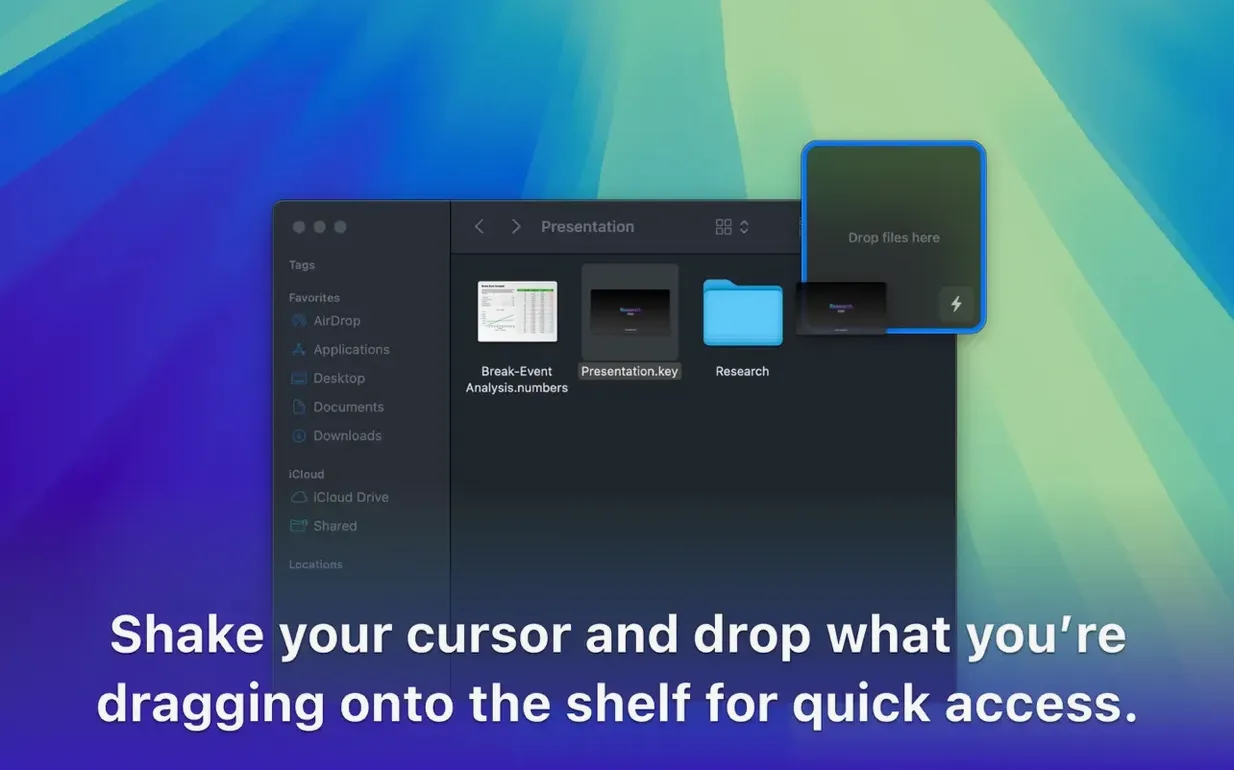
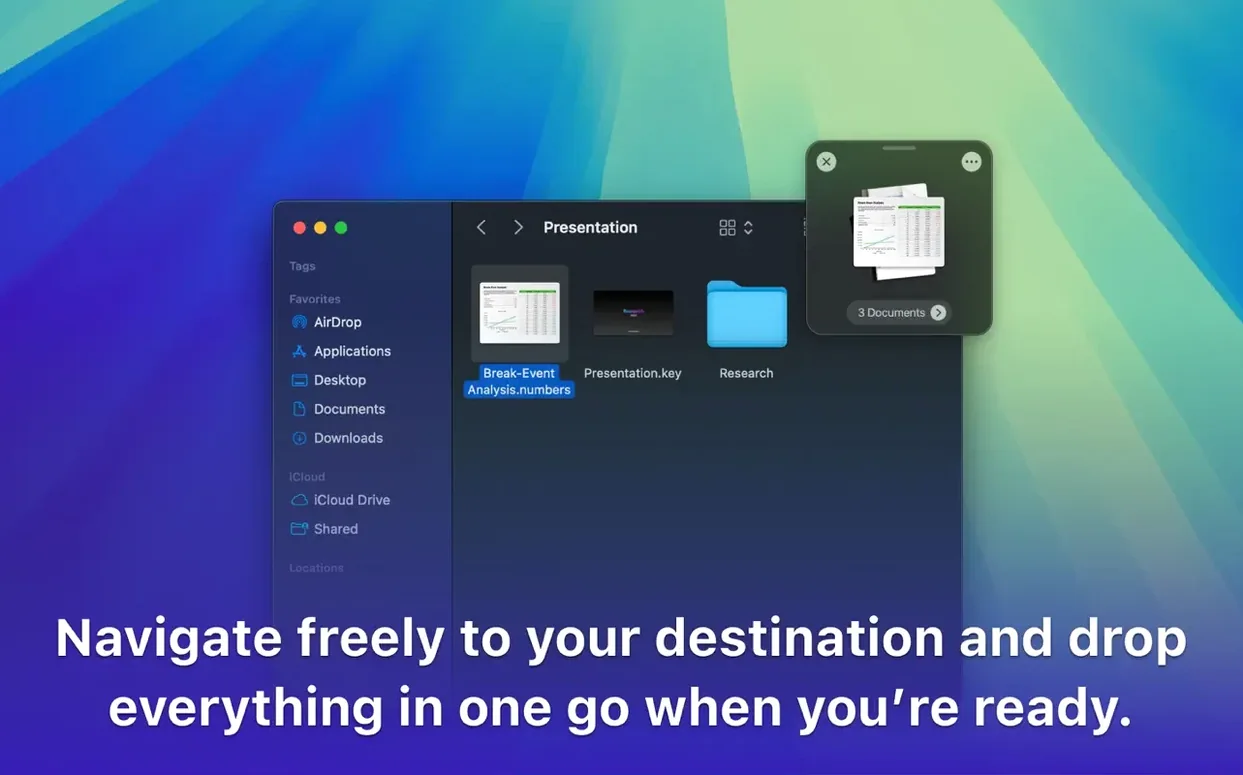
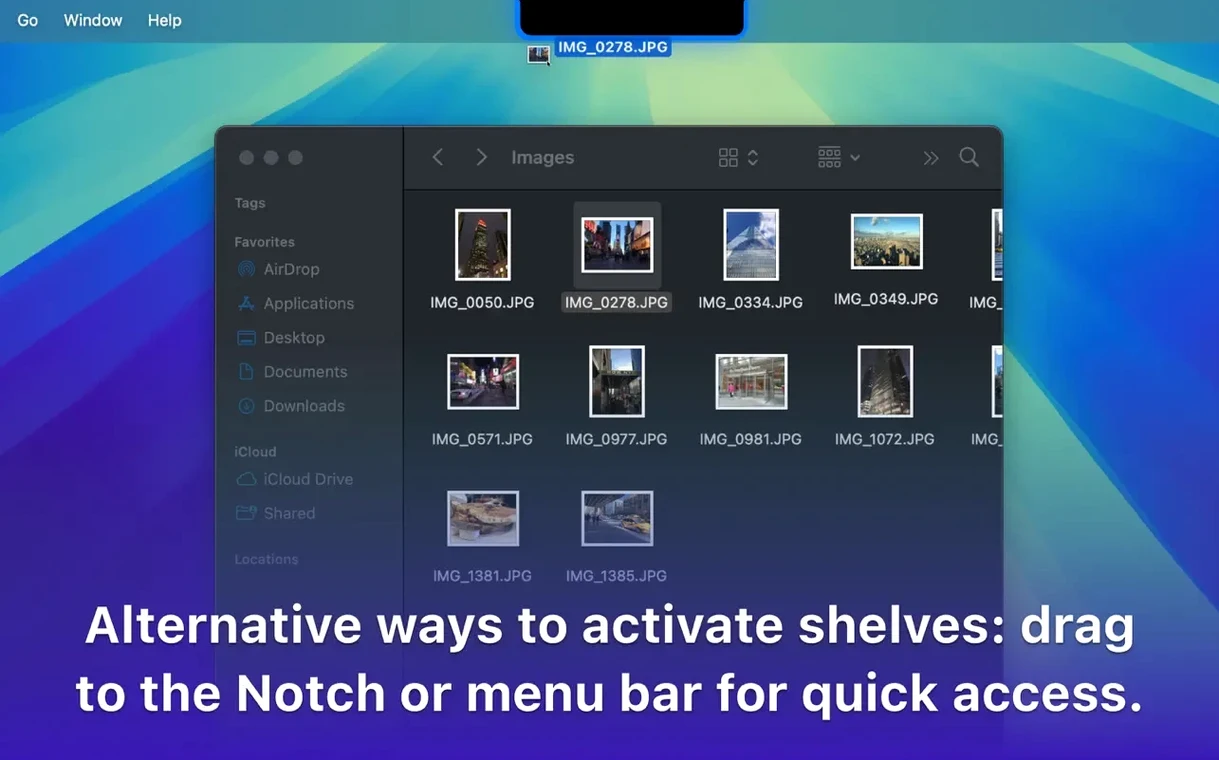
You grab four images from a Finder window, start dragging, and realise the destination folder is two Spaces away. You give the trackpad a little shake and a shelf slides onto the screen. The images sit there while you navigate to the right folder, then you drag them off in one movement. That is the core of Dropover — a temporary holding area that decouples the start of a drag from its destination.
Gather files, links and text on a floating shelf
| Detail | Note |
|---|---|
| Version | 5.3.0 |
| macOS | 12 (Monterey) or later |
| Architecture | Apple Silicon and Intel |
| Languages | English, German, Simplified Chinese, Dutch |
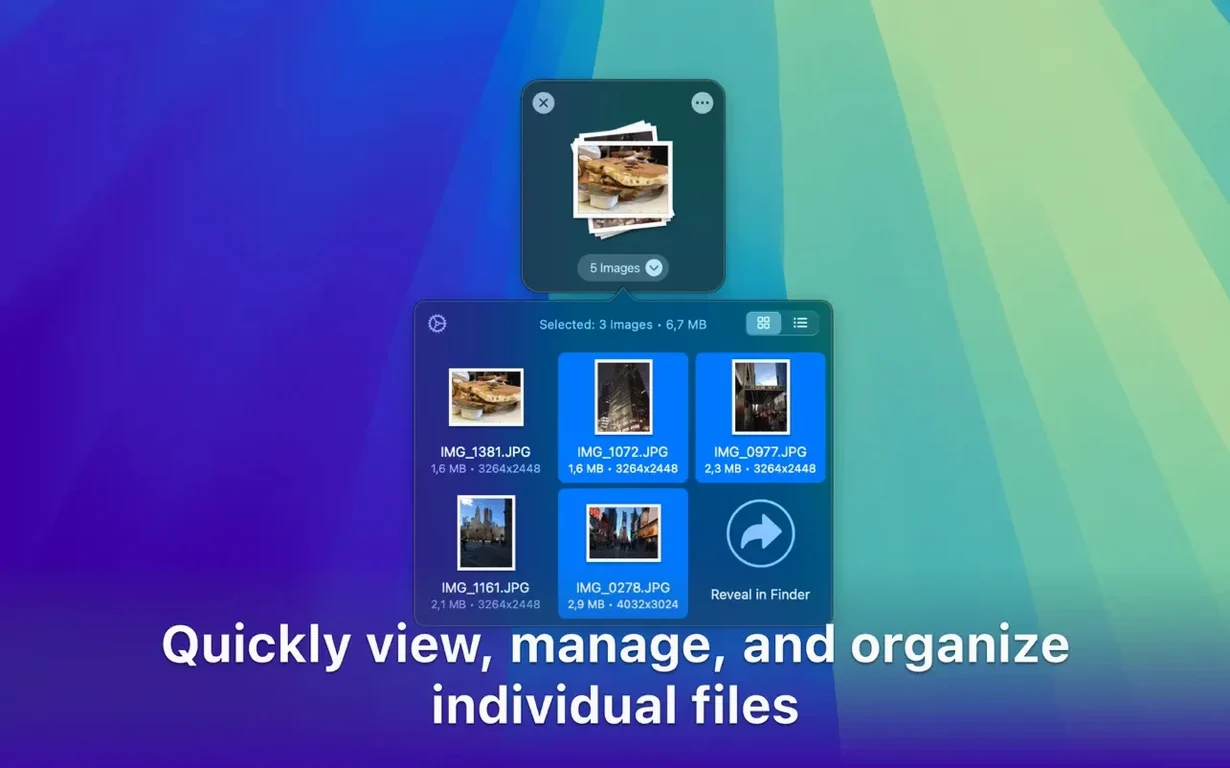
The shelf accepts files, folders, images, web links and selected text. Once items are gathered, you can group them before copying, moving or uploading — useful when assembling assets from several locations. The shelf stays on top of other windows and its size, transparency and screen position can be adjusted. A right-click option also lets you send items to the shelf from the context menu, which feels like a natural extension of the Finder rather than a separate tool. The main limitation is the Mac-only availability; Windows users will need to look elsewhere for a similar staging workflow.
Swap the shake gesture for a modifier key
The defaults are sensible, but a few adjustments make the shelf fit how you actually move files. Start with the activation method. By default the shelf appears after a short shake of the cursor while dragging, but you can set a keyboard shortcut instead, or use both. If you often drag between full-screen apps, a hotkey tends to be more predictable than the shake gesture. The shake threshold can be tuned as well, so the shelf does not appear when you are simply moving a file a short distance within the same window.
Position matters more than it first appears. If you keep the Dock on the left, a shelf parked near the bottom edge will collide with it during long drags. Move the shelf to the side opposite your Dock, or set a custom position. The same goes for transparency — a fully opaque shelf is easier to spot when you are mid-drag and glancing around the screen, while a more transparent one fades into the background when you are not using it. Shelf size is the third setting worth revisiting. A wider shelf helps with long file names and many items; a narrower one keeps the floating area from covering too much of a window. Dropover remembers the last used size, so the change persists until you adjust it again.
Add Finder items via the right-click menu
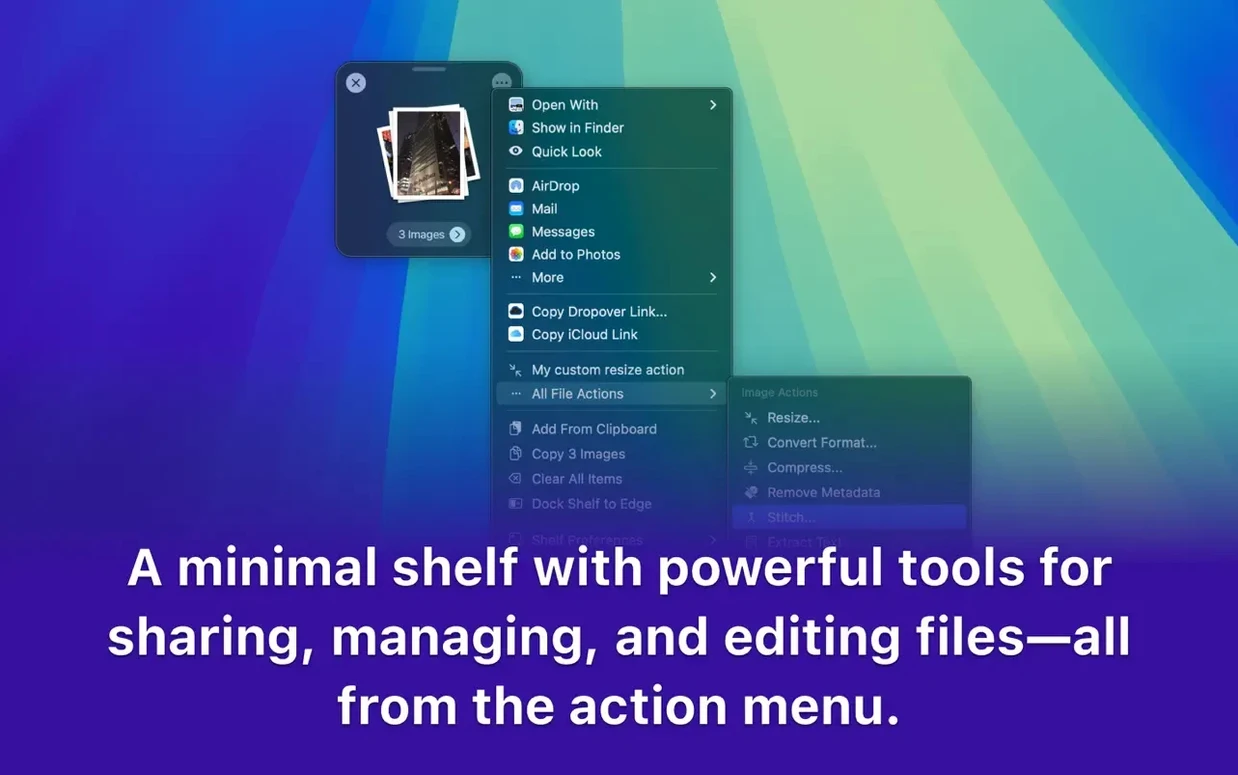
Several features live in context menus and share sheets rather than in the main shelf. Selecting files in Finder, right-clicking and choosing the Dropover option adds them to the shelf without starting a drag at all. That is particularly useful when you are selecting many files by keyboard, or when the files are in a list view where dragging is fiddly. Share sheets work the same way: from almost any app that supports the standard macOS share menu, you can send images, documents or links to the shelf and combine them with other items before moving everything at once.
Shortcuts support opens up another layer. You can add a Dropover action to an automation that gathers screenshots from a folder, adds a note or link, and leaves everything waiting on the shelf for manual review. It is not a headline feature, but it closes the gap for people who prefer scripting parts of their file routine.
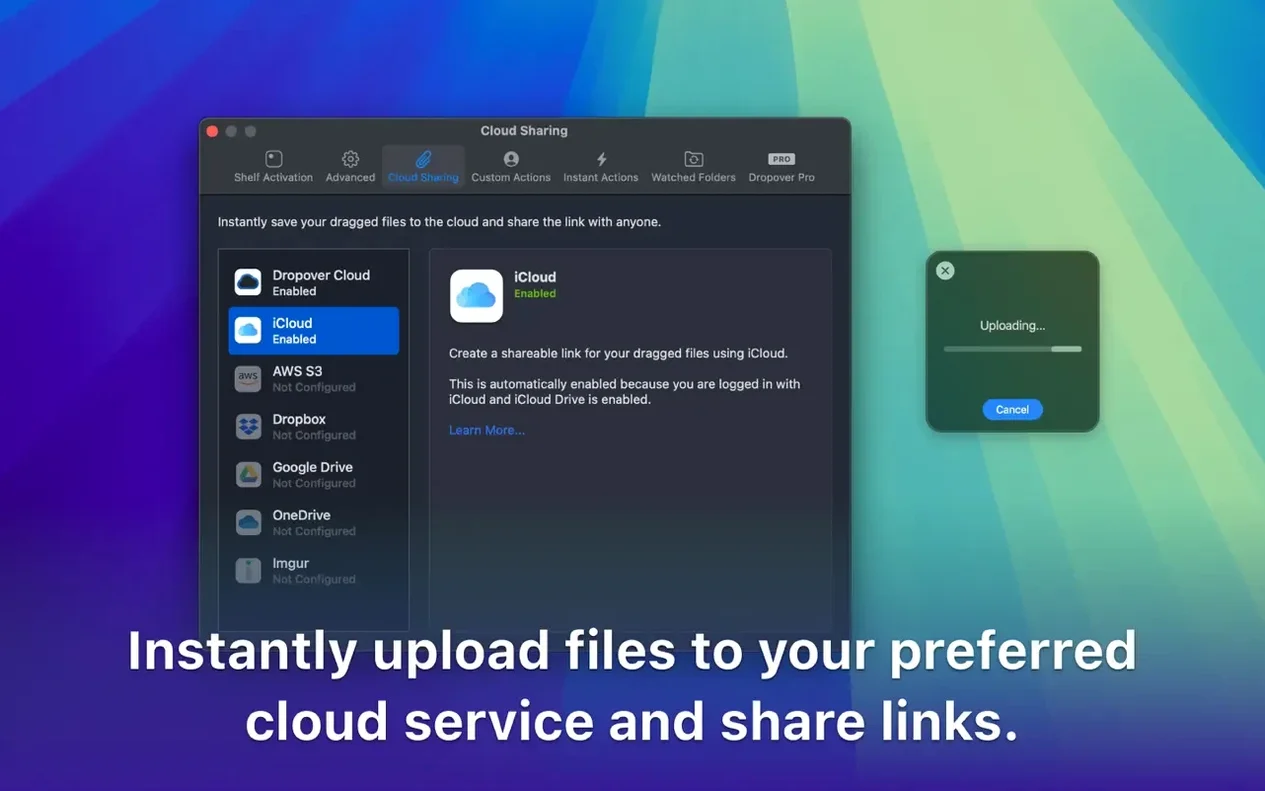
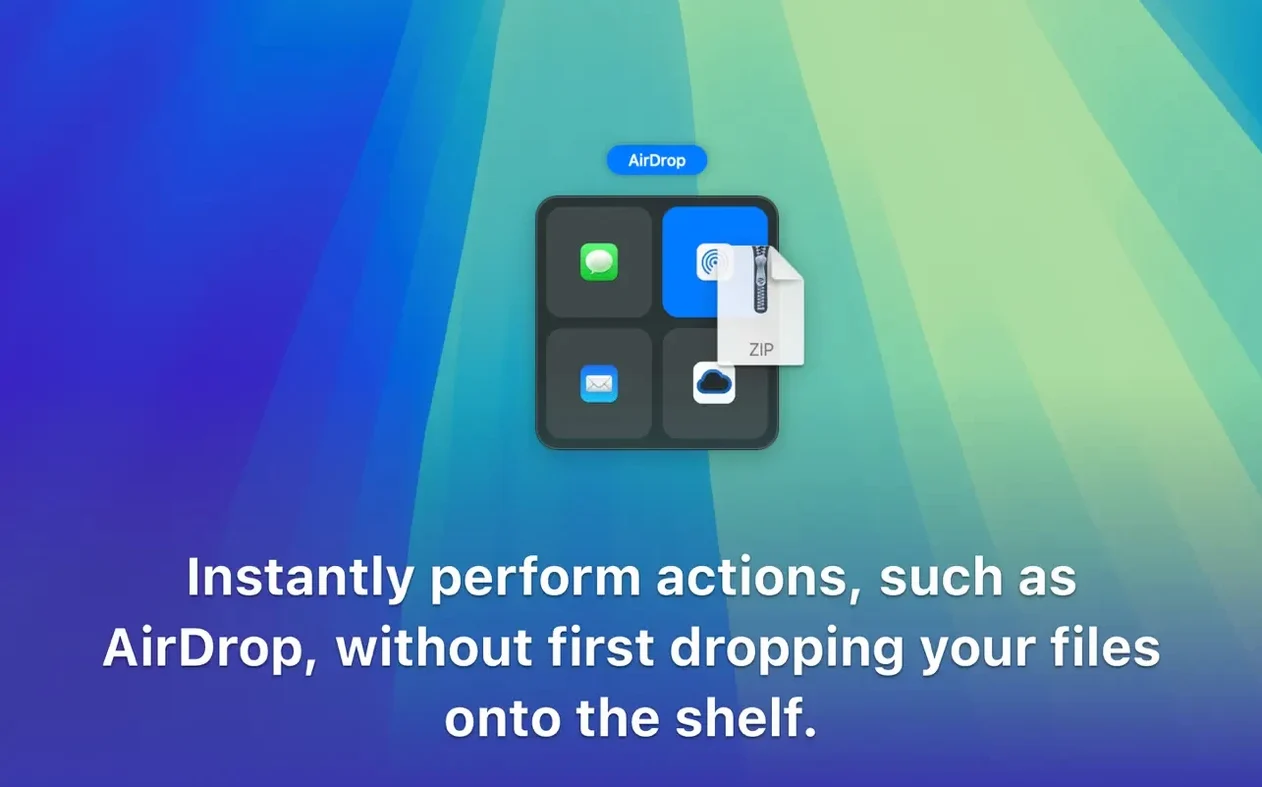
Less obvious is the shelf's ability to hold selected text. Drag a paragraph out of Safari or Notes and it behaves like any other item — you can drop it into another app later, or group it with files before sharing. Combine this with the link support and the shelf works as a lightweight research buffer, not just a file staging area. The cloud service integration also works from this same surface: items on the shelf can be sent to Google Drive or Dropbox without first dropping them into a Finder folder.
Make the shake gesture sharper and quicker
A recurring point of confusion is the shake gesture. New users sometimes find the shelf does not respond when they shake the cursor, usually because the movement is too short or too slow. A sharper, quicker side-to-side movement while holding the drag works more reliably. If it still does not trigger, the shake threshold in the settings is too strict, or the shelf has been assigned to a different screen edge and is appearing where the user is not looking. Checking the position setting solves both.
Another common snag involves dragging items off the shelf to a destination. If the shelf sits above a full-screen window and you drag an item down, macOS may treat the drop as an attempt to move the file into the shelf's own area rather than the window beneath. Setting the shelf to auto-hide during drags, or positioning it away from the active drop zone, avoids this. Some users also report that very large batches — dozens of files — can make the shelf unwieldy. Grouping the items first helps; the shelf can bundle them into a single folder before you continue, or you can drop them in smaller sets.
Integration with cloud services occasionally trips people up when the helper app for Google Drive or Dropbox is not running. The shelf hands off the files, but the upload only starts if the cloud client is active. If files linger without appearing in the cloud folder, check that the relevant cloud app is running and signed in. That is a macOS-level interaction, not a Dropover setting, but it is worth knowing before you assume the shelf has lost the items.
Running on Monterey and later with no public changelog
Version 5.3.0 arrived without release notes, so the precise list of internal changes is not public. What can be said is that the current build targets macOS 12 and later on both Apple Silicon and Intel Macs. For day-to-day use this means the app behaves consistently on older Intel machines still running Monterey as well as on newer Apple Silicon hardware. No separate version is needed for either architecture — a single dropover dmg install covers both, which simplifies things when moving between Macs. The installer flow has not changed: mount the disk image, drag the app to the Applications folder alias, and launch it from Launchpad once copying finishes.
For most people the practical consequence of the recent versions is stability rather than new features. The shelf, context menus, share sheet integration and Shortcuts support are all present in the current build, and the user-facing behaviour matches what the documentation describes. Anyone searching for a dropover mac download will find the same utility described here — no added modules, no separate companion app. That keeps expectations straightforward: what you install is a drag-and-drop staging shelf, and it stays out of the way until you need it.