Aspecten
 Download (24 MB)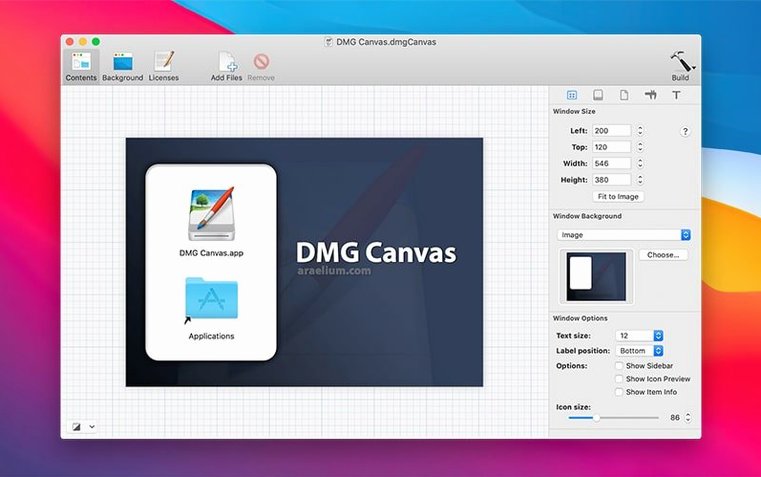
Distributing Mac software outside the App Store often means building a disk image that looks right, mounts cleanly, and fits an automated workflow. DMG Canvas handles that, and under its straightforward design tools sits a set of controls an experienced user will reach for regularly.
Key aspects, defined
Disk format — the file system structure written into the image. DMG Canvas lets you select the format directly, so you can match the target system or keep the image lean for download.
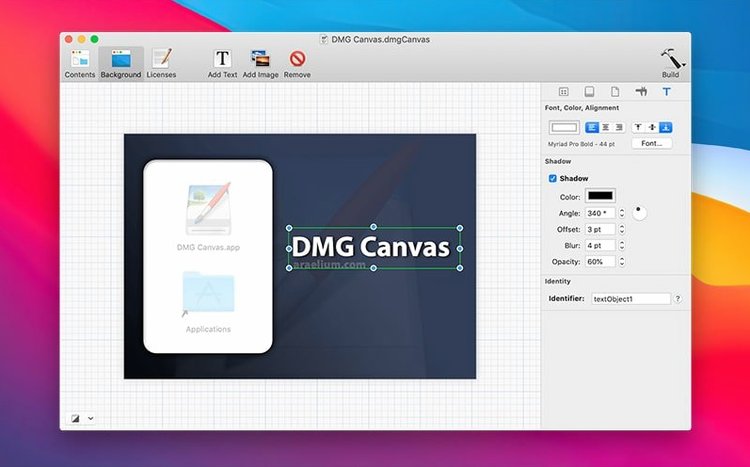
Window background — the appearance behind the contents when a user opens the mounted volume. You set a background image, and the app stores the positioning data inside the disk image as it builds.
Volume icon — the custom icon shown for the mounted volume on the desktop. DMG Canvas applies it during the build step, rather than through a separate post-processing tool.
Xcode build automation — the app accepts command-line arguments, which means a build script can trigger disk image creation as part of a larger Xcode archive or export routine.
Option-drag to duplicate layout items
Several details slip past on first use. Holding Option while dragging an item inside the layout view duplicates it — handy when you need a second copy of the Applications folder alias or a read-me file placed in two spots. Right-clicking the background image well in the inspector opens a menu to clear it without hunting through Finder.
The volume name field accepts line breaks, though that rarely helps. More useful: typing a backslash before a space escapes it, preventing the name from splitting awkwardly in certain Finder views. The toolbar’s Build button has a drop-down arrow that remembers your last three disk format choices, so a quick build with encryption toggled on doesn’t require reopening preferences.
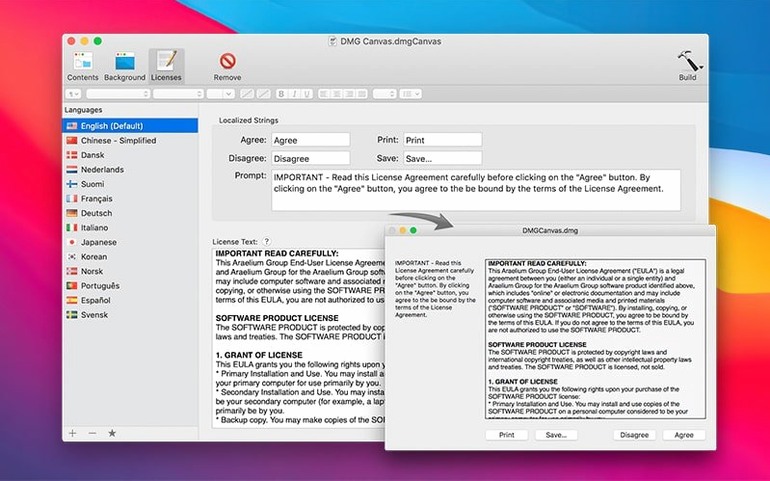
Another quiet feature: you can paste a license agreement straight from a text file into the agreement panel. The app strips invisible formatting and wraps the text cleanly inside the disk image’s agreement dialog. No manual cleanup needed.
Set grid spacing before positioning files
The most common slip is treating the canvas like a Finder window. Dragging files around changes their visual position, but if you forget to set the icon size and grid spacing first, the final DMG opens with items stacked oddly — especially on a Retina display where the default grid might feel cramped. Always set icon size and spacing before arranging content.
Another rookie error: placing the background image file inside the layout area rather than assigning it through the inspector. The result is a disk image that shows the background graphic as a clickable file, embarrassing for a polished release. The inspector’s background well is where it belongs.
Beginners also overlook the build-only checkboxes in the file list. Items ticked for inclusion still appear in the layout view, but they won’t be written to the DMG unless that checkbox is active. A missing read-me file or a vanished uninstaller script often traces back to an unchecked box.
Finally, some users set the volume name, build, test, and wonder why the name doesn’t stick. macOS caches volume names aggressively. Ejecting the test-mounted image and waiting a moment before remounting usually clears the confusion.
Start by naming the document and resizing the window
You open DMG Canvas and create a new document, naming it after the app you’re packaging. The blank layout view appears, sized to a default window — you adjust its dimensions to 540 by 380 points, enough for a compact installer window.
First step: set the volume name to “MyApp 1.2” and pick a disk format — read-only compressed, since this goes out for download. You drag a prepared background PNG into the inspector’s background well. It snaps into place behind the layout area, and you nudge the window size a few pixels to match the image’s edges perfectly.
Next, you drag the built .app bundle into the layout view, then add a shortcut to the Applications folder using the toolbar button. Both items sit in the layout at default positions. You select them, hold Option and drag a duplicate Applications alias to the side — this one will sit near a short “Drag here to install” arrow you’ve added to the background design.
You set icon size to 80 pixels and snap both items to a loose grid. The app icon sits left, the Applications alias right. A quick right-click on the alias lets you rename its display label to something friendlier, though the underlying target stays correct.
A license agreement goes in next: you copy the text from a Markdown file, paste it into the agreement panel, and tick the box to include it. The preview shows the agreement as it will appear during mounting, split into localised sections if needed.
Now you hit the Build button’s drop-down, select Compressed (UDZO) from the recent list, and choose a destination. The progress bar fills in a few seconds. You mount the resulting DMG, check the window size, icon positions, and agreement prompt, then eject it. The build script integration isn’t needed today — this was a manual release — but the same document file will slot into the Xcode archive script tomorrow without changes.