Aspecten
 Download (12 MB)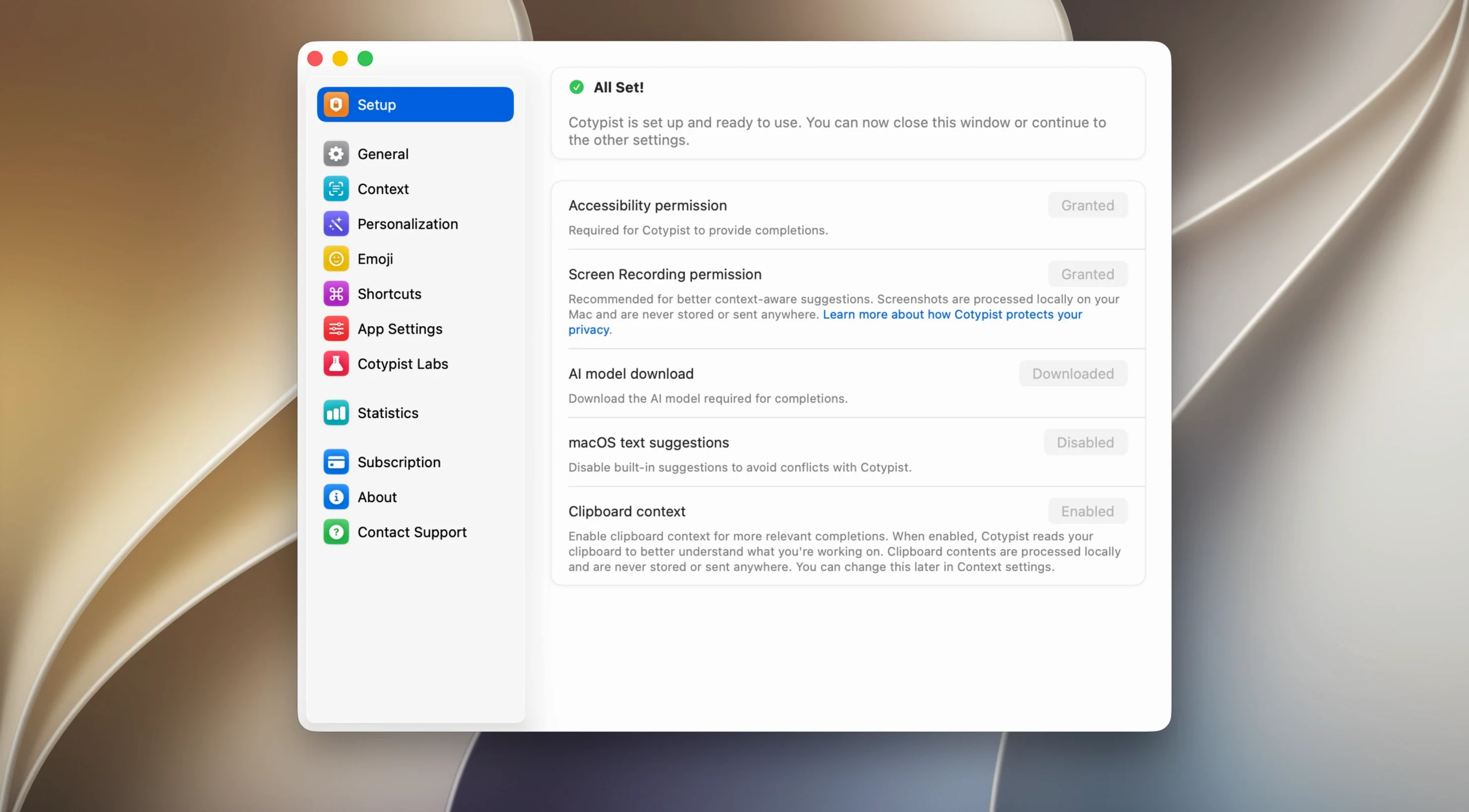
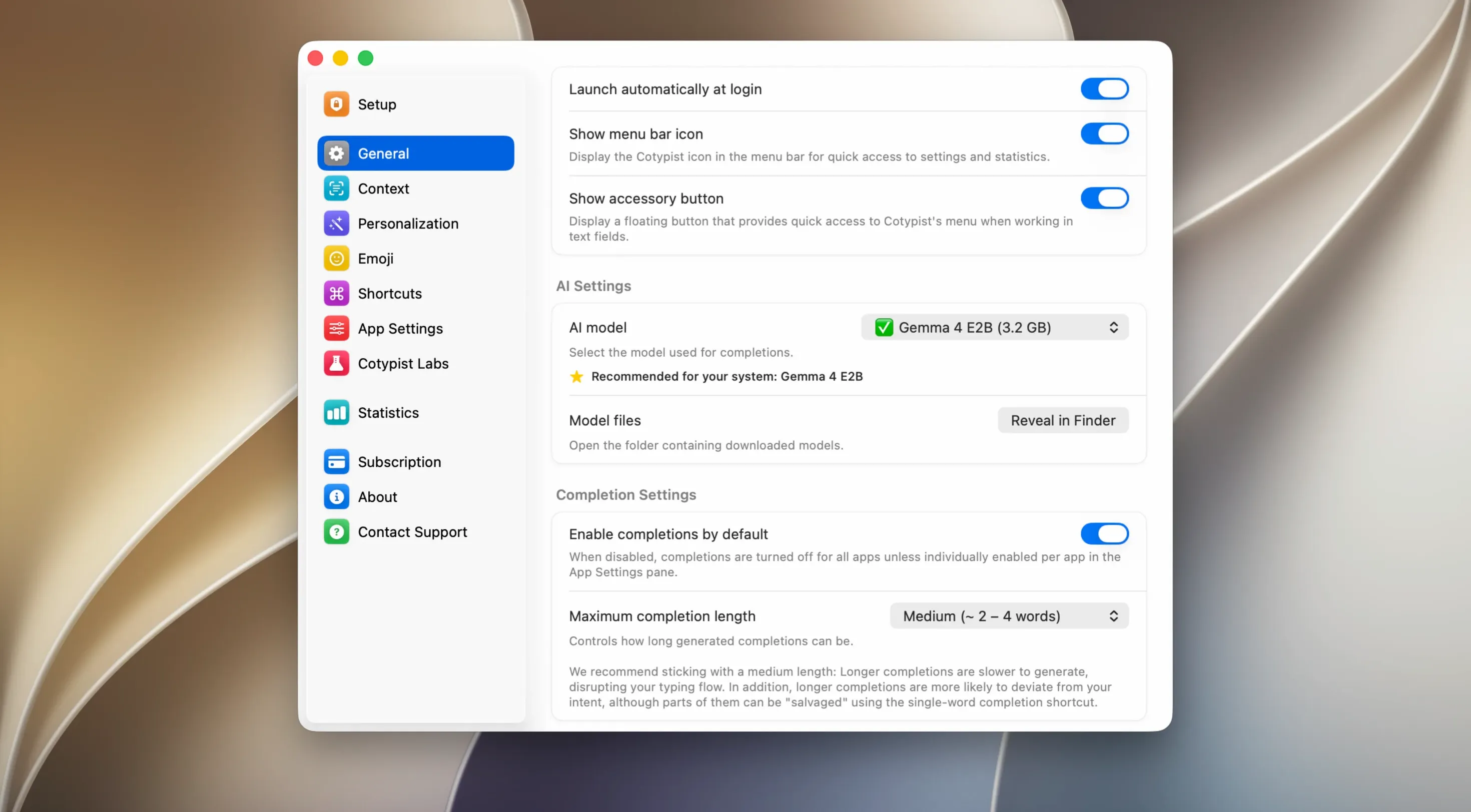
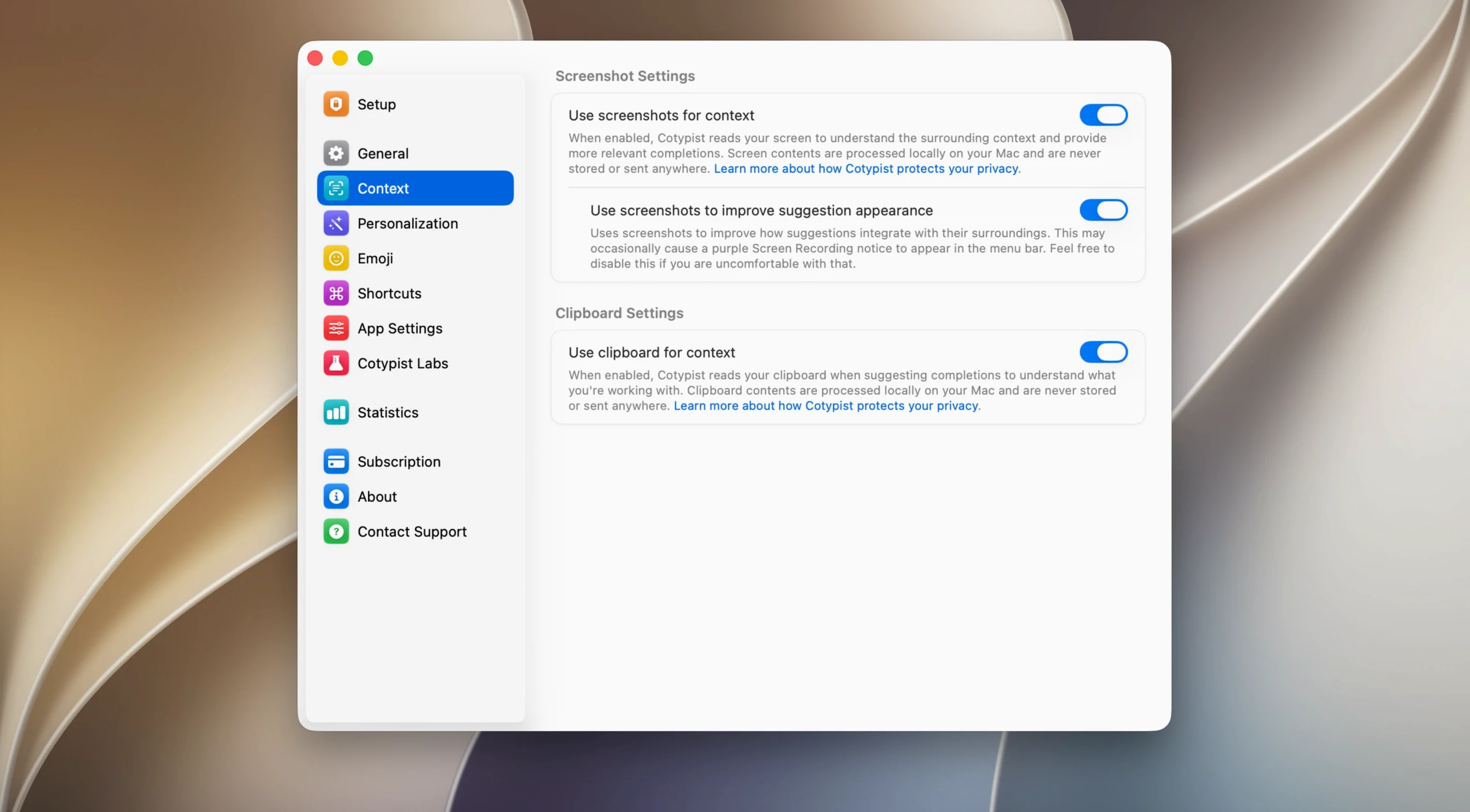
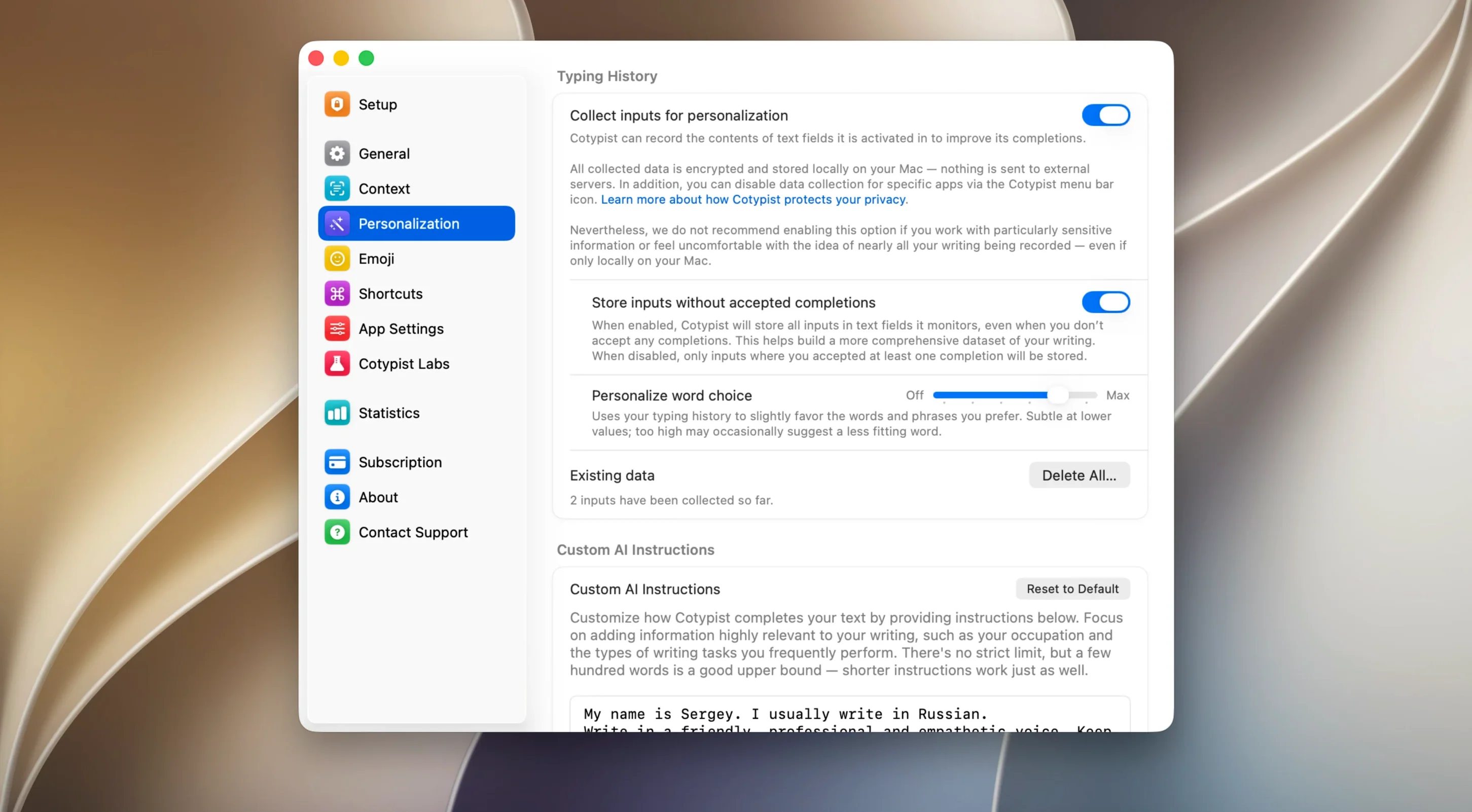
Writers who spend their day in Mail, Notion or Obsidian will notice Cotypist right away. It sits quietly in the background, watching the text take shape, and then it offers a word or two ahead of where the cursor rests. Accelerated Thought GmbH built it to run entirely on the Mac, so predictions appear without a round trip to a server. The task below shows how the app fits into a typical drafting session.
- Open a blank note in Obsidian and begin a sentence. After the third or fourth word, a faint suggestion appears just past the cursor.
- Press Tab to accept the full phrase, or keep typing to ignore it. The suggestion adjusts with each new character.
- Type a word with a common transposition, such as “teh”. Cotypist flags it with an inline correction before the spacebar lands.
- Switch to a Slack reply and resume typing. Predictions follow, drawing on the same local model without any account setup.
- Hit Return to send the message; the suggestion fades the moment the text leaves the input field.
- Work offline without a change in behaviour, because the language model stays on the machine.
What stands out is how the suggestions stay out of the way. They never pop up a palette or rewrite a sentence — they simply trail the cursor, waiting for a keypress. Because the app is Apple Silicon only, the processor handles the model without slowing down other windows. On macOS 14 the integration feels native, though the initial model download may need a VPN depending on the network.
Sharing the field with similar Mac completers
Cotypist enters a corner of the Mac landscape already occupied by a few familiar names. TextExpander takes a different route: it works with snippets the user defines ahead of time, expanding short abbreviations into longer blocks. That is automation by rote, useful for canned replies and signatures, but it does not predict what you might type next in freeform prose. Cotypist deals in the unwritten, not the pre-scripted.
Raycast ships a built-in autocomplete extension that taps into a cloud model. The suggestions are quick and the interface is polished, but the text leaves the Mac. For anyone handling client notes, legal drafts or medical language, that round trip is a genuine sticking point. Cotypist keeps everything on the Apple Silicon chip, and the absence of a login screen during setup — the developer confirms no account is required — makes the privacy story simpler to follow.
A third comparison lands with Elephas, a Mac writing assistant that also runs locally. Elephas leans toward longer-form rewrites, summarisation and tone shifts, while Cotypist sticks to a narrower brief: predicting the next few words and correcting typos as they happen. The narrower scope means fewer interface layers. There is no sidebar, no command palette for rewriting — just inline suggestions that accept or dismiss with a keystroke.
How Cotypist fits into a Mac workflow
Because it hooks into the system-wide text input, Cotypist works alongside tools that already shape a day at the keyboard. Obsidian users can draft notes without flipping between a writing pane and a suggestion panel. Slack replies pick up speed, particularly for stock phrases that tend to repeat across threads. In Notion, where page structure often distracts from the sentence itself, the quiet word-ahead nudges keep fingers moving.
It also cooperates with macOS features. Focus modes do not interrupt the prediction engine; the app keeps running in the background regardless of the current mode. Spotlight and Quick Look remain unaffected because Cotypist does not install a kernel extension or alter system-level text services — it works inside the accessibility framework, the same layer that powers dictation and Switch Control. Clipboard managers like Maccy and window arrangers like Rectangle coexist without conflict in typical use.
For people who rely on em dashes, smart quotes or other macOS text substitutions, Cotypist does not fight them. The inline predictions appear after the substitution engine has done its work, so the two layers stack cleanly. The colon-triggered emoji suggestions feel like a natural extension of the same muscle memory that powers Slack and Discord shortcuts.
Language model download stalls without a VPN
The most reported hurdle is the language model download. Depending on the network, the initial fetch can stall. A VPN usually resolves it — connect to a different region, restart the download, and the model arrives within a few minutes. Once cached, the model needs no further network access, so the VPN can be disconnected afterwards.
Some users notice that predictions stop appearing in a specific app. The fix is straightforward: open System Settings, navigate to Privacy & Security > Accessibility, find Cotypist in the list, toggle it off, then on again. This nudges the accessibility hook to reattach to the text field. A restart of the target app afterwards completes the reset.
Typo detection can occasionally flag technical terms or names as errors. There is no user dictionary at this stage, but the correction can be bypassed by pressing Escape before the spacebar, or by adding the word to the macOS local dictionary via the right-click menu in any standard text field — Cotypist respects that system list.
On Apple Silicon Macs with 8 GB of RAM, the model runs lean, but running several large apps alongside it — Xcode, a few Docker containers, a browser with many tabs — may push the system into swap. The symptom is a brief hesitation before a suggestion appears. Closing memory-heavy apps or upgrading to a 16 GB configuration smooths it out, though for most writing tasks the 8 GB threshold holds steady.