Aspecten
 Download (14 GB)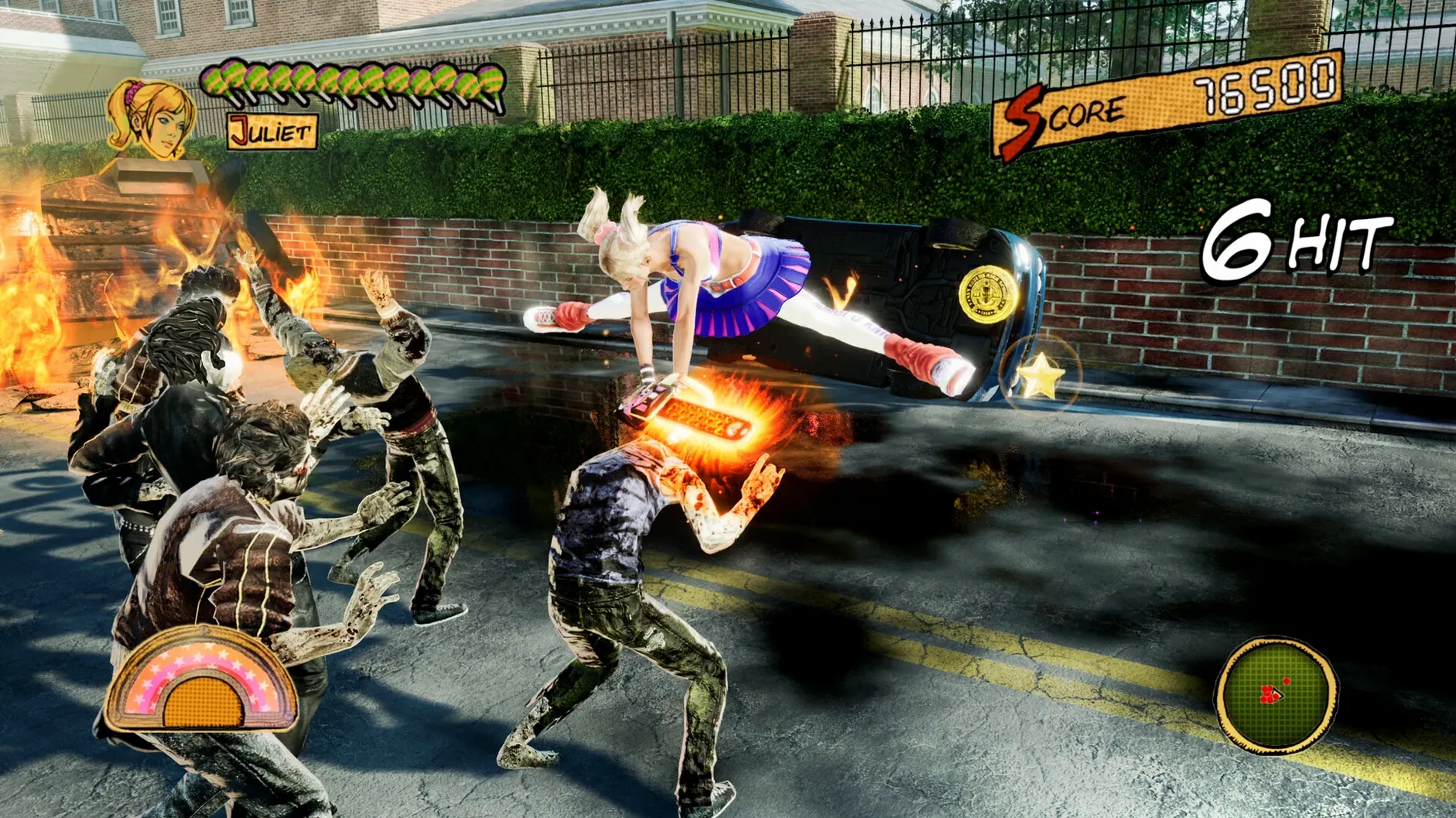
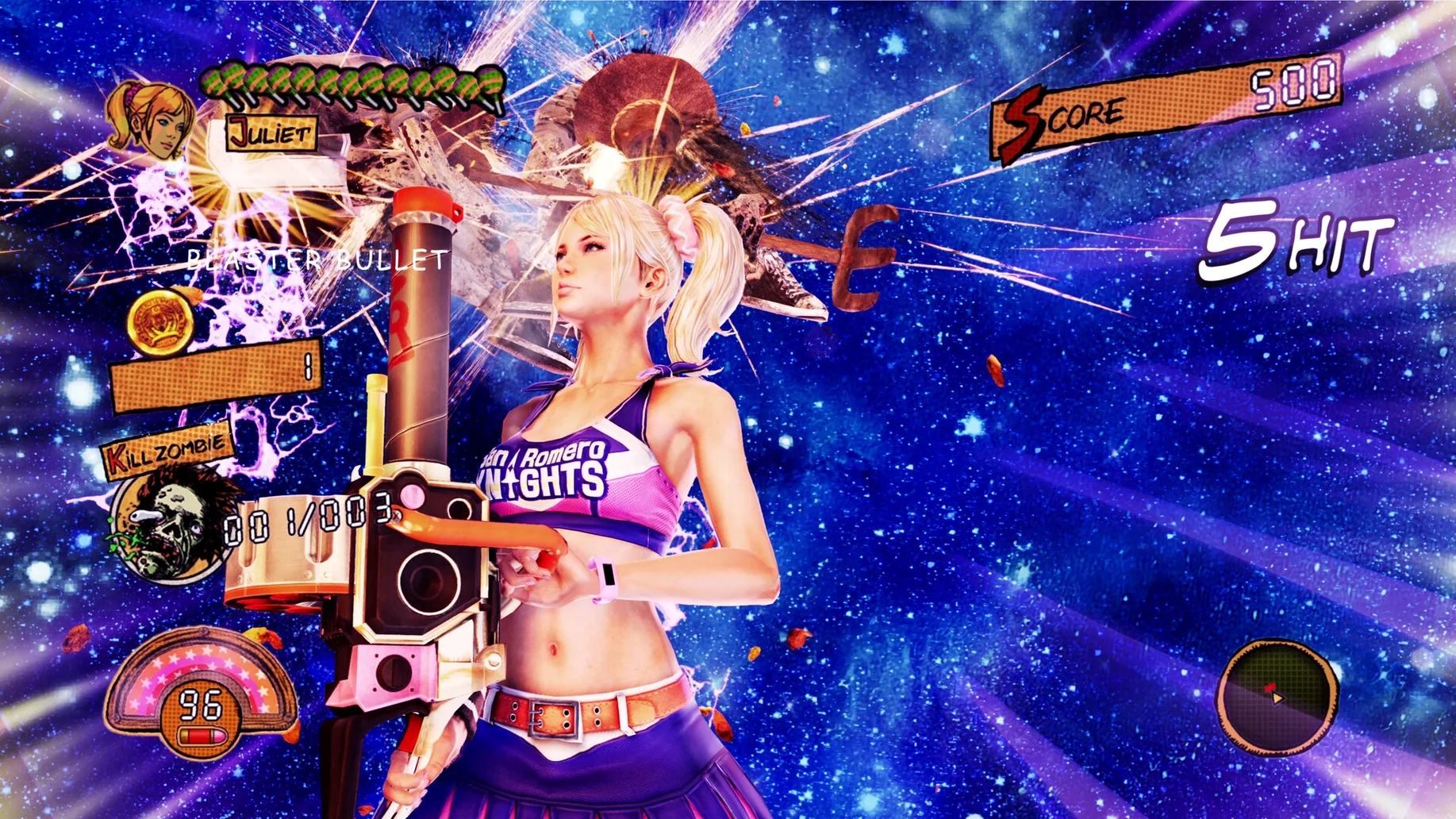
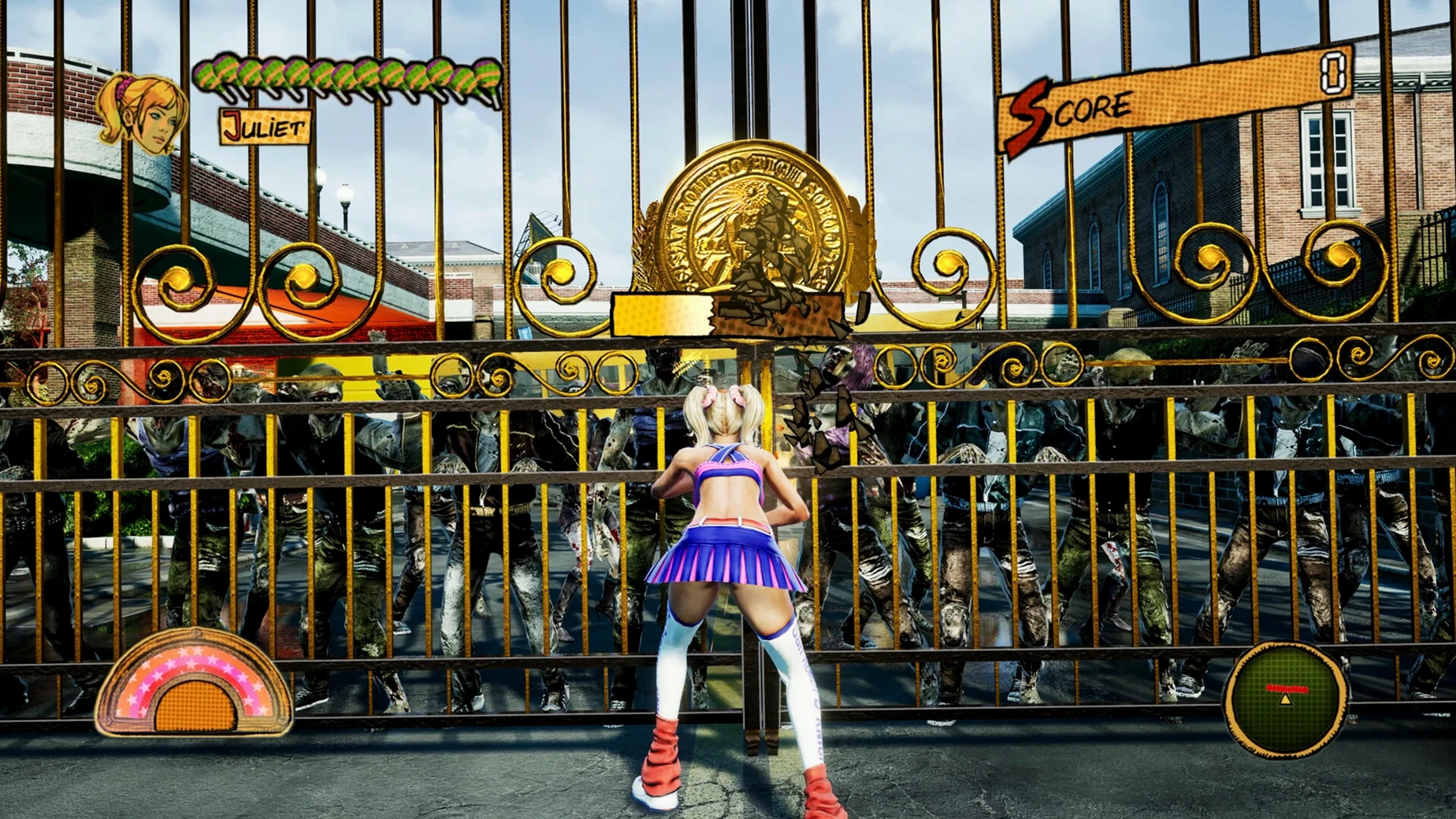
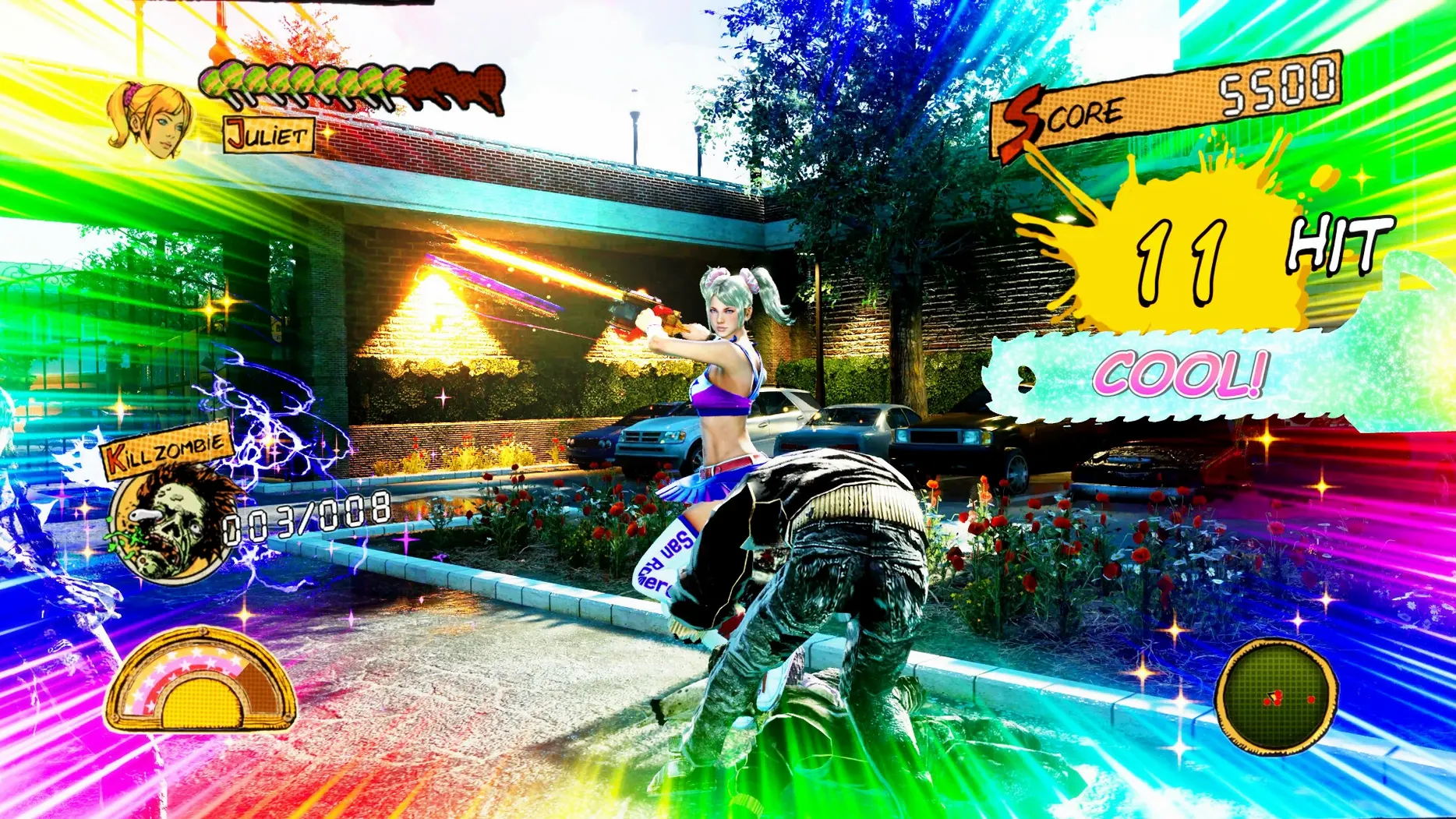
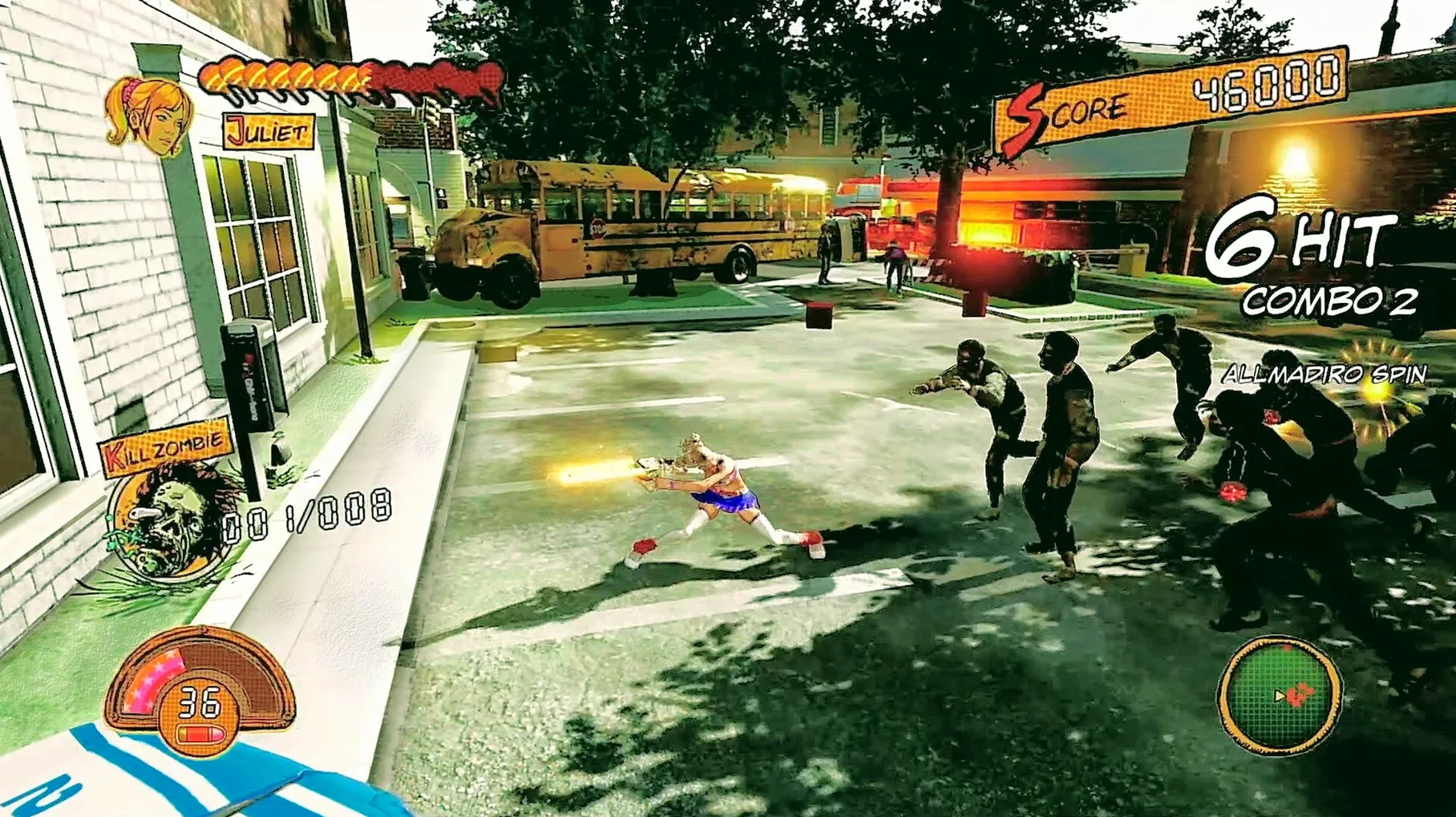
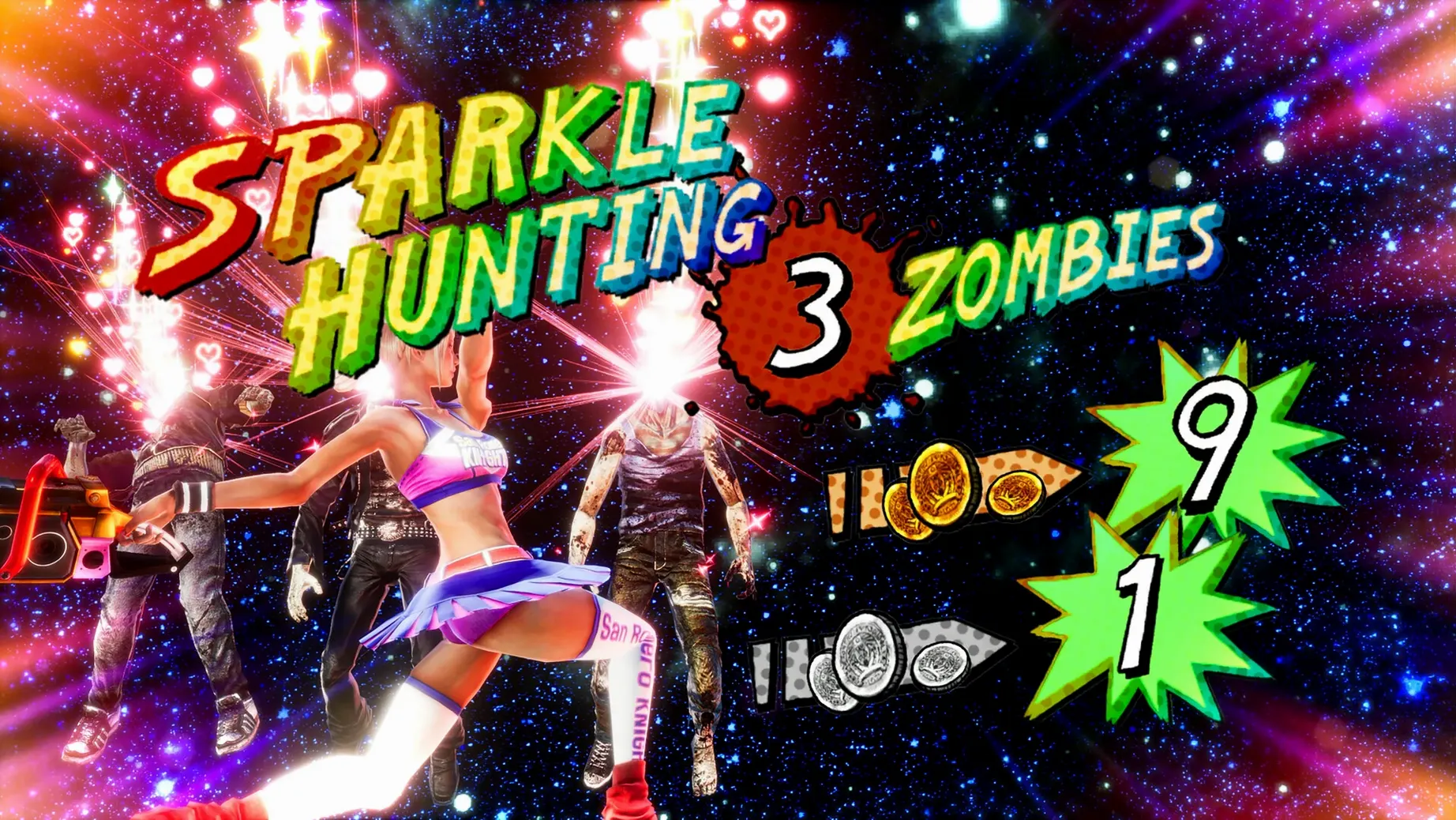
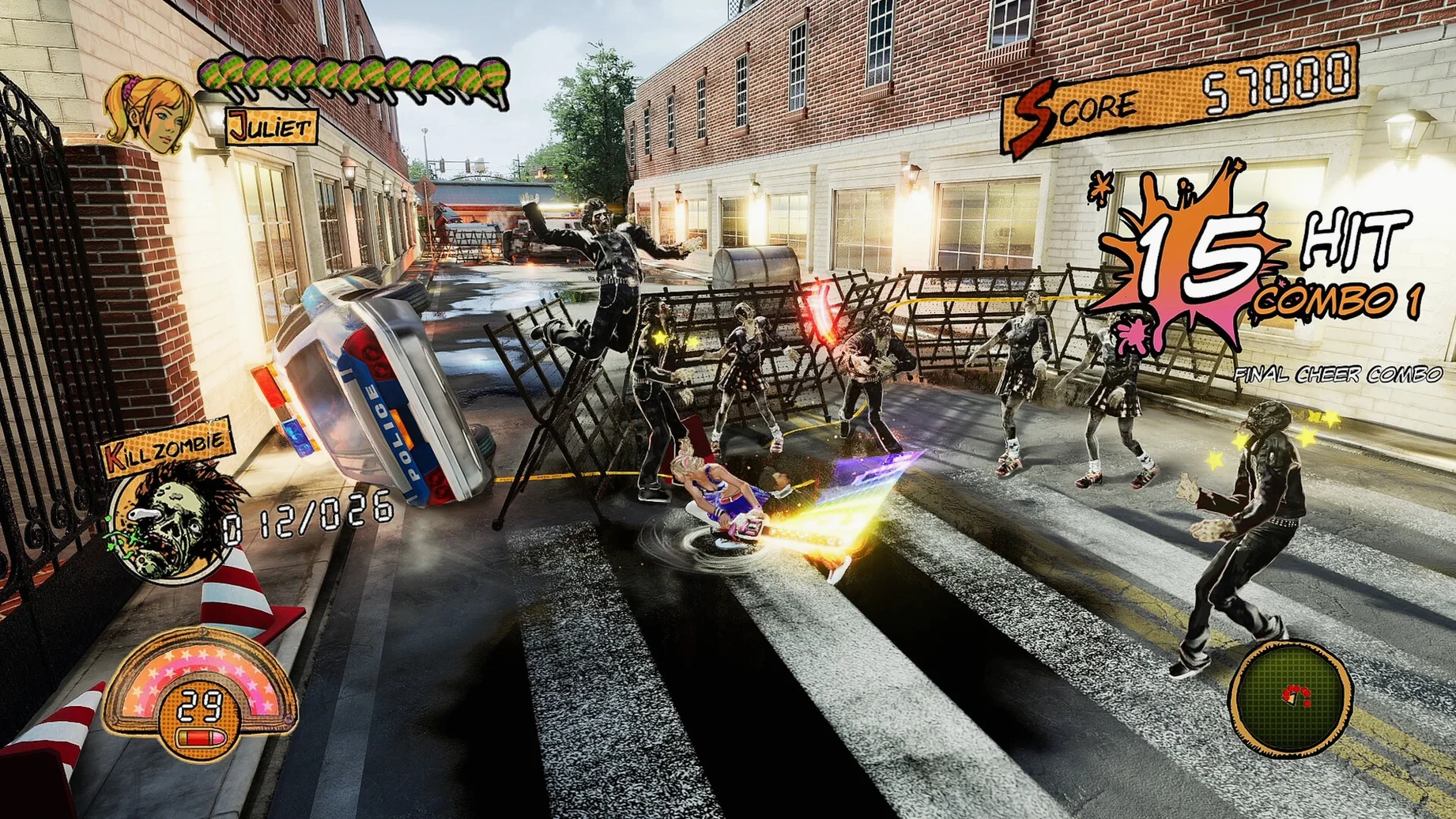
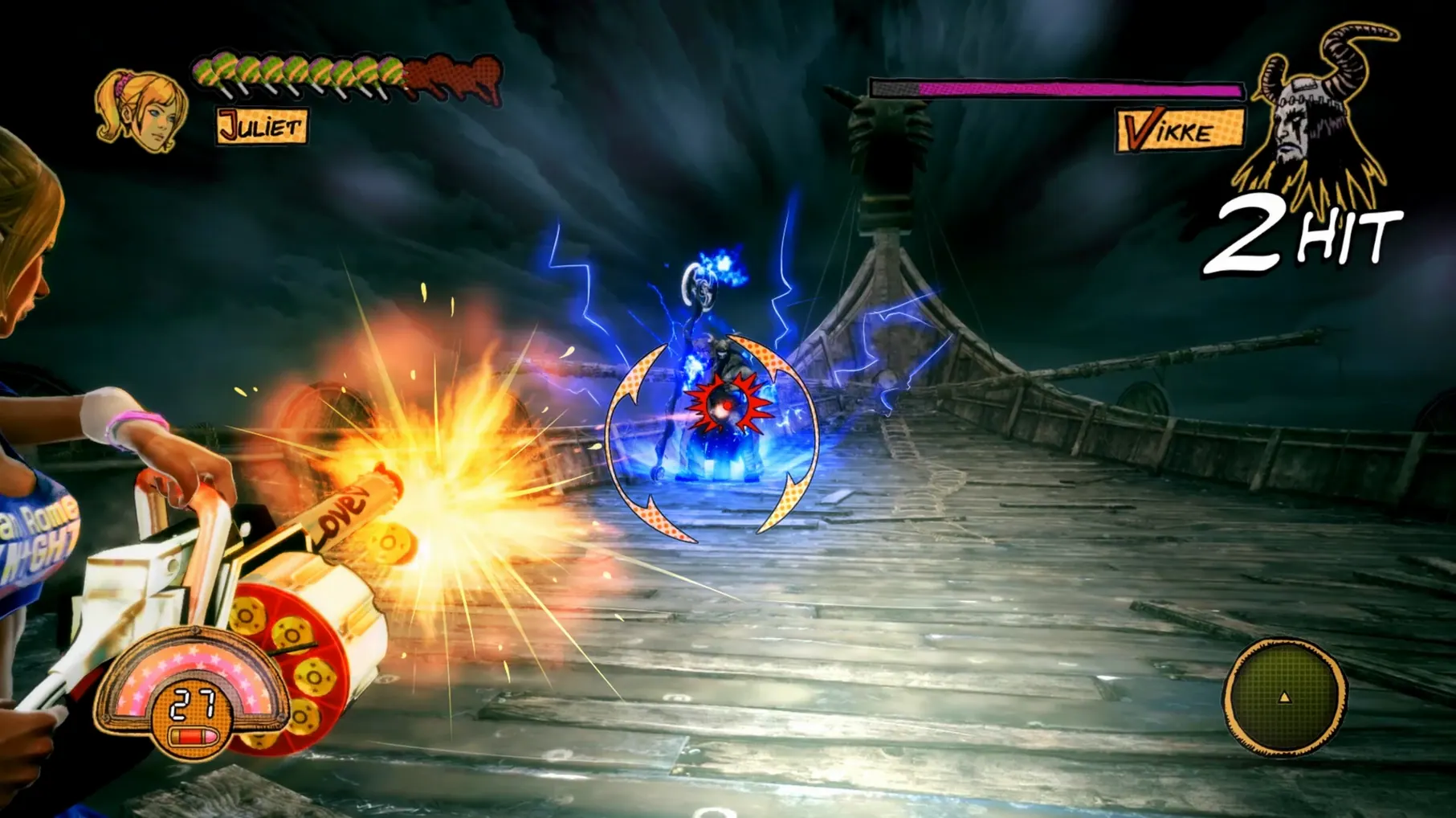
Juliet Starling arrives at San Romero High School, chainsaw in hand, and the bell hasn't even rung. A zombie outbreak turns the campus into a combat arena. This remaster sharpens the original's cult-action edges with updated graphics, a smoother camera, and a 4K/60 FPS target that tests a Mac's translation layers.
1. Getting the wrapper right
Version 1.16 ships inside a Wineskin wrapper. After mounting the disk image and copying the app to Applications, launch it once. If an error blocks the first start, run the Fix file included on the image. This patches a path mismatch that can appear on Apple Silicon Macs.
2. Control feel and input timing
The remaster promises enhanced input responsiveness, and it mostly delivers inside the wrapper. Attack chains land with less delay than the original console release. Quick-time events can be set to auto-play, which avoids fumbling over keyboard mappings during cutscene prompts.
3. Graphics and performance
4K resolution and 60 frames per second are the ceiling. On a Mac mini M4, medium-high settings hold steady. The improved camera reduces the original's wild swings, though tight corridors still require manual correction.
Fitting it into macOS rhythms
The Wineskin wrapper behaves like a self-contained app — it sits in /Applications and shows up in Launchpad, but it doesn't register with Game Center, doesn't write saved games to the usual ~/Library/Application Support path, and won't appear in Screen Time or the battery usage menu. Controllers recognised by macOS (DualSense, Xbox Wireless Controller) pass through if connected before the app launches. Pairing them after the window opens often means a restart of the game.
Mission Control treats the Wineskin window as one opaque surface, so full-screen mode works tidily on a single display but can flicker when dragging across Spaces. If you use a Stream Deck or custom keyboard shortcuts to switch apps, address the wrapper by its process name — it appears as lollipop.app in most automation tools.
Launching from the disk image instead of Applications
One recurring slip is launching the disk image's app bundle directly instead of copying it to Applications first. That works once and then breaks when the image is ejected. Another is running the Fix file before the first launch attempt — the patch only applies if an actual error has occurred, so running it preemptively can reset a valid path.
Some players disable auto-play for QTEs expecting a purist experience, then hit wall prompts where the on-screen glyph doesn't match their keyboard layout. The wrapper defaults to an en-US layout for the game window, so non-English keyboard mappings produce wrong inputs. Switching auto-play back on for the prologue avoids a string of early deaths.
Finally, quitting with Command-Q may leave the Wineskin process dangling. A better habit is to close the game from its own exit menu, which lets the wrapper clean up its runtime files properly.
Dialing back the camera sensitivity before story mode
After a clean install, spend ten minutes in the options menu before touching the story mode. The default camera sensitivity is high; dial it down two notches and test the right-stick dead zone against a wall. The remaster's auto-target assist is gentler than the original's, so learning the manual lock-on timing in the school courtyard saves frustration later.
Map the chainsaw rev to a shoulder button if your controller permits — the default face-button placement makes simultaneous camera adjustment awkward during boss fights. For keyboard-only play, rebind the dodge to Shift and keep the heavy attack on a key that doesn't require lifting a finger from movement.
If you plan to switch between the remastered soundtrack and the classic original, do it from the title screen rather than mid-chapter. Swapping audio sets during gameplay occasionally mutes voice lines until the next checkpoint reload.