Aspecten
 Download (10 MB)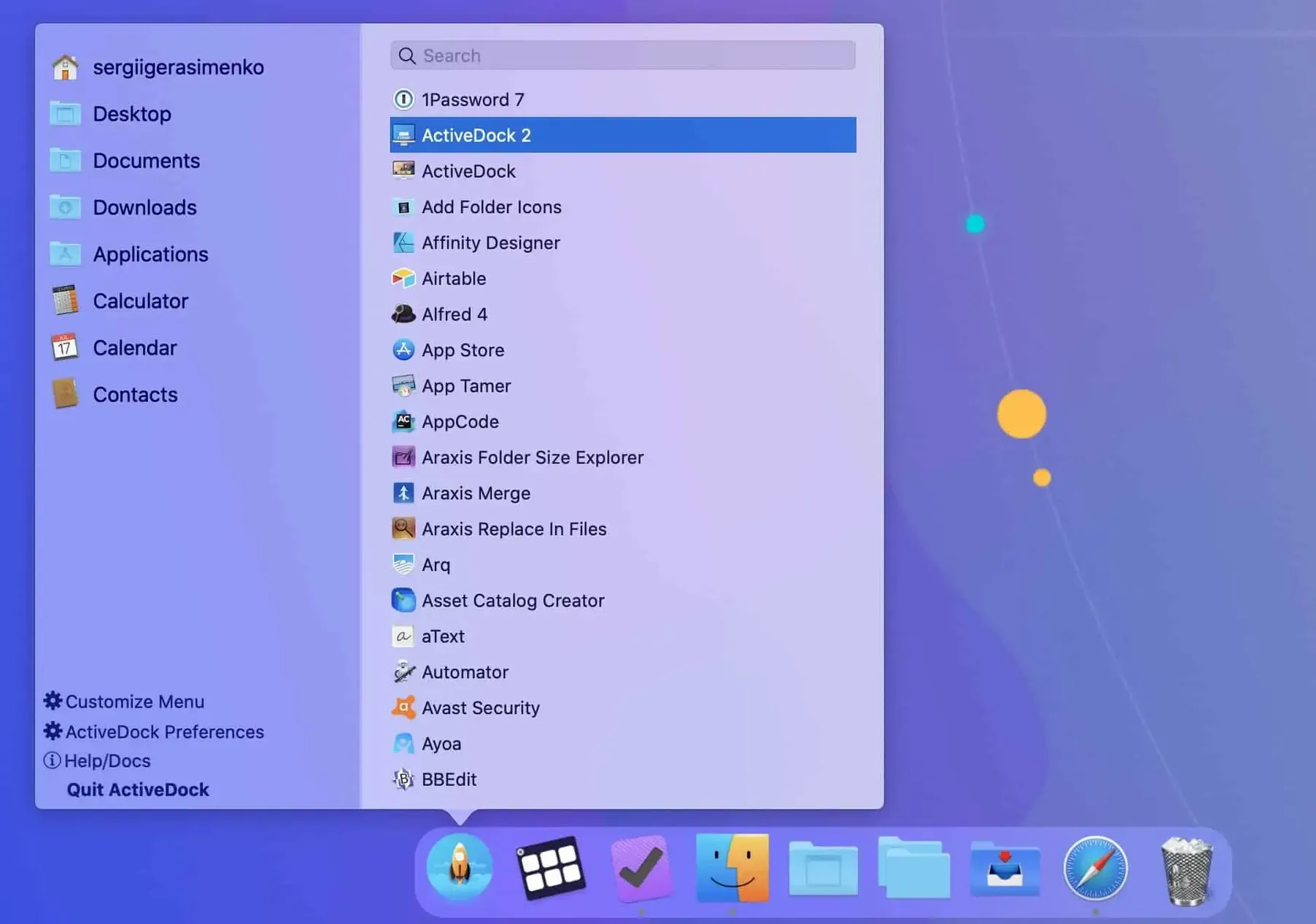
The standard macOS Dock works well enough for daily tasks, but it leaves little room for fine-tuning. Experienced users often want more control — a different layout, a quicker way to launch applications, or previews that do something useful when hovered over. ActiveDock steps in as a full replacement for both the Apple Dock and Launchpad, aimed squarely at those who prefer to shape their own workspace.
Tools for the experienced user
- Appearance control — Change the Dock's visual style beyond what System Settings allows. Adjust transparency, spacing and the shape of the running-indicator marks.
- Start menu option — Enable a Windows-style Start button that opens a structured application list, offering an alternative to the standard grid of Launchpad.
- Window management from previews — Hover over a Dock icon to see windows for that application. From there you can switch, close or arrange windows without first bringing the app to the foreground.
Disabling the system Dock entirely
ActiveDock does not sit alongside the macOS Dock — it disables the system Dock and takes over completely. That makes it a deeper change than a cosmetic overlay. The trade-off is a small learning curve while you set up groups and behaviour to match your habits. For someone who has already pushed the native Dock to its limits, that setup time pays back in a more responsive, personally shaped launcher.
Starting at login to ease the switch
Moving to a new Dock is a small shift that touches every application launch. A few deliberate choices early on keep the transition smooth.
- Set ActiveDock to start at login before anything else. Open its preferences, find the general tab and tick the launch-at-login option. Then manually quit the Apple Dock once — open Terminal and type
killall Dock— so the system does not try to run both at the same time after a restart. - Spend ten minutes on groups. Drag your most-used applications into a couple of folders straight away. A group for browsers, editors and terminals, and another for utilities, stops the bar turning into a long horizontal list of icons you have to scan.
- Resist the urge to tweak every visual setting on day one. Pick a transparency level and an indicator style that feel close to the standard Dock, then use the software normally for a few days. Changing too many variables at once makes it harder to tell what feels right and what simply feels different.
- Check the Start button placement. By default it sits at the left edge. If muscle memory has you reaching for the Apple menu, try moving it one position to the right or hiding it entirely until you need a Launchpad alternative.
When the macOS Dock reappears after reboot
Most early friction comes from the handover between the system Dock and its replacement, or from assumptions about how previews should behave.
- The system Dock reappears after a reboot. This happens when ActiveDock launches a fraction too slowly. The fix is to ensure the helper component is listed under Login Items in System Settings and that ActiveDock itself is set to launch at login. On slower Intel Macs, adding a short delay in the app's own startup options — where available — gives the system enough time to settle before the handover.
- Window previews show the wrong thumbnail. Some applications, particularly older ones or those built with cross-platform toolkits, do not supply a usable window snapshot. ActiveDock shows a generic icon in those cases. There is no fix on the user side, but you can disable previews per-app from the Dock item's context menu, falling back to the standard window list instead.
- An app icon stays visible after quitting. Right-click the stuck icon and choose the remove option. If that fails, restarting ActiveDock from its menu bar icon clears the cached state. Persistent cases almost always involve apps that leave background helpers running — check Activity Monitor for leftover processes.
- Drag-and-drop onto a group folder misfires. The hit area for group folders is narrower than it looks. Dragging an item slowly and releasing directly over the folder's label, rather than its icon, improves accuracy. For frequent additions, the group's contextual menu includes an explicit add-item command that bypasses drag-and-drop entirely.
A workflow: tidying a cluttered workspace
Picture a typical afternoon with eight or nine applications open across three desktop spaces — a browser with research tabs, a code editor, a terminal, a Finder window, a messaging app, a notes app and a graphics tool. Switching between them through the standard method means either hunting in Mission Control or cycling with Command-Tab and hoping you land on the right window.
With ActiveDock, the workflow can start from the Dock itself. Hover over the browser icon to see a row of window thumbnails. A glance shows which window holds the article you need; click its preview to jump straight there, skipping the other ten tabs. The preview panel also offers a small close button on each thumbnail — useful for shutting the two browser windows you opened hours ago and no longer need, without bringing the whole application forward.
For the editor and terminal, create a temporary group by dragging both icons onto each other in the Dock. Right-click the group and name it "coding session". Both applications now occupy a single Dock slot. Clicking the group opens a tidy pop-up list; Option-click an entry to open that app and hide the current one in a single move. When the session ends, right-click the group and choose "ungroup" to return the icons to their usual places.
The Start button, styled after its Windows inspiration, becomes the launcher for everything else. Press its assigned shortcut — or click it — and type the first three letters of the graphics tool. The filtered list appears faster than Spotlight for application names, and hitting Return launches it without taking your hands off the keyboard. Over time, the Start menu builds a short "recently used" list that mirrors actual working patterns more closely than the Dock's static pinned icons.
By the end of the session, the Dock bar holds only what is active, groups collapse into single slots, and the Start menu handles everything you reach for less than once an hour. The macOS desktop itself stays clear, because the Dock has absorbed the organisational work that would otherwise sit in folders or strewn across multiple spaces.