Aspecten
 Download (218 MB)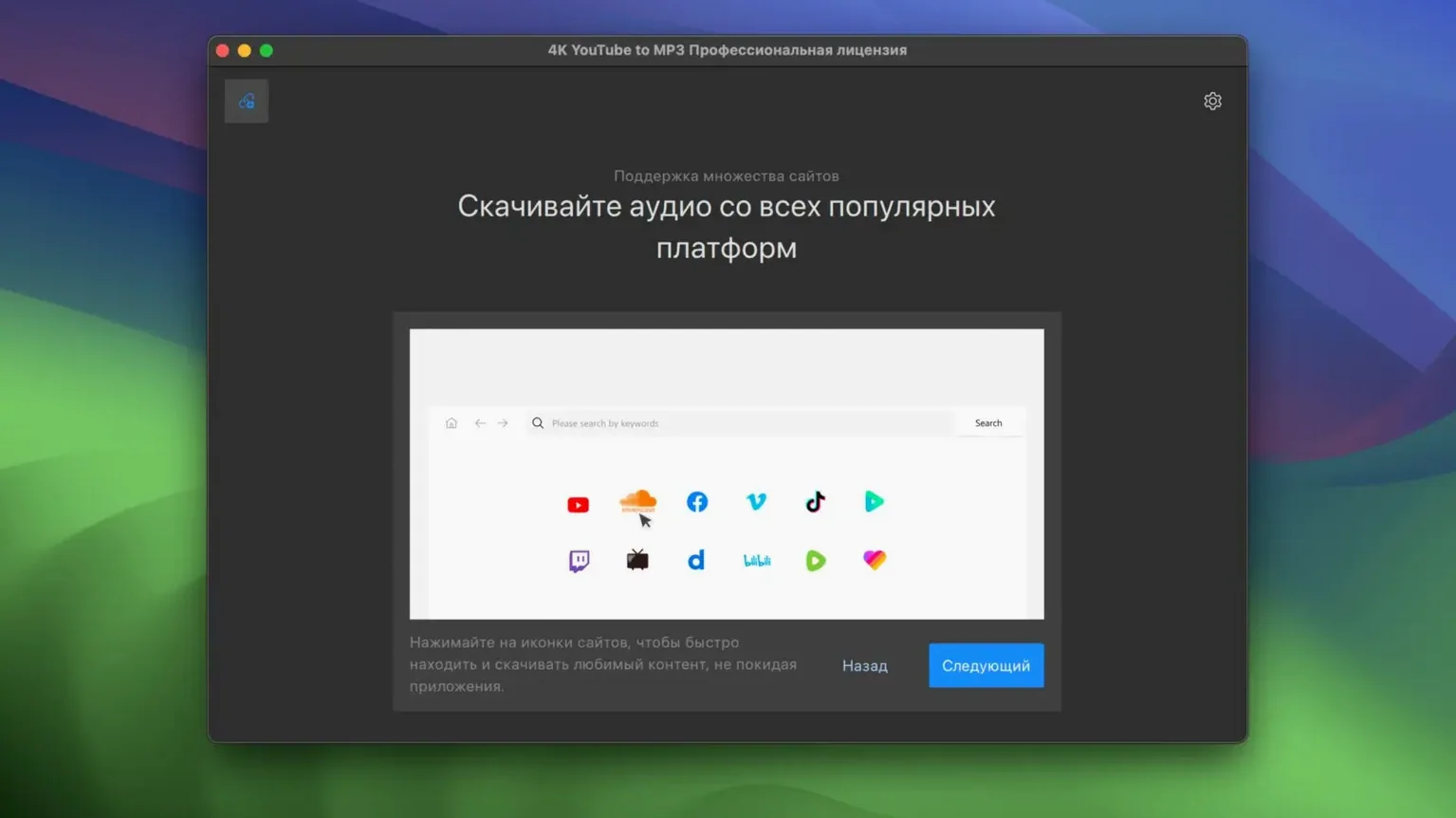
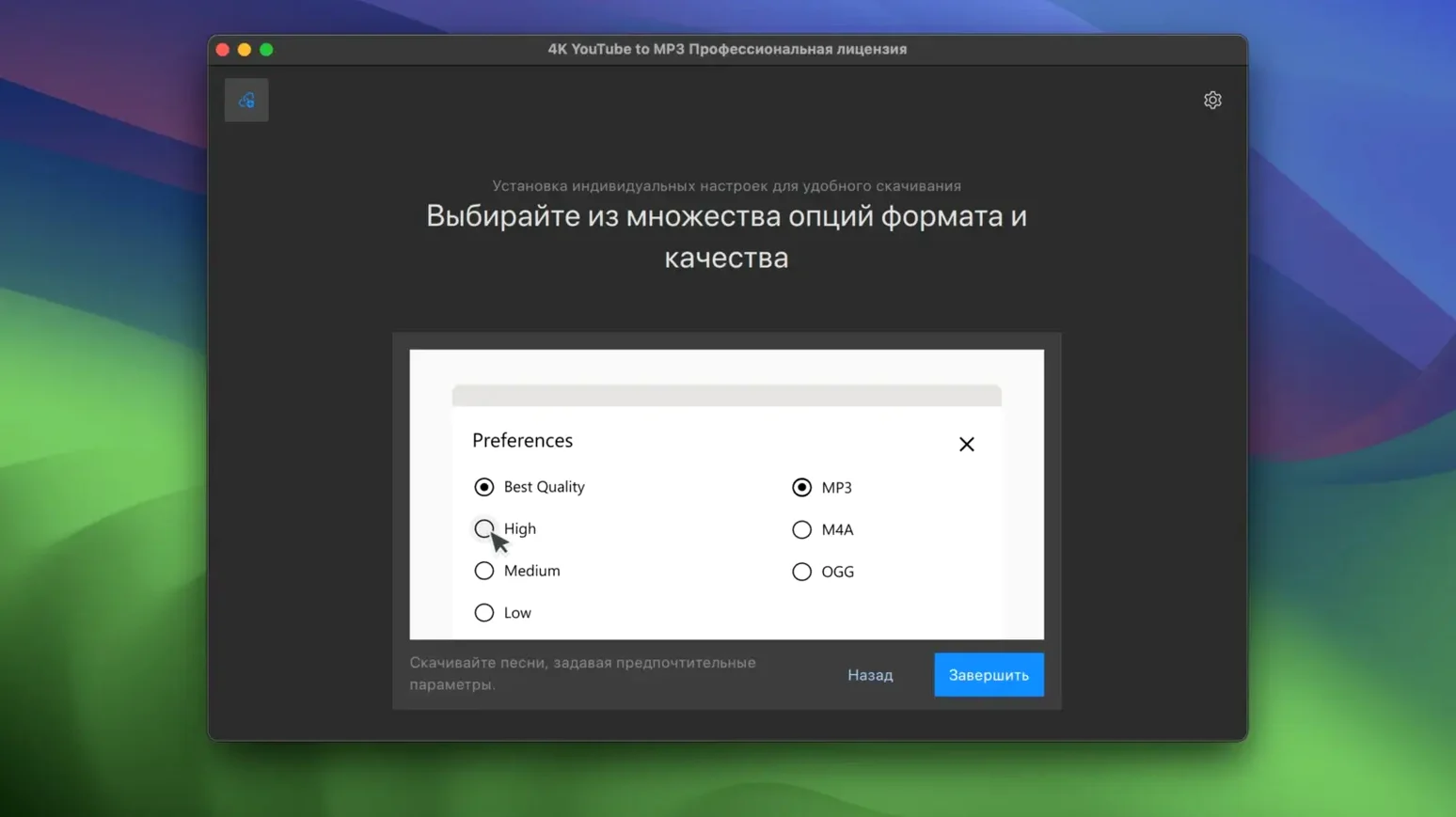
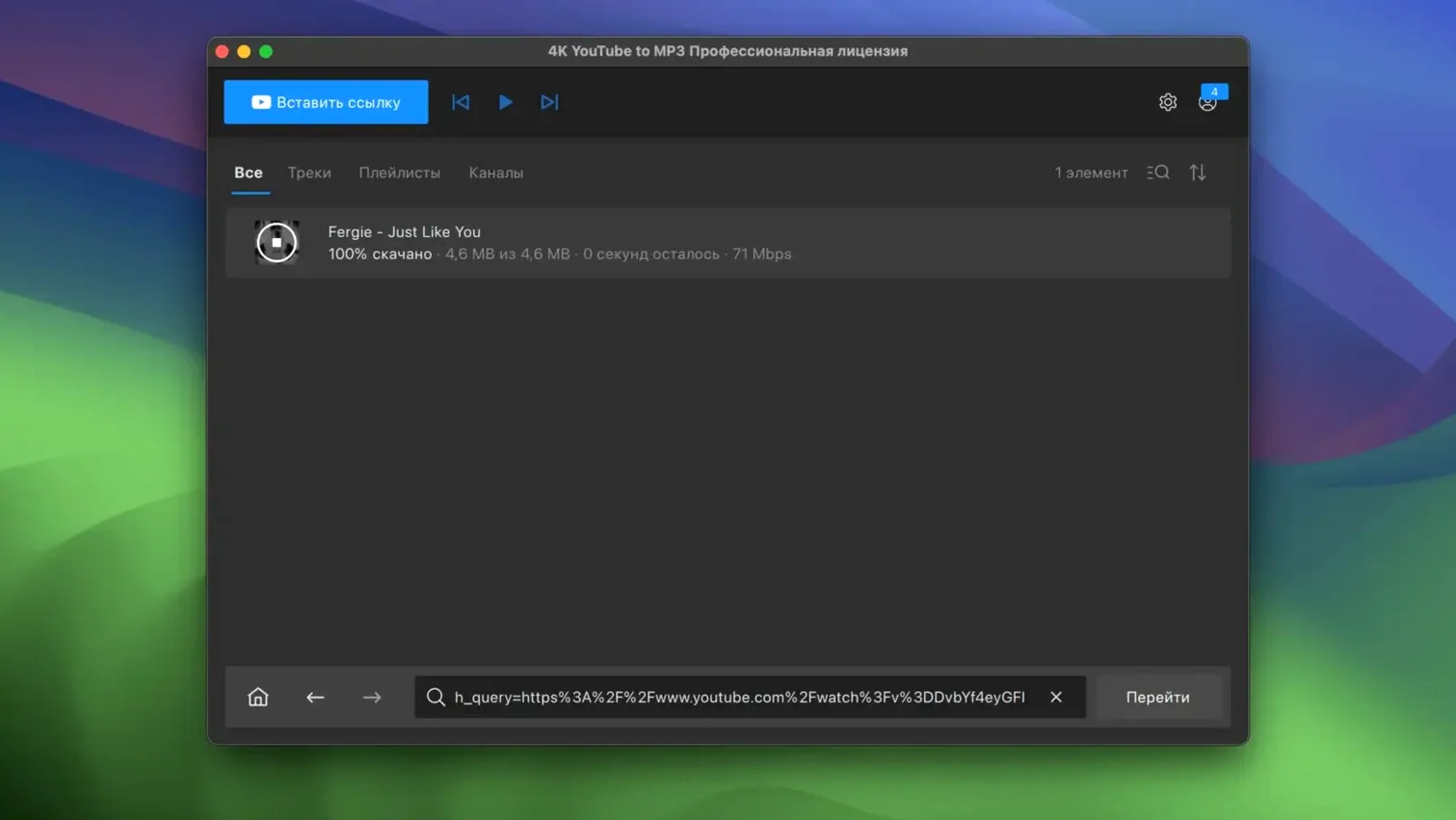
Smart Mode strips away the decision-making. You set your preferred format — MP3, M4A, or OGG — and the app applies it to every download that follows, without asking again. It is the sort of quiet automation that makes 4K YouTube to MP3 a tool for getting on with things, rather than a tool you have to operate.
Paste a link, get an audio file
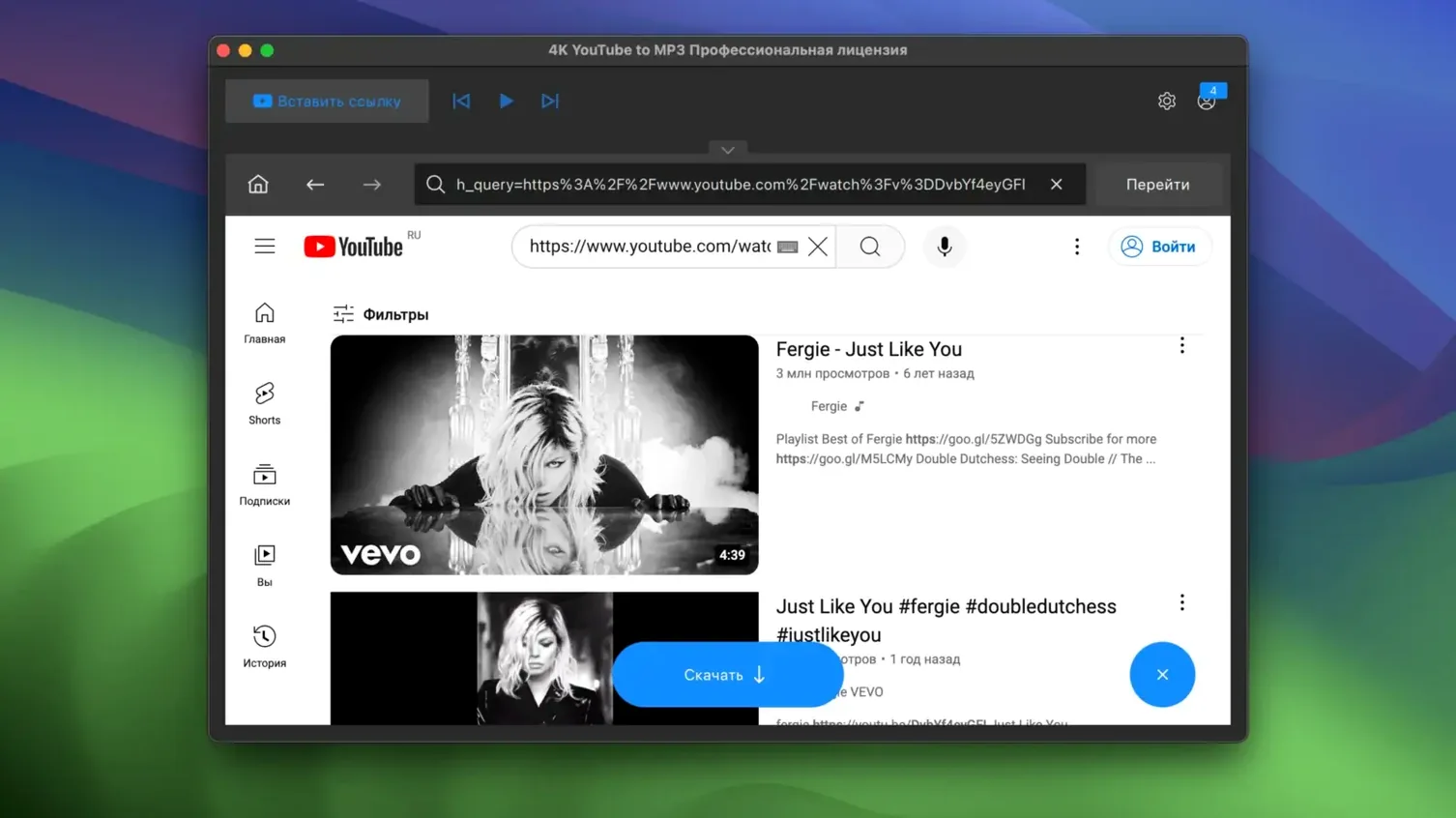
The window is a single input bar. You paste a link, the app parses it, and a few seconds later you have an audio file. There is a built-in browser for searching within the app, but the core loop is simpler: paste from wherever you found the source, and let the app handle the rest. Settings are tucked behind a gear icon — format choice, output folder, and a toggle for extracting audio from playlists.
Playlist fetching handles full lecture archives
Playlist support is the standout. Paste a playlist URL and the app fetches every item, then works through them one by one. For someone archiving a lecture series or pulling an album’s worth of tracks from a long session, this is where the app earns its keep. The format options cover practical ground: MP3 for universal playback, M4A for Apple-native quality, and OGG for niche open-source needs. What it does not do is video — this is strictly an audio extractor, and that focus keeps it lean.
Set the output folder to a dedicated directory first
After mounting the disk image and dragging the app to Applications, set the output folder before anything else. The default location is your Music folder, but pointing it to a dedicated directory — perhaps inside an external drive or a cloud-synced folder — keeps the library tidy from the start. Open Preferences, click the Destination tab, and choose a folder you will remember.
Enable Smart Mode early. Open Preferences, select the General tab, and tick the checkbox. Then pick MP3, M4A, or OGG as your default format. The app will no longer ask for confirmation before each download. If you later need a one-off file in a different format, disable Smart Mode, grab that file, and switch it back on. It is a toggle, not a commitment.
Watch the playlist parsing step. When you paste a long playlist URL, the app fetches the track list before downloading. At that moment you can untick items you do not want — a remix you already own, a duplicate, a spoken interlude. Doing this before the queue runs saves bandwidth and avoids clean-up later.
If you need high-quality source files, let the app use the highest available bitrate. It does not re-encode from a low-bitrate stream unless the source itself is limited. For YouTube uploads with decent audio, that often means 256 kbps or better in the resulting MP3. Check the file info after the first few downloads to confirm the output matches what you expect.
Drag a SoundCloud link onto the simple grey bar
You open the app on a Tuesday evening with a list of tracks saved in a notes file. The window appears as a simple grey bar, ready for a link. You copy a SoundCloud URL from the browser, paste it, and press Return. A thumbnail and title appear within two seconds. The progress bar moves, and the file lands in your output folder before you have copied the next link.
Next you paste a YouTube playlist URL — twenty-three tracks from a live set. The app presents the full list in a scrollable panel. You uncheck three items: the intro, an intermission, and a track you already pulled last week. You click Download and watch the queue panel populate. The first file starts immediately. While it downloads, you switch to the Finder and rename the previous SoundCloud file, giving it a cleaner artist-and-title format.
The playlist takes about four minutes to complete. You glance at the app only once, when you notice one track stalled. The app retried automatically and continued. By the time you finish renaming the earlier files, the queue is empty and twenty tracks sit in the output folder, properly tagged with title and artist metadata pulled from the source.
Before closing the app, you open Preferences and switch the format to M4A for a single VEVO link you plan to grab tomorrow — it will sound better on an iPhone. You then re-enable Smart Mode to lock in MP3 for everything else. The whole session took under ten minutes, and most of that was renaming.
Memory stays around 180 MB for a single download
On an Intel Mac running macOS 13, the app launches in under three seconds. Memory use hovers around 180 MB during a single download and rises to roughly 320 MB while processing a large playlist queue. That is modest for a media tool. The CPU load is noticeable but brief: each conversion spikes one core for a few seconds, then settles. On a machine with 8 GB of RAM, you can comfortably run a browser, a text editor and the app side by side without swapping.
Download speed depends on the source server, not the app itself. With a stable connection, a five-minute YouTube video extracts to MP3 in roughly the time it takes to play the video. Playlist queuing is sequential, not parallel — the app downloads and converts one file, then moves to the next. This keeps the system responsive and avoids rate-limiting from the source platform.
Stability has been uneventful across weeks of daily use. The app does not crash when you paste a malformed URL; it shows a red error message and waits for the next link. Closing the lid mid-download pauses the queue, and on wake the app picks up where it stopped. One quirk: if the network drops entirely, the active download fails silently and the queue does not advance until you manually skip the failed item. A small annoyance, not a workflow stopper.
Disk use is predictable. An hour of spoken word lands at roughly 55 MB in MP3; a four-minute song at high bitrate is around 9 MB. The app does not leave temporary files behind in the output folder, and the cache in ~/Library/Application Support stays small — under 50 MB even after heavy playlist sessions.
A real-world scenario: language learner archiving audio
A graduate student studying Mandarin needs offline access to pronunciation videos from several YouTube channels. She finds a playlist of 150 short clips — each under two minutes, each demonstrating a single syllable tone pair. Pasting the playlist URL into 4K YouTube to MP3 fetches the full list in about eight seconds. She deselects the introductory and outro videos, leaving 144 usable clips.
She sets the output to MP3 at 128 kbps — spoken audio does not need more — and points the destination to a folder inside her Anki media directory. The app processes the queue over the next twenty minutes while she reviews vocabulary in another window. Each file inherits the video title as its filename, so the clip for mā má mǎ mà appears exactly as expected in her Anki cards.
By the end of the session she has a clean library of 144 audio files, correctly named and playable on her phone during her commute. The app asked for nothing beyond the initial paste and the unchecking of unwanted items. For a learner who repeats this process with new playlists every few weeks, the simplicity of the paste-queue-walk-away workflow is the reason the tool stays in the dock.