Aspecten
 Download (3 MB)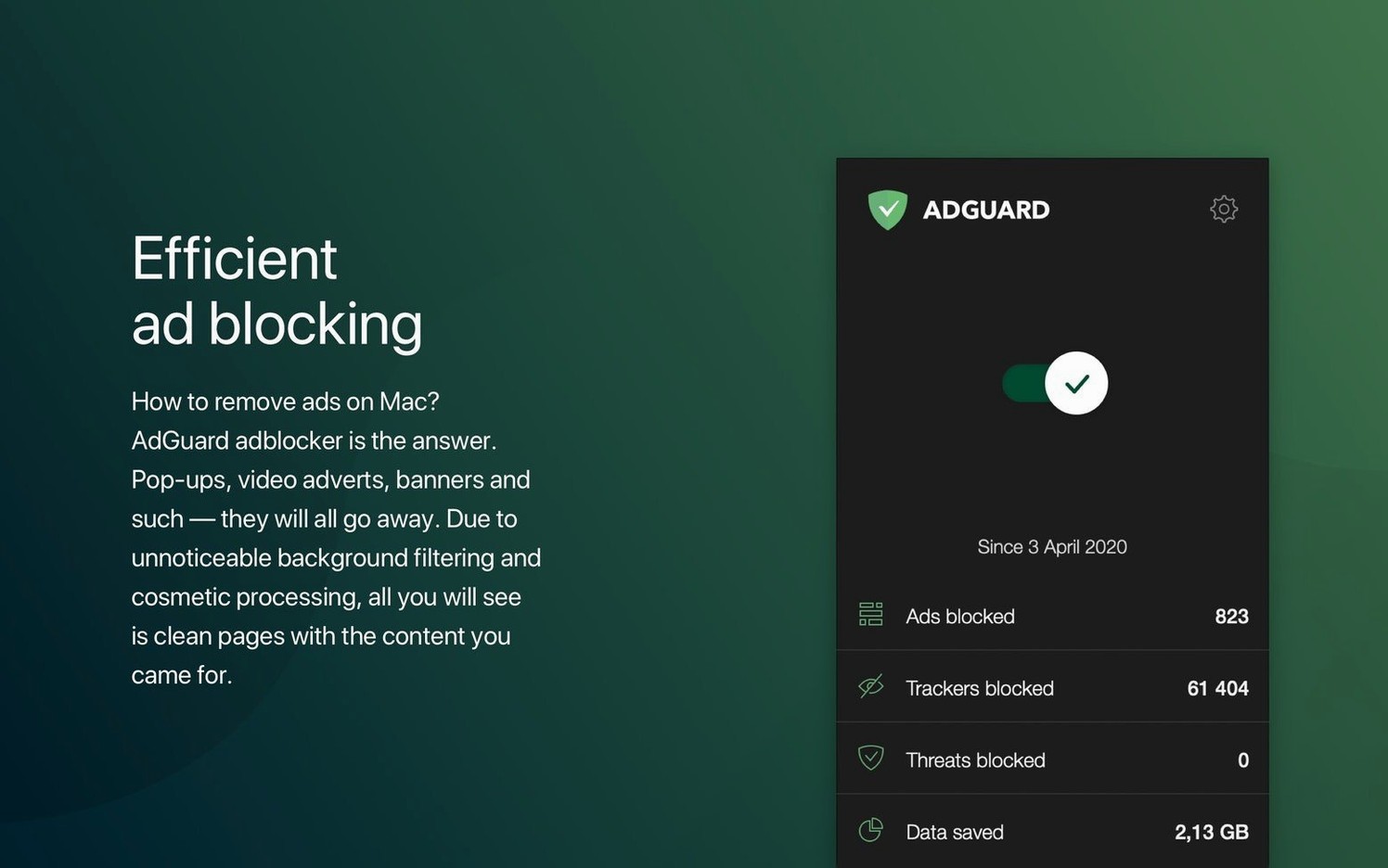
Adguard for macOS suits people who want one filter that covers Safari, Chrome, Firefox and the apps around them, rather than a separate extension per browser. It sits next to existing Mac tools without demanding that the user change how they browse.
System-wide filtering without replacing your browser or VPN
Adguard works at the system level, so it filters traffic from all browsers and from applications that display ads. It does not replace a browser, a password manager or a VPN; it handles the advertising and tracking layer those tools leave alone.
Blocking in-app ads and scanning for dangerous websites
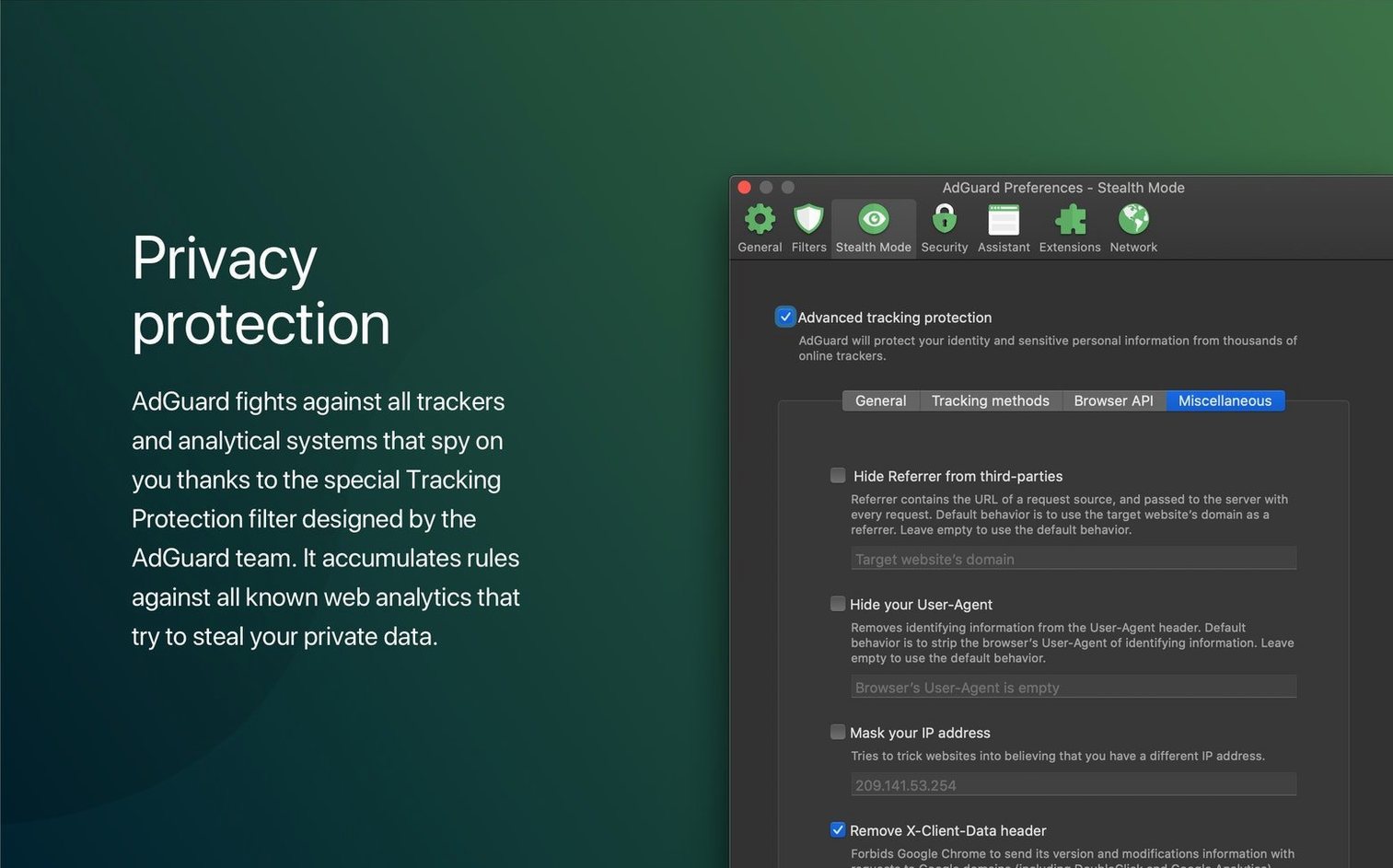
It can block ads inside other applications, manually remove selected page elements, and hide personal data from trackers and analytics systems. A website safety scan runs in parallel, flagging dangerous activity without changing the browsing routine.
How does it relate to AdGuard Mini?
AdGuard Mini for Mac is a separate app from the same developer. Users who need only browser filtering may find Mini enough, while the full app extends the same logic to applications and manual element blocking.
Which Mac setups does it suit?
The current version runs on macOS 10.15 or newer, on both Intel and Apple Silicon. The interface is available in a wide set of languages, including Russian, German, Spanish, French, Dutch, Japanese and Chinese in traditional and simplified forms.
A few conveniences sit just under the surface and repay a bit of exploration. Right-clicking the Adguard menu bar icon reveals a Pause filtering command that stops all blocking for 30 seconds, 1 minute or until the user turns it back on — helpful when a site breaks and a quick check is faster than adjusting rules. The same menu holds an Assistant toggle; when active, it floats a small translucent panel next to browser windows, letting you block a visible element, report a missed ad or toggle scripts on the current page without opening the main window.
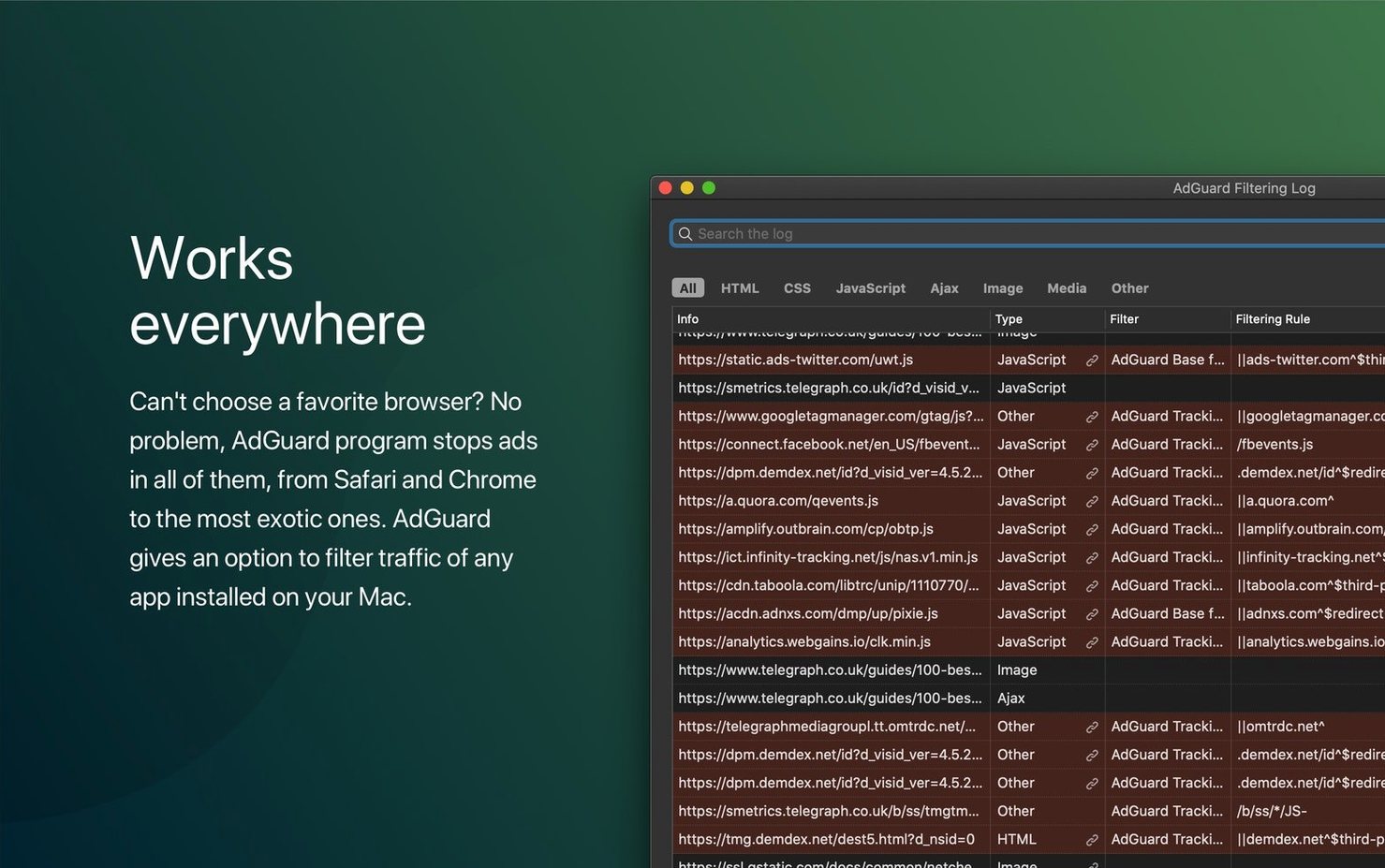
In the main window, Filtering log displays every request in real time. Hovering over a blocked item shows which filter list caught it. A checkbox next to each entry allows a one-click unblock for a single domain or a whole rule type. Users who prefer a quiet interface can leave the log closed and still benefit: the same data feeds the statistics ring on the dashboard, which splits blocked items into ads, trackers and phishing attempts.
Keyboard shortcuts are modest but useful. Command-Control-\ opens the filtering log from anywhere; Command-Control-] and Command-Control-[ cycle through protection states. These can be rebound in System Preferences under the Keyboard pane, where Adguard registers itself as a standard Mac service.
A green shield at startup, then a recipe site loads ad-free
Imagine a Tuesday morning. The Mac wakes, and Adguard is already running — its menu bar icon shows a small green shield with a tick. The morning starts in Safari, reading news. A recipe site loads clean, the inline banner slots replaced by empty space no wider than a single rule. Halfway down the page, a newsletter pop-up appears; that is not an ad but a script-driven overlay. A tap on the Assistant panel, a click on the pop-up, and Block element on this website is chosen. The overlay disappears and does not return on reload.
Later, a desktop email client fetches a newsletter containing tracking pixels. The filtering log, checked briefly, confirms that two tracking requests were caught — one from an analytics domain, one from a marketing automation service. The email displays normally, but the sender gains no read receipt.
After lunch, a colleague sends a link in Firefox. The page opens, but a video player refuses to load because its pre-roll ad domain is blocked. Rather than disable protection entirely, the filtering log is opened. The blocked domain is visible in the list; a right-click and Add to allowlist resolves it. A reload later, the video plays. The allowlist entry remains until removed, so the same site works tomorrow.
In the evening, a finance app opens inside its own Electron window. It normally shows a banner promoting a credit card. Adguard filters it silently — the app logs no error, and the space where the banner sat is simply gone. The session ends with the Mac going to sleep, the shield icon still green.
Pages load faster but a comments section vanishes
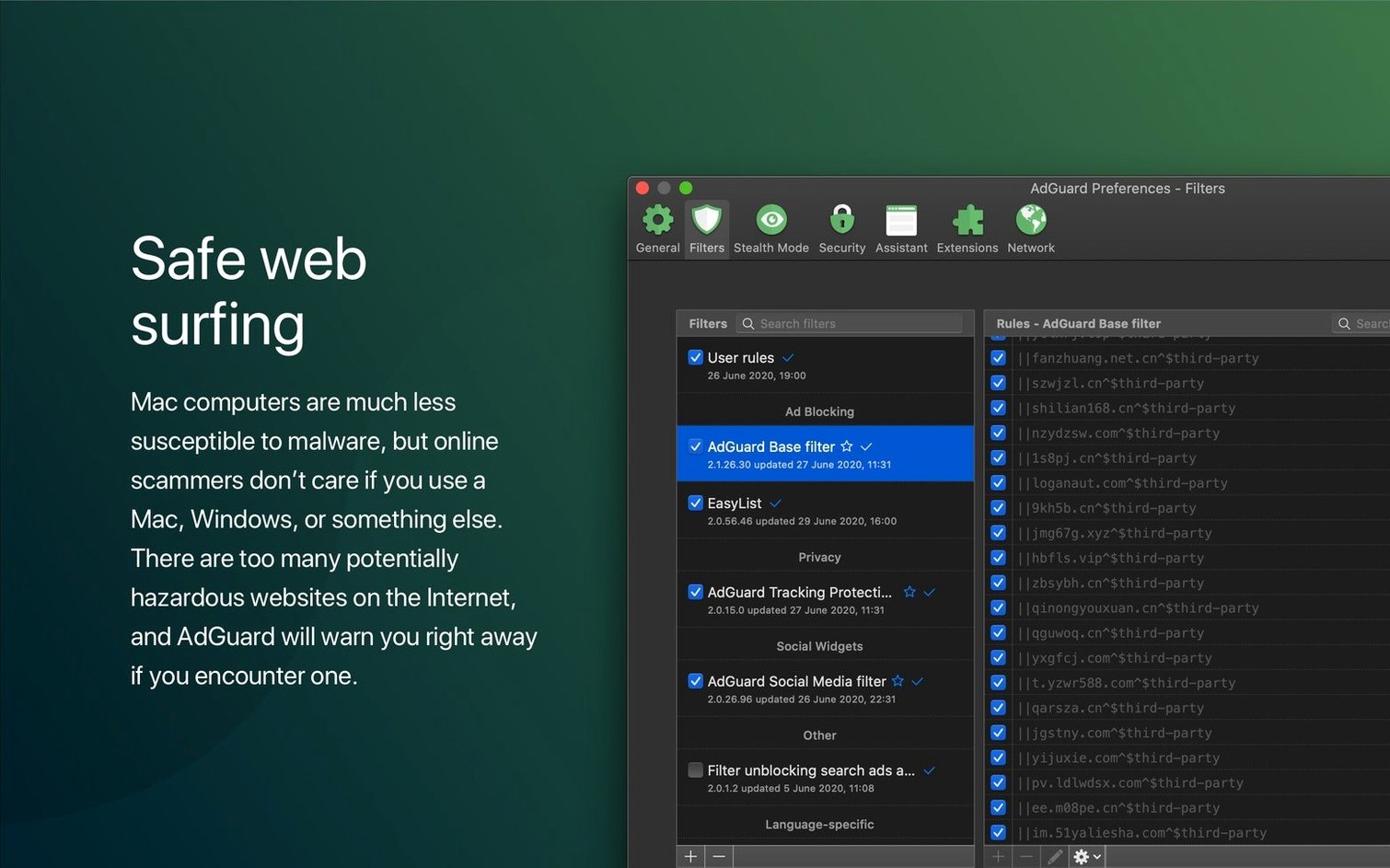
The first hour feels different. Pages load faster, but a few sites behave oddly — buttons unresponsive, comment sections absent. Before adjusting rules, open the filtering log and note which domains are blocked. Often a single social-media CDN, blocked by the Social widgets filter, is the culprit. That filter can be toggled off globally in Filters preferences without affecting ad blocking.
During the first week, build a small personal allowlist. Banking portals, airline check-in pages and government sites rarely show ads but often trip the phishing filter. Adding their root domain to the allowlist once saves repeated pauses. The allowlist lives in Privacy settings and supports wildcards, so *.gov.uk covers an entire domain family in one line.
Check the DNS protection tab on day two. It defaults to off; enabling it adds a system-wide DNS filter that catches trackers before they resolve, even in apps that bypass the local proxy. The Adguard DNS server is selected by default, but any custom DNS-over-HTTPS or DNS-over-TLS address can be entered. Users who already run a Pi-hole or a similar setup may leave this off to avoid double filtering.
One more thing: the network extension installs a local VPN profile. macOS may show a “Network content filtering” notification once. That is expected and does not route traffic to an external server; the filtering happens on-device. If another VPN app is used, Adguard can be set to Automatic proxy mode in the Network settings, which coexists more smoothly with third-party VPN clients. A quick toggle test on day one confirms which mode keeps both working.
AI-powered browser traffic gets filtered correctly
Version 2.18 added support for three AI-powered browsers alongside the updated system requirements. In practice, this means the filtering engine recognises traffic from browsers that use machine-learning models to summarise pages or reorder content. A user switching between Safari and one of those browsers no longer needs to adjust filters per browser; the same blocklist and allowlist apply across them, and the Assistant panel appears in each window without extra configuration.
The updated system requirements tightened the macOS floor to 10.15, which dropped support for a handful of older Macs but simplified the network-extension code. Stability improved as a result: the proxy service restarts less often after waking from sleep, and the menu bar icon no longer requires a manual refresh when switching Wi-Fi networks. The change is subtle — no new buttons, no redesigned panels — but it removes small daily friction points that accumulated in earlier builds.
For users coming from an adguard crack mac or adguard cracked mac package, a fresh installation of 2.18 often resolves lingering filter-update failures. Older modified versions sometimes froze the filter list at a single date; the current build fetches incremental updates every six hours by default, and a Check for updates button in the Filters pane forces a manual refresh. The same goes for anyone who previously relied on an adguard macos download from outside the normal update channel — the 2.18 engine normalises the filter database and clears ghost entries left by earlier manual imports.
Day-to-day, the largest difference is what does not happen. Background CPU use stays flat during long browsing sessions. The adguard mac torrent route often bundled an older kernel extension; 2.18 uses the modern Network Extension framework exclusively, which aligns with macOS 10.15’s security model and avoids the permission prompts that plagued earlier releases after system updates.