Aspecten
 Download (13 MB)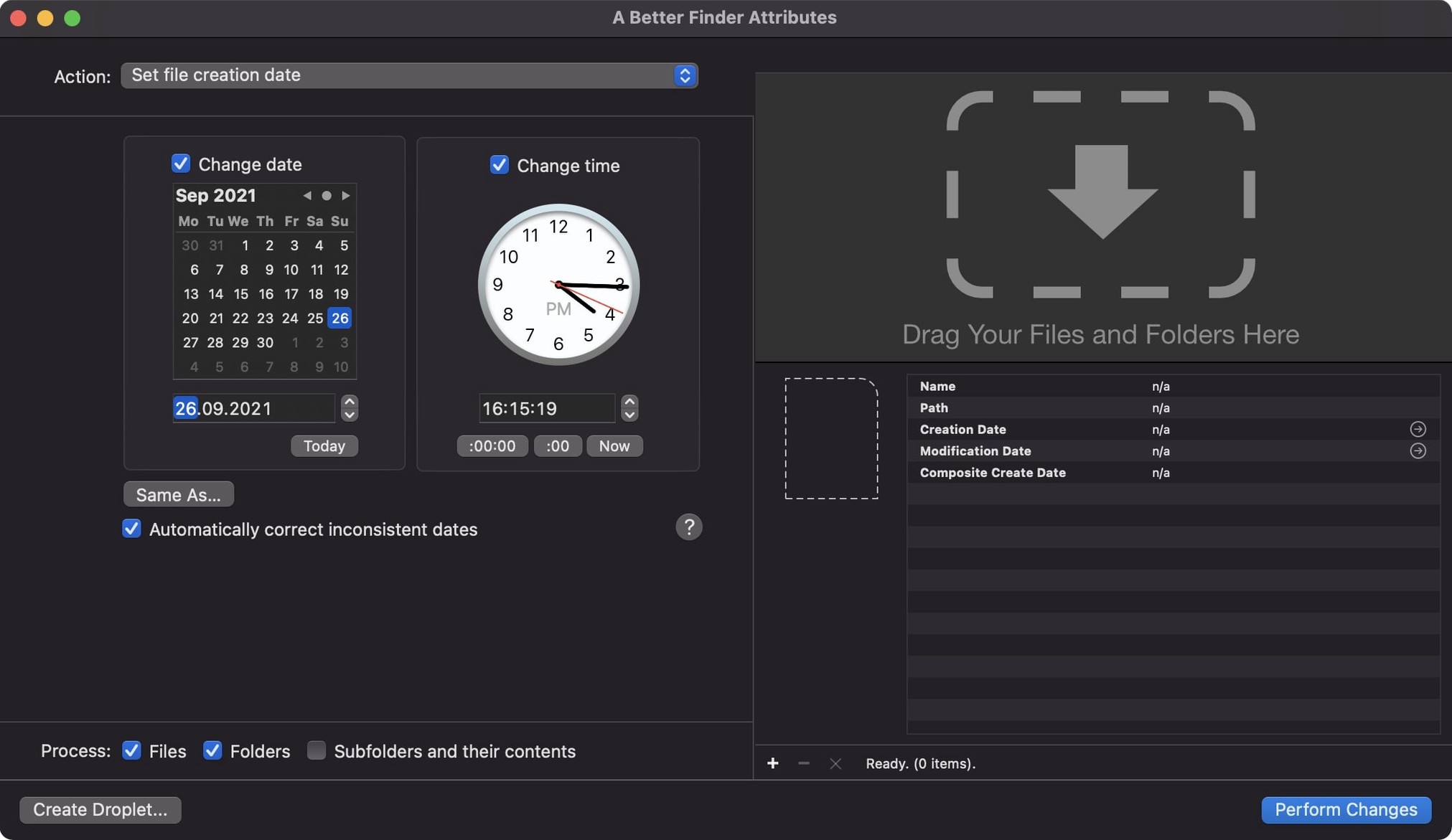
A Better Finder Attributes 7 draws a specific crowd: photographers untangling time zones across RAW files, archivists correcting batch date errors, and anyone who needs file system metadata to reflect reality rather than a copy error. It is not a general-purpose file manager. It is a focused instrument for date and attribute manipulation, and version 7.50 sharpens that focus for the working professional.
Where the depth shows
- Synchronising shoot dates with file dates. The utility reads the EXIF capture time from JPEG, NEF, CR2, CIFF and other RAW formats and writes it to the file system modification date. A single action corrects a folder of images that arrived with a transfer timestamp instead of the moment the shutter opened.
- Writing QuickTime creation dates. Version 7.50 can set the Apple QuickTime creation date so that movie clips carry their content creation date into Photos and Final Cut Pro. This matters when footage from different cameras needs to sit in sequence on a timeline.
- Adjusting dates inside RAW files. Beyond the file system, the tool reaches into the metadata of NEF, CR2 and CIFF files to shift timestamps directly. A batch shot with a camera clock set to the wrong time zone can be corrected without touching a RAW converter.
GPS and small refinements
Version 7.50 also broadens the coordinate formats accepted in the change tag action, which helps when pasting location data from diverse sources. An info button now sits in the title bar, offering quick access to documentation. The application runs natively on Apple Silicon and Intel 64-bit Macs and requires macOS 14.6 or later.
Fixing a wedding shoot where one body still had a foreign time zone
Consider someone who shot a wedding across two bodies. The primary camera was set to local time; the backup body still carried the time zone from a trip three weeks earlier. By the time the cards are offloaded, the edit timeline is a mess: confetti toss images sit before the ceremony, and the first dance appears to happen during the speeches.
The photographer drags the entire shoot folder into A Better Finder Attributes. A quick filter selects only the NEF files from the backup body. The adjustment needed is a six-hour shift forward. The tool rewrites both the EXIF time stamps inside the RAW files and the file system modification dates in one pass. The files now sort correctly in Photo Mechanic and Lightroom. The fix takes under a minute. The photographer can move on to culling instead of manually cross-referencing clock errors against a shot list.
Testing on copies before touching your live folders
New users often open the application, stare at the action menu and try a little of everything on a live folder. A better approach is to spend the first few sessions building small, safe habits.
- Test on copies first. Before adjusting a client delivery folder, duplicate a handful of files and run the action on the copies. Check the results in Finder and in a metadata viewer. Once the logic is confirmed, apply it to the originals.
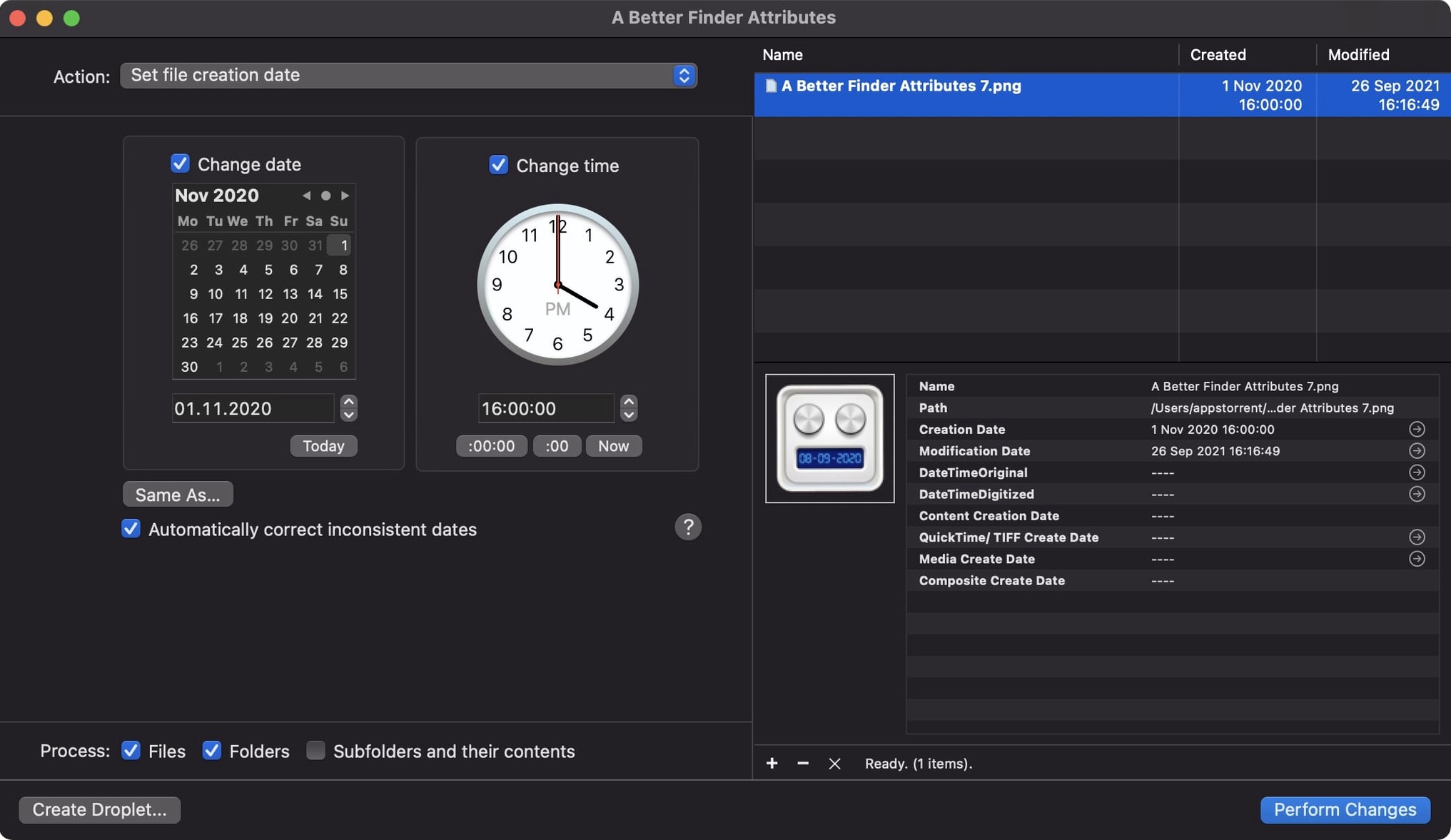
- Learn the preview column. The file list shows current values before any action runs. Sort by date created, date modified or EXIF time to spot outliers at a glance. A column sort often reveals that only twenty files out of two hundred need correction, which saves running a batch operation unnecessarily.
- Save a preset for a recurring fix. If a particular camera body consistently drifts by a known offset, save the date shift as a named preset. Applying it becomes a two-click routine rather than a mental arithmetic exercise each time.
Workflow: matching scanned film to EXIF dates
A user digitises old slide film with a scanner that produces TIFF files bearing the scan date, not the original capture date. The slides themselves carry handwritten dates on the mounts: August 1987, December 1990. The goal is to have the file system dates reflect when the photographs were taken, so the images sort chronologically alongside digital photos from later decades.
The workflow begins in A Better Finder Attributes. The user drags in a folder of scanned TIFFs. The scanner gave every file a modification date of last Tuesday. The user selects the action Set File Dates to Specific Date and works through the slides in batches grouped by month. For the August 1987 batch, they set the creation and modification dates to 15 August 1987 at noon — the exact day is approximate, but the month and year are correct. The action runs on the selected files.
Next, a second pass uses the Add Time action to stagger the timestamps within each batch by a few minutes per file. This prevents forty slides from all carrying the identical second, which would confuse sorting later. The user adds one minute per file in sequence, using the increment option. The result is a set of scanned images that sit naturally on a timeline with digital photos from the 2000s, displaying in the correct order when browsed by date in Finder or any photo manager. The entire process for two hundred scans takes roughly ten minutes.
What recent versions brought to daily use
Version 7.50 addressed a few friction points that regular users encountered. The DST error when writing QuickTime dates meant that some movie files appeared off by exactly one hour in Final Cut Pro browsers. The fix removes the need for a manual offset workaround that editors had been applying after the fact.
The synchronisation of IPTC Date Created with EXIF time zone offsets closes a gap for users who embed dates across both standards and then find mismatches when files move between different asset management systems. Previously, a user might set an EXIF date, only to discover that the IPTC field lagged behind when the file reached a newsroom archive. With version 7.50, both fields shift together.
Writing shooting dates back into Photoshop files returned after an absence in an earlier build. For a retoucher who receives PSD files from a photographer and needs to trace the original capture time without digging through sidecar files, that restoration is a quiet but practical correction. The broader GPS coordinate acceptance in the tag action also means less manual reformatting when pasting location strings from web services or log files that use slightly different decimal notations.