Aspecten
 Download (247 MB)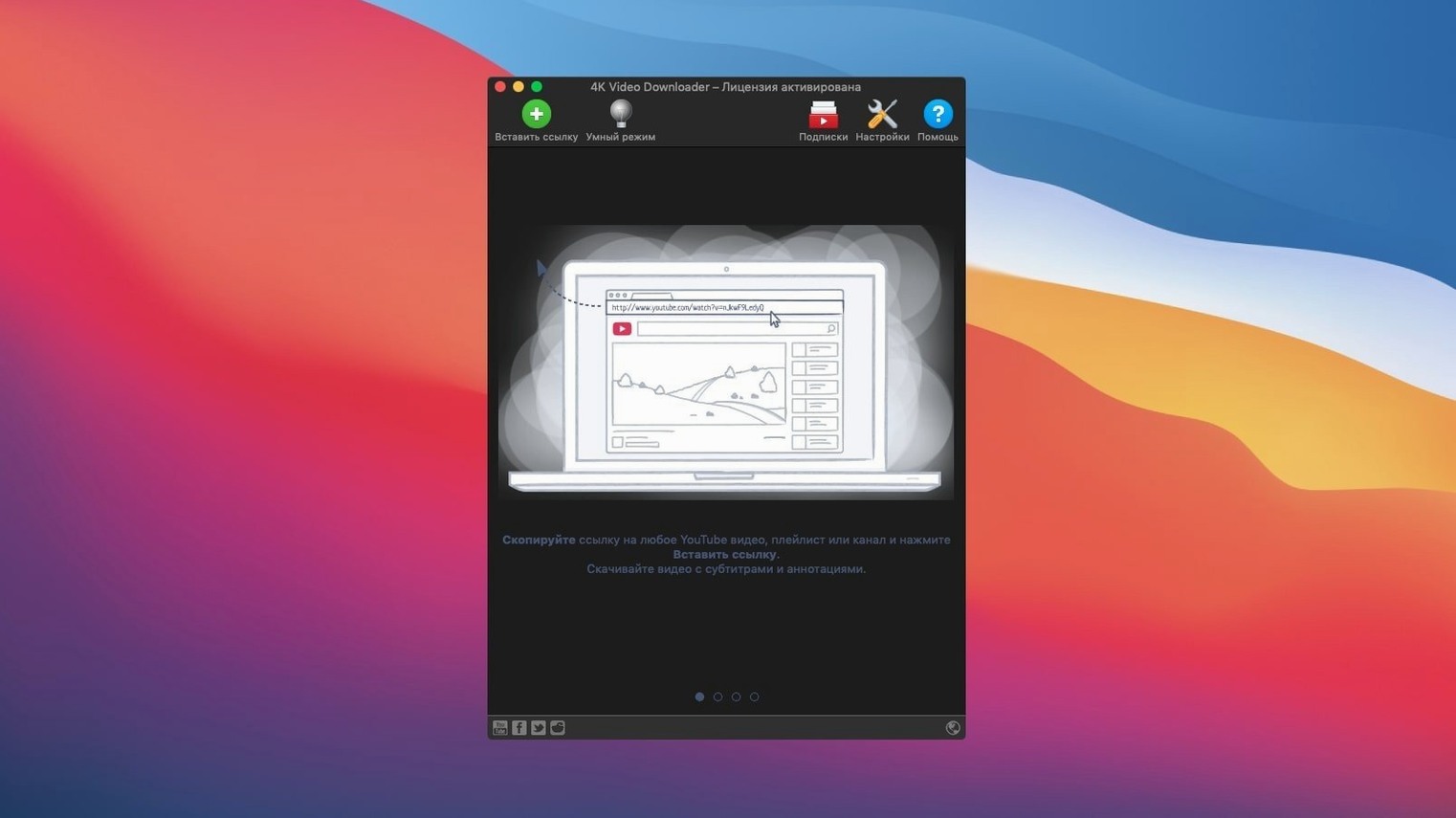
4K Video Downloader is a macOS utility for saving online videos, audio tracks and subtitles as local files. It focuses on fetching material from a range of websites rather than playing it.
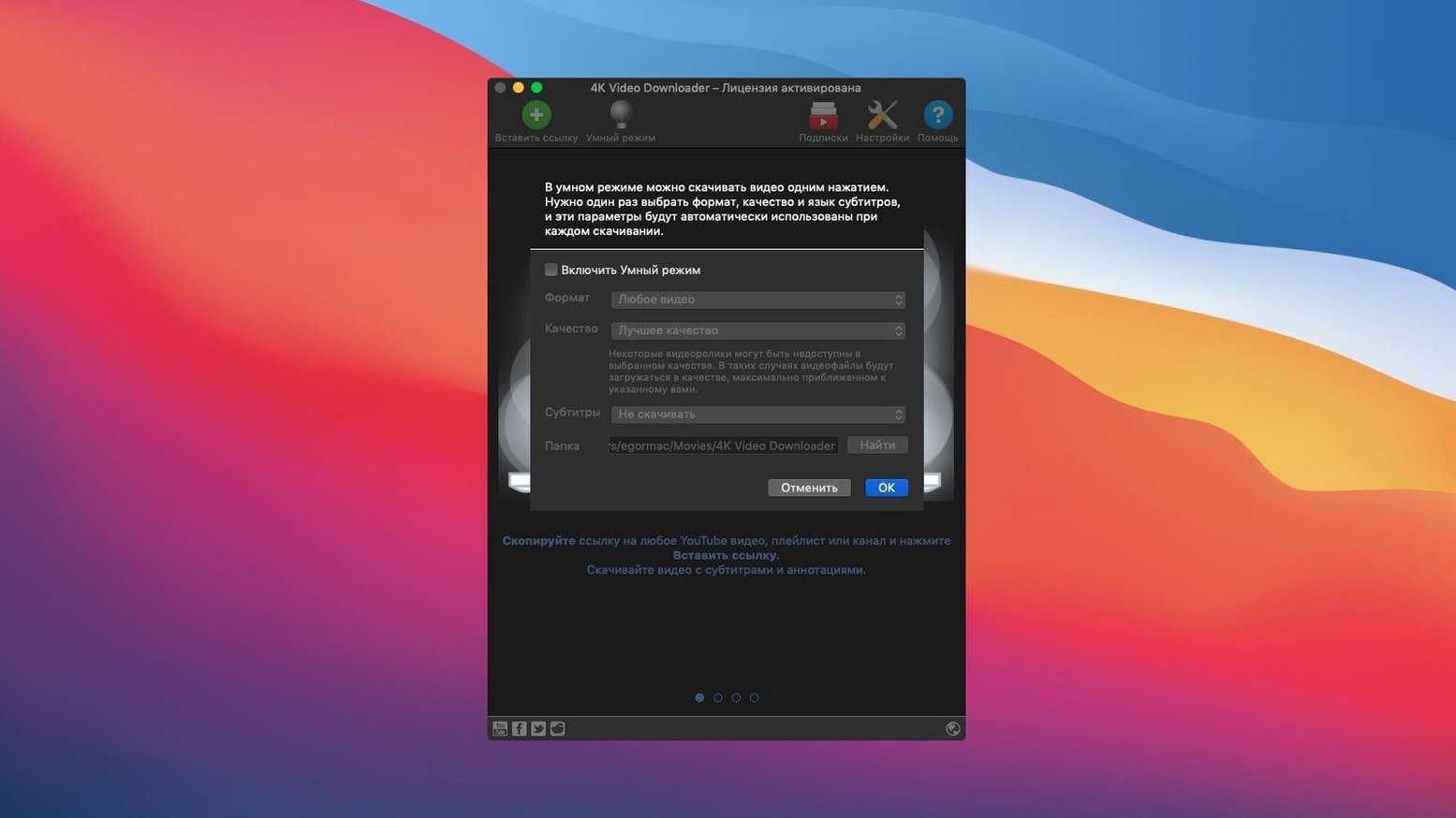
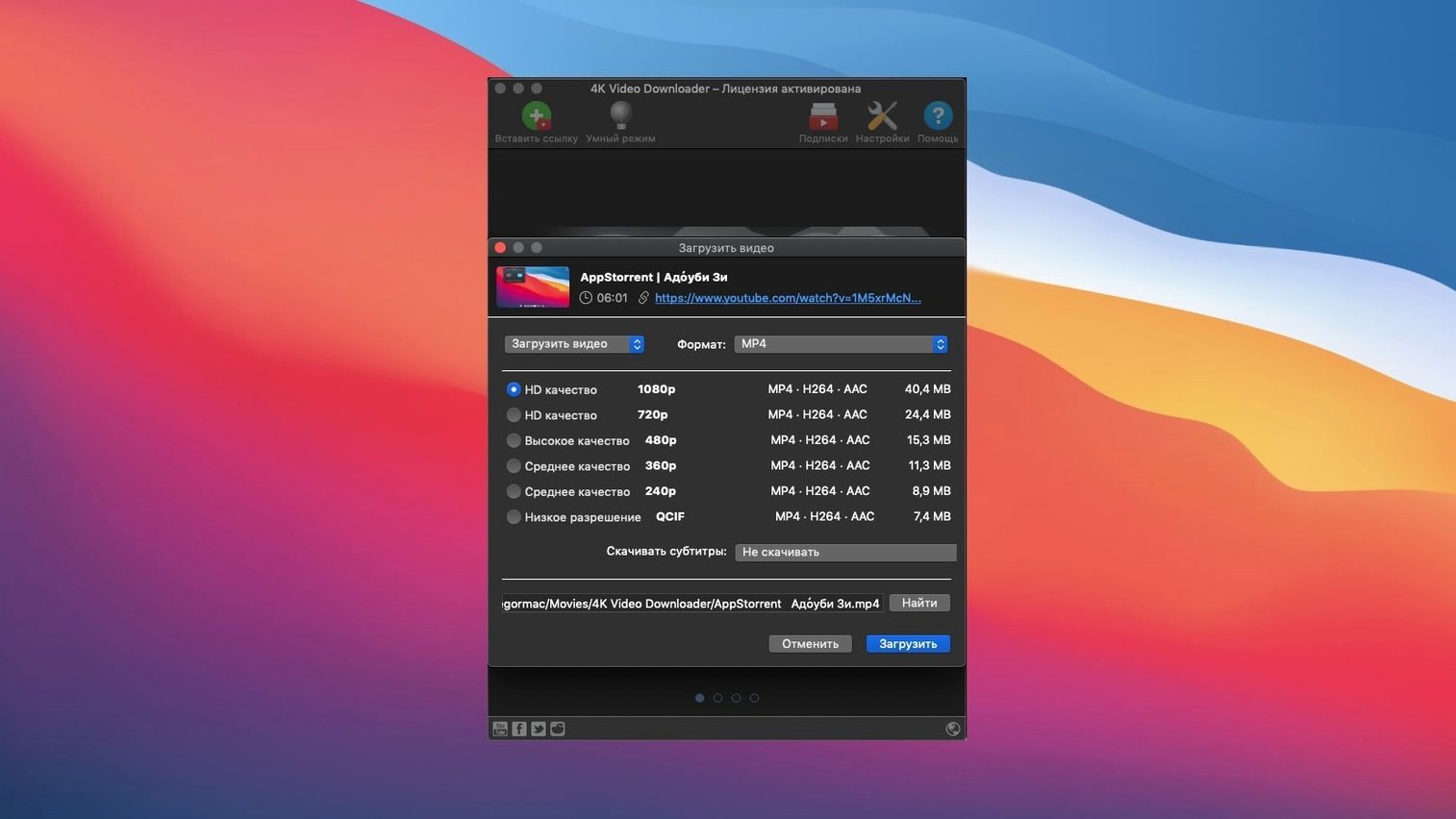
The app accepts links via the clipboard. Pasting a URL opens a parsing step where you choose the format, resolution and whether to include subtitles. A Smart Mode lets you lock in a preferred quality and file type, then applies those settings to every download without repeated dialogue boxes.
Resolution options reach 4K when the source provides it. 1080p and 720p are also selectable, which helps when file size matters more than pixel count. Subtitles can be saved as a separate SRT file or merged into the video container. For channel-wide grabbing, the app processes full YouTube playlists and channels in one pass, and it can write an M3U file to preserve the playback order. Embedded YouTube videos on web pages are also recognised.
| Function | Detail |
|---|---|
| Resolution support | 4K, 1080p, 720p |
| Subtitle handling | SRT export or embedded |
| Batch fetching | Playlists, channels |
| Clipboard input | Paste URL or Smart Mode |
Playlist downloads produce an M3U index alongside the video files, so media players can respect the original sequence. The interface stays compact: a single window with a paste button, a queue list and a format selector. Everything runs on Intel Macs requiring macOS 12 or later.
Stop downloads from landing in random folders
Out of the box, 4K Video Downloader works with defaults that suit casual single-video grabs, but a few adjustments make the app feel more predictable. The first stop is the Preferences pane, where the download directory deserves attention. By default the app places files in a 4K Video Downloader folder inside the Movies directory. Changing this to a dedicated folder — perhaps one watched by a media server or synced to a NAS — saves time reorganising later.
Next, the Smart Mode toggle in the main window looks like a convenience switch, and it is, but its internal settings are what actually shape every download. Click the gear icon beside it and set the preferred video format, quality ceiling and subtitle language. If most of your library ends up as 1080p MP4 files with English subtitles pulled automatically, locking those choices in prevents the per-link dialogue from interrupting the flow. Smart Mode also controls whether audio-only downloads default to MP3 or M4A, and at what bitrate. The difference between the 128 kbps default and the 320 kbps option is audible on half-decent headphones, so check that slider before pulling a playlist of live sets.
The Subtitle section of Preferences lets you switch between embedded subtitles and standalone SRT files. Embedded subtitles keep things tidy — one file, always synced — but SRT files are easier to edit, translate or load selectively in players that ignore internal tracks. Choose based on how you actually watch, not on what looks neater on disk.
One hidden setting: enabling Download subtitles automatically for all videos, even when you did not explicitly tick the subtitle box. It is off by default and catches out users who later notice missing captions on half their archive. Toggle it on once and the app quietly fetches subtitles for every download that has them.
Archivists, researchers, and playlist hoarders each rely on it differently
The app makes most sense for anyone who builds a local media library. That group splits into a few distinct profiles, and the tool fits each a little differently.
Archivists and researchers who need stable offline copies of talks, lectures or news segments benefit most. A YouTube link can vanish overnight; a channel can go private. Pulling full channels as MP4 files with SRT subtitles turns ephemeral streams into a searchable archive. The M3U playlist index keeps the original upload order intact, which matters when a lecture series or documentary playlist relies on sequence.
People with patchy internet — commuters on trains with dead zones, rural users on capped satellite links, travellers who pre-load content before flights — get practical daily value. Smart Mode turns the app into a one-click buffer: paste a link, the file lands in the designated folder, no further decisions needed. Playlists grabbed overnight on home Wi-Fi become a week’s worth of offline viewing.
Audio-first users who treat YouTube as a de facto music platform find the format selector essential. Downloading a playlist as M4A at 320 kbps and dropping the folder into a music player effectively builds a personal streaming service without ads or algorithmic interruptions. For podcasts or long-form discussions distributed only as video, the audio extraction removes the visual bulk without losing the substance.
Light video editors and educators pulling reference clips, stock-style footage or language-learning material can lean on the resolution picker. 4K source footage downloaded at 4K retains editing headroom; 720p grabs of the same clip work as small proxies or email-sized attachments. The subtitle extraction, especially to SRT, gives language teachers ready-made transcripts to annotate.
The app is less suited to people who only stream casually and never revisit content. If you watch something once and move on, the local-copy workflow adds steps without payoff. But for anyone who returns to material, curates folders, edits or remixes, or simply cannot rely on a connection, the tool shifts from occasional helper to daily utility.
A workflow: saving a full YouTube playlist as audio with subtitles
Here is a concrete walkthrough for a common task — turning a long playlist of interviews into a portable audio library with transcripts, no video files kept.
1. Set up Smart Mode. Open the Smart Mode gear before doing anything else. Choose Audio as the format, set quality to High (320 kbps) and pick M4A as the container. In the subtitle section below, enable Download subtitles automatically and select SRT. Close the dialogue. Smart Mode is now armed for audio extraction with caption files.
2. Grab the playlist link. In a browser, navigate to the YouTube playlist page and copy the URL from the address bar — not a single video link from within it. The playlist URL contains a list= parameter that tells the app to treat the whole set as one job.
3. Paste and confirm. Switch to 4K Video Downloader and click Paste Url. The app parses the link and presents a summary: number of videos, estimated total size, and an option to choose the download range. Leave the range at All for the full set. Confirm the dialogue. Because Smart Mode is active, no per-video format prompt appears.
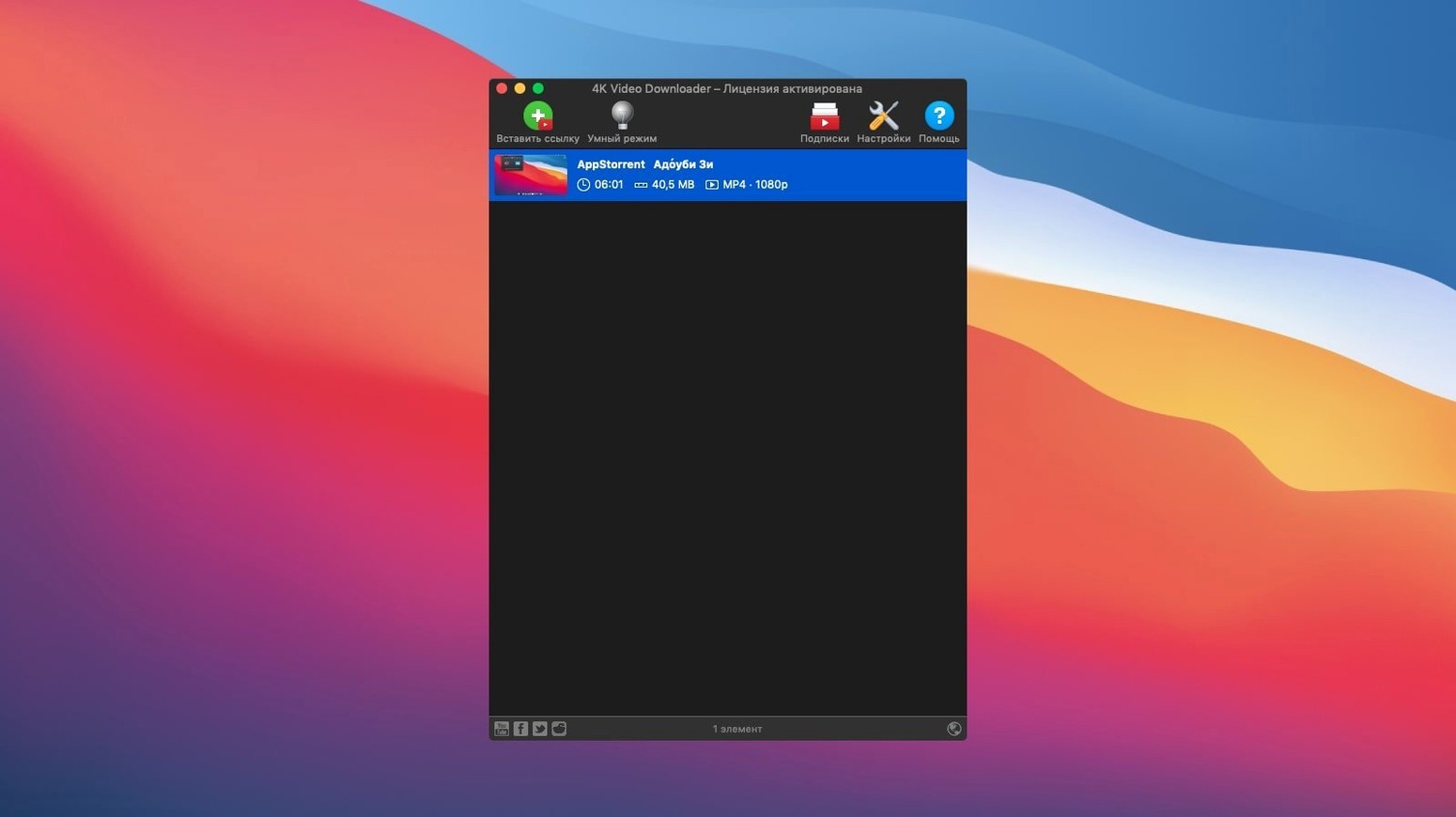
4. Let the queue run. The playlist populates the download queue as individual items, each showing progress and predicted time. The app fetches audio streams only — video is never touched — so the bandwidth and storage footprint stay low. A fifty-episode playlist downloads faster than the equivalent video job and occupies perhaps a tenth of the disk space.
5. Check the output folder. When the queue clears, open the download directory. Each episode appears as an M4A file paired with an identically named SRT file. The app also writes an M3U file named after the playlist. Drag that M3U into a music player like Swinsian or Vox and the episodes play back in the original playlist order, with track names taken from the video titles.
6. Optional clean-up. If the playlist contained episodes in a language you are studying, open the SRT files in a text editor or a dedicated subtitle tool. They are plain text, ready for annotation, translation or flashcard extraction. No conversion steps needed.
The entire process, once Smart Mode is configured, is a single paste action followed by waiting. That pattern — configure once, paste repeatedly — is where the app’s design pays off most clearly.
Does it really deliver clean 4K without sync drift
Does it handle 4K resolution cleanly? It does, provided the source serves genuine 4K streams. YouTube encodes higher resolutions as separate video and audio streams, and the app muxes them into a single MP4 or MKV container. The result is a standard file that plays in QuickTime, IINA or VLC without further processing. The processor load during download is modest — the app is pulling and remuxing, not re-encoding — so an older Intel Mac handles 4K jobs without struggling.
What about YouTube age-restricted or members-only videos? Publicly accessible content downloads without issue. Videos behind a login wall or age gate fall outside the app’s reach because the tool does not authenticate against YouTube accounts. If a video plays in a private browser window without signing in, the app can usually fetch it. If not, the link fails silently in the queue.
Will it keep working when websites change their layout? The developer issues updates when platforms alter their delivery methods, and the parsing layer adapts. There is always a gap between a site change and an app update, during which some links may stall. The gap tends to be short for YouTube; smaller platforms can take longer. Keeping the app reasonably current helps, but expecting occasional downtime avoids frustration.
Does it support sites beyond YouTube? Vimeo, SoundCloud, Flickr, Facebook, DailyMotion and Instagram are all listed as compatible. Support depth varies. YouTube gets the most thorough treatment — playlists, channels, subtitle extraction, format options. Other sites typically work for single video or audio grabs without the batch features. SoundCloud downloads, for example, arrive as audio files with basic metadata, but there is no equivalent of YouTube’s subtitle pipeline.
Is the M3U playlist file actually useful? Yes, if the playback software understands M3U. Most desktop music and video players do. The file is a plain-text index pointing to local paths, so it is portable across machines as long as the folder structure stays intact. Renaming or moving video files after creation breaks the M3U references, so sort out the folder organisation before downloading the playlist, not after.
Gathering scattered film-interview clips into one offline project bin
A documentary researcher is preparing for a project on post-war European cinema. The research phase involves collecting dozens of interviews, panel discussions and archival clips scattered across YouTube channels — some from film institutes, others from personal accounts with uncertain longevity. The researcher needs offline copies because the material will be reviewed in a cutting room with no internet access, and subtitles must be available for translation notes.
She creates a folder called Research_Footage and sets it as the download directory in Preferences. Smart Mode is configured for 1080p MP4 with embedded English subtitles. Over several afternoons, she pastes channel links and playlist links into 4K Video Downloader, letting each queue clear before starting the next. The app pulls full channels as numbered folders, each containing MP4 files and an M3U index.
When a rare interview exists only as a 4K upload on Vimeo, she pastes that link separately and switches the quality ceiling to 4K for that single job — Smart Mode is toggled off for one download, then back on. The file lands in the same research folder, consistent with the rest. By the end of the week she has roughly 140 videos, all playable offline, all with embedded subtitles, all organised by source channel. The folders copy onto a portable drive and plug directly into the editing suite’s media browser. Nothing needs transcoding or renaming. The M3U files let the editor step through each channel’s upload order when cross-referencing dates and sequences. The whole collection occupies less than 40 GB — manageable, self-contained and immune to takedowns.