Aspecten
 Download (70 MB)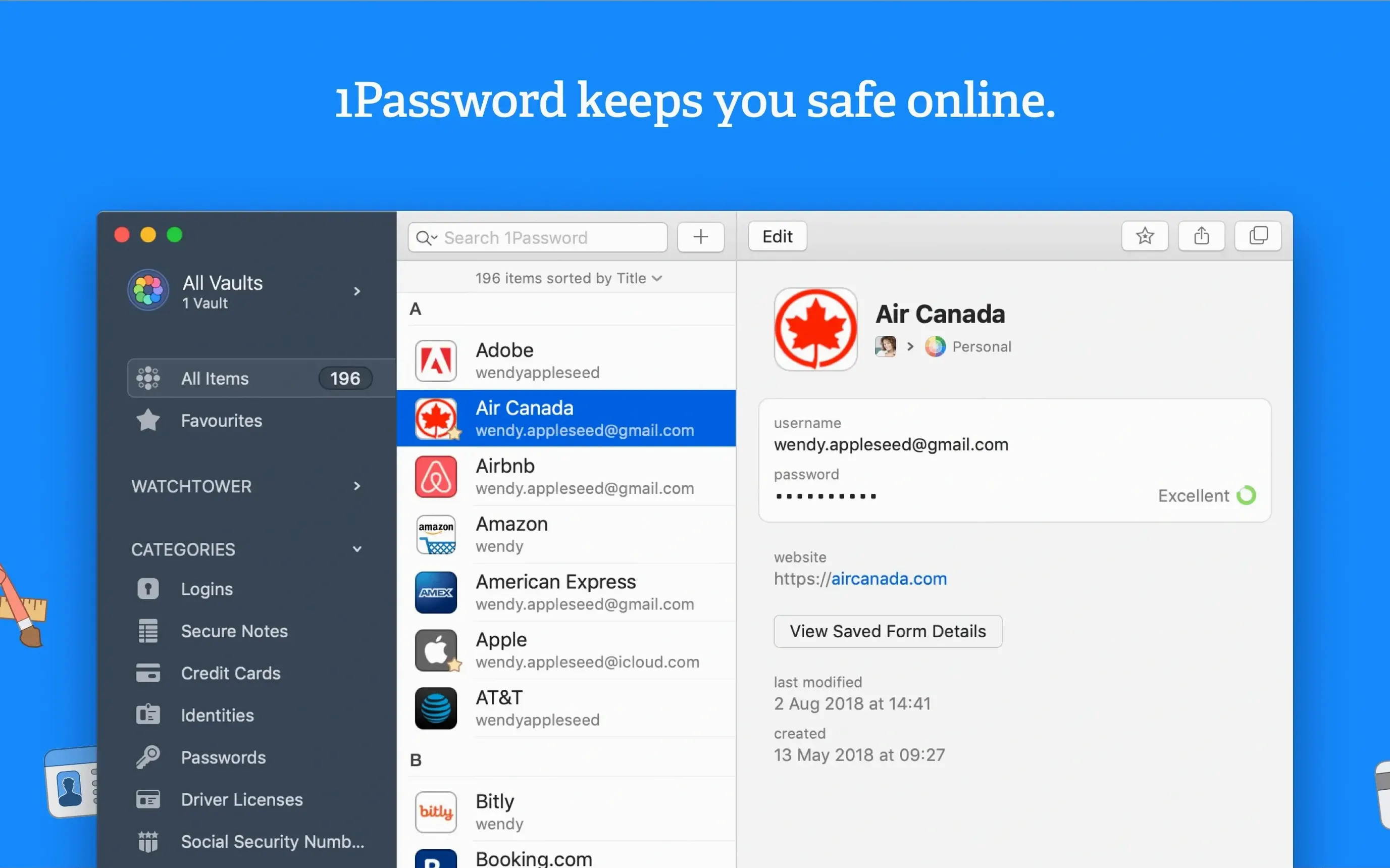
Version 7.9.4 arrived as a maintenance update, tidying up package metadata rather than introducing visible feature changes. The release notes page holds little fanfare, but the underlying work keeps the application aligned with AgileBits' steady refinement cycle for macOS.
A practical task many users face is reviewing password health across dozens or hundreds of saved logins. Opening the main vault and clicking Watchtower in the sidebar presents a sorted list of concerns: compromised passwords, reused credentials, weak combinations, and sites still serving login forms over unencrypted HTTP. Each entry links directly to the relevant item, where a single click on the suggested password field generates a replacement string, and another click updates the stored record. The master password — known only to the user — unlocks the vault before any of this data becomes readable.
Watchtower also flags items that have appeared in known data breaches. Tapping through these entries offers a sobering reminder of how often a reused password from a forgotten forum registration resurfaces years later. 1Password keeps the process contained: the breach check runs against a local copy of hashed data, so the full password never leaves the machine during verification.
The interface supports eighteen languages, including Russian, Dutch, Japanese, and Korean, and runs on any Mac from 10.12 onward. For anyone holding a jumble of passwords collected over a decade, a quiet maintenance release is enough reason to spend an afternoon with the Watchtower list and start cleaning house.
First hours after installing
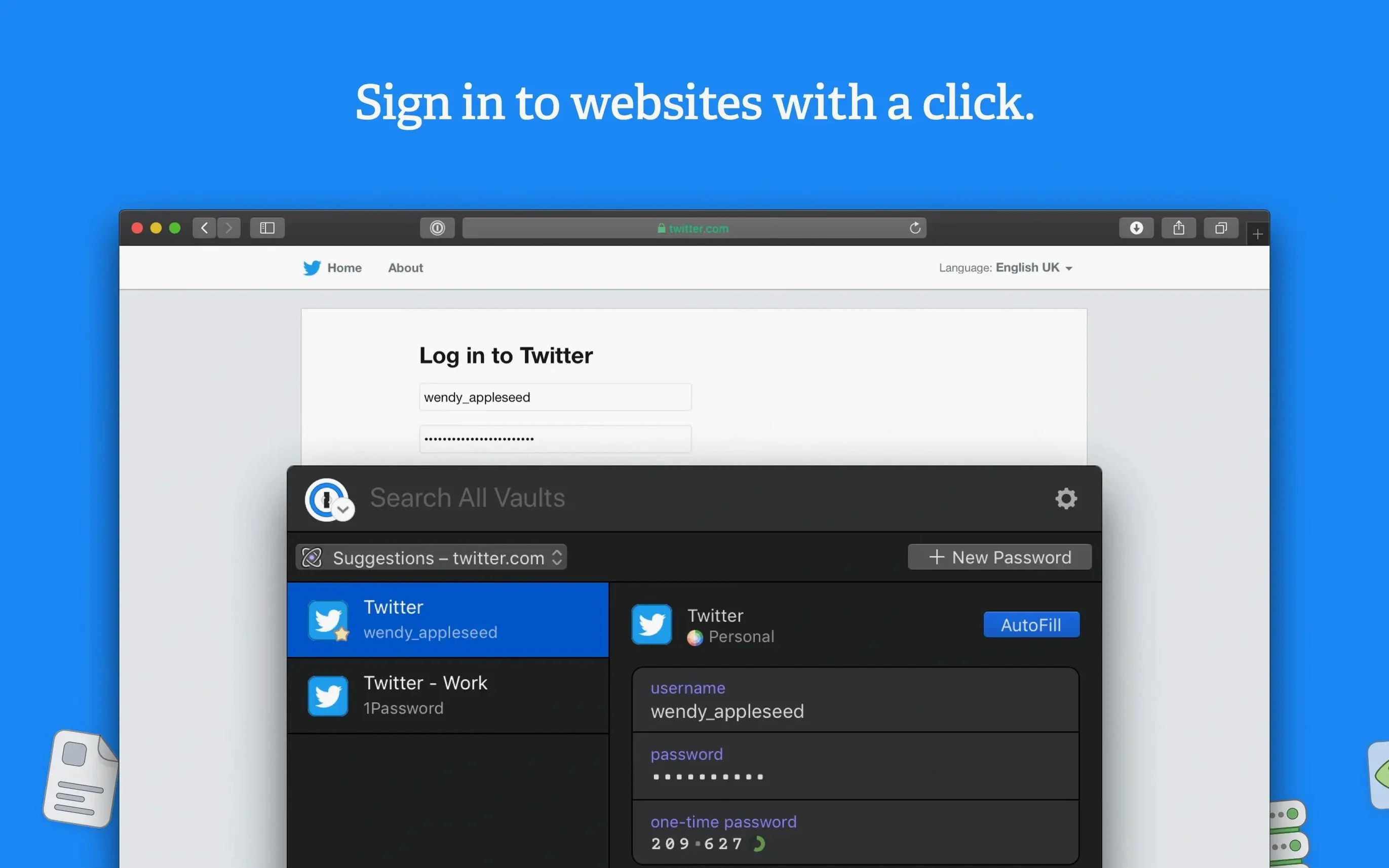
A fresh install of 1Password 7.9.4 starts with a single vault and no browser extension linked yet. The first practical step is installing the companion extension for Safari or Firefox — the application itself prompts this during the initial walkthrough, but it is easy to skip. Without the extension, form filling and automatic saving remain unavailable, which strips away half the utility on day one.
After the extension is in place, spend ten minutes opening a handful of frequently visited sites and signing in manually. 1Password intercepts each submission and offers to save the credentials. Accepting these prompts builds a core set of logins quickly. A useful habit during this phase: edit each saved item immediately after it appears and give it a clear, searchable title. The default naming pulls from the page title, which often includes marketing slogans rather than the actual service name.
For anyone carrying a collection of passwords stored in a browser, CSV files or another manager, the import sits under File > Import. The dialog handles several formats directly. Running a small test import with three or four items before committing a full dump saves cleanup time later — merged fields do not always map neatly, and checking the result early prevents a hundred mistitled entries.
Auto-lock timing you can lengthen without lowering security
The default security preferences are conservative, and a few adjustments improve daily comfort without weakening the vault. Under Preferences > Security, the auto-lock timing defaults to a short interval. Lengthening it to match typical work patterns — fifteen or thirty minutes — prevents constant re-prompting during a research session while keeping the vault locked when stepping away.
Clipboard clearing, also in Security preferences, defaults to ninety seconds. For anyone copying credit card numbers or one-time codes regularly, extending this to three minutes reduces the frustration of a cleared clipboard mid-task. The trade-off is small; the clipboard still empties, just not so aggressively.
In the Browser preferences tab, the setting that submits forms automatically after filling deserves a look. Disabling it keeps control with the user — one extra keystroke to press Return, but fewer accidental submissions on pages where the autofill triggers before all fields are ready. The same panel holds the keyboard shortcut for filling, which defaults to Command-\\. Memorising this single shortcut on day one pays back in every subsequent session.
A workflow: adding a new login with two-factor authentication
Setting up a new account on a site that supports two-factor authentication shows how the pieces fit together in practice. Begin on the sign-up page. After entering an email address and letting 1Password generate a password — right-click the password field and choose 1Password > Generate Password, or use the browser extension button — submit the form. The save prompt appears as a dropdown from the extension icon.
Accept the save, then immediately open the new item in the main application. Switch to the item editor and locate the section for one-time passwords. Click the QR code icon and point the camera overlay at the site's setup code displayed on screen. 1Password reads the code and begins generating six-digit tokens directly inside the login item. The next time the site asks for a verification code, the extension offers to fill it from the same stored entry — no separate authenticator app needed.
The final step is a quick audit: open the item, verify the website field matches the actual domain, and add a tag if the account belongs to a specific project or category. Tags make filtered searching possible later, when the vault holds hundreds of items and scrolling becomes impractical. A tag like "finance" or "work-2024" takes three seconds to add and saves far more later.
Memory sits around 200 MB with 400 items loaded
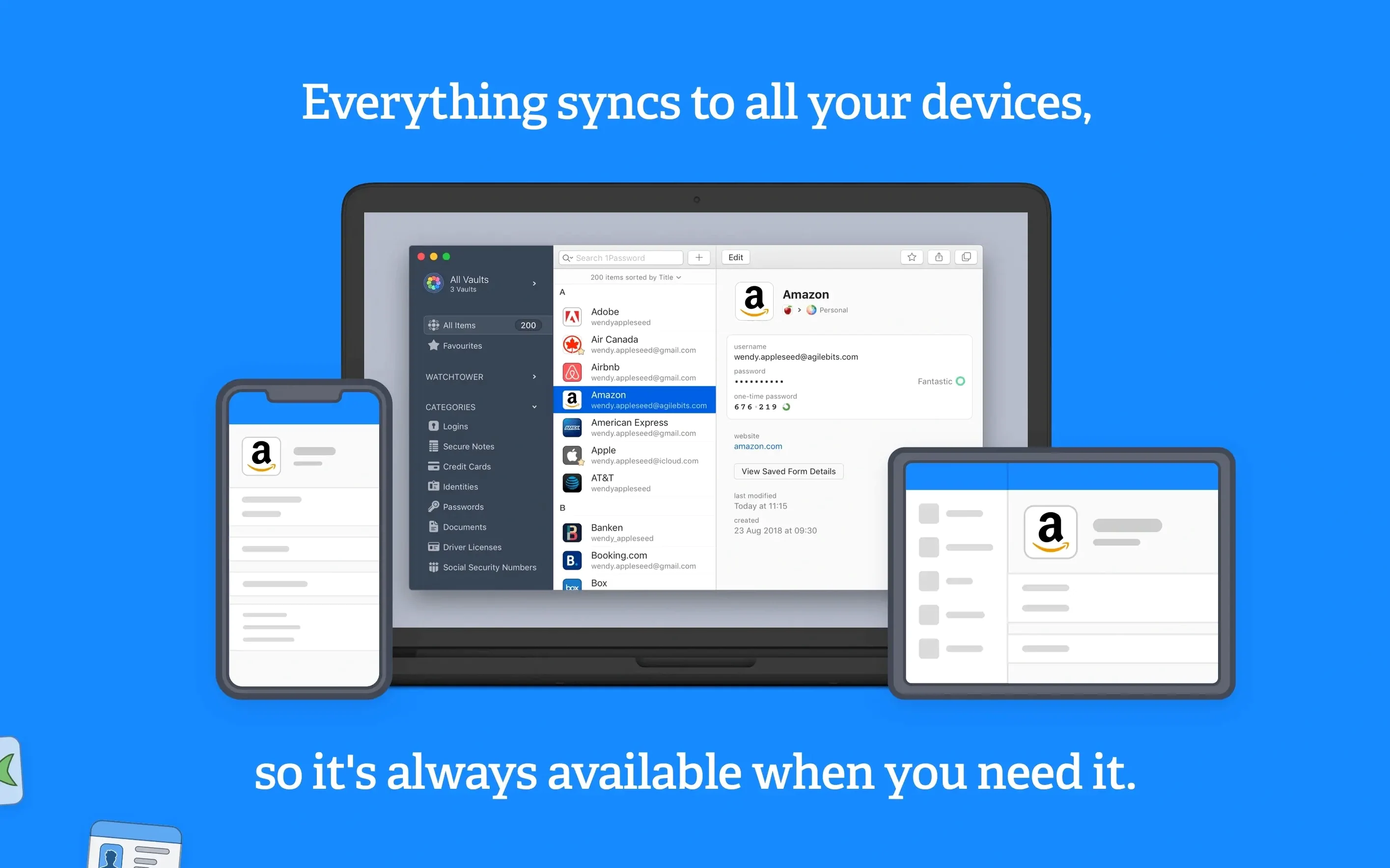
Running on Intel hardware under macOS 10.12 or later, version 7.9.4 keeps a modest footprint. The main process idles around 180 to 220 MB of memory with a vault of roughly four hundred items loaded. CPU activity stays near zero when the application sits in the background, waking briefly for sync operations or Watchtower checks. On a machine from 2015 with a spinning hard drive, unlocking the vault takes under two seconds; on an SSD, the delay is barely perceptible.
The browser extension adds a lightweight helper process, typically under 60 MB, and page-filling actions complete without stalling the tab. Occasional slowdowns appear when filling forms on unusually complex pages — sites with dozens of hidden fields or heavy JavaScript frameworks — but the delay is measured in fractions of a second, not the multi-second pauses some alternatives exhibit.
Stability across daily use holds up well. Over several weeks of normal work — unlocking the vault thirty or forty times a day, filling logins and credit cards, generating passwords — crashes are rare. The application handles sleep and wake cycles on a MacBook without losing its lock state or forgetting which vault was open. One behaviour worth noting: after a macOS update, the Safari extension occasionally needs re-enabling in Safari's preferences. The fix is a checkbox toggle, not a reinstall.
The 1password duplicate item function, accessible from the Item menu, helps when an imported set leaves behind near-identical entries. Running it manually on a folder of imported logins catches cases where the same site appears under two slightly different URLs. The merge is not automatic — each candidate pair requires confirmation — but the tool reduces the grunt work of comparing fields by hand.