Aspecten
 Download (807 MB)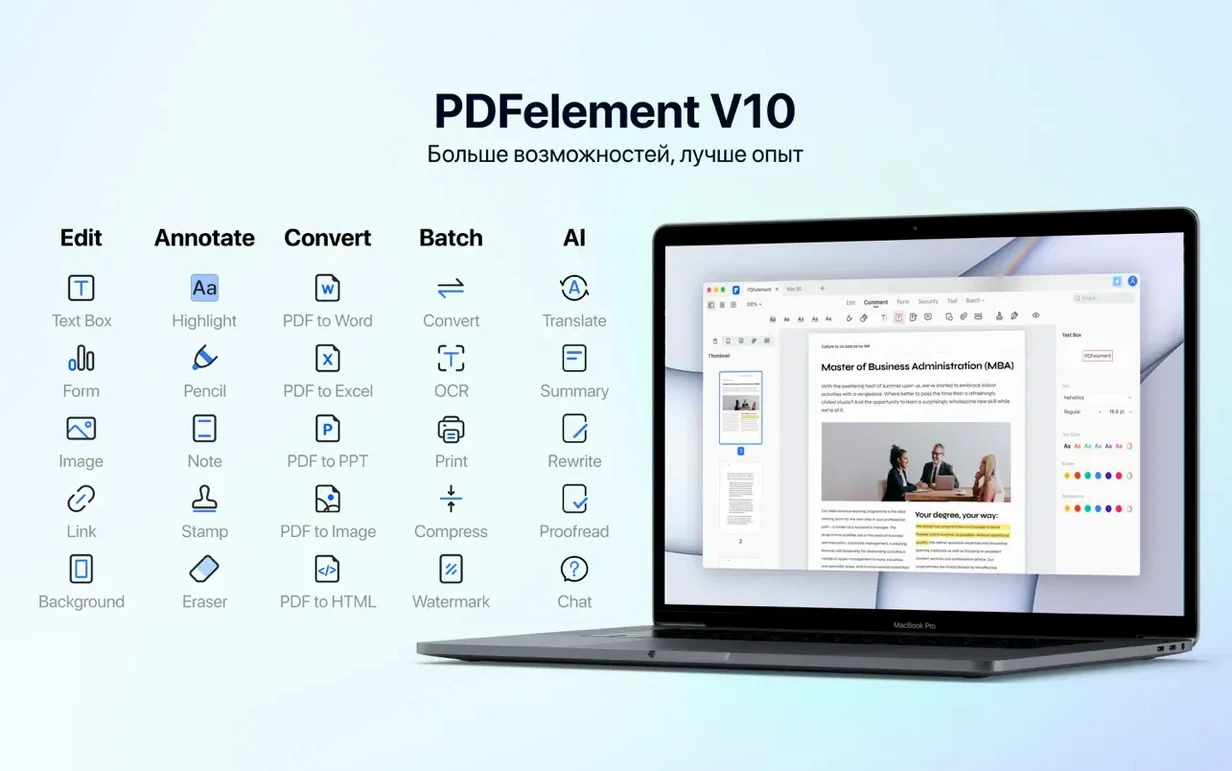
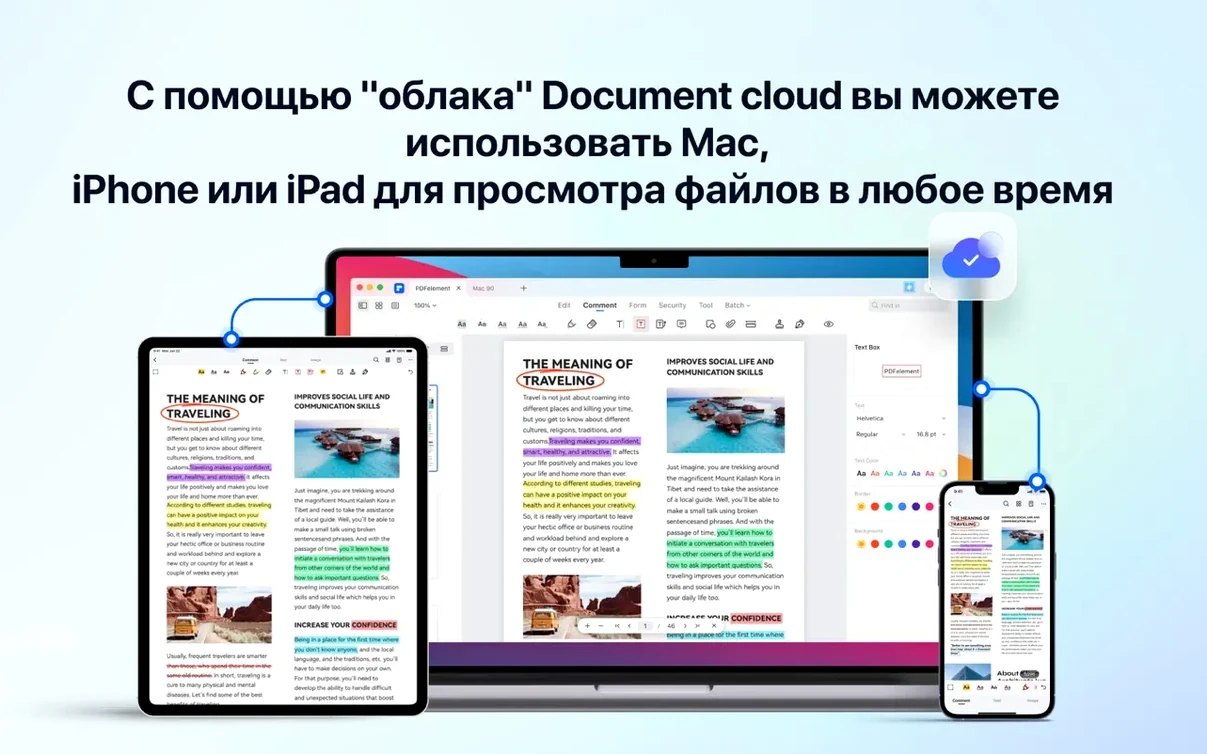
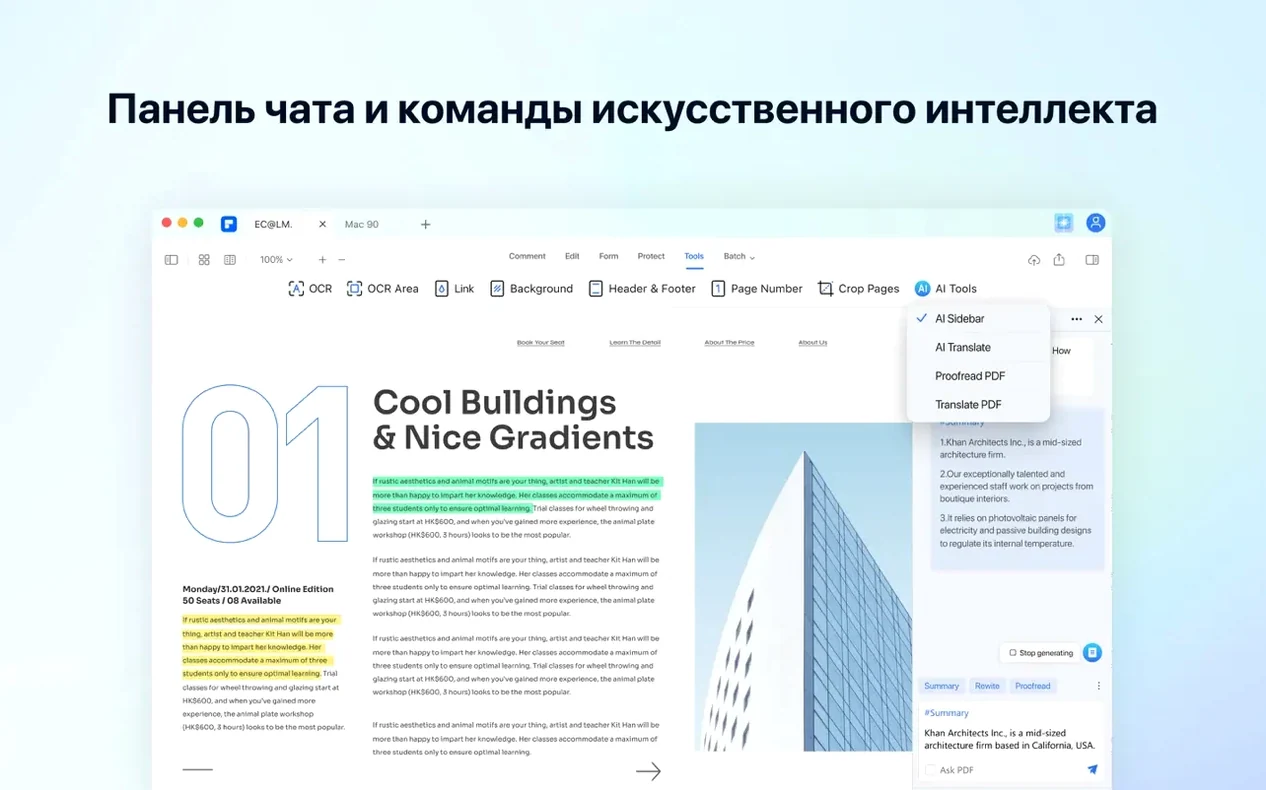
Redaction and AI-assisted summarisation are the two tools that see the most use in a busy week. Wondershare has kept the interface layout consistent in this build, with the tool ribbon sitting above the document pane and a collapsible sidebar for page thumbnails and annotations. The current version ships with OCR included, so text recognition for scanned pages and image-based PDFs no longer requires a separate download.
29-language OCR and AI summarisation built in
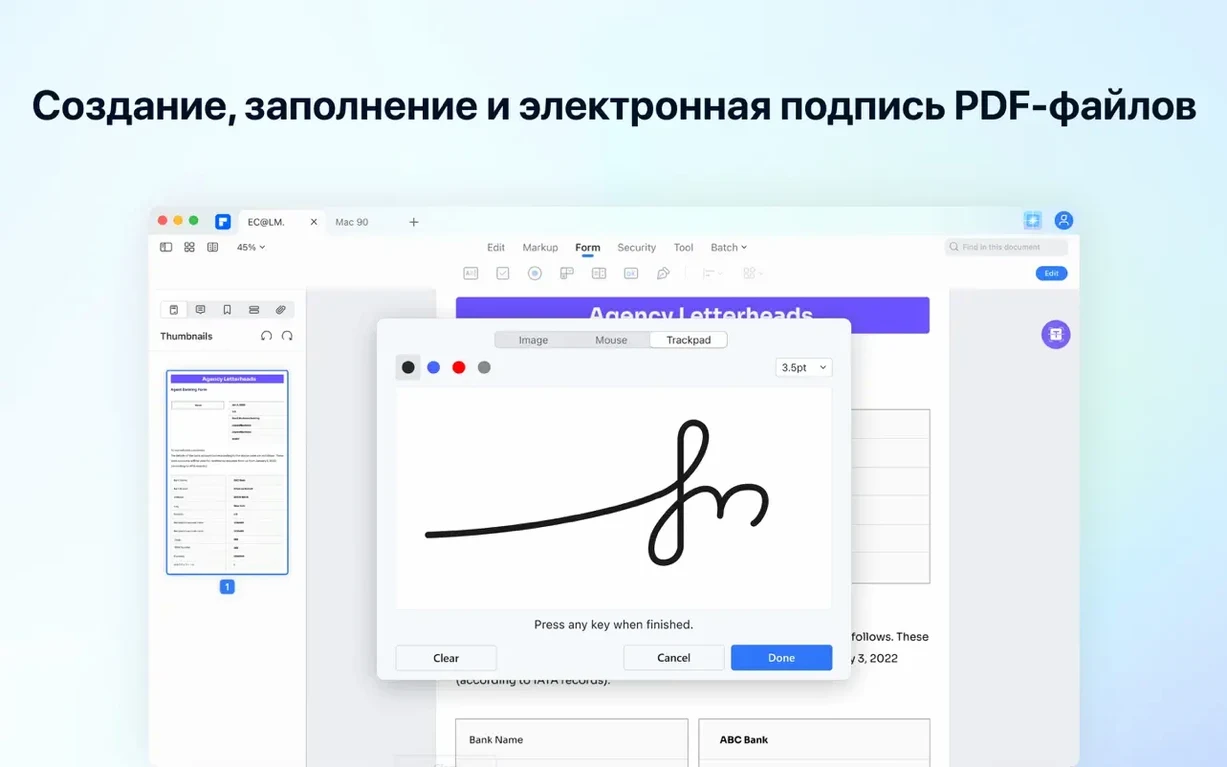
OCR is bundled directly into the 12.1.28 build. Recognition covers 29 languages, and the engine handles mixed-language documents without switching profiles manually. Alongside the scanning tools, the AI panel can shorten, translate, summarise, and explain selected passages. Form creation remains a core strength: you can place interactive fields—buttons, checkboxes, radio buttons, and drop-down lists—then add digital signature blocks. Redaction works on both text and embedded images, and the PDF/A output option suits long-term archiving workflows.
Native Apple Silicon support through M2
The Mac version supports Apple Silicon natively, with M1 and M2 compatibility carried through recent releases. System requirements remain macOS 11 or later. The interface languages still include Russian, German, Arabic, Spanish, Italian, Simplified Chinese, Dutch, Portuguese, French, and Japanese alongside English. Batch tools for conversion and compression are unchanged, and the digital signing workflow follows the same steps as the previous version.
Turn off the splash screen for faster Finder launches
Out of the box, PDFelement makes a few assumptions that are worth checking against your own habits. The first stop is the General pane in Preferences. Disable the splash screen on launch if you open PDFs from Finder more often than from the app's home tab. The same pane holds the default page layout and zoom level; switching from single-page to continuous scroll avoids the jarring jump when you arrow past a page break in a long report.
Under OCR, set the default recognition language to whichever you use most. The engine works in mixed-language mode, but a firm default speeds things up when you drag a scanned contract straight in. If you work with receipts or forms that contain both Russian and English, for instance, pick Russian as the primary and the secondary detection will still catch the English segments.
The File association section sits in the same dialog. By default, PDFelement does not claim PDF files; ticking that box makes it the double-click handler. It also registers itself for a handful of image formats, which is useful if you plan to batch-convert JPGs to PDF. The batch tools are tucked under the Tool menu, not the main toolbar, so pinning the batch panel via the Window menu keeps it within reach during a multi-file session.
Workflow: turning a scanned contract into a signed, archived PDF/A
A paperwork-heavy morning usually starts with a scanned contract arriving as a greyscale PDF from a client. The steps below cover OCR, form fields, a digital signature, and archiving—without leaving the app.
- Open and OCR. Drag the scanned PDF into the document pane. If the recognition language matches your default, the OCR toolbar button runs immediately. For a mixed-language document, pull down the language selector, tick both, and let the engine process the file. The recognised text layer sits on top of the image layer; a quick triple-click on any paragraph confirms the text is selectable.
- Straighten and crop. Skewed scans are common. Use the Organize Pages panel to rotate odd pages, then the crop tool to trim the scanner's black border. The crop applies to the whole document unless you select a page range first.
- Place form fields. Switch to the Form tab. The contract needs a date field, two signature blocks, and a checkbox for a clause. Click the text field tool, draw a rectangle next to "Date," and name the field in the properties sidebar. Repeat for the signature blocks using the digital signature field type. The checkbox tool snaps to nearby text, which keeps the layout tidy.
- Add digital signatures. Select the signature field and choose to sign. You can type your name, draw with the trackpad, or upload a scanned signature image. PDFelement stores the signature locally, so the next time you click a signature field, the stored signature appears as a choice.
- Redact sensitive details. The contract contains a personal ID number in the footer. Mark it with the redaction tool, apply, and the text and underlying image data are removed. The redaction burns into the file permanently, so double-check your selection before you click apply.
- Export as PDF/A. Under File → Save as Other, pick PDF/A-2b. The app flattens the form fields, embeds the fonts, and strips anything that might not render in twenty years. A quick validation note appears in the status bar once the export finishes.
The whole sequence takes under four minutes for a ten-page document. The only interruption is a Gatekeeper prompt on first launch, which the install steps for this build already address via a Terminal command.
Peaceful coexistence with Preview and Acrobat Reader
Will it clash with Preview or Adobe Acrobat? No. PDFelement does not touch Preview's file association unless you explicitly set it in Preferences. It can coexist alongside Acrobat Reader on the same Mac, though only one can claim PDF double-click rights at a time. If you later uninstall it, the standard macOS PDF handling returns unchanged.
Does the OCR work offline? Yes. The recognition engine runs locally, not in the cloud. No upload happens, and the 29-language pack is included in the install. On an Intel Mac, a fifty-page scan takes roughly ninety seconds; on Apple Silicon it finishes noticeably quicker, though this build targets Intel architecture.
Can it handle password-protected files? It can open password-protected PDFs if you have the password. It cannot strip a password you do not know. Permissions passwords—the kind that block printing or editing—can be removed with the correct owner password supplied.
Is the AI panel safe for confidential documents? The AI tools send text to Wondershare's servers for processing. A small privacy notice appears the first time you open the panel. For contracts, NDAs, or anything sensitive, skip the AI summarisation and stick with the offline tools: redaction, OCR, and PDF/A export all work without a network connection.
What about torrent versions? Searches for wondershare pdfelement pro crack or pdfelement torrent turn up modified builds that bypass activation. These can include the full OCR language packs and updated AI components when sourced from a well-seeded release. The TNT build included here carries a Gatekeeper-friendly disk image and a simple Terminal step; the full feature set—OCR, batch tools, PDF/A—is intact.
Fitting PDFelement into a Mac workflow
The app integrates with Finder on a basic level: Quick Look works once PDFelement is installed, and the Services menu gains a "Convert to PDF" entry that appears when you right-click an image or an Office document. That shortcut saves a trip to the batch panel for one-off conversions. The Print dialog also adds a PDFelement virtual printer, which routes any printable document straight into the app as a new PDF—handy for saving web pages or emails as editable files.
For file management, the batch tools pair well with Hazel or a watched folder setup. Drop a folder of scanned JPGs into a batch OCR template, output to a date-stamped subfolder, and the files are ready by the time you switch back from email. The PDF/A export plugs into archival workflows that use DEVONthink or EagleFiler; both apps recognise the PDF/A flavour and index the text layer without fuss.
Limitations to keep in mind: the AI panel needs an internet connection, so it sits outside an air-gapped workflow. The OCR engine, while capable, does not reach the accuracy of a dedicated desktop Abbyy install on heavily degraded typewriter scans. And the form-field auto-detection can miss custom layouts, so you will often place fields manually on anything other than a standard form.
Build custom stamps on day one
Spend the first afternoon building a small library of custom stamps. The stamp tool ships with a few generic options; replacing them with your own "Reviewed," "Confidential," or department logo stamps saves repetitive trips to the image import dialog. The stamps persist across restarts and appear in the same toolbar flyout.
Set the measurement units to millimetres in Preferences if you work with A4 documents. The default is inches, and switching early prevents misaligned form fields on European paper sizes. The grid-snapping behaviour is adjustable in the same section—a 5 mm grid with snap turned on keeps text fields level without much effort.
For batch conversion of legacy files, test the output quality on three files before you point the tool at a folder of two hundred. The default JPEG compression level is 75%, which is fine for screen reading but can soften fine print. Bump it to 90% or switch to lossless for anything destined for print. The batch panel remembers your last settings, so a test run also locks in the correct profile for the main job.
If you encounter a Gatekeeper warning on first launch despite following the Terminal step, the quarantine flag sometimes sticks. A quick xattr -cr command on the app bundle clears it. After that, the app opens normally and the signature field tools become available.