Aspecten
 Download (128 MB)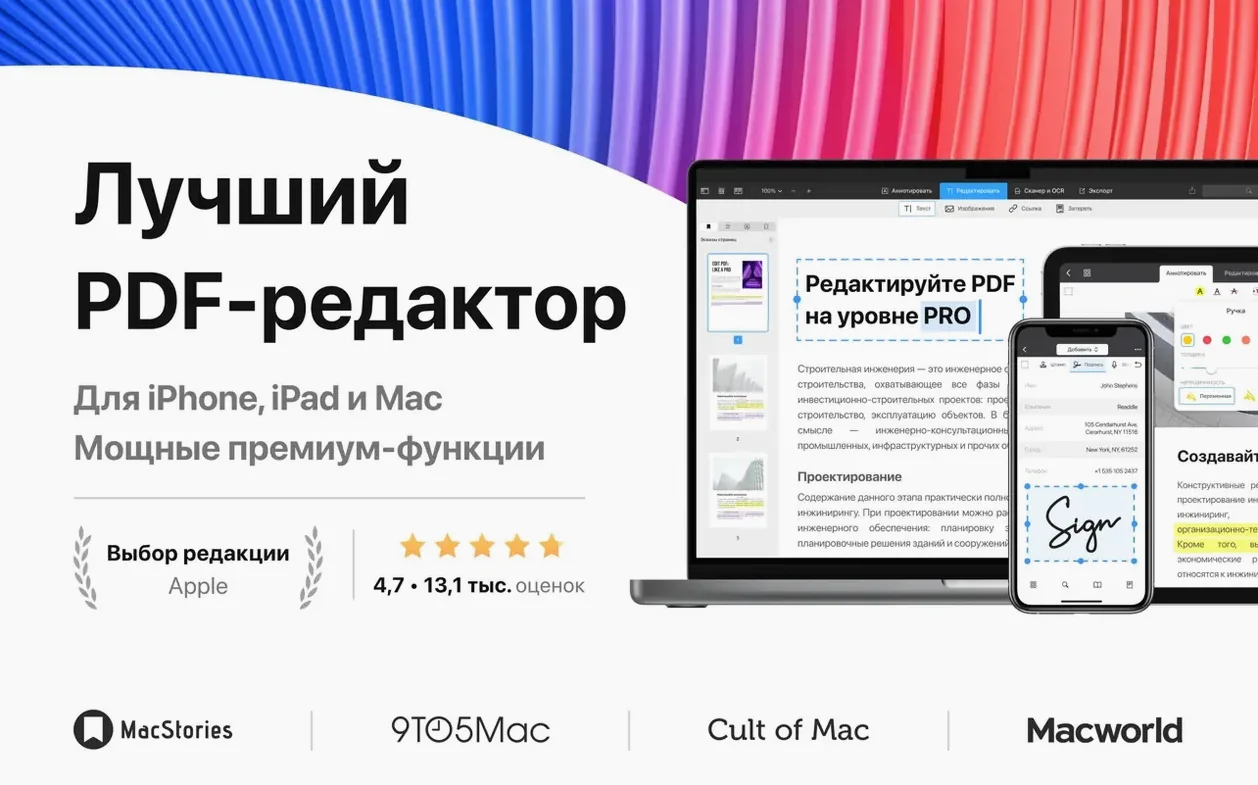
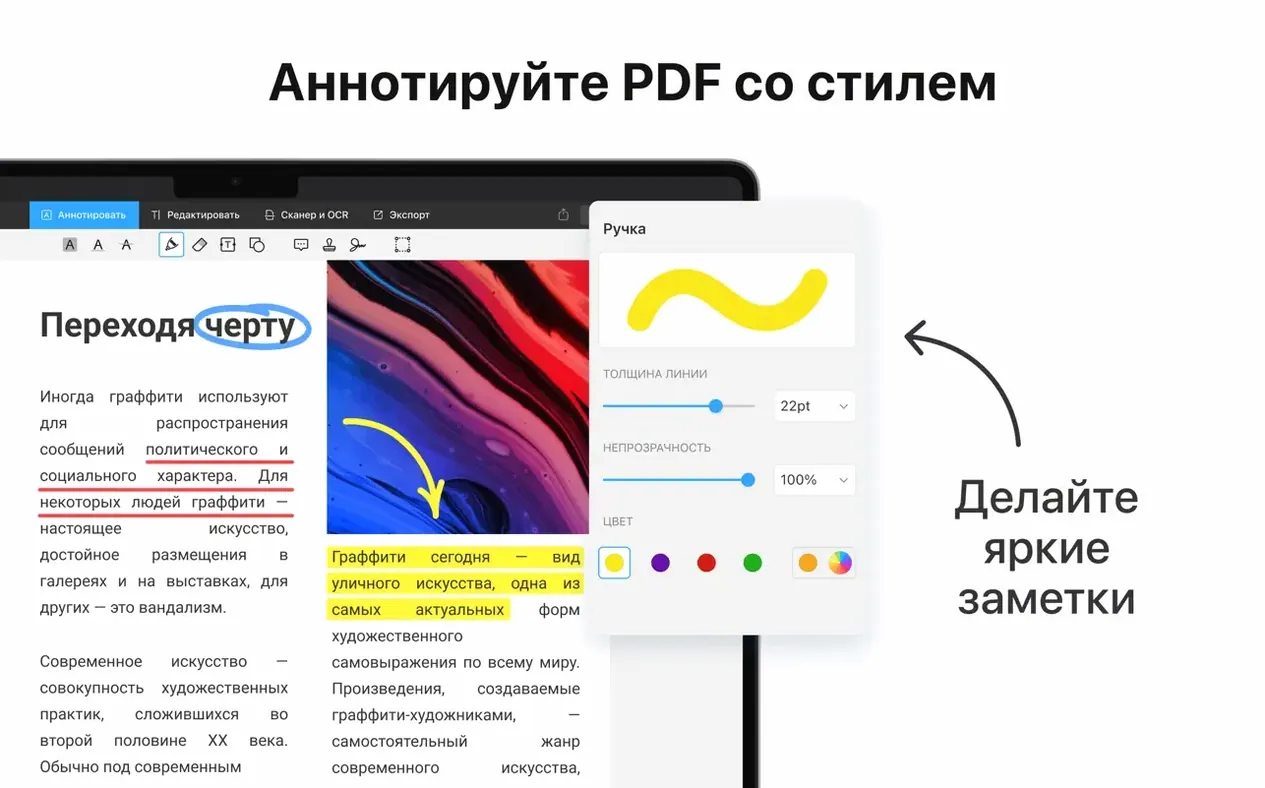
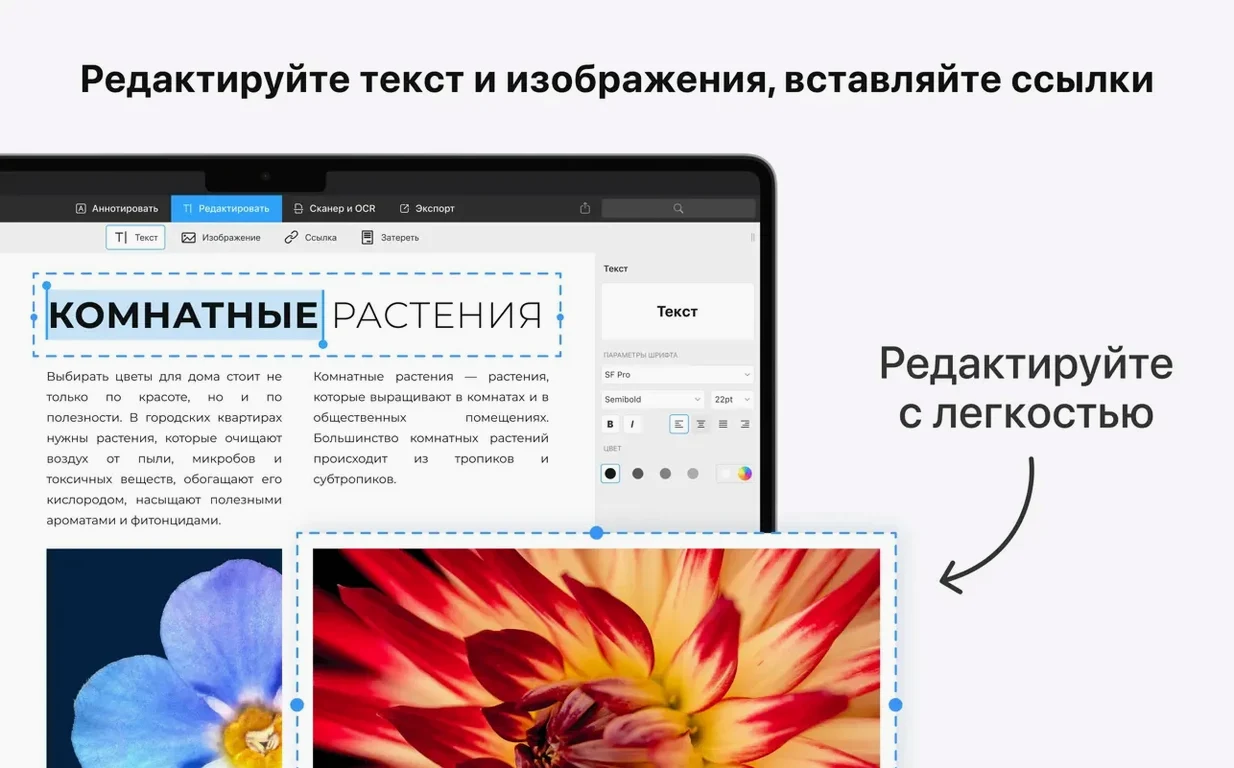
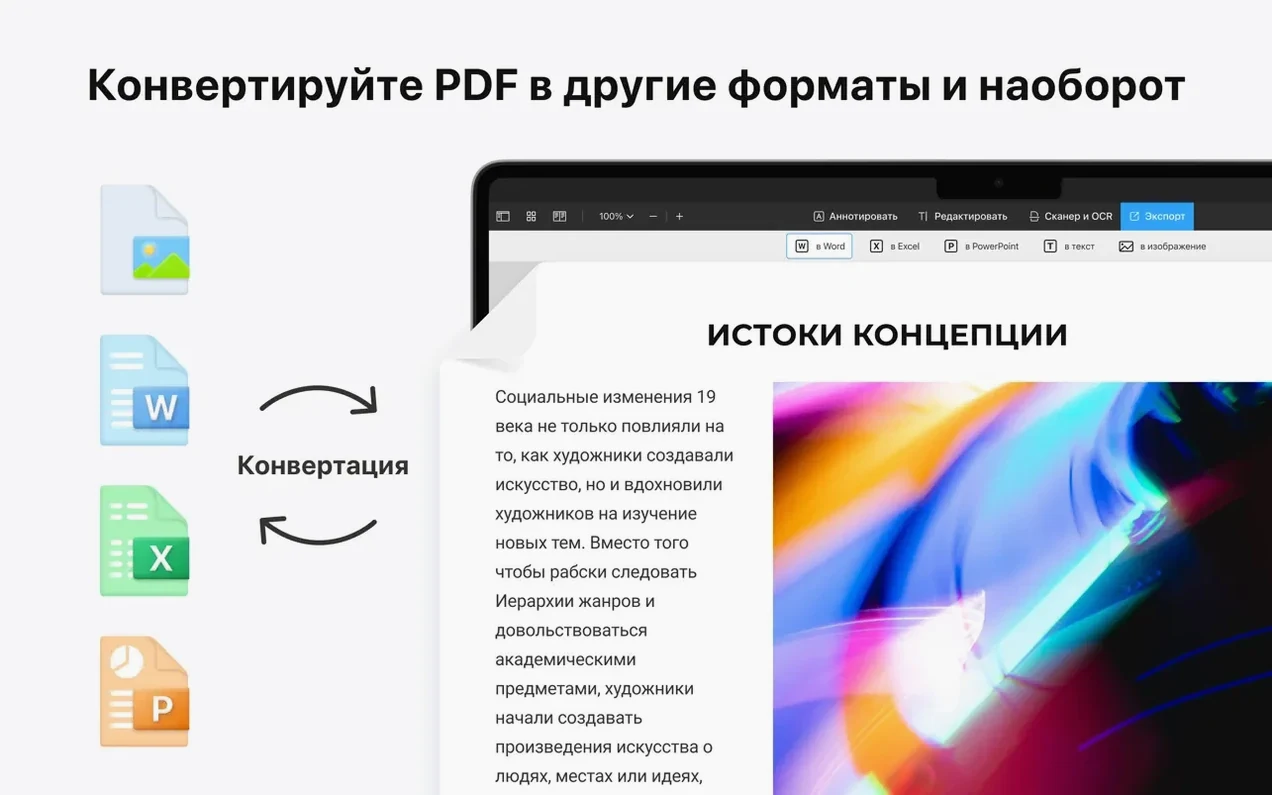
PDF Expert is used by people who handle contracts, study materials, scanned forms or reports and need a way to change what a PDF contains without switching to a full desktop-publishing tool. It sits alongside the built-in macOS PDF view, adding editing tools that feel native to the Mac.
Add links and edit images inside a PDF
You can place clickable web links and page links directly onto a document, then adjust the visible text and the destination. Image editing lets you resize, replace or crop pictures already embedded in the page, so a flyer or a portfolio sheet can be updated without rebuilding the original source file.
Build a table of contents for quick navigation
For longer documents that lack structure, the app can generate a table of contents from headings or let you assemble one manually. This turns a flat scanned report into something you can click through, section by section.
Set a password on a sensitive file
When a PDF contains personal or confidential information, you can add a password to restrict opening. It is a straightforward lock that works across other PDF readers, so the protection stays with the file when you send it onward.
How PDF Expert sits alongside other Mac PDF tools
Placing PDF Expert next to a few well-known Mac editors helps clarify where it fits. Three comparisons stand out.
PDF Expert and Adobe Acrobat Pro. Acrobat Pro covers practically every PDF task a professional workflow can generate — pre-press checks, redaction, detailed accessibility tagging, and deep integration with Adobe’s cloud. That depth comes with a heavier interface and a background presence that feels less at home on a lean Mac desktop. PDF Expert omits the most specialised print and compliance features. In exchange, it starts fast, stays out of the way, and handles the editing that most people actually need — text changes, image swaps, signatures, form filling — with less friction. For someone who opens a PDF three times a day to make a quick correction, PDF Expert often feels like the more natural choice.
PDF Expert and PDFpen (now Nitro PDF Pro). Nitro shares a similar ambition: give a Mac-friendly editor that does not overwhelm. Both edit text, mark up pages, and fill forms. Nitro has a slight edge in OCR accuracy for older scanned documents, while PDF Expert feels more responsive when dragging large image-heavy files and creates a table of contents with fewer steps. The difference is partly in polish — PDF Expert’s annotation palette and sidebar are closer to what you would expect from a modern Mac app. Someone who already uses Readdle’s apps on an iPad will notice how naturally the same gestures carry over.
PDF Expert and Apple Preview. Preview handles viewing, basic annotation, and form filling for free, and many Mac users never need more. PDF Expert extends that foundation with editable text blocks, image manipulation, link placement, password protection, and the ability to merge documents without a workaround. The step up is not about replacing Preview’s role altogether; it is about having a second tool ready when a document needs actual alteration. Plenty of users keep both: Preview for quick lookups, PDF Expert for the moment a form needs a signature or a paragraph needs rewording.
Signing a contract, editing an invoice, and OCR-scanning a brief
Imagine a Thursday afternoon. A freelancer receives three files from a client: a contract to sign, an invoice to adjust, and a scanned briefing document that needs a table of contents before it can be shared with a collaborator.
She opens the contract first. PDF Expert loads it in under a second. The signature field is already highlighted. She taps it, selects a saved signature from the popover, drags it into place, and saves. No print-scan-email loop.
Next, the invoice. The client changed the project scope, so two line items need new wording. She clicks into the first text block, types the corrected description, and watches the surrounding text reflow cleanly within the same area. A logo image on the same page looks slightly outdated; she right-clicks it, chooses Replace Image, and picks the new version from her desktop. The replacement keeps the original dimensions. She saves the file under a new name so the original stays intact.
The scanned document is the trickiest piece. It arrived as a flat PDF with no clickable structure. She opens the sidebar, switches to the Table of Contents tab, and starts adding entries. For each section break she scrolls to the right page, clicks the plus button, and types a heading. After four or five entries the sidebar reads like a proper chapter list. She drops a few page links into the introduction so readers can jump straight to the budget breakdown. Before closing, she sets a password — the brief contains early cost figures the client would rather keep internal. The whole session, from first download to final encrypted export, runs inside twenty minutes.
Changing the default author name on annotations
PDF Expert arrives with sensible defaults, but a few adjustments make it feel more personal right away.
Annotation author name. Under Settings > Annotations, you can change the author name attached to every comment and highlight. The default picks up your Mac account name, which is not always what you want a client or colleague to see. Setting it to your full name or a consistent alias keeps markup professional.
Default zoom and page layout. By default, PDF Expert opens documents in a continuous scroll view. If you prefer a single-page view — especially on a smaller laptop screen — switch it in the View menu and the app remembers your preference for future sessions. You can also set the default zoom to Fit Width, which saves constant resizing when switching between portrait contracts and landscape spreadsheets.
Signature storage. The signature tool can keep multiple signatures on file — a full formal one, a quick initials version, a dated variant. Taking two minutes to capture a few styles early on means you will never have to interrupt a workflow later to scribble with a trackpad under pressure.
Colour palette for highlights. The highlight tool defaults to a standard yellow. If your workflow uses colour coding — yellow for pending review, green for approved, blue for client notes — setting up a small custom palette in the annotation colour picker makes marking up documents faster and more consistent.
Professionals editing forms and contracts daily
PDF Expert is not one-size-fits-all, but certain user profiles gravitate toward it for clear reasons.
Professionals who edit forms and contracts daily. A lawyer, an accountant, a project manager who receives signed documents and needs to fill, annotate, or lightly amend them will find the text-editing and form-filling tools cut out repetitive steps. The ability to save and place a signature without leaving the app alone shaves minutes off each document cycle.
Students and researchers working with reading-heavy PDFs. Annotation tools, a buildable table of contents, and link placement turn a static course pack or journal article into a navigable study resource. Highlighting with custom colours and adding margin notes stays close to the paper experience without the paper bulk.
Small-business owners handling invoices, flyers, and scanned paperwork. Image replacement and text editing allow quick updates to promotional materials without hunting down the original design files. Merging several documents into one PDF — say, combining an estimate, terms sheet, and portfolio page — happens with a drag-and-drop in the sidebar.
Anyone already using Readdle apps on an iPad or iPhone. Handoff support means a document opened on an iPad during a meeting appears on the Mac when you sit down at the desk. The interface conventions carry across devices, so the learning curve stays shallow.
Keeping Preview as the default PDF opener for quick glances
A few habits make the early experience smoother and help avoid small frustrations later.
Keep Preview as your default PDF opener. Let macOS continue to open PDFs in Preview for quick glances. Reserve PDF Expert for documents you actually need to edit, annotate heavily, or sign. Right-click a file and choose Open With > PDF Expert when the task calls for it. This prevents the heavier editor from launching every time you just want to read a page.
Experiment with the tab bar early. PDF Expert supports tabs, much like a browser. When working with several related documents — say, a contract, an appendix, and a reference guide — opening them in a single window with tabs keeps the workspace tidy and lets you copy pages between documents with a drag.
Test text editing on a copy first. Text editing in a PDF depends on the fonts embedded in the file. If a document uses a font not available on your Mac, the app will substitute it, which can shift spacing slightly. Before editing an important original, duplicate the file and try a small change to see how the layout holds. This is especially worth doing with designer-made PDFs that use custom typefaces.
Use the merge tool for scattered paperwork. If your desktop collects several PDFs after a day of scanning receipts, invoices, or forms, select them all in Finder, right-click, and open them in PDF Expert. The sidebar shows each file as a separate thumbnail group. Dragging pages between groups merges them into one clean document, ready for archiving or sharing.
Learn one keyboard shortcut. ⌘E toggles between viewing and editing modes. Memorising that single shortcut saves constant trips to the toolbar and makes the app feel much faster during a long editing session.
For those who found this page while searching for a pdf expert overview, the workflow described here reflects the current build on macOS 12 and later. Others looking into pdf expert torrent or pdf expert crack mac paths will find that the official disk image installs cleanly, with no activation hurdle, and the first-launch sign-in screen can be dismissed to activate automatically on the next start — so a pdf expert mac torrent or pdf expert crack route offers the same functional outcome for normal use.