Aspecten
 Download (900 MB)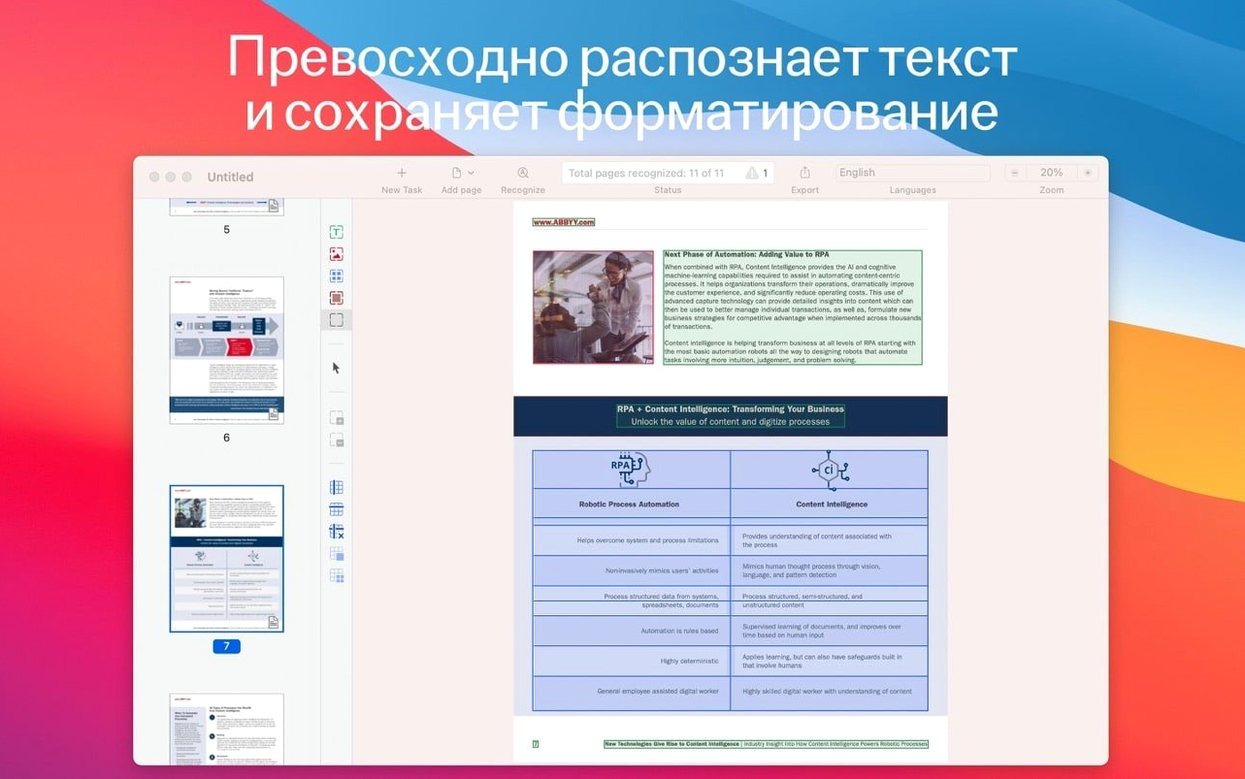
If you have ever used a flatbed scanner's bundled software, you know the disappointment of a 'searchable PDF' that returns gibberish. ABBYY FineReader PDF is built to handle that part of the job with more care, acting as a Mac OCR and PDF app that turns static documents into something you can actually use.
Preserves document structure in searchable PDFs
- Creating genuinely searchable PDFs. The recognition engine preserves document structure while making the text layer accurate enough for reliable keyword searches.
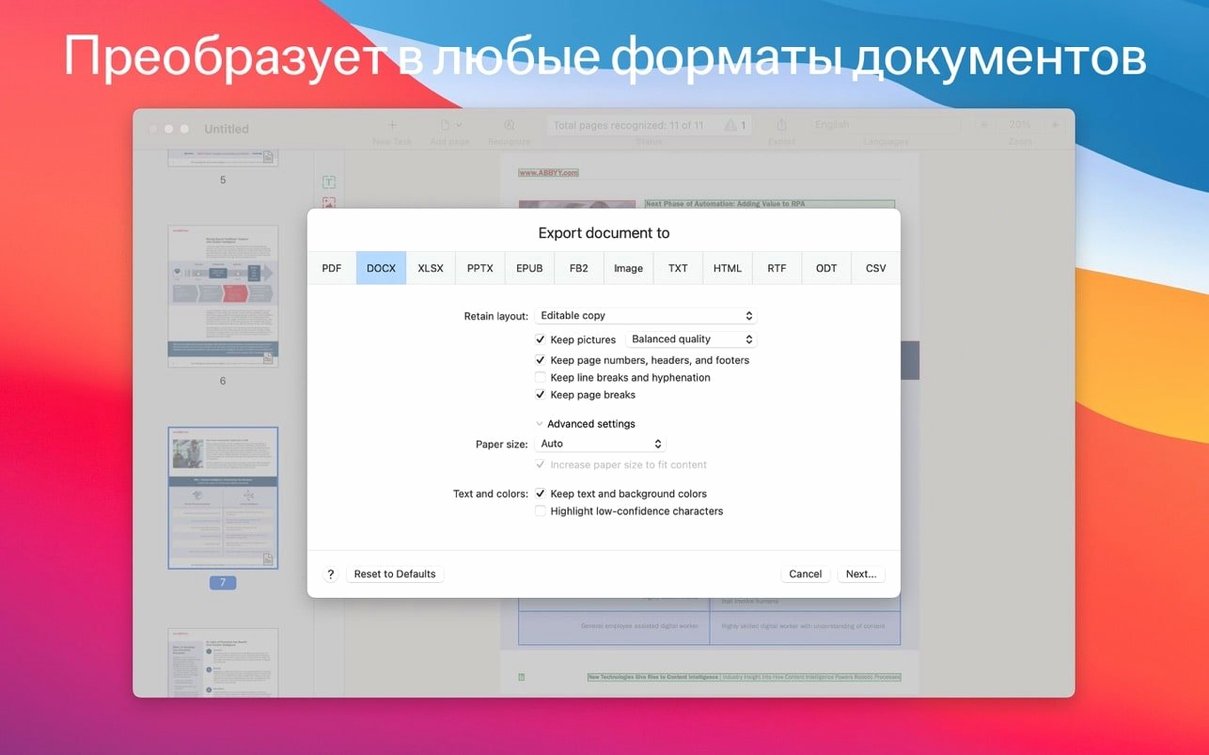
- Converting documents into editable formats. Output to DOCX, XLSX, RTF, or ODT means a scanned report or contract can become a working file rather than a locked image.
- Grabbing text for other tasks. Copying fragments for citation, translation, or reuse is straightforward from the built-in PDF viewer or OCR editor.
- Producing accessible files. The app can create PDF/UA files to meet universal access requirements.
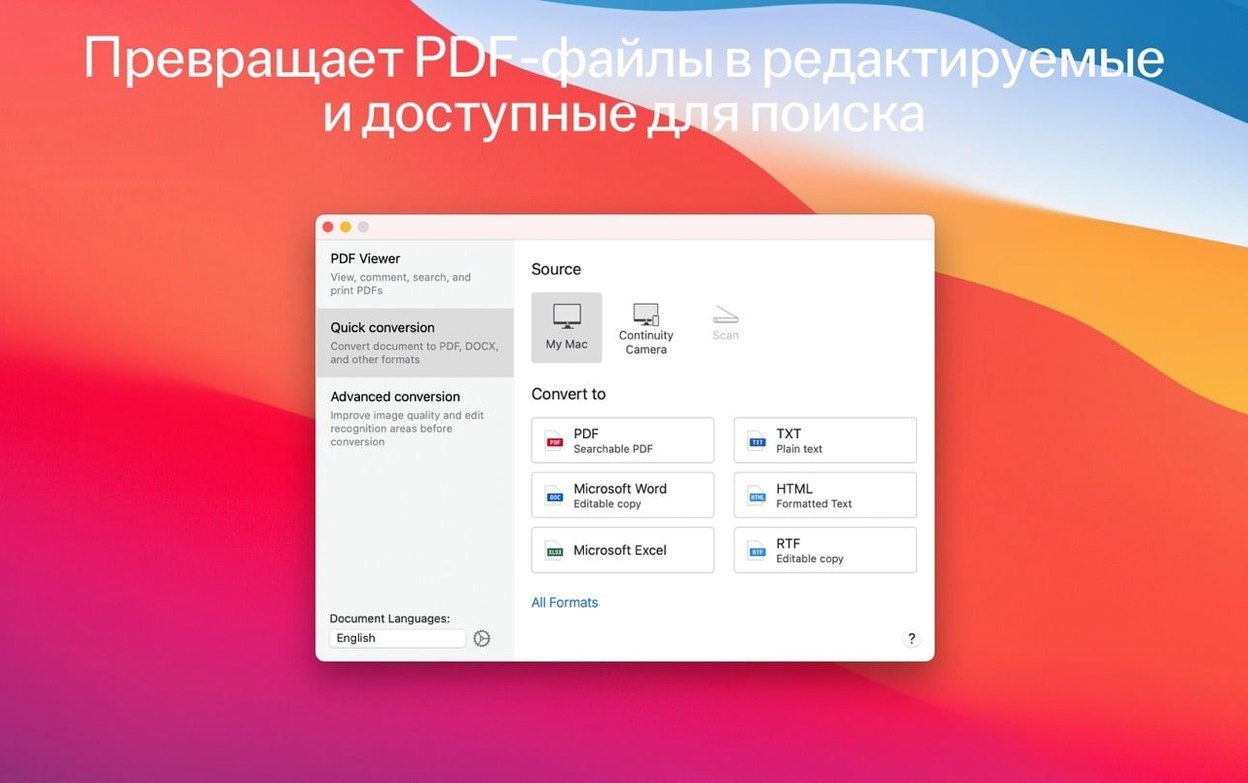
- Keeping things tidy. A built-in PDF viewer and a separate OCR editor mode cover both reading and correction work, and you can import images captured earlier on an iPhone or iPad for conversion.
Runs on Intel Macs only, no Apple Silicon build
- Intel-only support. The current version runs on Intel Macs; there is no native Apple Silicon build.
- Interface language set. The app speaks Russian, English, German, Italian, Simplified Chinese, and French—localisation beyond those six is not available.
Converting a scanned contract to an editable text document
Most people open FineReader PDF, point it at a scan, and hit the big convert button. That works, but a little more attention at the start saves cleanup time later. Here is a workflow for a multi-page paper contract—the kind that arrives as a skewed, slightly grey PDF from someone's phone camera.
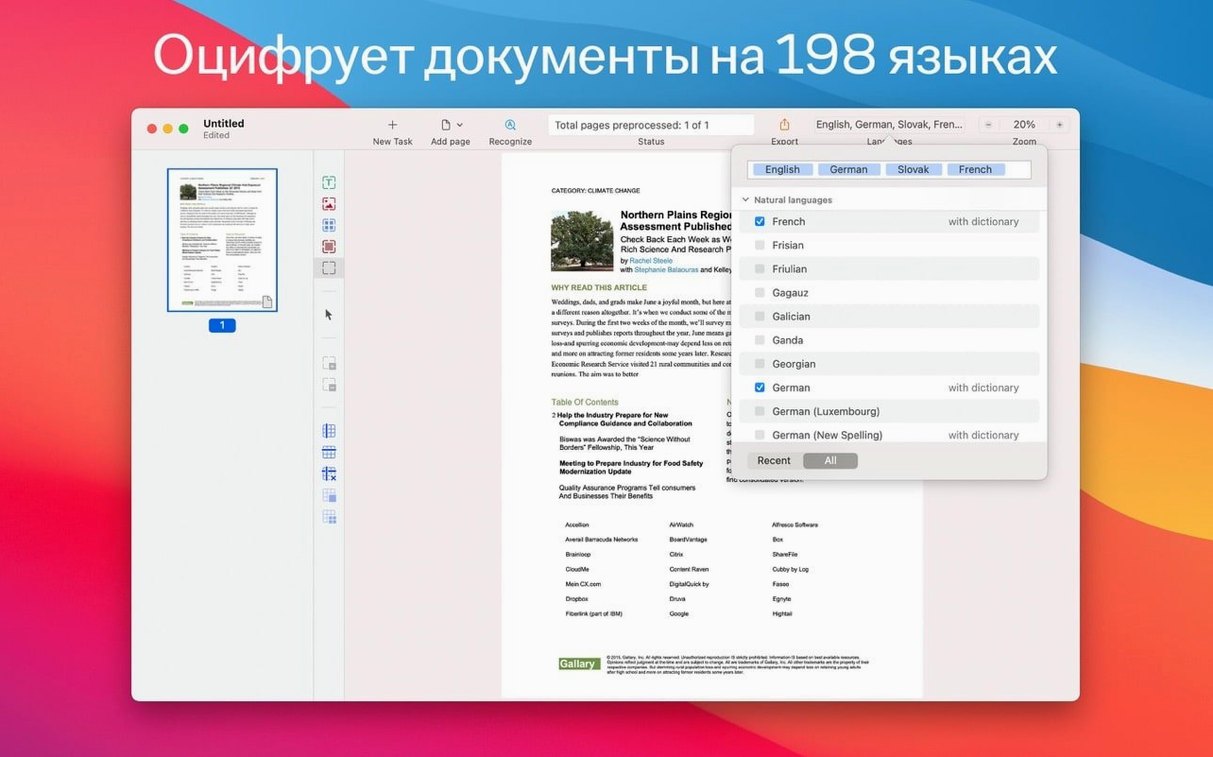
Open the app and switch to the OCR Editor mode. Drag the PDF onto the window. The app displays page thumbnails down the left side and a large preview of the first page. Before running recognition, check the Document Language setting. If the contract mixes English with a few lines of French, add both languages. The engine handles mixed-language documents without manual region tagging, but it needs to know what to expect.
Next, look at the image preprocessing options. A button labelled Image Preprocessing sits in the toolbar. Open it and tick Deskew and Straighten text lines for a phone-camera scan. If the paper shows through from the reverse side—common with thin letterhead—enable Remove background. These steps run automatically during recognition and make more difference than choosing between recognition modes.
Click Recognize. The app processes all pages and places recognised text zones over the image. Now the part that scanning software usually skips: verify the zone layout. Each block of text, each table cell and each image gets a coloured bounding box. Drag a corner to resize a zone that swallowed a margin note, or draw a new text zone over a paragraph the engine missed. If the contract contains a table of figures, right-click the zone and set its type to Table. This tells the export step to preserve cell structure rather than flattening everything into paragraphs.
With zones checked, choose Save As and pick DOCX. In the save dialogue, set the export mode to Editable copy rather than Exact copy if you plan to reflow the text later. The document opens in Pages or Word with headings, paragraphs and table cells in place. Fonts will not match the original, but the structure holds.
For contracts that need to be searchable but not edited, skip the zone check, save directly to PDF with the Searchable PDF option, and add a password on the security tab of the save dialogue. The text layer embeds behind the original image, so the document looks identical but responds to Spotlight searches.
Recognition runs entirely offline on your Mac
People looking for abbyy finereader mac free often wonder whether the app needs an internet connection to work. It does not. Recognition runs entirely on the Mac, using local language data. You can process sensitive documents offline without worrying about where the file travels.
Another common question is whether the app handles handwritten text. The short answer is no—FineReader PDF is built for machine-printed text. Cursive notes in a margin will either be ignored or produce nonsense characters. Block capitals fare slightly better but are not officially supported.
Users searching for abbyy finereader 9.0 professional edition free download sometimes ask about version differences. Version 15 brought the unified PDF viewer and OCR editor split, Continuity Camera support, and dark mode. Earlier versions, including the 9.x line, predate these features and run on older operating systems only.
A question that surfaces around abbyy finereader crack download discussions is whether the app phones home. The software can check for updates if you allow it, but document processing stays local. No document data is sent to ABBYY servers during recognition or conversion.
Those typing abbyy finereader 9.0 free download with crack into a search bar are often trying to resurrect old hardware. FineReader PDF 15.2.14 requires macOS 11 or later and an Intel processor. It runs under Rosetta 2 on Apple Silicon Macs, but there is no native ARM build.
Higher OCR accuracy on complex layouts than Acrobat
Next to Adobe Acrobat Pro, FineReader PDF occupies a narrower lane. Acrobat covers form creation, digital signatures, redaction tools and collaboration features that FineReader does not attempt. But for pure OCR accuracy, particularly on documents with complex layouts or mixed languages, FineReader's recognition engine consistently pulls cleaner text. Acrobat's OCR is competent; FineReader's is the reason people install a second PDF tool.
Compared with Readiris PDF, the difference comes down to interface restraint and language coverage. Readiris offers a broader feature set—audio reading, annotation tools, cloud connectors—packed into a busier window. FineReader keeps the toolset focused on recognition and conversion, and its 198 recognition languages outstrip Readiris considerably. If you need OCR for less common languages or multi-language documents, FineReader is the stronger choice.
Against PDFpen (now Nitro PDF Pro), FineReader wins on recognition quality but loses on editing convenience. PDFpen lets you correct recognised text directly in place, overlaying corrections on the PDF page. FineReader asks you to work in the OCR editor, verify zones, then export. The extra step produces better exports but feels slower for quick one-page corrections.
Import scans from your iPhone camera or Photos library
- Continuity Camera works both ways. You can scan straight from an iPhone camera by choosing Import from iPhone in the File menu, but you can also pick up an image captured earlier—the Photos library shows right in the import browser. No need to AirDrop files manually.
- Dark mode is more than a palette swap. In the OCR editor, dark mode reduces glare around the page preview, which helps when you are checking recognition zones on a long document. The text contrast stays readable; only the chrome dims.
- Password protection lives in the save dialogue. When saving as PDF, look for the Security tab. You can set an open password and a permissions password separately, and the PDF/A and PDF/UA options sit on the same tab. People miss it because the tab label does not suggest security at a glance.
- Table editing before export. If you set a zone to Table, you can click inside it and adjust column dividers by dragging. Small corrections here prevent a spreadsheet full of merged cells later.
- Keyboard shortcut for zone cycling. Press
Tabto jump between recognised zones on a page. It is faster than clicking each one, and it helps catch orphaned zones the engine placed on top of each other. - Searchable PDFs keep the original image. The text layer sits underneath, so the file looks unchanged in a viewer. Spotlight indexes the hidden text, which means you can find a contract by typing a clause into Finder without opening the app.