Aspecten
 Download (71 MB)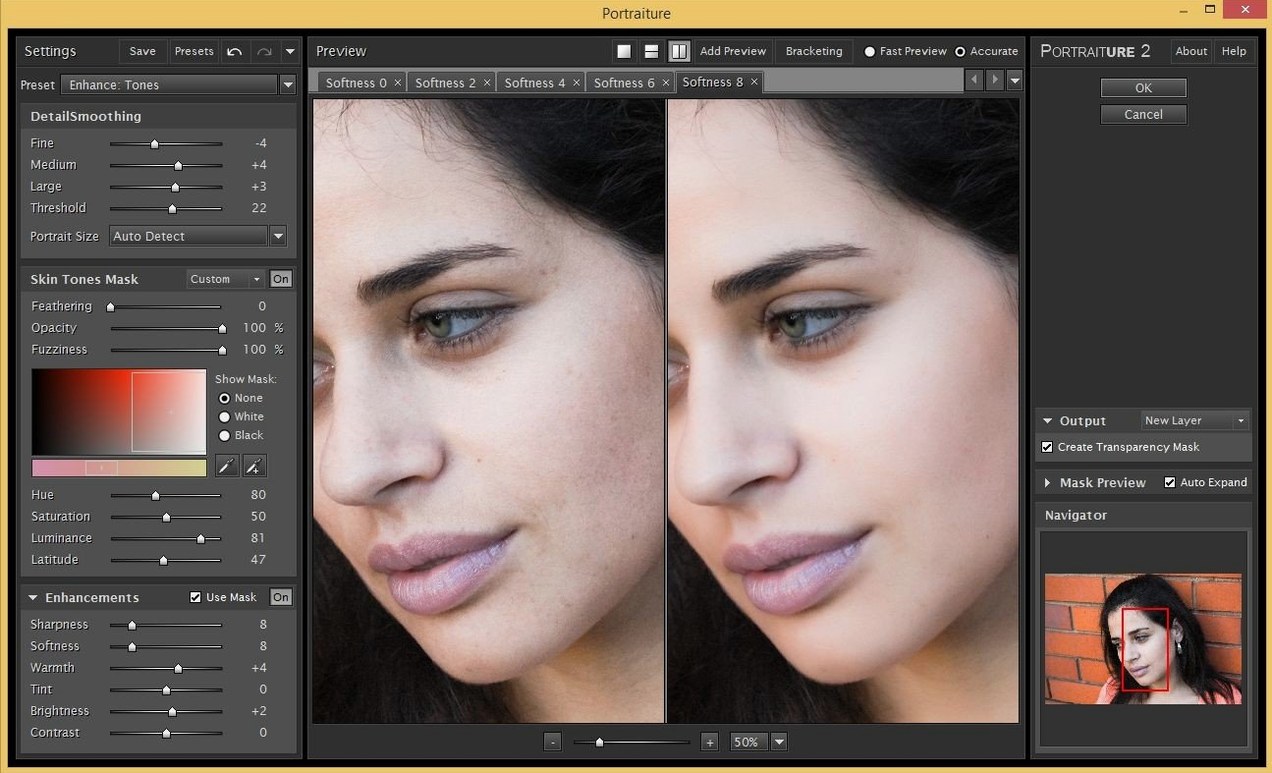
A photographer opens a portrait in Photoshop, removes sensor noise, smooths skin, and adds film grain without leaving the host application.
Plugin suite — three Imagenomic plugins sold together: Portraiture, Noiseware, and Realgrain.
Host support — the suite works with Photoshop, Lightroom Classic, and Affinity on Mac.
Portraiture — skin smoothing, healing, and enhancement for portrait retouching.
Noiseware — noise reduction, available as a plugin and a standalone module.
Realgrain — film grain simulation for texture work.
System support — macOS 13 or later, on Intel and Apple Silicon.
Format considerations are straightforward: the plugins run inside supported hosts rather than as independent editors, which keeps file handling in the host application. Interface languages are English only.
Native ARM code removes mask preview lag
The 2027 version tightened integration with Apple Silicon hosts. Portraiture, Noiseware, and Realgrain all load in native ARM code inside Photoshop and Lightroom Classic, which removed the brief translation lag that earlier versions showed when applying a mask preview on an M2 or M3 Mac. On Intel machines the difference is less pronounced, but plugin launch times shortened across the board — clicking a plugin from the Filter menu now brings up its window in under a second on a recent MacBook Pro.
A quieter change is the unified installer. Earlier builds delivered each plugin as a separate .pkg file, so retouchers who wanted all three had to run three installers and manage three Gatekeeper overrides. The 2027 disk image contains a single installer that places all three plugin files in the correct host folders in one pass. For an Affinity user running macOS 15, that means one drag to Applications and one short Terminal command, then all three plugins appear in the Filters > Plugins menu.
Masking speed in Portraiture improved noticeably. When you paint a skin mask with a large brush on a 45-megapixel file, the red overlay updates without the half-second trail that was common in the 2023 release. Noiseware gained better retention of fine hair detail at higher noise-reduction strengths — the difference is subtle at ISO 800, clearer at ISO 6400. Realgrain added a grain-size preview that renders at full resolution when you zoom past 100%, so the grain structure you see on screen matches the printed output more closely.
Noiseware runs standalone, the others stay host-only
Does the suite work as a standalone application, or only inside a host? Portraiture and Realgrain are host-only plugins. Noiseware is the exception: it installs both as a plugin and as a standalone module you can launch from the Applications folder. For quick noise reduction on a folder of JPEGs without opening Photoshop, the standalone Noiseware works. For any layered or masked edit, you need a supported host.
Will the plugins work in the latest Affinity Photo version on Apple Silicon? Yes. Imagenomic lists Affinity as a supported host, and the 2027 build includes the plugin files that Affinity scans on launch. The plugins appear under Filters > Plugins > Imagenomic. One limitation: Affinity does not support Smart Filter-style non-destructive plugin layers the way Photoshop does, so you work on a duplicated pixel layer instead.
Can I install only one plugin from the suite? The imagenomic professional plugin suite bundles all three, but the installer lets you deselect the ones you do not need. If your work is purely portrait retouching, you can install only Portraiture and skip Noiseware and Realgrain entirely. The plugins do not depend on each other.
Is there a difference between the suite version and the individual plugin downloads? Functionally, no. Portraiture from the suite is identical to the separately distributed Portraiture build. The suite is a packaging convenience. The activation covers all three at once.
A portrait cleanup workflow, step by step
This sequence works inside Photoshop on a single portrait layer. The goal is clean skin, low noise in the shadow areas, and a subtle grain that holds the image together on screen and in print.
- Duplicate the background layer twice. Name the lower copy Noise and the upper copy Skin.
- Select the Noise layer and launch Noiseware from the Filter menu. Choose the Portrait preset as a starting point. Zoom to 100% and check the eyelash area: raise the Detail Protection slider until individual lashes stay crisp. Apply the filter.
- Select the Skin layer and launch Portraiture. The plugin opens with an auto-generated skin mask. Refine it with the eyedropper — click on an area of forehead that the mask missed, then on a cheek area to expand the selection. Set Smoothing to a middle value (around 4–6) so skin texture stays visible under even light. Apply.
- Add a layer mask to the Skin layer. Paint black over eyes, lips, and hair with a soft brush at 80% opacity to restore the unretouched detail from the Noise layer underneath.
- Stamp a merged layer at the top of the stack (Cmd+Shift+Option+E). Launch Realgrain on this merged layer. Select the Tri-X 400 preset from the film-stock list, then reduce Grain Strength by about 30% so the grain whispers rather than shouts. Set blending mode to Overlay and lower layer opacity to 40–60% until the grain feels integrated.
The whole edit takes under three minutes once the muscle memory sets in. The grain from Realgrain masks any residual smoothness from Portraiture, and the noise-reduced base layer keeps shadows clean even when you lift them in Curves later.
How the suite fits with other apps and macOS features
The imagenomic for mac plugins sit inside a larger editing chain rather than trying to replace it. A common pairing is Capture One for raw conversion and basic colour, then a round-trip to Photoshop where Portraiture and Noiseware handle the pixel-level cleanup. Since the plugins read the image data Photoshop feeds them, colour space and bit depth stay consistent — no profile mismatches to chase down.
The standalone Noiseware module integrates with macOS in a limited but useful way. You can drag a folder of exported images onto its window, batch-process them with a saved preset, and write the results to a new folder. This fits neatly into an Automator folder action or a Shortcut that watches an export folder and triggers Noiseware when new files appear. It is not a full automation pipeline, but it covers the batch noise-reduction step without opening a host.
For photographers who keep a reference library, the plugins play well with Lightroom Classic's Edit In command. Sending a raw file to Photoshop as a TIFF, running Noiseware and Portraiture, then saving brings the edited TIFF back into the catalogue automatically. Realgrain works in the same round-trip, though you may want to apply it last, after any resizing, so the grain scale stays natural for the final output dimensions.
The imagenomic video suite is not part of this product — that is a separate line for video noise reduction — but still photographers who also cut short video clips sometimes ask. The plugin suite described here is still-image only. For video noise, Imagenomic offers a different toolset.
Portraiture clears a 24 MP layer in about a second
On an M1 Max MacBook Pro with 32 GB of memory, Portraiture processes a 24-megapixel layer in just over a second. Noiseware takes slightly longer — around two seconds for the same file at the default noise-reduction strength — because it analyses luminance and colour noise separately. Realgrain renders almost instantly; grain synthesis is computationally lighter than the masking and frequency-separation work the other two plugins do.
Memory use stays modest. Running all three plugins in sequence on a single image in Photoshop adds roughly 400–600 MB of temporary memory pressure, which releases when you close each plugin window. Batch-processing a folder of 50 raw files through the standalone Noiseware pushes memory use higher — around 3–4 GB while the queue runs — but the module processes files sequentially and does not hold all images in memory at once.
Stability has been solid across macOS 14 and 15. The plugins use the standard Adobe and Affinity plugin interfaces, so crashes are rare and usually traceable to the host rather than the plugin itself. One known edge case: if you launch Portraiture while Photoshop is mid-save on a large layered file, the plugin window can appear blank. Closing and reopening it fixes the issue. The 2027 build reduced this timing conflict but did not eliminate it entirely.