Aspecten
 Download (5.6 GB)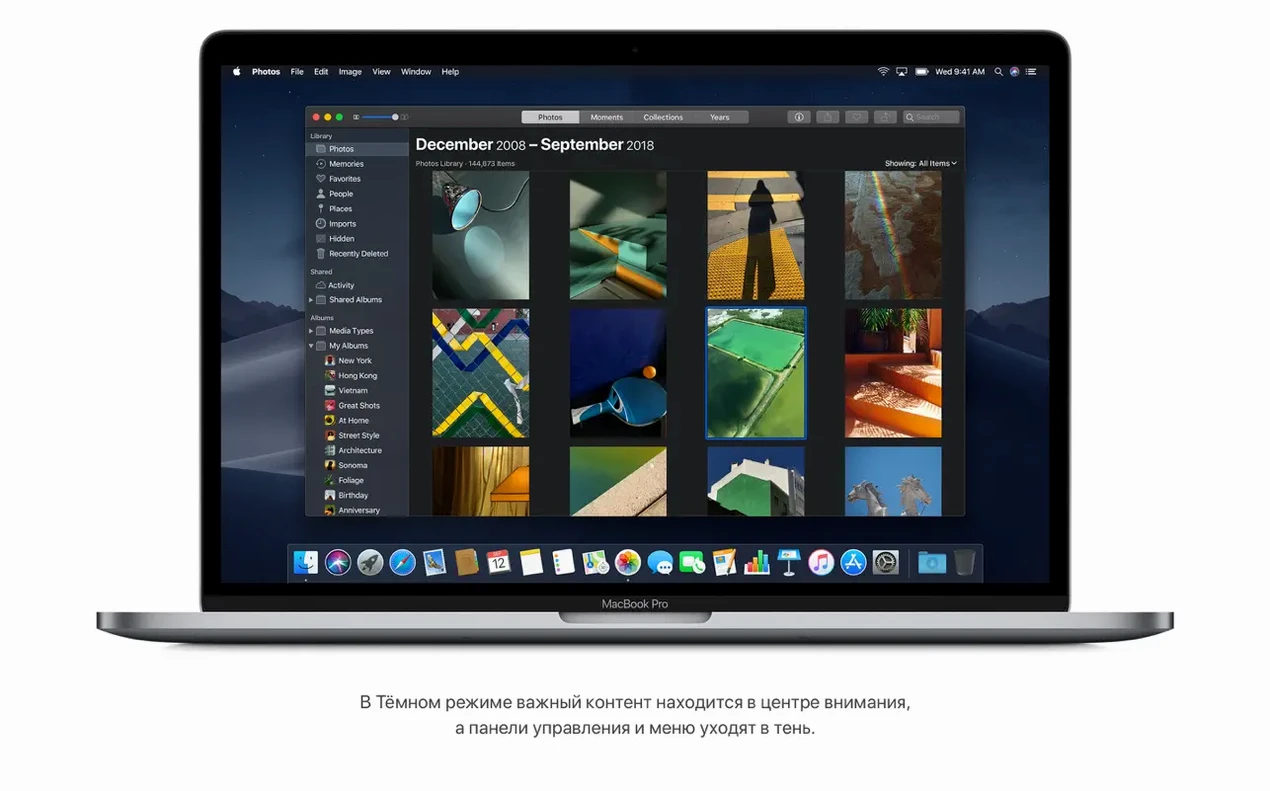
An ageing Mac that cannot run newer versions of macOS does not have to feel stuck. Mojave offers a stable middle ground: it runs on Intel machines from 2012 onward, needs only 2 GB of memory and 12.5 GB of available storage, and keeps the operating system familiar without demanding recent hardware.
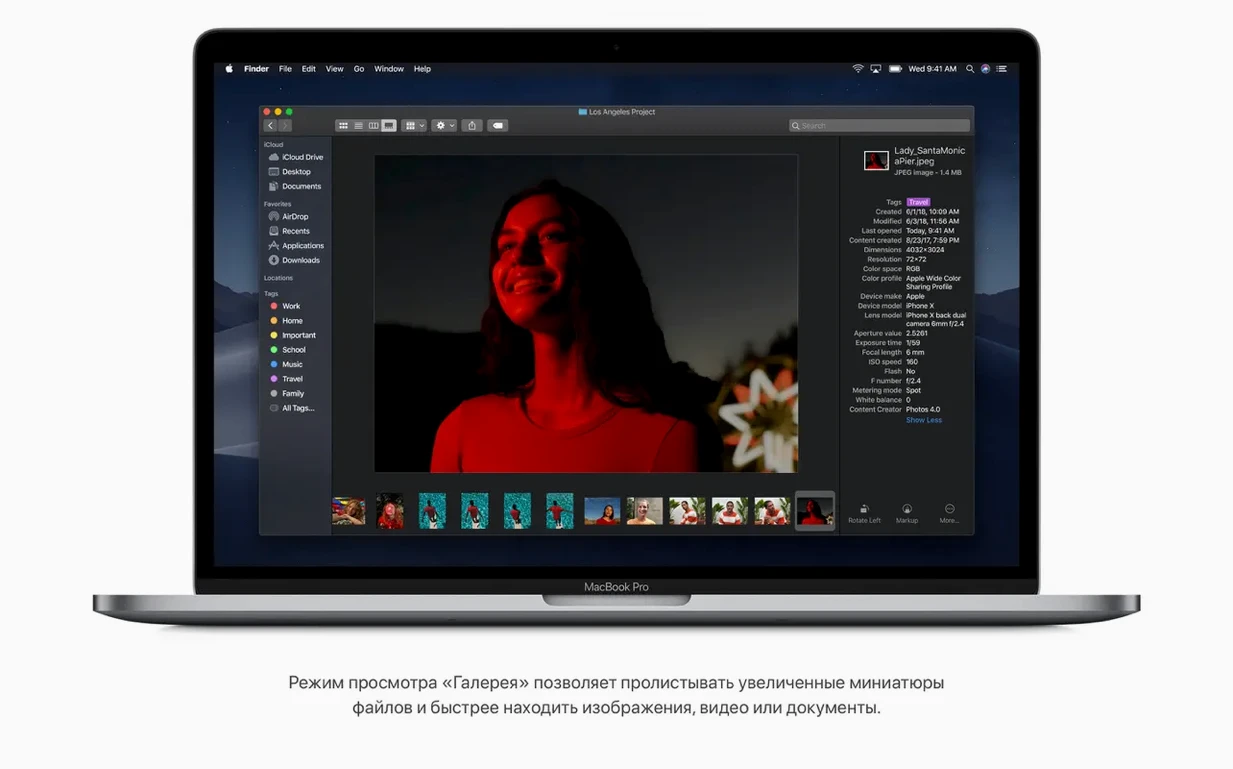
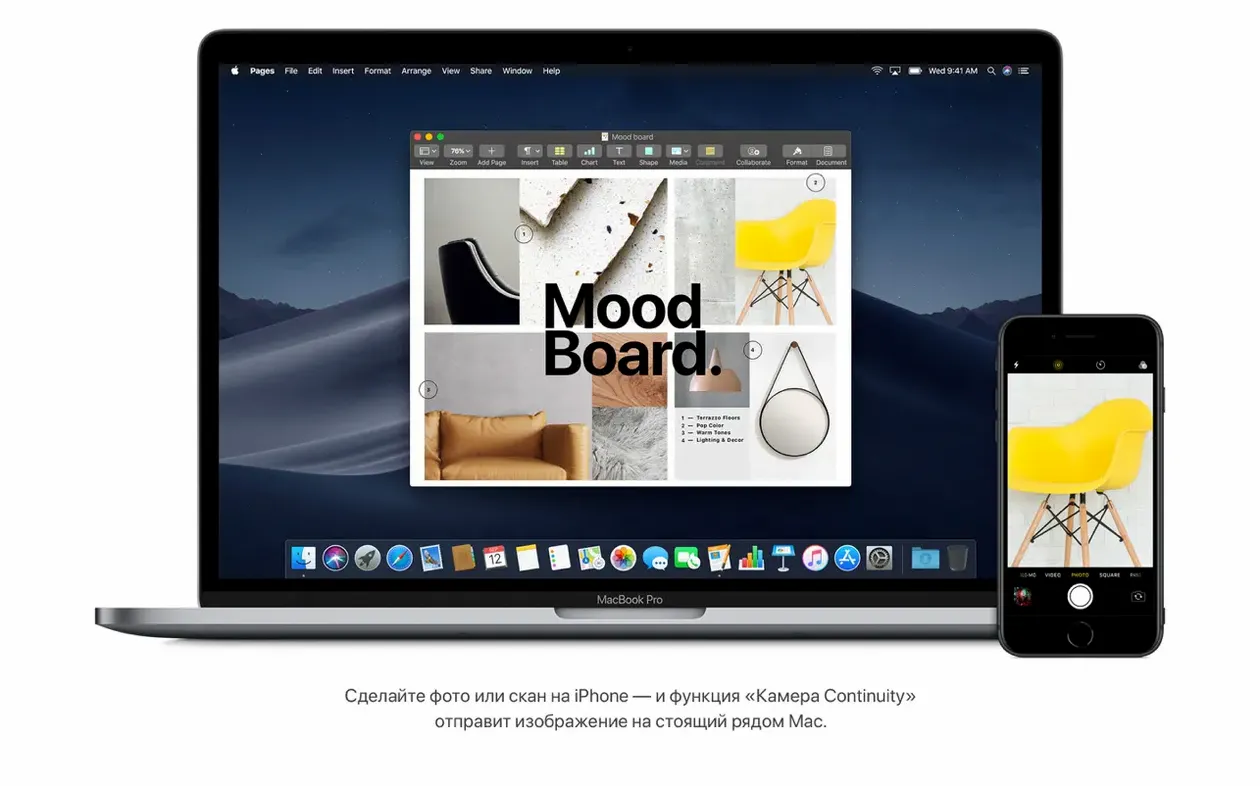
The desktop gains Stacks, which groups loose files into tidy piles by kind or date. Finder switches to Gallery View for large previews and metadata, and can trim, rotate or password-protect files without opening them fully. Continuity brings photos, scans and screenshots from an iPhone or iPad within reach, while Safari tightens tracking prevention.
Compatibility covers MacBook models from early 2015, MacBook Air from mid 2012, MacBook Pro from mid 2012, Mac mini and iMac from late 2012, plus the iMac Pro and selected Mac Pro configurations. Interface languages range across English, German, Spanish, French, Russian, Arabic, Hindi, Japanese, Simplified Chinese and many others.
Version 10.14.6 focuses on stability and reliability. It suits users who depend on 32-bit applications or older peripherals, and who prefer a system that changes little between updates.
Last-round support for pre-2015 Macs
Mojave suits two groups in particular. The first is anyone holding onto a pre‑2015 MacBook Pro, an iMac from late 2012 or a Mac mini that cannot go past High Sierra without losing hardware support. These machines get a last‑round operating system that runs modern‑enough versions of Safari, Notes and Photos, yet leaves the underlying plumbing close to what the hardware was designed for.
The second group covers people who depend on 32‑bit applications that stopped working in Catalina. Lab equipment drivers, older versions of Adobe Creative Suite, legacy accounting packages and niche audio plug‑ins all run here without translation layers or virtual machines. If your daily work involves software that the developer stopped updating years ago, Mojave is the newest macOS that still treats those tools as first‑class citizens.
System administrators and Mac resellers also keep a Mojave installer handy. When a second‑hand Mac needs a clean system that matches the era of the machine — for a repair shop test bench or a donated classroom computer — 10.14.6 is a predictable starting point with broad peripheral support and no forced cloud integration.
Switch accent colour to Graphite
Dark Mode gets the headlines, but a few smaller adjustments make the desktop easier to live with. Open System Preferences and go to General. Set the accent colour to Graphite if you find the default blue distracting; it tightens the look of buttons and menus across every Apple app.
In Dock, tick “Show recent applications in Dock” off if you prefer a fixed set of icons. The recents area adds clutter for anyone who launches most things from Spotlight or keeps a tidy Dock.
Head to Desktop & Screen Saver. Mojave ships with the dynamic desert wallpaper that shifts from dawn to dusk. It is attractive, but on a MacBook Air or older Mac mini with integrated graphics the constant tint changes can produce a tiny but noticeable lag when invoking Mission Control. Switch to a static desktop picture — one of the older nature stills — and those frame drops disappear.
Finder has a few defaults worth flipping. Under Finder > Preferences > Advanced, turn on “Show all filename extensions”. It prevents confusion when a file called report turns out to be a PDF on one machine and a Pages document on another. In the same pane, set “When performing a search” to “Search the Current Folder”. The default scoped search often returns too much noise.
Stacks is enabled from the desktop context menu. Choose “Group by Kind” to start. The Sort‑by‑Date option is useful for a downloads folder or screenshot‑heavy workflow, but for general desktop use, Kind keeps things predictable.
Installer stalling on MacBook Pros
After a clean install from a macos mojave 10.14 dmg, some users see the installer stall at “estimating time remaining”. This happens most often on MacBook Pro models with a failing battery sensor. The workaround is to reset the SMC before re‑running the installer. On a MacBook with a removable battery, shut down, remove the battery, hold the power button for five seconds, reinsert and boot. On sealed‑battery models, shut down, hold Shift‑Control‑Option plus the power button for ten seconds, then release and start normally.
Another recurring issue involves Bluetooth peripherals that disconnect after sleep. Apple’s Magic Mouse and original Magic Trackpad are particularly affected. The fix is not in Bluetooth preferences but in Energy Saver: untick “Put hard disks to sleep when possible” and, if you are on a desktop Mac, disable “Enable Power Nap”. The wireless chipset on some 2012–2013 Macs does not wake cleanly when the system tries to park disks during idle periods.
People downloading a mac os mojave torrent occasionally end up with a disk image that Gatekeeper refuses to open, showing a “damaged” warning. In most cases the image is intact but the certificate has expired. Open Terminal and run spctl --master-disable temporarily, mount the image, copy the installer to Applications, then re‑enable Gatekeeper with spctl --master-enable. The system runs the same signature checks during the actual installation, so the brief bypass does not weaken the finished setup.
If the App Store or software update panel refuses to show available updates after installation, the fix is usually a corrupted receipt database. Run sudo rm /Library/Preferences/com.apple.SoftwareUpdate.plist in Terminal and restart. The system rebuilds the file and the update list populates within a few minutes.
Spotlight indexing keeps fans running
Let Spotlight finish indexing before judging performance. On a spinning‑disk iMac or Mac mini the process can take several hours, and the fans may stay audible throughout. Open Spotlight (Command‑Space), type a nonsense string and watch the progress bar at the bottom of the results pane. Once it disappears, the system will feel noticeably quicker.
If you brought over user data from an older Mac, check whether the Photos library needs upgrading. Mojave’s Photos app will refuse to open a library created in iPhoto or an older version of Photos until it runs a one‑time migration. The prompt appears automatically, but on large libraries — 50 GB or more — the process can run overnight. Plug the Mac into power and turn off automatic sleep before starting.
Mail accounts imported from a Sierra or High Sierra backup sometimes lose their outgoing server password. The symptom is sent mail stuck in the Outbox with no error. Open Mail > Preferences > Accounts, select the affected account and re‑enter the SMTP password manually. The keychain migration can miss entries that were stored under a different account name on the previous system.
For anyone working across multiple Apple devices, sign into iCloud and enable Continuity early. The quick‑access menu for iPhone photos and document scans does not appear in Finder or Preview until both devices share an iCloud account and have Bluetooth and Wi‑Fi switched on. Test it by right‑clicking the desktop and looking for “Import from iPhone” — if the option is missing, open System Preferences > iCloud and toggle “Handoff” off and on again.
A mac os mojave 10.14 6 download dmg works best when the first boot is followed by a manual check for security updates. Version 10.14.6 shipped with build 18G103, which includes stability fixes, but Apple continued issuing Safari and X‑Protect updates long after the version number froze. Open the App Store updates tab and install everything shown, then go to System Preferences > Software Update and tick “Automatically keep my Mac up to date” only after the manual round completes. This ensures the base system is current before handing the schedule over to automation.