Aspecten
 Download (7.7 GB)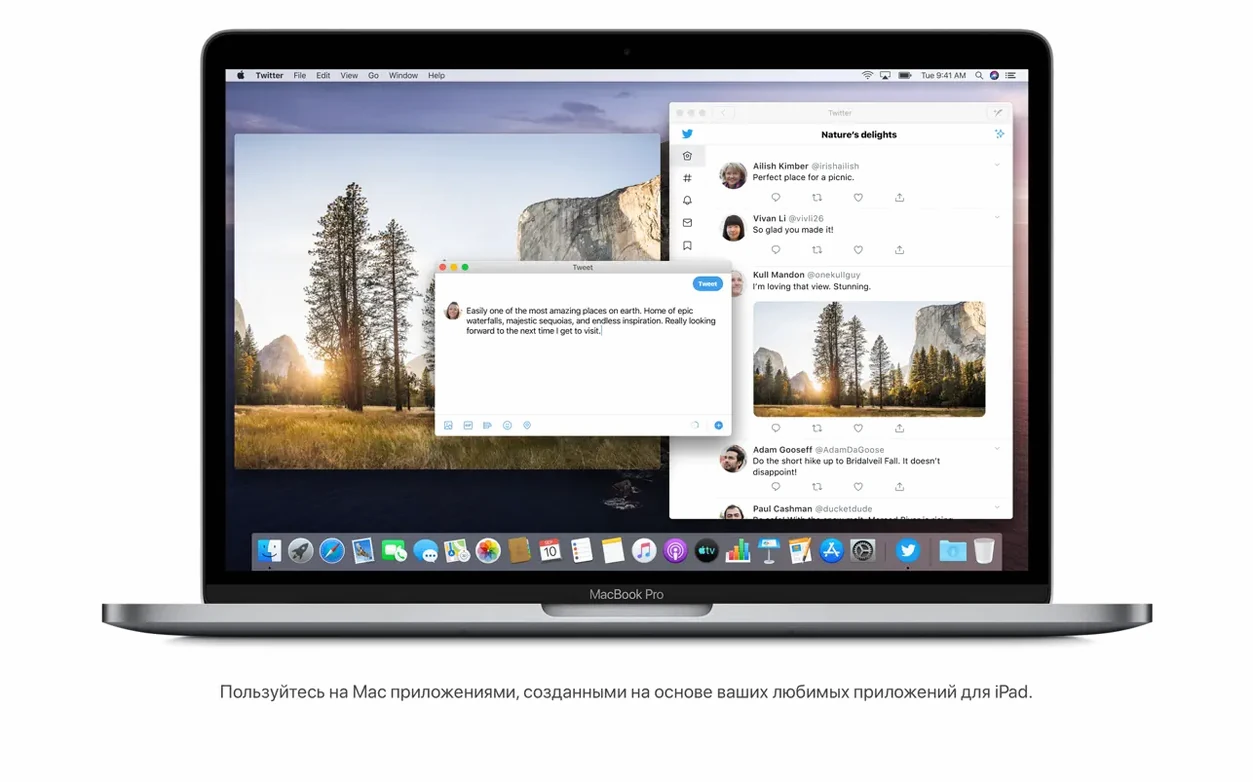
If you know iTunes, Catalina is where Apple unbundles it. The familiar media library becomes three focused apps, and an iPad can double as a second screen.
Apple Music, TV, Podcasts — separate apps for each media type. Your existing library splits accordingly; playlists and purchases carry over.
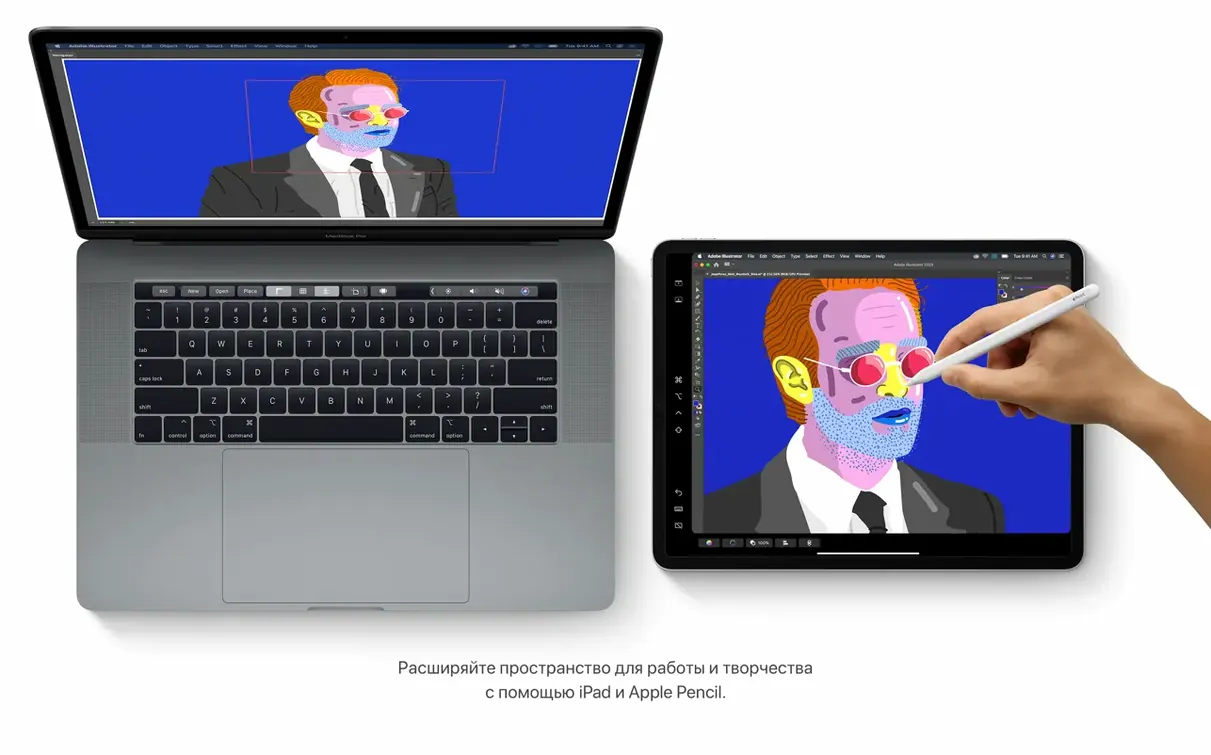
Sidecar — plug in an iPad and it extends or mirrors the Mac desktop. Works wired or wirelessly with a compatible tablet.
Finder device management — connecting an iPhone or iPad no longer opens iTunes. Finder handles backup, sync, update and restore through a sidebar pane that appears when the device is attached.
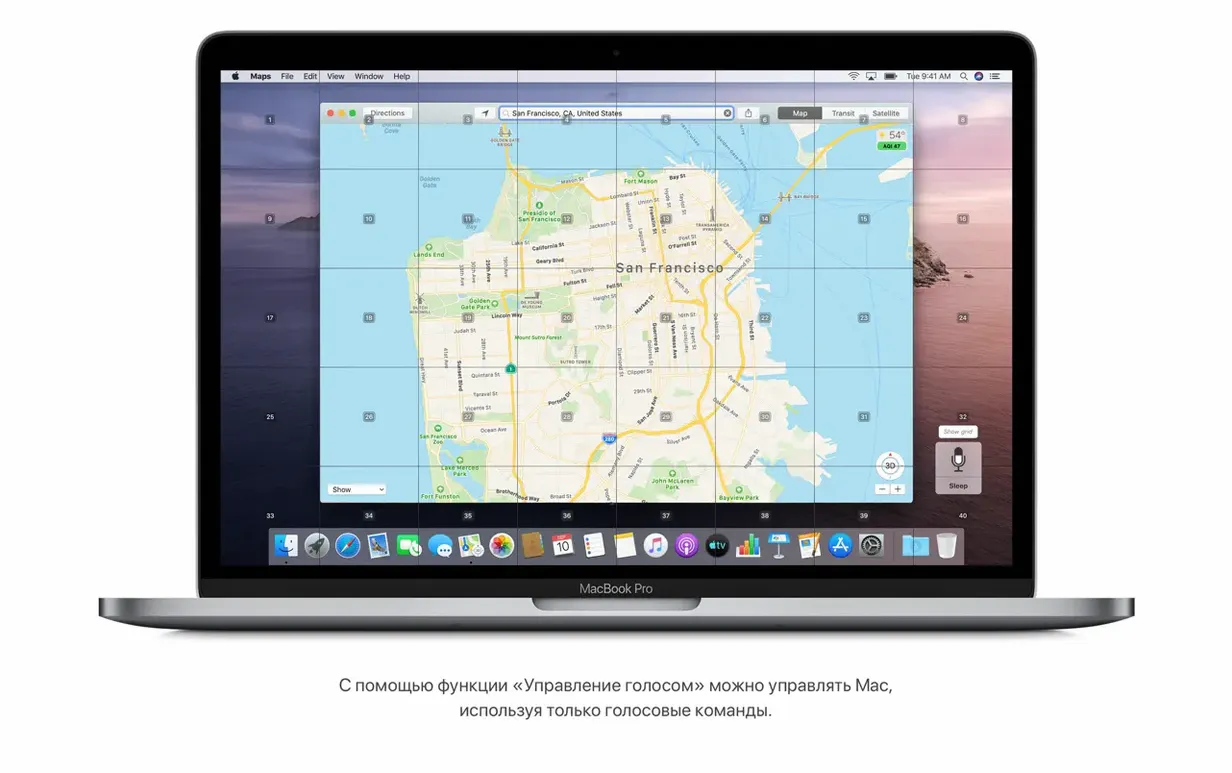
Voice Control — full speech-based navigation. Open menus, dictate text and interact with interface elements entirely by voice, with numbered labels that appear on screen to resolve ambiguity.
Reminders overhaul — a redesigned Reminders app with date, location, flag and attachment fields. Editing controls are more direct than in the older list-based version.
The system runs on Intel Macs from mid-2012 onward and supports over thirty interface languages. Start with Sidecar and the new media apps; the rest of the changes settle around them.
Safari quietly gathers tabs and links without setup
Several additions in Catalina sit quietly in the background and never announce themselves. The redesigned Safari start page is one — it pulls in iCloud tabs, Reading List entries, and links from Messages conversations without any setup. You see it once and it simply becomes the way the browser opens.
Notes gained a gallery view with visual thumbnails, but the more practical shift is the search upgrade. Typing a word into Notes search now finds matching text inside scanned documents. It also recognises objects in attached photos — search for "plant" and a photo of a houseplant surfaces, even though the word never appears in the note. The processing happens locally and the index builds during idle time.
Screen Time arrived from iOS and lives in System Preferences. It tracks app usage and can set per-app or per-category limits, which is useful if you want to cap news reading or social media during work hours without blocking the whole machine. The "One more minute" button gives a grace period before a limit locks the app — a small touch that prevents frustration.
The security architecture shifted under the hood. Catalina asks permission more often: apps requesting access to the Desktop, Documents, Downloads, iCloud Drive and external volumes must pass a prompt. Each prompt is a one-time approval. After the first week of use the frequency drops, but the initial setup period feels more guarded than Mojave.
mac os catalina torrent searches often surface because people want a fresh installer for older Macs. The disk image from Apple contains the full installer, and the clean sequence is to copy it to Applications and run it from there.
Wi-Fi now reconnects after sleep without a click
The 10.15.7 update brought no new features — it tightened existing behaviour. The headline fix resolves a Wi-Fi issue where the Mac would not automatically reconnect to known networks after waking from sleep. Before the patch, a manual click on the network name was needed each time; after the update, the saved network reattaches without intervention.
Another fix addressed iCloud Drive syncing failures. Files that sat stuck with a waiting icon in Finder now propagate correctly. For anyone keeping a working folder in iCloud Drive across two Macs, this change removed a daily friction point.
A graphic bug specific to the 2020 27-inch iMac with the Radeon Pro 5700 XT was also resolved — a brief white flash or flicker on wake that appeared in certain colour profiles. The update made the wake sequence clean.
Security updates were the bulk of the release, patching kernel and WebKit vulnerabilities. None changed the interface, but they closed the gap for anyone still running Catalina as a stable platform on older Intel hardware.
Older menu-bar tools break when 32-bit apps stop working
Next to Mojave (10.14), Catalina feels more protective and less tolerant of unapproved background activity. Mojave ran 32-bit apps without complaint; Catalina refuses them outright. The practical difference is that a library of older utilities — small menu-bar tools, audio unit plug-ins, legacy printer drivers — stops working unless a 64-bit version exists. For a production machine, this is the single biggest dividing line between the two.
Against Big Sur (macOS 11), Catalina stands as the last Intel-only, pre-redesign release. Big Sur brought the control-centre layout and the iOS-like iconography; Catalina still uses the older preference pane structure and thinner window frames. Performance on spinning hard drives and Fusion Drives is tangibly better under Catalina, because Big Sur's transparency and redraw demands lean harder on the GPU. Anyone keeping a 2013 MacBook Pro with a mechanical drive will notice launch times and window resizing stay snappier here.
High Sierra (10.13) lacks Sidecar, the split media apps, Voice Control and the enhanced Notes search. Its value is Apple File System maturity without the security-prompt layer. Moving from High Sierra to Catalina means trading a quieter permissions model for an iPad-as-display capability and a Finder that handles iPhone backups directly. The step is worth it when an iPad sits unused on a desk — Sidecar turns it into a second monitor with almost no configuration.
Enable the Recents sidebar to find files across the volume
After the desktop settles, a few defaults benefit from adjustment.
- Finder sidebar — enable the "Recents" item if it is hidden. Catalina groups files by recency across the whole volume, and the sidebar shortcut is quicker than a Spotlight query for items worked on in the last hour.
- Sidecar in menu bar — add the display icon via System Preferences > Displays. It lets you connect an iPad in one click rather than opening the preference pane each time. The wired connection is noticeably more responsive than wireless for tasks like dragging palettes in Pixelmator or moving a Logic mixer panel.
- Screen Time passcode — set a four-digit passcode separate from the Mac login password. Without it, anyone with admin access can lift the limits. The passcode lives in System Preferences > Screen Time > Options.
- Voice Control overlay — turn on "Show hints" during the first session. The numbered labels that appear over every clickable element are the fastest way to learn which phrases target which buttons. Once the commands become muscle memory, the overlay can be hidden.
- Download folder in Dock — the Dock default shows Recents rather than Downloads. Right-click the Dock separator and add the Downloads folder as a fan grid. The Catalina installer arrives as a disk image in that folder, and if you are seeding a clean install from a catalina torrent or Apple's servers, quick access to the downloaded file saves steps.
A 2015 iMac wakes and Wi-Fi links overnight
Imagine a morning in a shared studio. The Mac is a 2015 iMac waking from sleep. Wi-Fi connects automatically — the 10.15.7 update did its job overnight.
The first task is to review a batch of location photos from the previous day. An iPhone is plugged in via USB. iTunes does not open; instead, Finder shows the device in the sidebar with a pane that mirrors the old iTunes sync layout. A manual backup is triggered with one click in the General tab. While the backup runs, the Photos app imports new shots in the background, because the iPhone's camera roll is set to sync over Wi-Fi.
Next, the images need sorting. The photographer opens Finder, selects the imported folder, and presses Space for Quick Look. Catalina's Quick Look still works with RAW files, and the arrow keys move through the sequence without opening a separate app. Three keepers are dragged to a shared iCloud Drive folder. The sync icon spins for a few seconds and settles — the 10.15.7 iCloud fix means no stuck waiting indicator.
Mid-morning, the team gathers to review a rough cut. The editor connects an iPad Pro via USB-C and clicks the Sidecar icon in the menu bar. The iPad becomes an extended display. The timeline sits on the iMac; the bin and effects browser are dragged to the iPad. The setup takes under ten seconds. During playback, the iPad display runs at a smooth frame rate over the wired link.
After the review, the editor opens Notes to jot down changes. The note includes a photo of a whiteboard sketch taken earlier. Tapping into the note later, a search for "storyboard" highlights the photo, even though the word was handwritten on the board — the scanned-document recognition caught it. The note is shared as a collaborative link with two colleagues via the share button.
Before lunch, a reminder is set: "Upload graded stills" with a location trigger for the studio address. The new Reminders interface adds the location field with a suggested address pulled from Contacts. No typing needed beyond the title.
The session closes with a Safari research task. A new tab opens to the redesigned start page, where an iCloud tab from the MacBook at home shows a half-read article. One click resumes reading. Three other links from a Messages thread with the producer appear in the "Shared with You" section — a feature Catalina quietly threads into the browser without a separate extension or setup step.